HOME - Devices ...More Menu
The ... More button in HOME's 'Devices' page opens a drop-down menu where you can access additional operations for the selected device(s).
These include options to change device-specific settings, manage HOME Apps, assign HOME Pass licenses, create/load snapshots or replace a device.
Note that not all devices support all operations. If an option is not supported (by the selected device), then it is greyed out. The example below shows the available options for Lawo's .edge (processing blade).

Change Device Application and Change Device Options
The first two options are available for physical devices. They can be used to access the device "application" or "options" for the selected device(s).
The same dialog boxes can be accessed from the device's General settings page. The parameters vary depending on the device type.
For more information, please refer to the documentation for your product. e.g. .edge - Operating Mode and .edge - SDI Configuration.
Remove Device from Home
The Remove Device from Home option is available for some physical devices. It opens a dialog box where you can choose to remove the device from HOME.

Important: This function should be used with caution as it removes all references to the Device ID but can be useful if you need to remove an obsolete device.
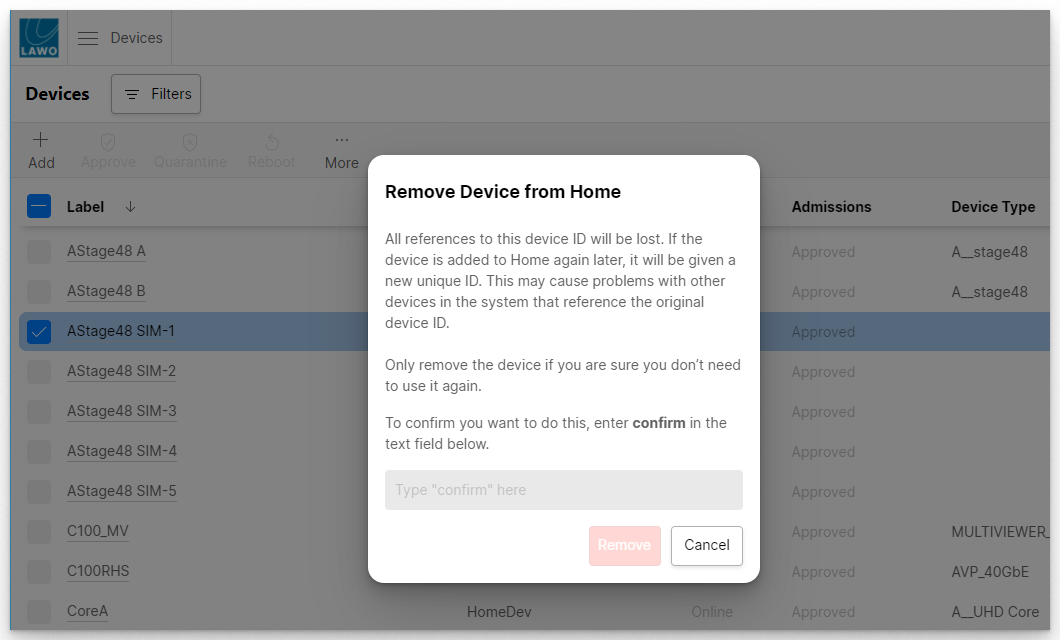
To proceed with the operation, follow the on-screen instructions: enter confirm into the text field and then click Remove.
Operations for HOME Apps
The Duplicate, Edit, Delete, Start and Stop App options are available for the individual app instances of Lawo's HOME Apps. They can be used to manage the selected app(s).
Note that the available options depend on whether the app is running or stopped. For example, you cannot edit an app that is running.
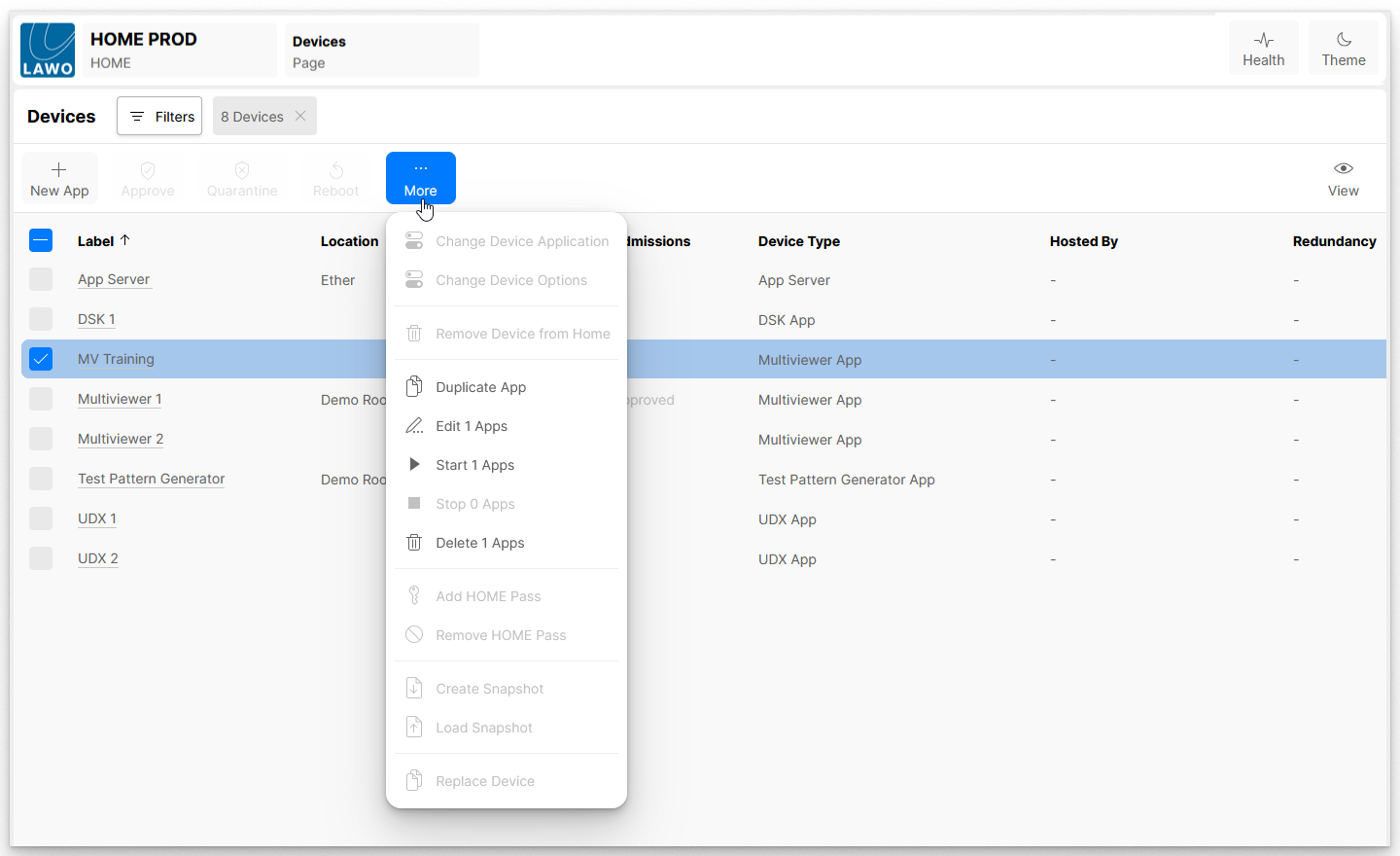
For more information, please refer to the following topics (in the "HOME Apps User Manual"):
- HOME Apps - Duplicate App
- HOME Apps - Edit App
- HOME Apps - Start App(s)
- HOME Apps - Stop App(s)
- HOME Apps - Delete App(s)
Add or Remove HOME Pass
The Add or Remove HOME Pass options are available for physical devices. They can be used to add or remove a HOME Pass assignment for the selected device(s).
A valid HOME Pass license is required for each device, app or service that you wish to configure and control from HOME. The assignments for apps and services are handled automatically, and so the Add/Remove HOME Pass options are available for physical devices only.
For more information, please see HOME - HOME Passes.
Create and Load Snapshot
The Create Snapshot and Load Snapshot options are available for physical devices and virtual mixers. They can be used to backup (or restore) the configuration and stream routing for the selected device(s). Once created, the snapshot is added to the list of available snapshots in HOMEs 'Snapshots' page.
For more information, please see HOME - Create and Load Snapshots (for selected devices).

It is recommended to regularly create snapshots for all individual devices listed in HOME. These files can be used later, if a device replacement becomes necessary. While it is possible to create a snapshot before starting the device replacement, this can only be done if the device is online (in HOME).
Replace Device
The Replace Device option is available for physical devices. It allows users to replace an existing device with a new device of the same type. For example, due to a fault.
As part of the process, the original device is removed from HOME and its Device ID is transferred to the replacement device. Its configuration can be restored either by using Load Snapshot (see above) or by completing a manual configuration . In some cases both steps are required.
For more information, please see HOME - Replace Device.