HOME - Create and Load Snapshot (for selected devices)
HOME V4.6 (OR HIGHER)
From HOME v4.6, the ... More menu in HOME's 'Devices' page offers two snapshot options: Create Snapshot and Load Snapshot.
They can be used to backup (or restore) the configuration and stream routing for one or more selected devices.


It is recommended to regularly create snapshots for all individual devices listed in HOME. These files can be used later, if a device replacement becomes necessary. While it is possible to create a snapshot before starting the device replacement, this can only be done if the device is online (in HOME).

Loading a snapshot can negatively impact your entire system, if devices are updated in error.
To avoid accidental changes to operational devices, it is important to read the information in the "Load Snapshot" dialog carefully, before confirming a snapshot load.
Create Snapshot
Create Snapshot becomes available once one or more devices are selected. It can be used to create a HOME snapshot that stores the configuration and stream routing for an individual device (or devices). Once created, data from the snapshot can be loaded either to all of the devices saved or a selection of those devices. This allows users to restore the device(s) to a previously known state.
To use this function:
- From HOME's 'Devices' page, select the device(s) you wish to save and choose Create Snapshot (from the ... More menu).
- The "Create Snapshot" dialog opens. Check the information, enter a label and click on Create.
Note that the snapshot label must be unique.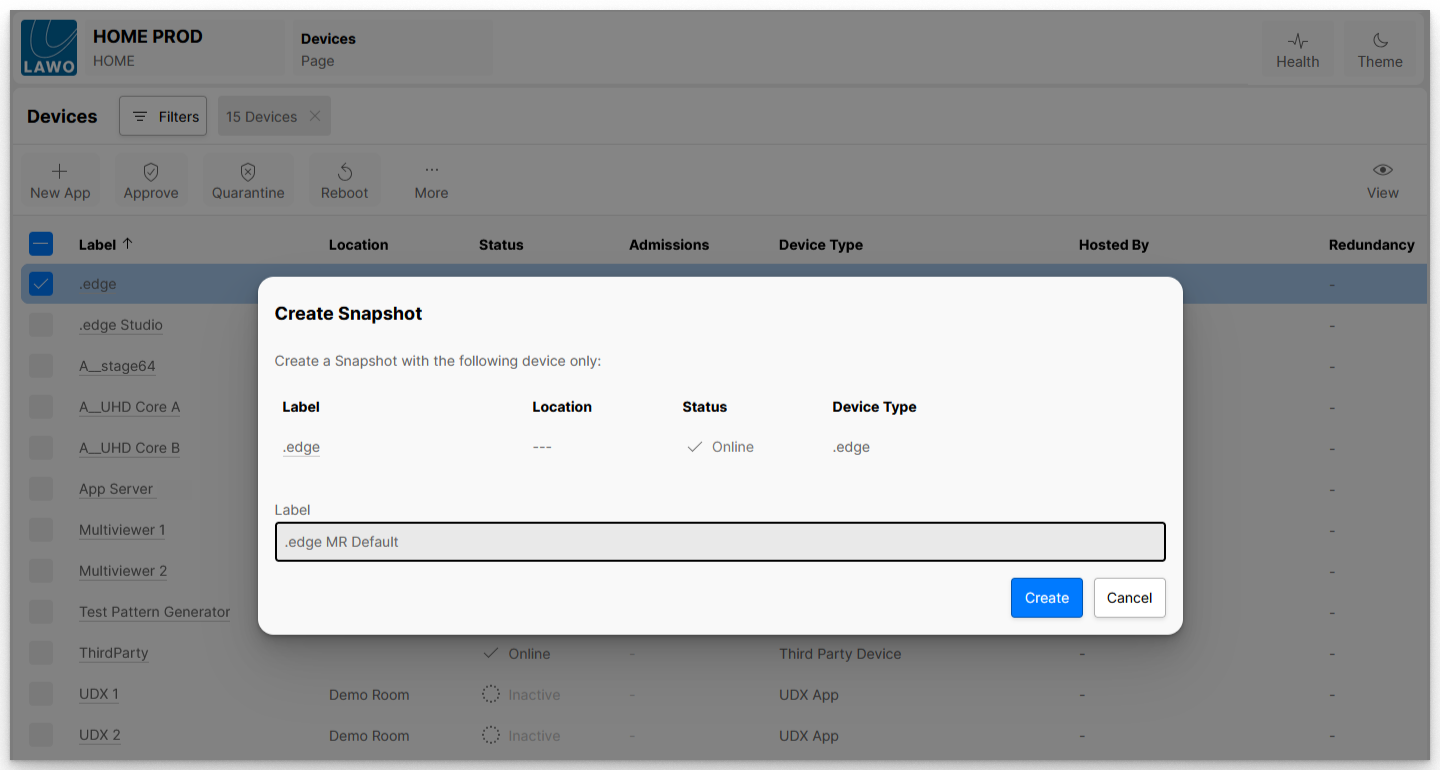
- Once created, the snapshot is added to the list of available snapshots (in the 'Snapshots' page).
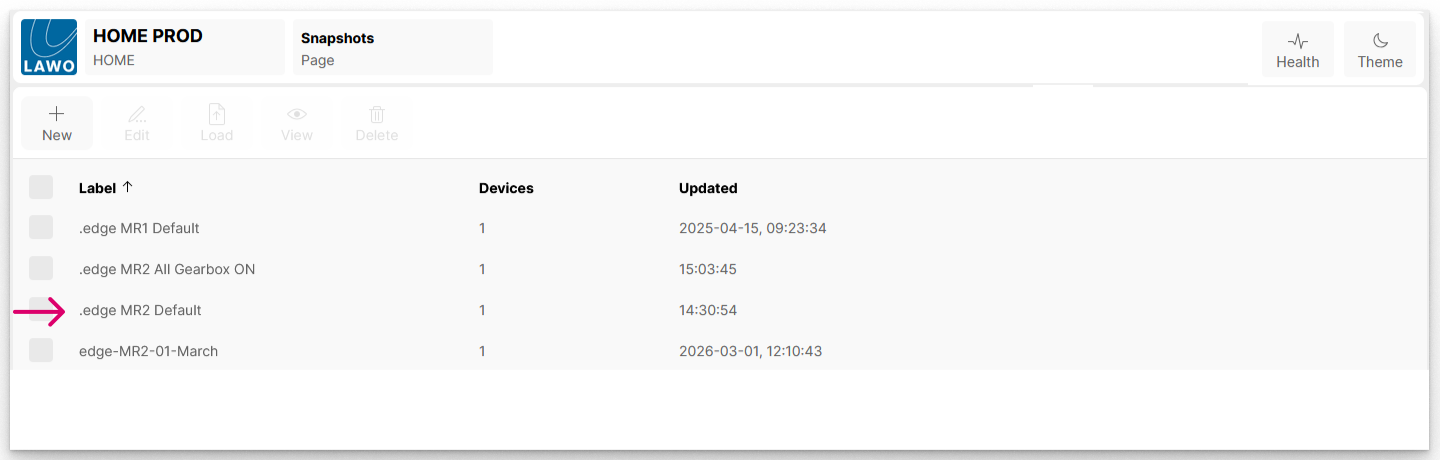
- It is a good idea to check the Devices column to confirm the number of devices saved.
- If you want to verify the contents of the snapshot in more detail, then select the snapshot and click on View.
A detailed description of the View function is provided in HOME - View Snapshot.
Load Snapshot
Load Snapshot becomes available when a single device is selected. It can be used to restore data to an individual device (or devices) from any HOME snapshot that stores data for the device.
To use this function:
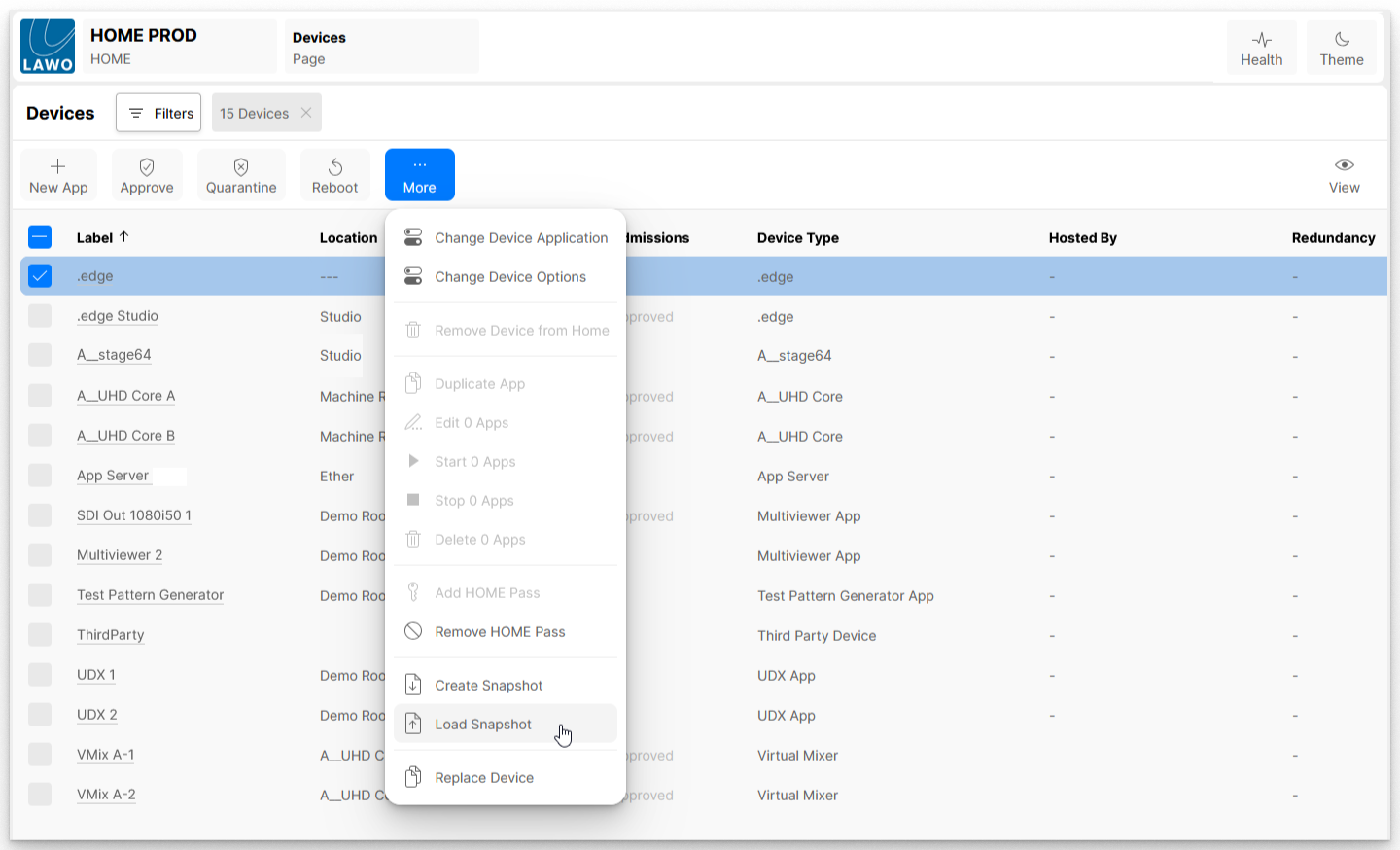
- From HOME's 'Devices' page, select the device you wish to update and choose Load Snapshot (from the ... More menu).
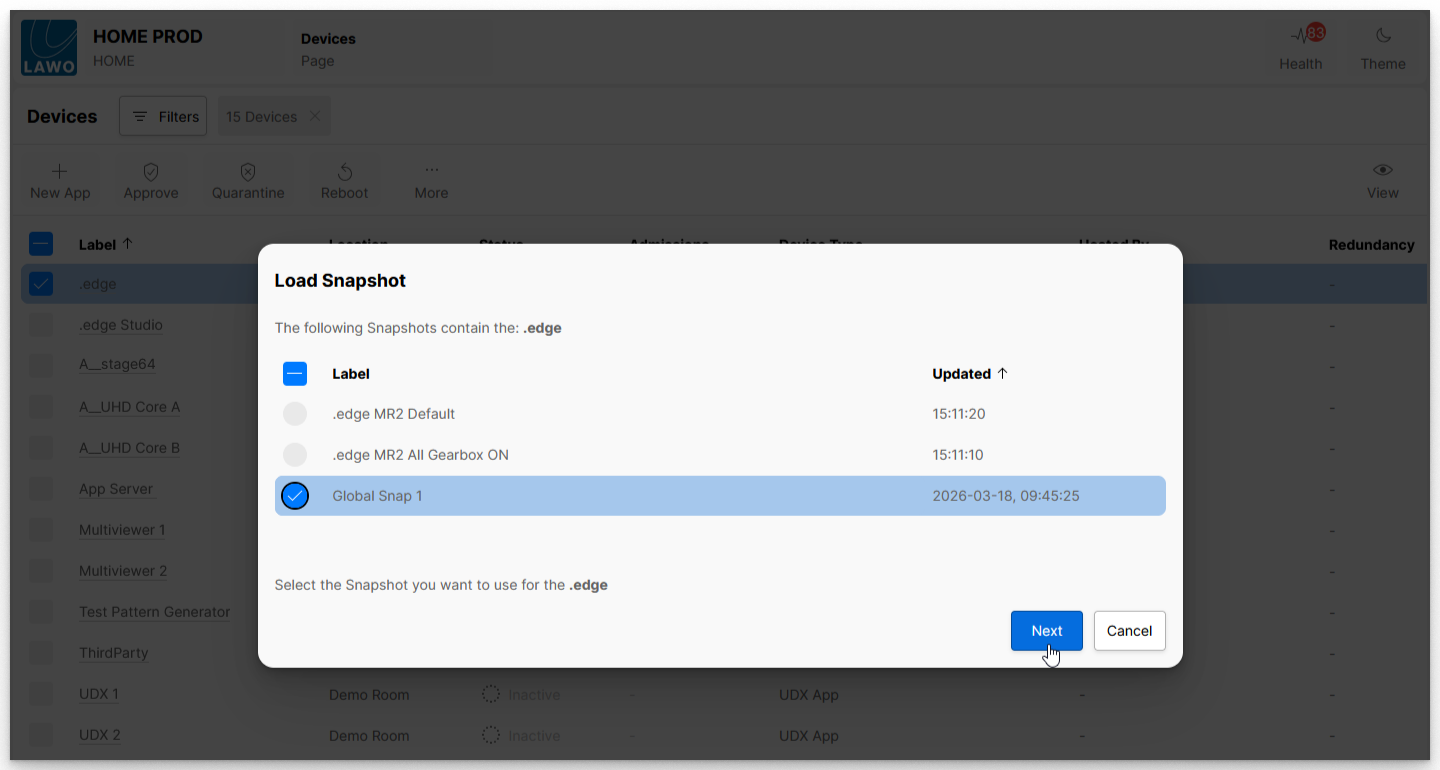
- The "Load Snapshot" dialog opens with a list of all snapshot files that contain data for the selected device.
Note that this can include snapshots saved selectively (from the 'Devices' page) or globally (from the 'Snapshots' page). - Select a snapshot file and click on Next.
- In the next dialog, you will see a list of all devices stored in the selected snapshot. Select a device (or devices) and click on Next.
Note that, at this stage, it is possible to edit the device selections to update a different device or several devices at the same time.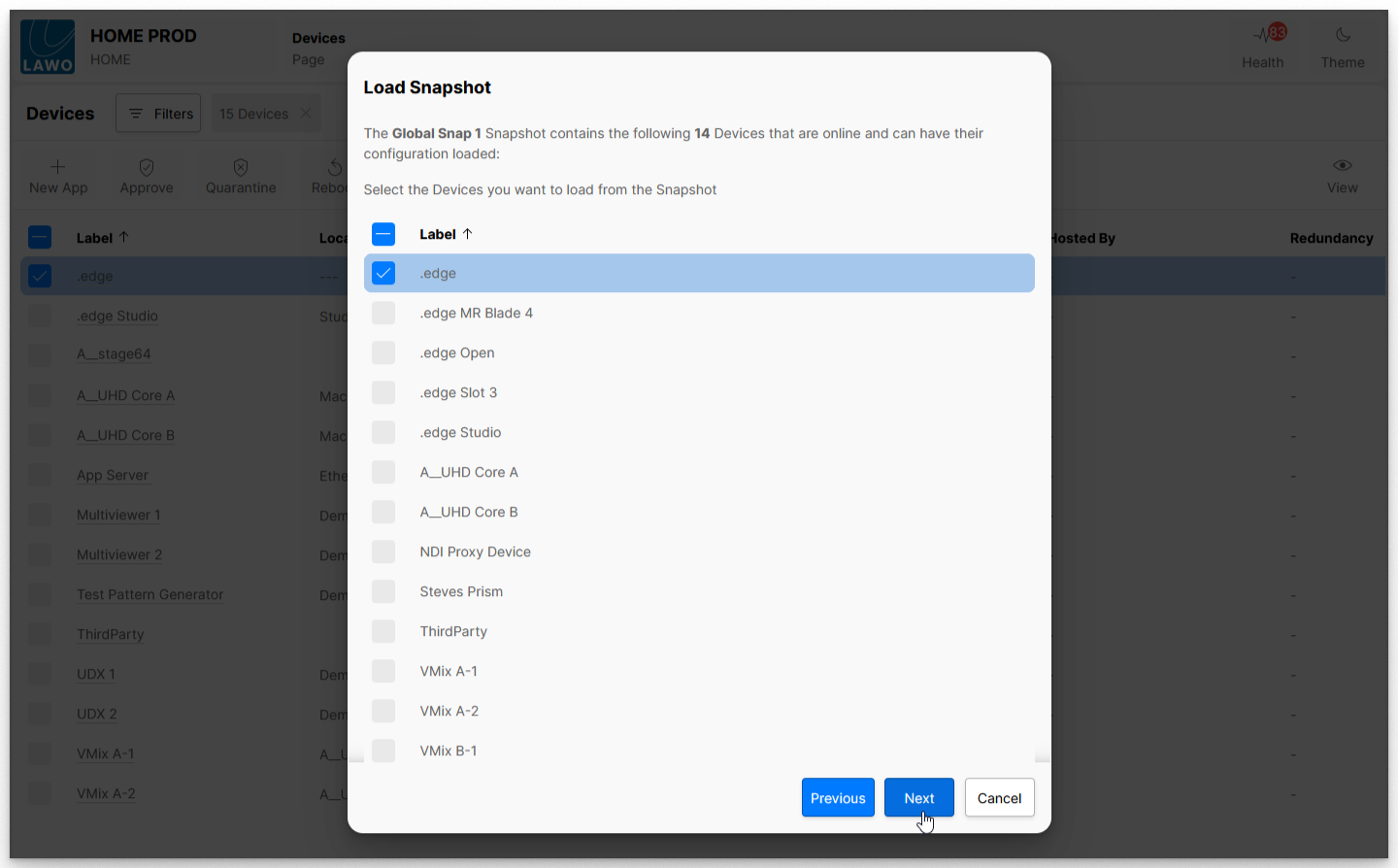
- Now read the information in the next dialog carefully (as this describes what will happen when you confirm the snapshot load).
- If necessary, use Previous to revise your selection(s) or click on Cancel to abort.
- To confirm, type in Load Snapshot and click on Load.
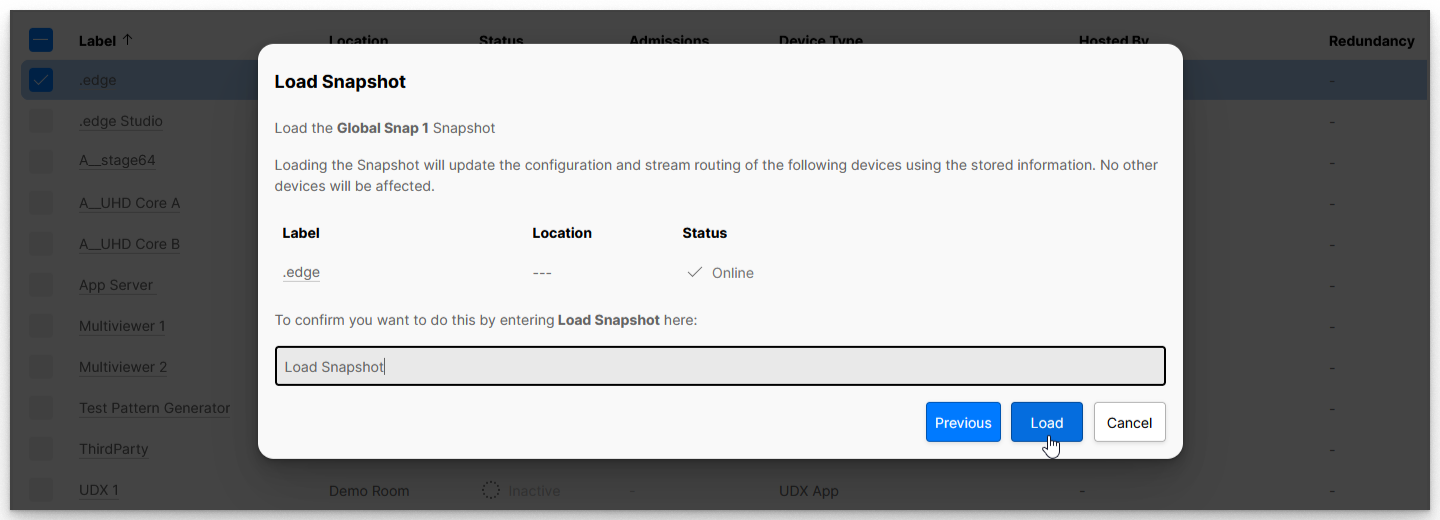
- Once the snapshot load is confirmed, the system updates the configuration and stream routing of the device(s) as stated, and the dialog box closes.
- You should now check the operation of the device(s):
- Changes to the configuration can be viewed from the device settings pages.
- Changes to the stream routing can be viewed from the 'Stream Routing' page.