HOME - Configuring a device
Once a device appears in HOME's 'Devices' list, its settings can be accessed as follows: click on the device label (1) and choose a menu tab (2).
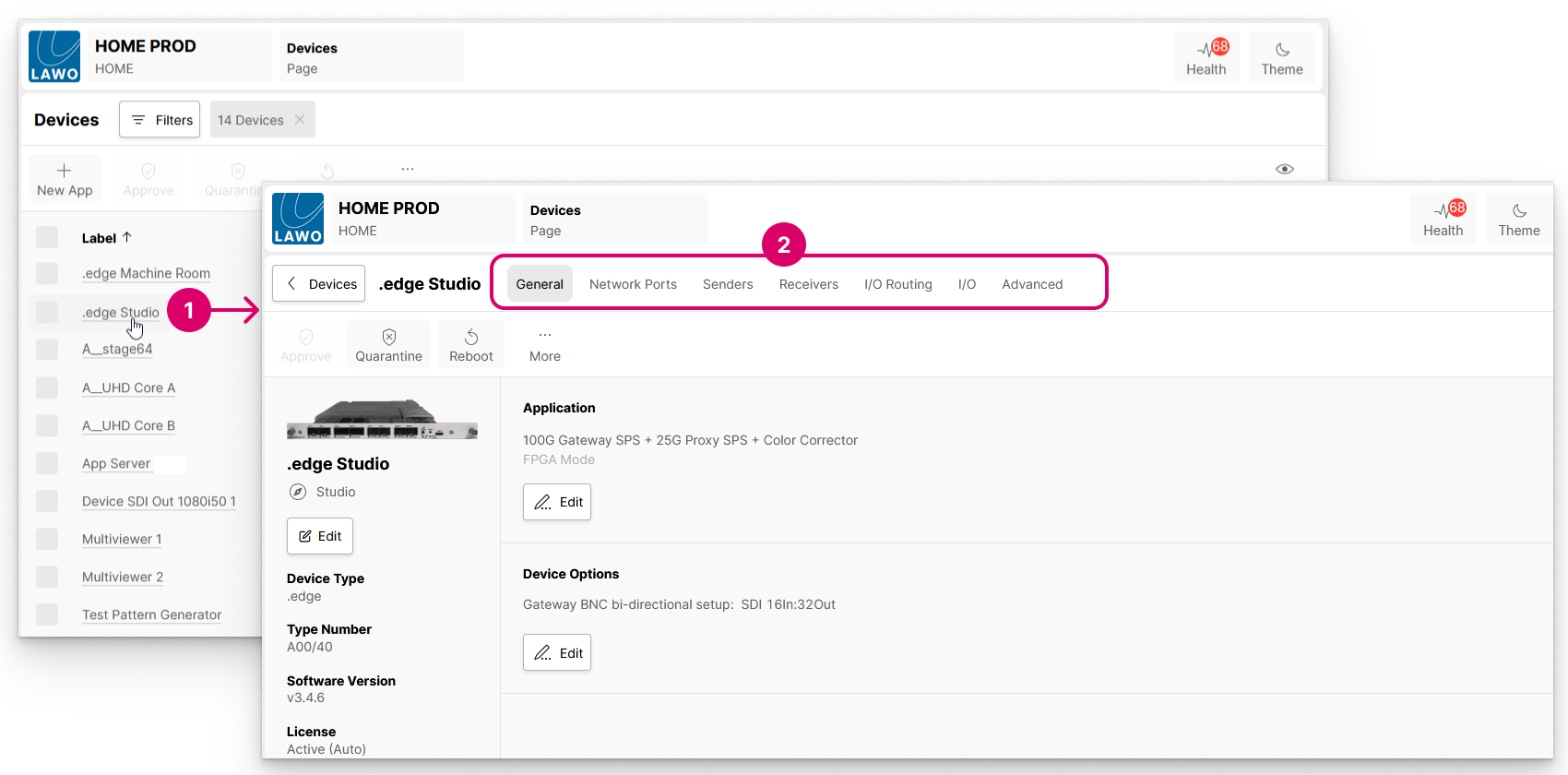
The menu tabs provide access to a variety of device-specific parameters such as the label and location, device options, IP settings, senders and receivers, and so on.

If a device is Offline or has No HOME Pass, then a page with minimal content opens.
In this instance, check that the device is powered and connected to the network, and that it has a valid HOME Pass (license). For more information about the licensing, please see HOME - HOME Passes.
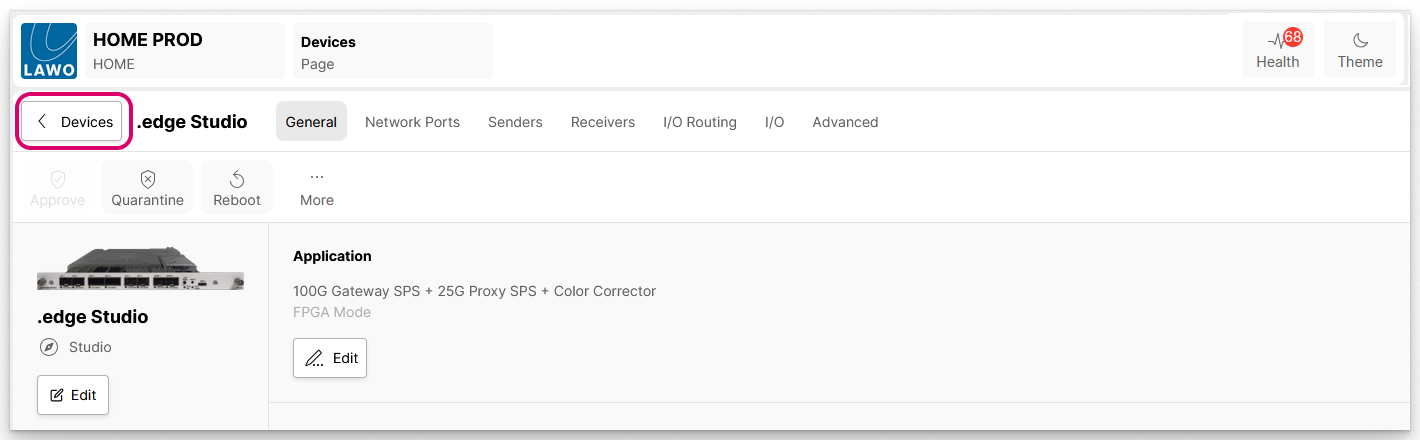
To return to the main 'Devices' list, click on the < Devices button (to the left of the device label).
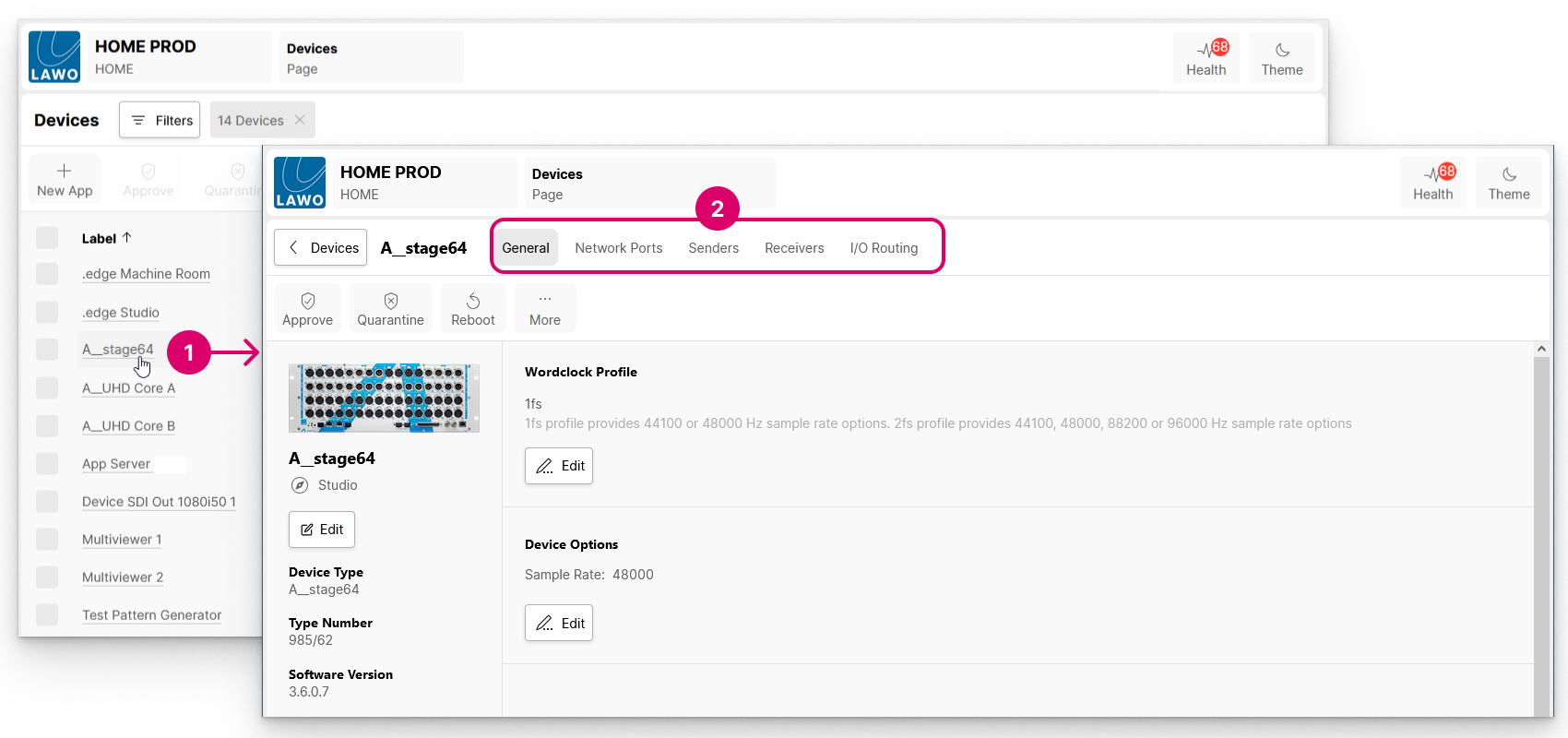
Repeat the steps above to access another device.
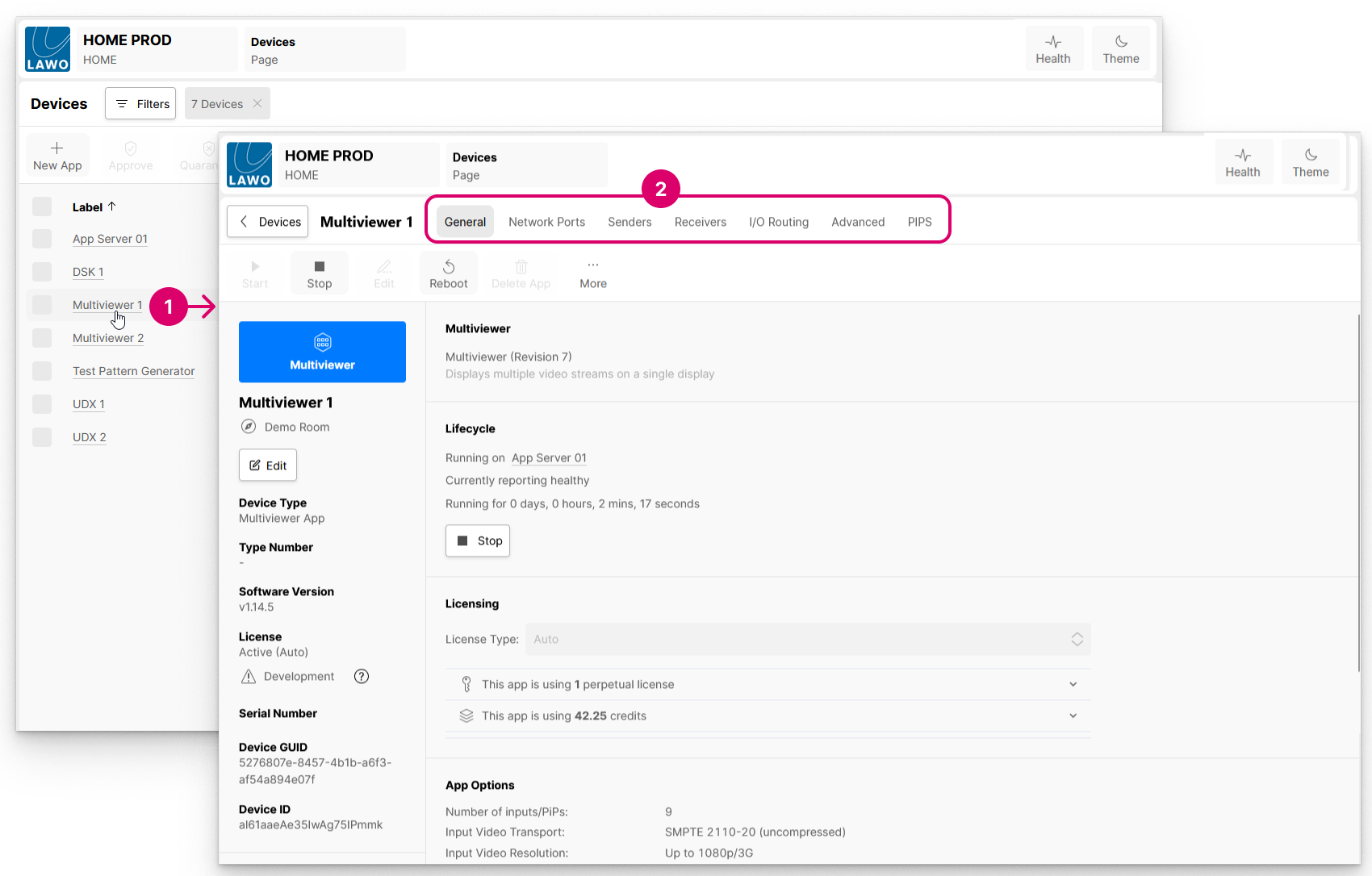
The same procedure can be used to access any device, app or service (in HOME's 'Devices' list). For example, to view and edit the parameters of an individual app.
Where are the settings saved?
The latest settings are stored either on the device itself or on the HOME management system.
For specific information please refer to the documentation for the end device.
What can be controlled?
The available pages, and their settings, vary depending on the device type.
In the example shown below, there are seven pages. The first five (General, Network Ports, Senders, Receivers and I/O Routing) are available for most streaming devices. The last two (SDI I/O and Advanced) are specific to .edge.
The descriptions that follow summarize the function of each page.
General settings
The General settings is the first landing page that appears whenever you click through to an individual device. It is divided into three main sections with device/app management operations (at the top), general information (on the left) and other settings (on the right).
The informational fields (on the left) include the device label and location, plus the Software Version and Serial Number (important for compatibility and licensing), and the Device ID which identifies the device within HOME and to external controllers. The Edit button can be used to edit the device label and location (as described here). For a physical device, the Identify Hardware function can be used to identify the device by flashing an LED or showing a message on its front panel.
The settings (on the right) vary depending on the device type:
- For .edge, you can edit the Application (operating mode) and Device Options (number of SDI In/Out).
- For an A__stage, you can edit the Wordclock Profile (1fs or 2fs) and Device Options (sample rate).
- For HOME Apps, you can check the Lifecycle and Licensing information; change the License Type or edit the app's initial configuration (under App Options).
Network Ports
The Network Ports page provides information about the device's network interfaces or, for HOME Apps, the network interfaces of the app server.
From here you can check the status of a network port and edit* its network settings.
*Please note: For HOME Apps, the network settings of an app server cannot be edited from the Network Ports page, as this is done (by the Lawo engineering team) during the HOME Apps system configuration.
Senders and Receivers
The Senders and Receivers pages appear for all devices that support signal streaming. They list all of the device's IP senders and receivers (that can be connected using HOME's 'Stream Routing' page). For some devices, the senders and receivers are pre-defined according to the configuration of the device. For others, they must be created (in HOME) using New Sender and New Receiver.
From the Senders (or Receivers) page you can check information about a sender (or receiver), and access its more advanced options. These include the stream configuration parameters, SDP data and I/O Routing (for the audio flows).
I/O Routing
The I/O Routing page appears for devices that handle audio streams. It is used to map the audio channels of the IP senders and receivers to the physical inputs and outputs of the device.
In each case, you can connect (or disconnect) the physical inputs to the IP sender channels, and the IP receiver channels to the physical outputs.
Advanced / Other
If other tabs are available, then these provide access to additional parameters that are specific to the device.
Products that support an Advanced parameters page include .edge and HOME Apps. For more information, please see Advanced Parameters or refer to the documentation for your end device.
Further Information
The following topics provide more information about the 'Device' settings pages: