HOME Device - General settings
The 'Device → General' settings is the first landing page that appears whenever you click through to an individual device. It can be used to check information about a device and edit its general parameters such as the device label and location.
How to open the General settings page is described in HOME - Configuring a device. This topic explains the informational fields and operations. The examples used are taken from an A__stage (physical I/O) device. The same principles can be applied to other device types.
Overview
The 'General' settings page is divided into three main sections with device/app management operations (at the top), general information (on the left) and other settings (on the right).
The informational fields (on the left) include the current label and location, plus the Software Version and Serial Number (important for compatibility and licensing), and the Device ID which identifies the device within HOME and to external controllers. The Edit button can be used to edit the device label and location. For a physical device, the Identify Hardware function can be used to identify the device by flashing an LED or showing a message on its front panel.
The settings (on the right) vary depending on the type of the device.
Available Controls
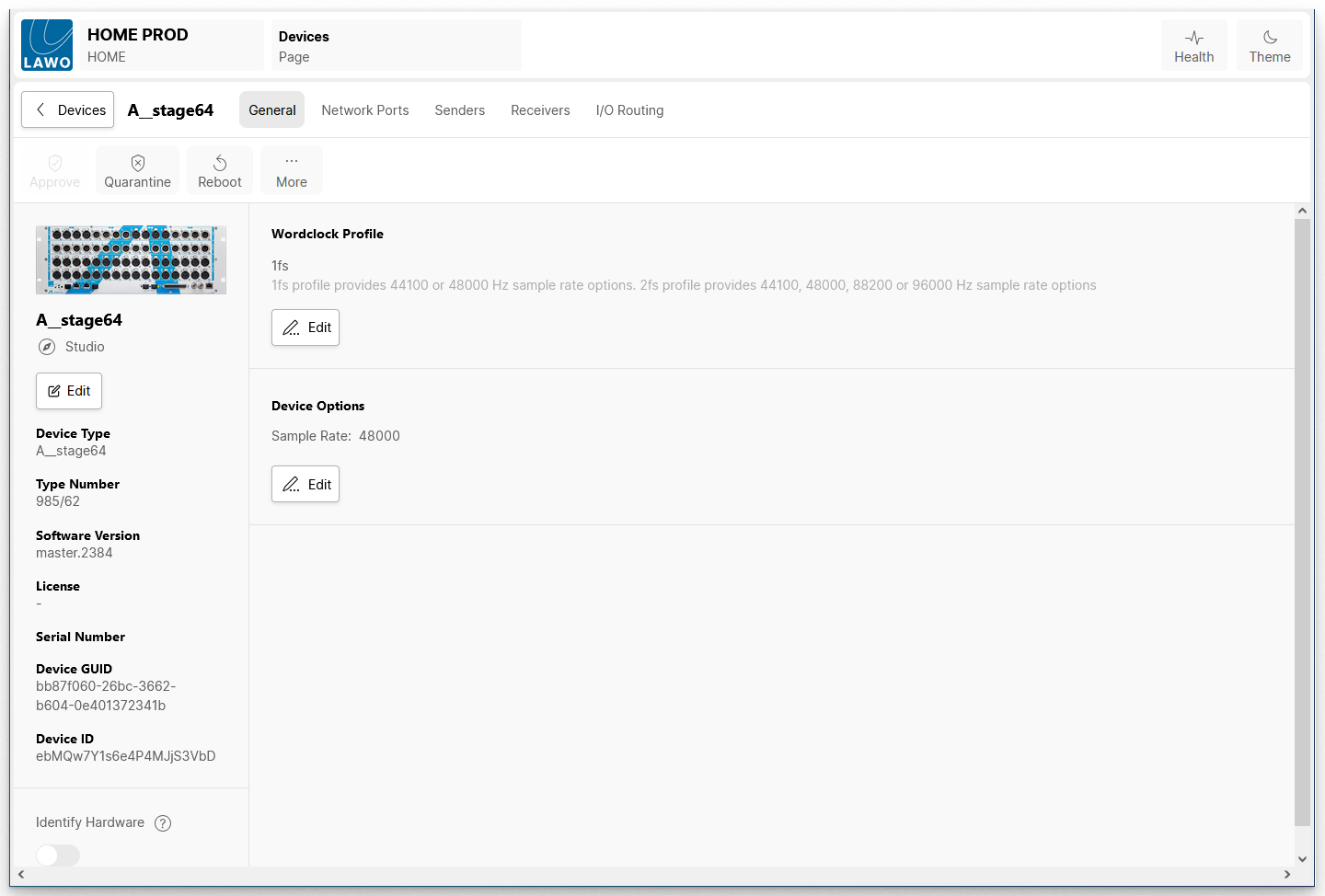
Working from top left to bottom right, the available controls are as follows.
Device/App Management Operations
For convenience, the device/app management operations (from the 'Devices' list) are repeated at the top of the page:
- For a physical device, there are four buttons: Approve or Quarantine, Reboot and More.
- If an individual app is selected, then Approve and Quarantine are replaced by Start, Stop, Edit and Delete App.
For more information, please see:
- HOME - Approve or Quarantine a Device
- HOME - Reboot a Device
- HOME - Devices ...More Menu
- HOME Apps - General Operation
General Information
Below the device image/icon are several informational fields that show the device label (and location), device type, type number, etc. These are read-only unless otherwise specified. If you see a question mark icon, then you can hover over this to reveal a tooltip.
Of particular note are the Software Version and Serial Number which are important for compatibility and licensing, and the Device ID which identifies the device within HOME and to external controllers.
The Edit button can be used to edit the device label and location (as described below).
For a physical device, the Identify Hardware function can be used to identify the device by flashing an LED or showing a message on its front panel.
Device/App-Specific Settings
The settings on the right vary depending on the device type:
- For .edge, you can edit the Application (operating mode) and Device Options (number of SDI In/Out).
- For an A__stage, you can edit the Wordclock Profile (1fs or 2fs) and Device Options (sample rate).
- For HOME Apps, you can check the Lifecycle and Licensing information; change the License Type or edit the app's initial configuration (under App Options).
If an Edit button or drop-down menu is visible, then the settings can be edited. For more information, please refer to the documentation for your end-device.
Edit Label and Location
The Edit button (on the left of the 'General' settings page) can be used to edit the device Label and Location.
- Click on Edit (below the current label). The 'Edit Device Info' dialog opens (as shown below).
- Use the fields to edit the label and location.
- Click on Done to confirm.
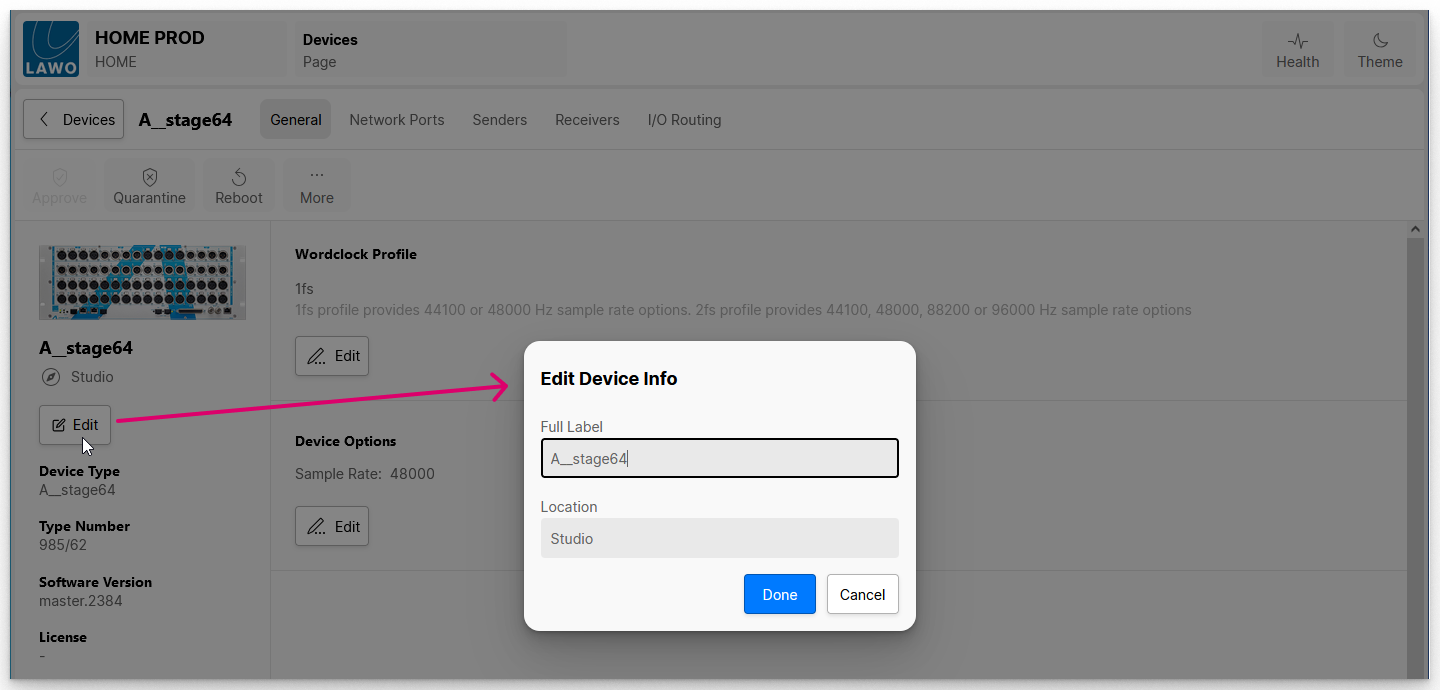
Label
- A label must be entered. This field cannot be left blank.
- Each label must be unique (within the HOME system).
- A default label is assigned to all devices that are automatically detected by HOME.
- Labels can be edited without affecting the rest of the configuration.
Location
- Entering a location is optional. This field can be left blank.
- Locations can be edited without affecting the rest of the configuration.
Device ID
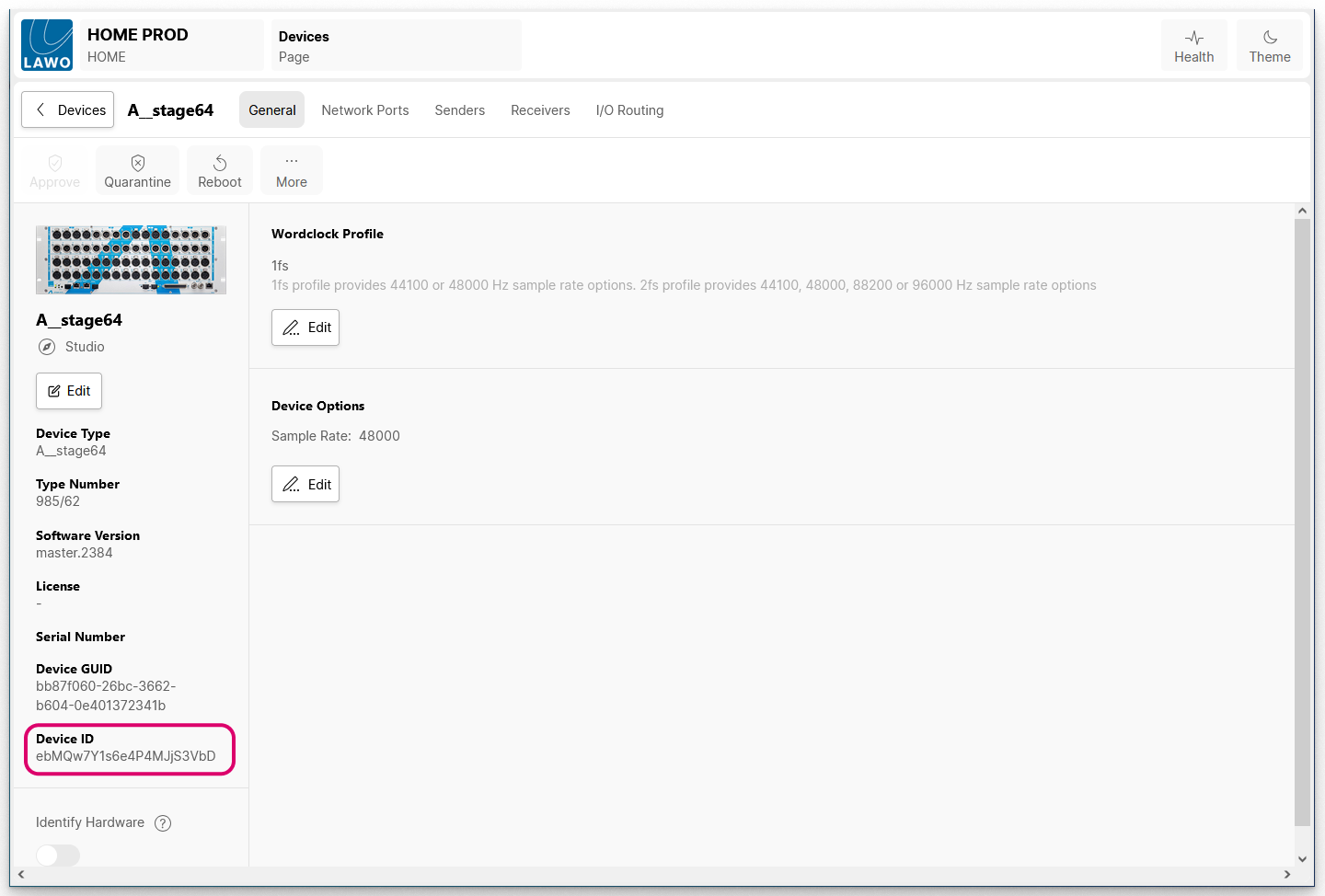
The Device ID is a unique ID number that identifies a device within HOME and to external controllers. It is assigned automatically (by HOME) whenever a device is first discovered or added to the network. This ID remains with the device, at all times, and does not change if you modify the device label or other settings. This is important as it means that changes can be made to the device's settings without any impact on the rest of the configuration or external control systems (such as VSM).
Within HOME, the Device ID is used to reference a specific device when setting up its streaming connections and using snapshots. If a physical device needs to be replaced, then the Device ID can be transferred as part of the device replacement procedure.
The Device ID is displayed on the left of the 'General' settings page. Note that there are two IDs (per device):
- The Device GUID is absolutely unique and exists once only. If a device is removed from HOME, its Device GUID is gone. If the same device is added back into the network, then a new Device GUID is assigned.
- The Device ID is also unique and defines the role of the device in HOME. This ID is transferrable via the device replacement procedure.
For operational purposes, it is the Device ID that is important. The Device GUID is used, internally, by HOME.
Identify Hardware
The Identify Hardware button (on the left of the 'General' settings page) can be used to identify a physical device by flashing an LED or showing a message on its front panel. This makes it easy to identify the device you are about to configure.

Click on the ? icon (beside Identify Hardware) to read the on-screen help.
Follow the steps below to use this function.
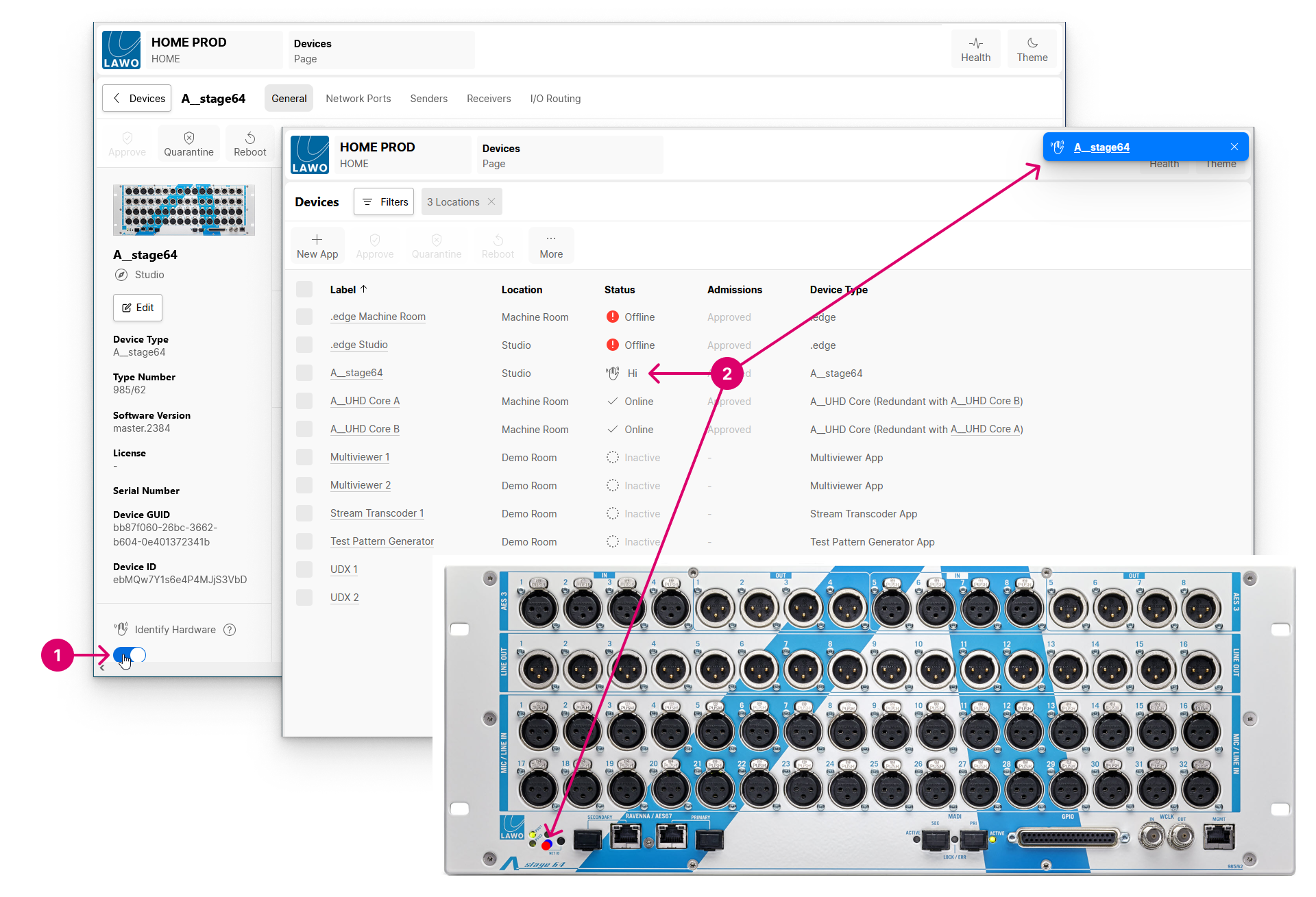
- Scroll down to the bottom of the 'General' settings page and turn on the Identify Hardware slider.
- This sends a message to the device to flash an LED or show a message on its front panel. At the same time, a “Says Hi” message appears in the "Devices" list and in the status area (beside the "Health" icon).
If other users have the HOME Web UI open, then they will see the on-screen alert. They can either click on the device label to open the "Device Details" page, or click on X to close the alert.
Tip: To quickly clear all of the on-screen alerts, refresh the browser window.
Once you have identified the device, turn off the Identify Hardware slider.