HOME - Stream Routing page
Once a device is part of the operational network, its streaming connections can be managed from HOME's 'Stream Routing' page.
The IP senders and receivers are either pre-defined (according to the device configuration) or created manually. You can check the current configuration from the Device → Senders or Device → Receivers page (as described here). As part of the configuration, users can choose the stream transport, video resolution, number of audio channels, etc. This allows the IP senders and receivers to be tailored to the application and network (to help manage the bandwidth of the switches and NICs).
Once a connection is made, signals are streamed via the device's media Network Interface Cards (NICs). Or, in the case of HOME Apps, the NICs of the target app server. To achieve redundant streaming, compatible with SMPTE ST2022-7, the NICs must be configured in pairs to support the primary and secondary streams.
If a device supports audio streams, then the 'I/O Routing' (for the senders and receivers) maps the audio channels carried by the streams to the device's local audio inputs and outputs.
This topic describes the operating principles of the stream routing.
Overview
From here, you can connect a sender to a receiver, interrogate and lock existing connections, disable the sending streams and view/edit the stream configuration parameters.
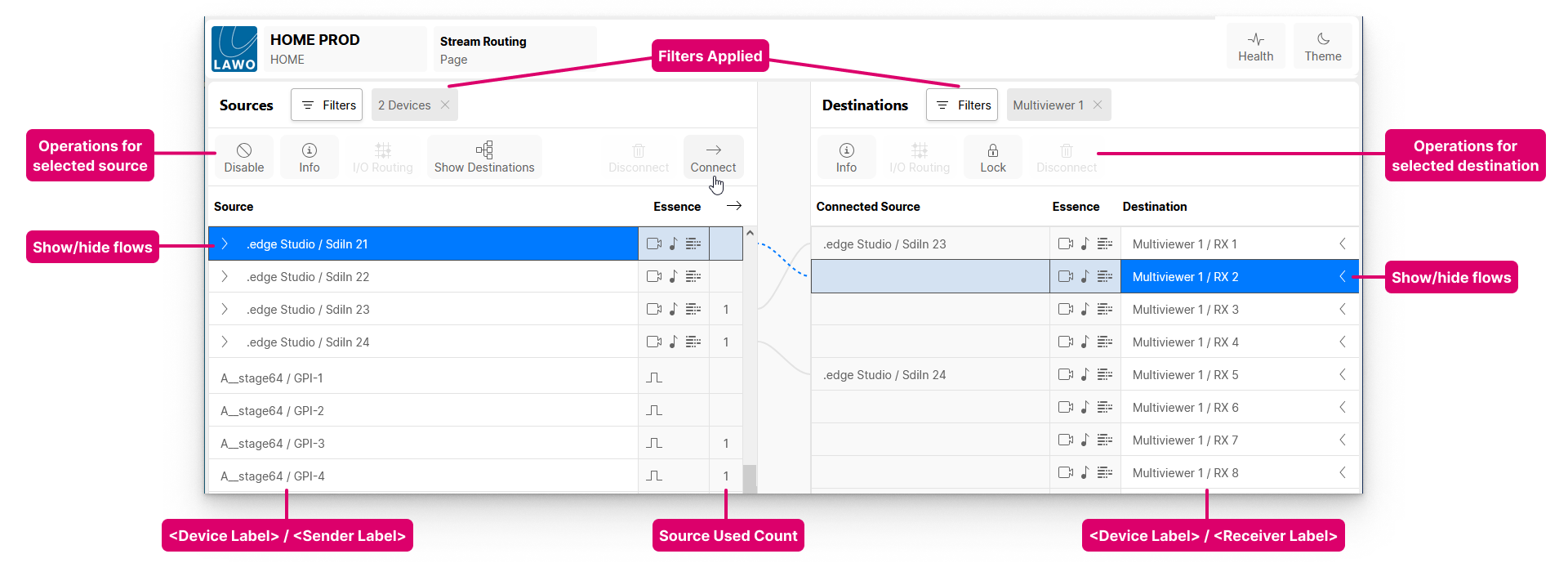
Sources and Destinations
The page lists all available IP senders on the left (as Sources) and IP receivers on the right (as Destinations).
- For each source and destination, there are two parts to the label: <device>/<sender> or <device>/<receiver>.
- The icons in the Essence column describe the type of flow(s): Video, Audio, Metadata and/or GPIO.
- If a source or destination handles more than one flow, then an arrow appears beside its label. Click on the arrow to show (or hide) the individual flows.
- Once a source is connected, a number appears in the "source used" column. This indicates the number of times the source is used. i.e. the number of connections made.
- Once a destination is connected, the "Connected Source" field shows the label of the connected stream.
Why is my device missing?
- Are any Filters applied (to restrict the view)?
- Is the device online? Go back to the 'Devices' list and check the Status.
- For HOME Apps, is the app running and healthy? Open the 'Device → General' settings page and check the Lifecycle information.
- Are the senders and receivers configured? Open the 'Device → Senders/Receivers' page to check the available flows.
'Stream Routing' Operations
The following operations are possible:
- Make or break connections - using Connect and Disconnect.
- Interrogate connections - using Show Destinations (for a sender) and the "Connected Source" field (for a receiver).
- Lock connections - using the Lock option (for a receiver).
- Disable sending streams - using Disable (for a sender).
- View (or edit) the stream configuration parameters - via the Info dialog (for a sender or receiver).
- View (or edit) the audio channel mappings - via the I/O Routing page (for a sender or receiver).
Connecting Streams (Quick Start)
To make a connection, select a source (on the left) and a destination (on the right); then click on Connect.
- A dotted (preview) line appears when a valid connection is prepared.
- This changes to a solid line once the source(s) and destination(s) are connected.
Connections can be made between individual or groups of flows, and for multiple sources and destinations. This is explained in more detail here. For now, it is useful to know that:
- If a source or destination handles more than one flow, then the flows are grouped so that they can be connected (or disconnected) in one operation. For example, select an SDI In, SDI Out and Connect (to connect Video to Video, Audio to Audio and Metadata to Metadata).
- If there is more than one possible match, then the sender(s) and receiver(s) are connected consecutively. For example: Audio 1 to Audio 1, Audio 2 to Audio 2, and so on.
- At any time, you can expand a group to reveal its flows. For example, to deviate from the default routing and connect a different audio sender.
How is the Stream Routing saved?
If the HOME system restarts, then the configuration is re-instated once the server(s) reboot.
If an end device restarts, or is disconnected, then any streaming connections to and from the device are lost. However, the connections are still prepared. This means that as soon as the device comes back online, its streaming connections are re-established.
If you wish to backup the current configuration for the system's physical devices, then this can be done by creating a HOME snapshot. Snapshots can be created either globally (for all online devices) or partially (for selected devices). For more information, please see HOME - Snapshots.
Further Information
The rest of this chapter provides more information about the 'Stream Routing' operations:
- HOME - Connecting and Disconnecting Streams
- HOME - Interrogate a Source or Destination
- HOME - I/O Routing (for an Audio Sender or Receiver)
- HOME - Stream Routing FAQs