HOME Device - Senders and Receivers
The 'Device → Senders/Receivers' pages appear for all devices that support signal streaming. They list all of the device's IP senders and receivers (that can be connected using HOME's 'Stream Routing' page). For some devices, the senders and receivers are pre-defined according to the configuration of the device. For others, they must be created (in HOME) using New Sender and New Receiver.
Depending on the device type, up to four stream essences are supported: Video, Audio, Metadata and GPIO, and each sender or receiver may handle multiple flows. e.g. 1x Video + 4x Audio + 1x Meta.
From the Senders (or Receivers) page you can check information about a sender (or receiver), and access its more advanced options. These include the stream configuration parameters, SDP data and I/O Routing (for the audio flows).
How to open the Senders or Receivers page is described in HOME - Configuring a device. This topic explains the informational fields and operations. The examples used are taken from a .edge processing blade. The same principles can be applied to other device types.
Please note: If there are no senders or receivers configured, then you will need to create some using New Sender or New Receiver.
Senders
The Senders page lists all of the streams transmitted from the device to the network. Once created, a sender can be connected to other receivers on the network using HOME's 'Stream Routing' page.
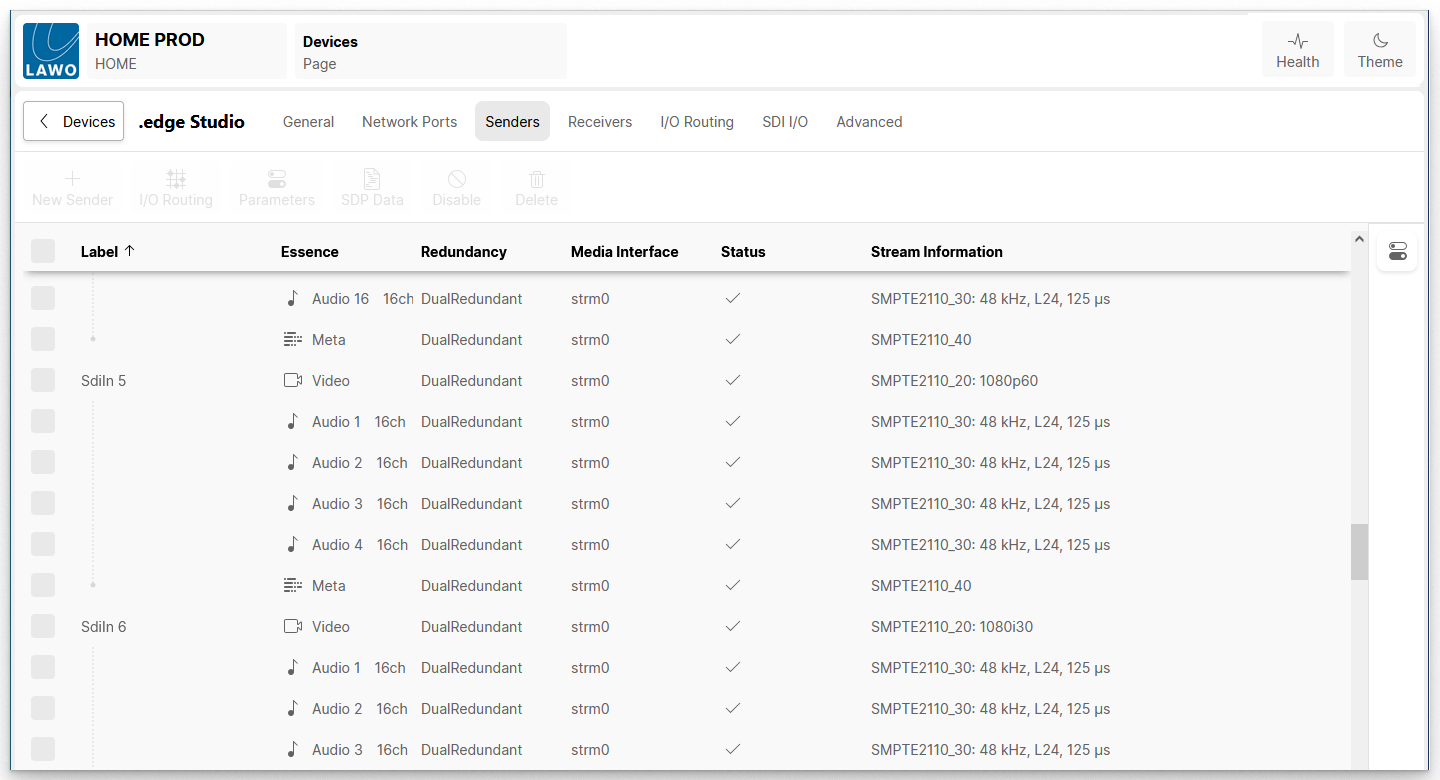
Sender Information
The following information is displayed for each stream:
- Label - identifies the stream to other network users. It cannot be edited once the stream is created.
- Essence - describes the type of content carried by the stream: Video, Audio, Metadata or GPIO. For audio streams, you will also see the number of channels (e.g. 64ch or 8ch).
- Redundancy - shows the redundancy status of the stream. A DualRedundant stream is SMPTE ST2022-7 compatible.
- Media Interface - shows the name of the network interface(s) sending the stream.
- Status - indicates the status of the stream. Hover over the icon to reveal more information.
- Stream Information - shows a summary of the stream parameters. e.g. for a video stream: the IP standard and video format; for an audio stream: the IP standard, sample rate, codec type and packet time.
Sender Operations
The following operations are possible.
- Click on a column header to sort the list alphabetically by Label, Essence, etc.
Each click toggles the sort mode between ascending (A -> Z) and descending (Z -> A). An up or down arrow appears beside the header to indicate the current sort mode. - Click on the New Sender button to create some new streams (as described here).
Please note: For some devices, the senders and receivers are pre-defined (and so this button is greyed out). - Select one or more streams (using the tick boxes in the first column) and choose an operation.
Note that not all operations are supported by all senders. If an option is not supported (by the selected sender), then it is greyed out.- I/O Routing (for audio senders only) - map the device's local audio inputs to the IP sender channels. See HOME Device - I/O Routing (for Audio Streams).
- Parameters - check or edit the stream parameters. See HOME Device - Edit Sender or Receiver.
- SDP Data - view or copy/paste the stream's SDP data. See HOME Device - SDP Data.
- Disable (or Enable) - disable (or enable) the stream. This can be used to remove the stream from the network on a temporary basis.
- Delete - delete the stream. This operation cannot be undone and so a confirmation dialog appears. Click on Remove to confirm or Cancel to cancel the operation.
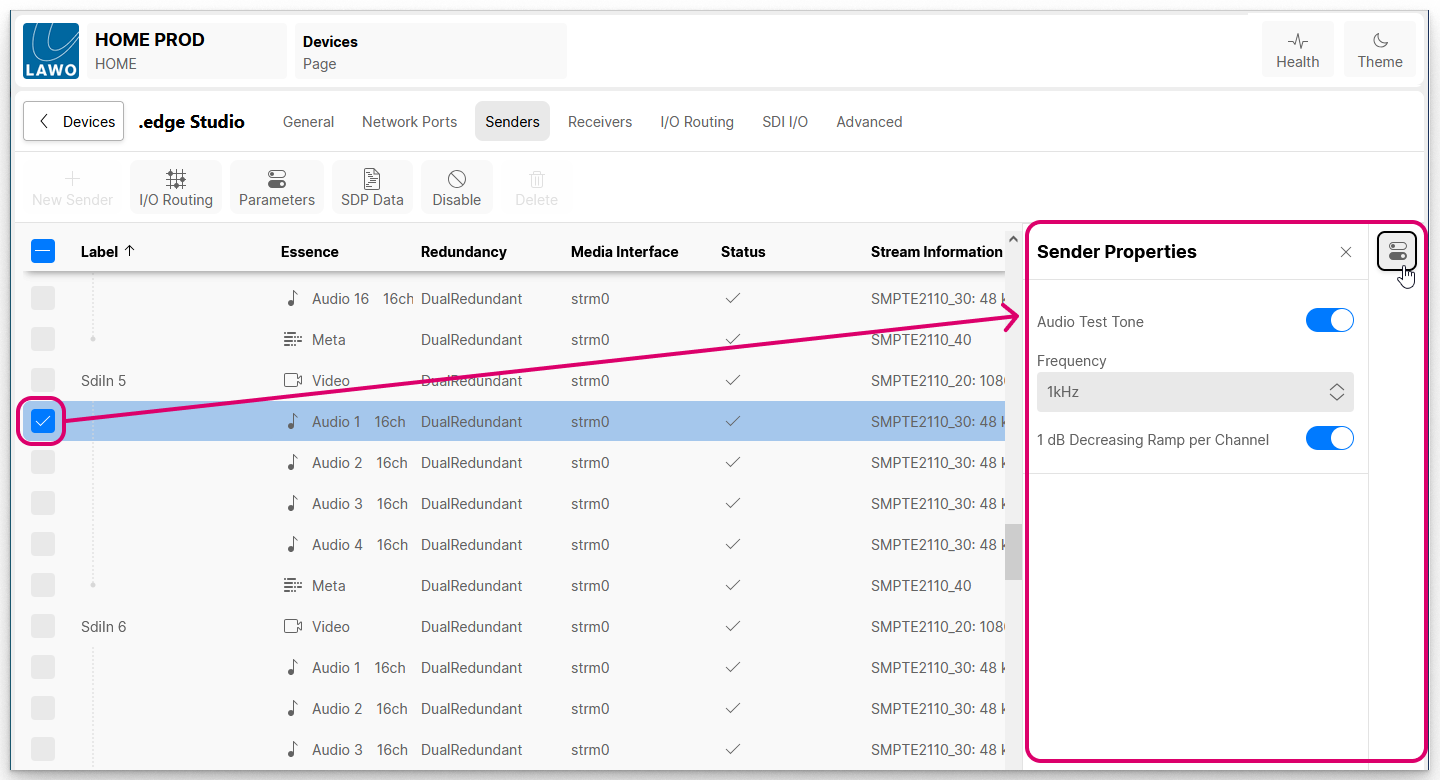
- Select a stream and click on the icon (on the right of the table) to reveal the "Sender Properties".
The available properties vary depending on the device and essence type. In the example below, an audio test tone can be adjusted for the audio sender from our .edge device.
Receivers
The Receivers page lists all of the available receivers. Each one can be used to receive a stream from the network either by making a connection in the Stream Routing page or by editing the receiver's SDP data.
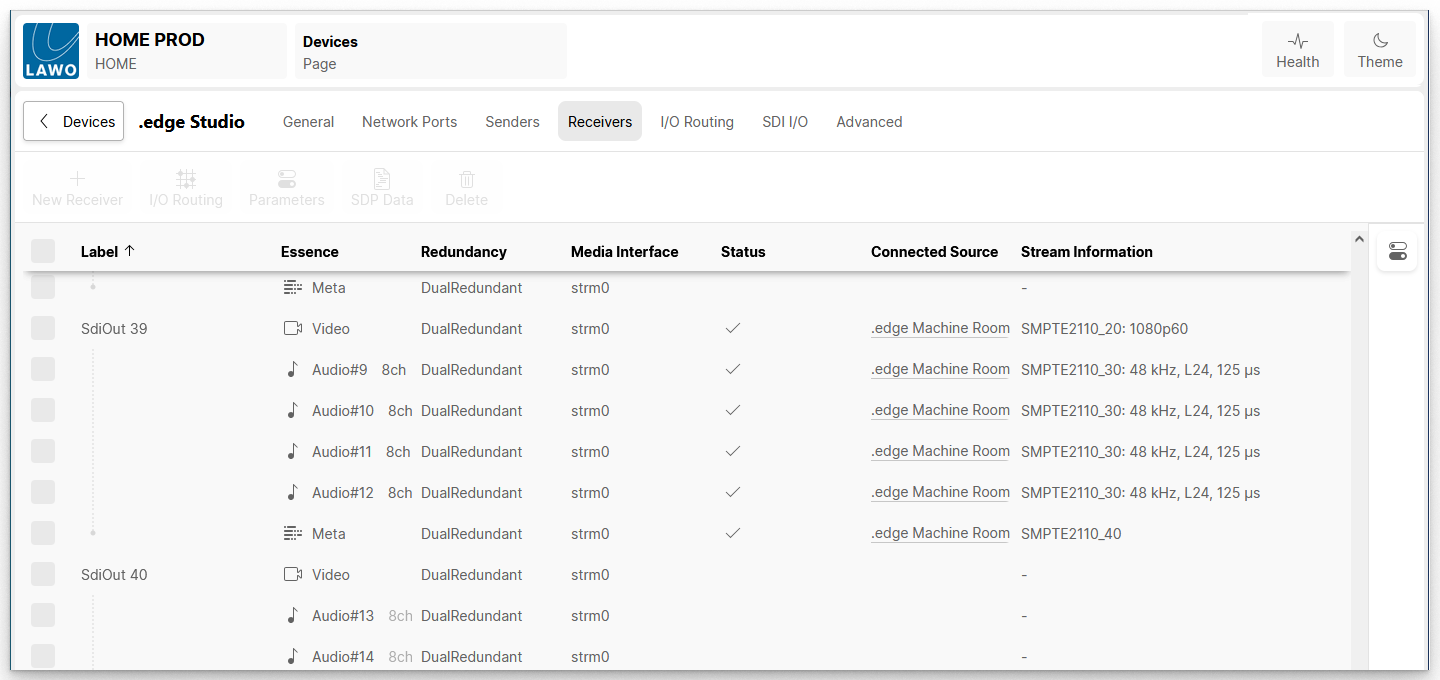
Receiver Information
The following information is displayed for each receiver. This is similar to the information for senders but adds the Connected Source column (to show the connected stream).
- Label - identifies the receiver within the network. It cannot be edited once the receiver is created.
- Essence - describes the type of content that can be received: Video, Audio, Metadata or GPIO. For audio streams, you will see the number of channels (once a connection is made).
- Redundancy - shows the redundancy status of the receiver. A DualRedundant receiver can be connected to either a redundant or non-redundant stream.
- Media Interface - shows the name of the network interface(s) used by the receiver.
- Status - indicates the status of the connected stream. Hover over the icon to reveal more information.
If a receiver is not connected, then it is normal to see a yellow warning indicator in the Status column. The warning will clear once a connection is made (providing that the stream subscription is successful). - Connected Source - shows the name of the connected stream (once a connection is made).
- Stream Information - shows a summary of the connected stream parameters. e.g. for a video stream: the IP standard and video format; for an audio stream: the IP standard, sample rate, codec type and packet time.
Receiver Operations
The following operations are possible.
- Click on a column header to sort the list alphabetically by Label, Essence, etc.
Each click toggles the sort mode between ascending (A -> Z) and descending (Z -> A). An up or down arrow appears beside the header to indicate the current sort mode. - Click on the New Receiver button to create some new receivers (as described here).
Please note: For some devices, the senders and receivers are pre-defined (and so this button is greyed out). - Select one or more receivers (using the tick boxes in the first column) and choose an operation.
Note that not all devices support all operations. If an option is not supported (by the selected device), then it is greyed out.- I/O Routing (for audio receivers only) - map the IP receiver channels to the device's local audio outputs. See HOME Device - I/O Routing (for Audio Streams).
- Parameters - check or edit the receiver parameters. See HOME Device - Edit Sender or Receiver.
- SDP Data - view or copy/paste the receiver's SDP data. See HOME Device - SDP Data.
- Delete - delete the receiver. This operation cannot be undone and so a confirmation dialog appears. Click on Remove to confirm or Cancel to cancel the operation.
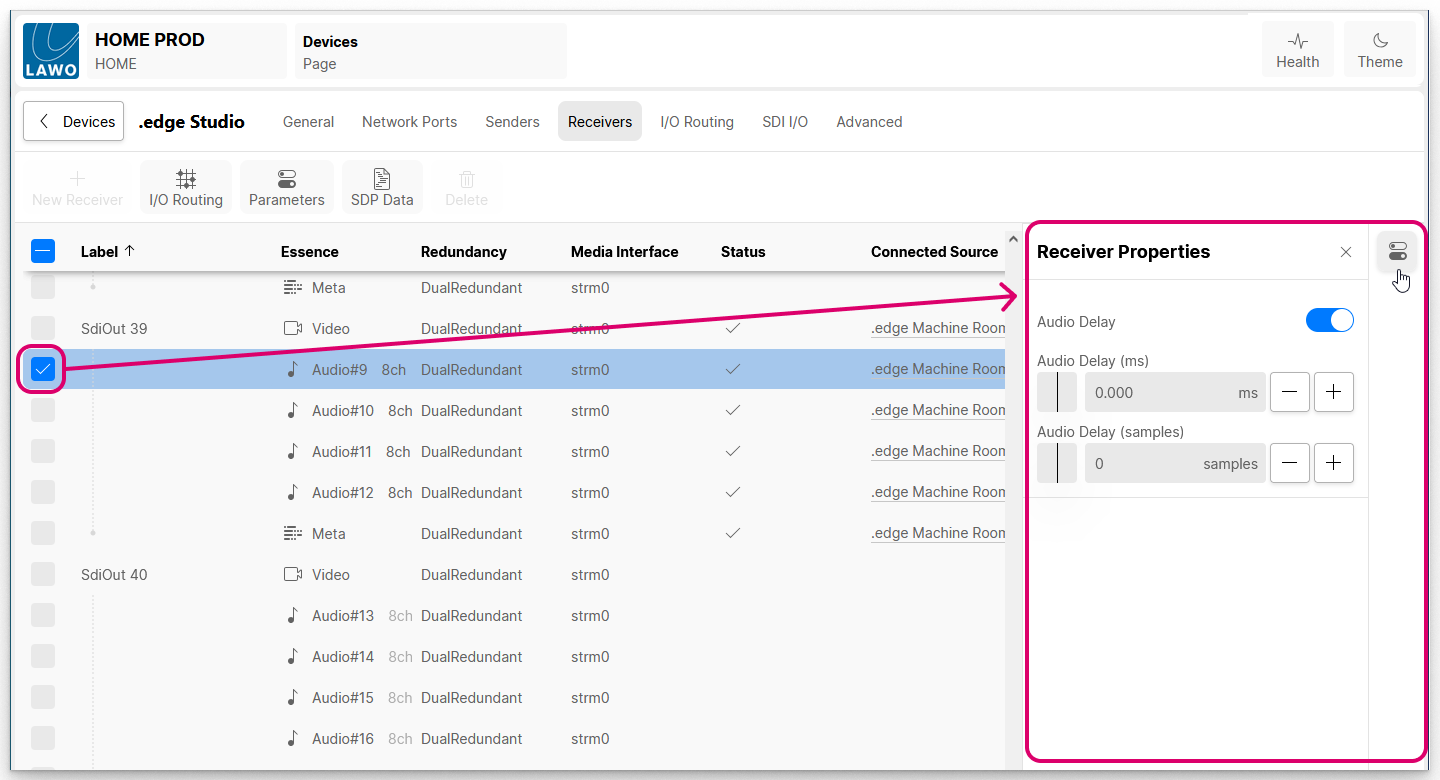
- Select a stream and click on the icon (on the right of the table) to reveal the "Receiver Properties".
The available properties vary depending on the device and essence type. In the example below, an audio delay can be applied to the audio receiver of our .edge device.
Further Information
The following topics provide more information about the sender and receiver operations: