Once some snapshots have been created, they can be managed from HOME's 'Snapshots' page.
Overview
The 'Snapshots' page lists all available snapshots that are stored on the HOME system.
From here, you can:
- Create a New snapshot globally (for all online devices).
- Edit the label of a snapshot.
- Load a snapshot globally (to all devices contained in the snapshot).
- View the contents of a snapshot.
- Delete a snapshot.
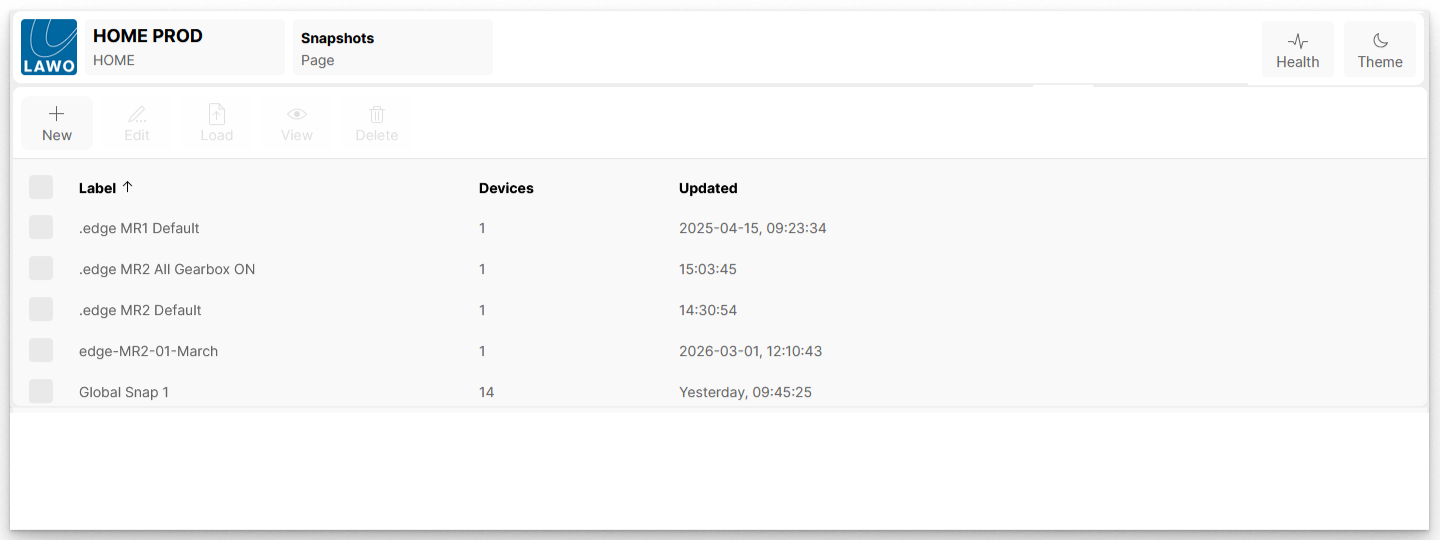
Snapshot Information
For each existing snapshot, you can see its label, the number of devices (included) and a timestamp (showing when the snapshot was created).
The number of devices is particularly useful, as this can be used to confirm how many devices are contained in the snapshot file. To verify the contents of a snapshot further, you can use the View function (as described here).
Snapshots List Operations
The following operations are possible:
- Click on a column header to sort the list alphabetically.
Each click toggles the sort mode between ascending (A -> Z) and descending (Z -> A). An up or down arrow appears beside the header to indicate the current sort mode. - Click on New to create a new snapshot globally (for all online devices). See HOME - Create New Snapshot (globally).
- Select a snapshot and click on Edit to edit the snapshot label.
The "Edit Snapshot" dialog opens. Enter a new label and click on Done to confirm. Note that each snapshot label must be unique. - Select a snapshot and click on Load to load data to all devices contained in the snapshot. See HOME - Load Snapshot (globally).
- Select a snapshot and click on View to verify the contents of the snapshot. See HOME - View Snapshot.
- Select a snapshot (or snapshots) and click on Delete to delete the selected snapshot(s).
A confirmation dialog appears. Click on Delete to confirm or Cancel to cancel the operation.