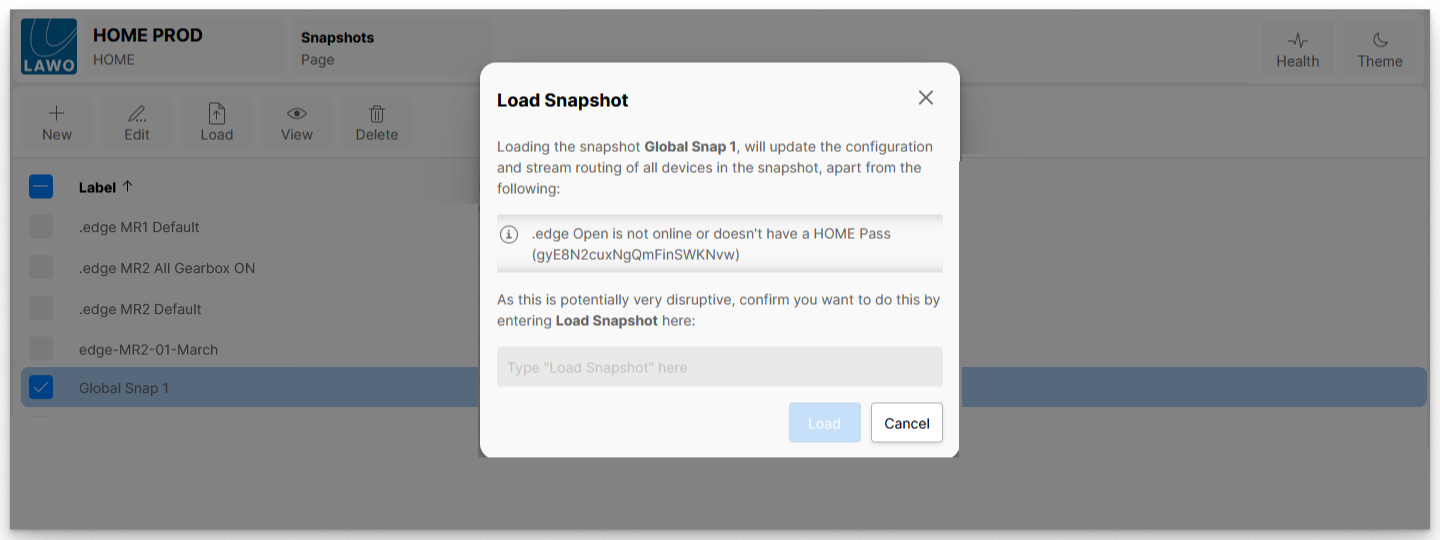
The Load button (in the 'Snapshots' page) can be used to load an existing HOME snapshot. Note that this operation updates the configuration and stream routing of all devices contained in the snapshot. i.e. There is no option to choose which devices to restore.

If you wish to load data from a snapshot to a selection of devices, then the Load Snapshot option (in the 'Devices' list) should be used. Note that, if a snapshot stores data for a single device, then the same outcome is achieved using either method.

Loading a snapshot can negatively impact your entire system, if devices are updated in error. 

To avoid accidental changes to operational devices, it is important to read the information in the "Load Snapshot" dialog carefully, before confirming a snapshot load.

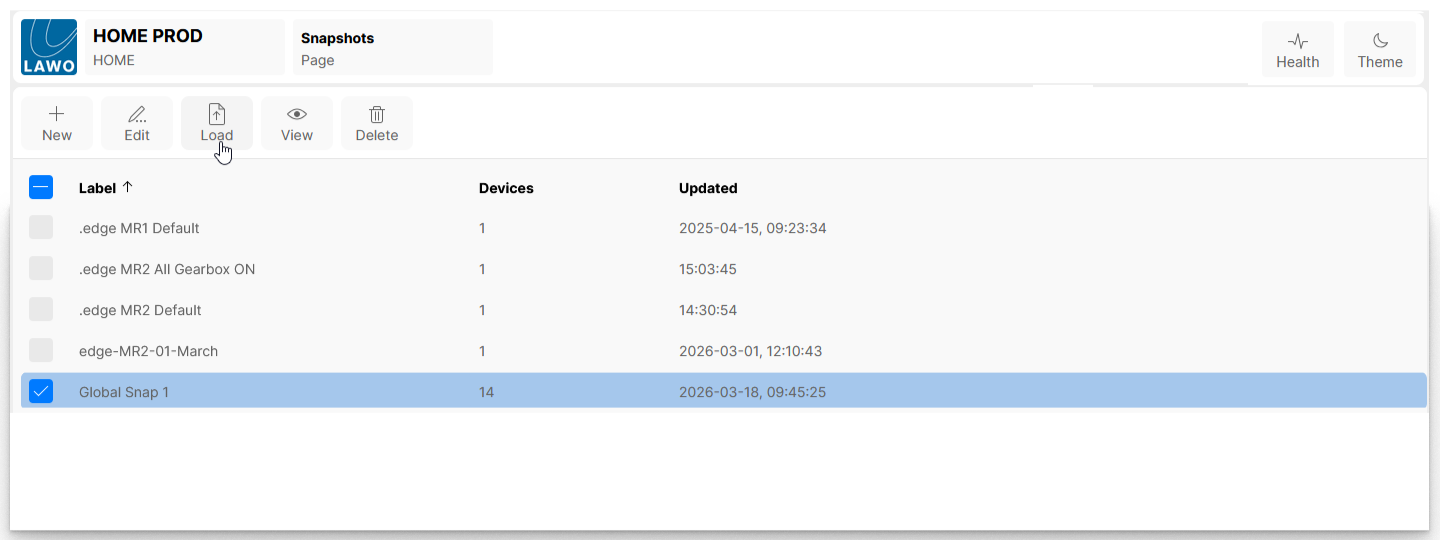
Before loading a snapshot globally, it is recommended to verify the contents of a snapshot so that the impact on the system's devices can be properly assessed. This can be done using the View snapshot function (described here).

To proceed with a global snapshot load:

  1. From HOME's 'Snapshots' page, select a snapshot and click on Load.
     
  2. Read the information in the "Load Snapshot" dialog carefully (as this describes what will happen when you confirm the snapshot load).
    If there is a device that is not online or doesn't have a HOME Pass, then this is indicated (as shown in the example below).
    • If necessary, click on  Cancel  to abort.
    • To confirm, type in  Load Snapshot  and click on  Load.
  3. Once the snapshot load is confirmed, the system updates the configuration and stream routing of all devices (as stated), and the dialog box closes.
  4. You should now check the operation of the device(s): 
    • Changes to the configuration can be viewed from the device settings pages. 
    • Changes to the stream routing can be viewed from the 'Stream Routing' page.