HOME - View Snapshot
The View button (in the 'Snapshots' page) can be used to verify the contents a snapshot. For example, after saving a snapshot globally, or before loading a snapshot from the 'Snapshots' page.
Using View Snapshot
- From HOME's 'Snapshots' page, select a snapshot and click on View.
- The "View Snapshot" dialog opens listing the data types that are part of the snapshot file.
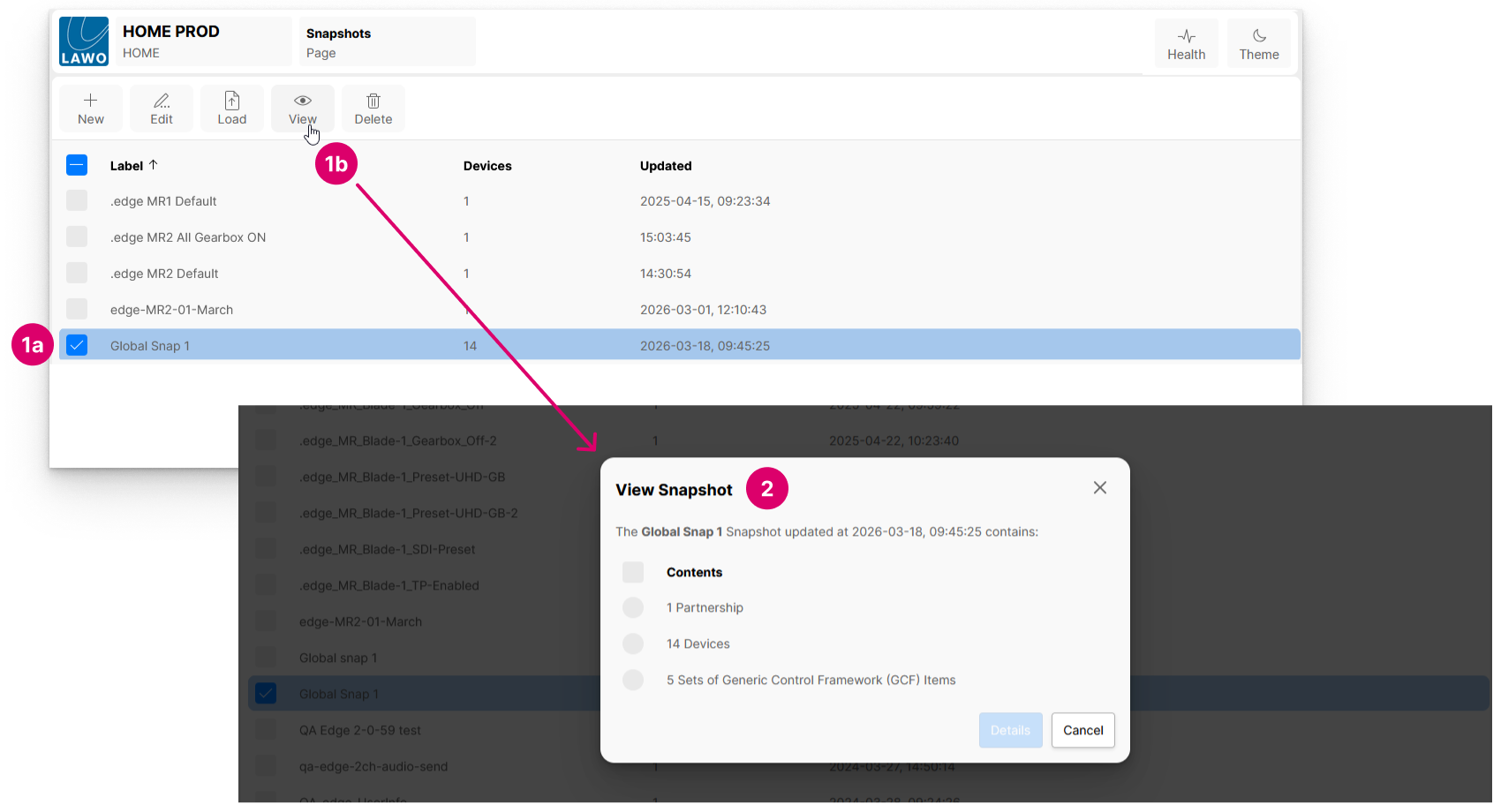
- To continue, select an option from the list and click on Details.
- Another dialog opens with more details or further options.
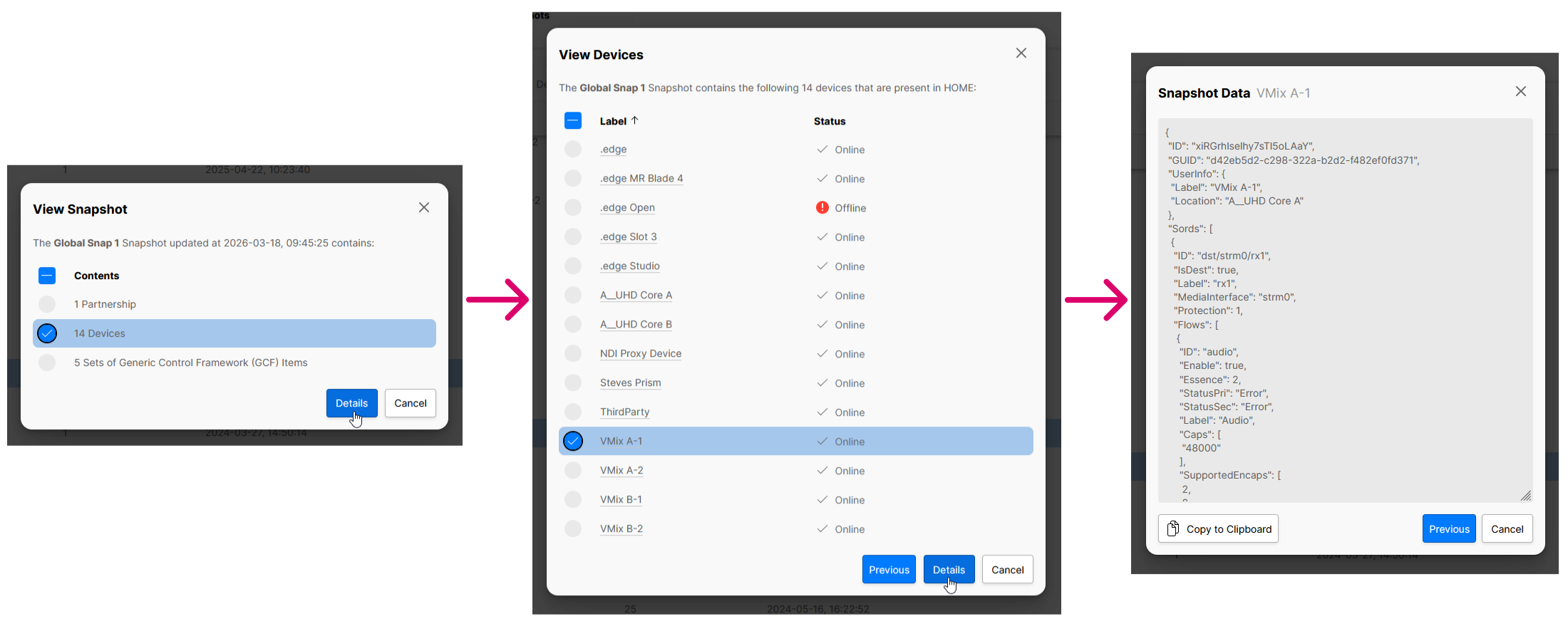
In the example below, the dialog lists all of the devices that are contained in the snapshot (and present in HOME). To continue, select a device and click on Details again.
- The "Snapshot Data" dialog now opens. This displays the data structure as a JSON file. From here, you can view or copy the data (to the clipboard).
- To exit, click on Cancel.
Snapshot Data Types
When a HOME snapshot is saved, there are several types of data that may be stored:
- Partnerships
- Signal Ownership Groups
- Redundant Groups
- Devices
- General Control Framework (GCF) Items
Whether a snapshot includes one or all of these depends on the device types included in the snapshot, and their relationship to other devices in HOME.
The rest of this topic describes the possible data types and provides some examples of when they are used.
Partnerships
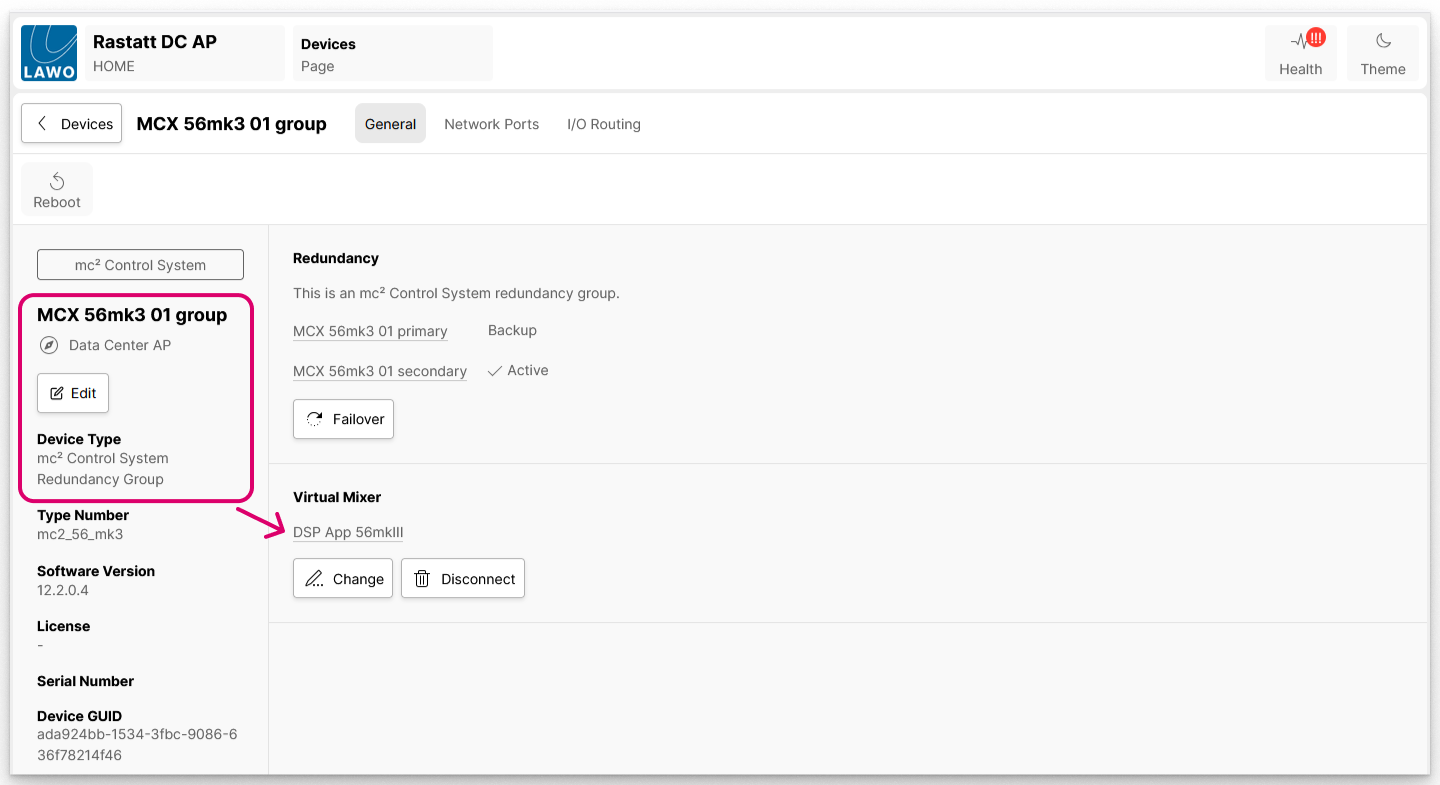
Partnership is a protocol definition, used to for associations between different devices, for example, a connection between a mc² Control System with a Virtual Mixer.
In the example below, there is a mc² Control System connection/association to a Virtual Mixer.
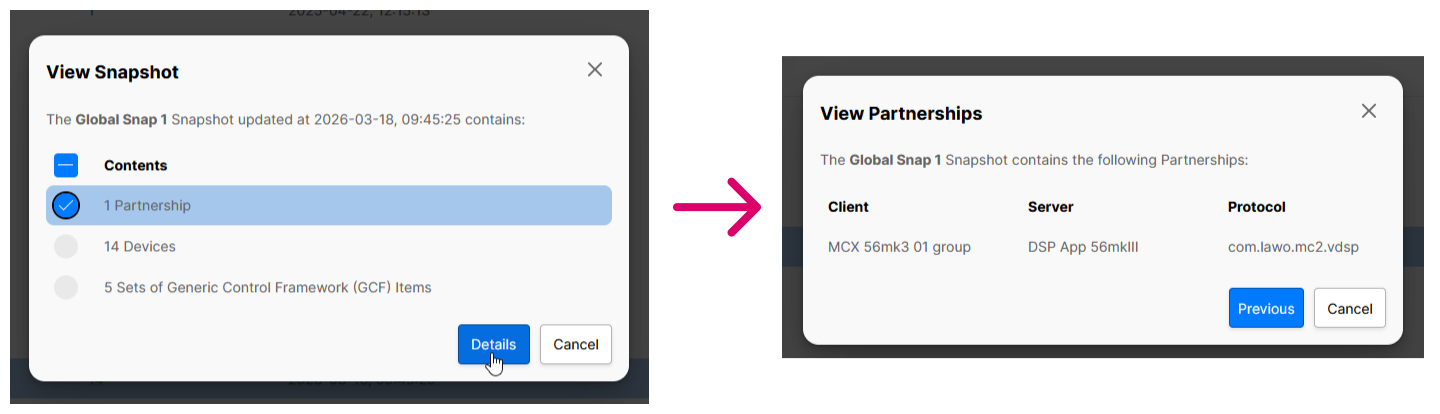
If a snapshot is created that includes the Virtual Mixer, then the "View Snapshot" dialog shows that there are X amount of associations (Partnerships) stored in this file. From here, click on Details to view the individual associations. In the example below, there is 1 partnership association stored in the snapshot file.
Signal Ownership Groups
Redundant Groups
Devices
The devices snapshot data contains settings saved via the device data model: i.e. the Label, Location, Device ID and Stream Routing.
In the example below, you can see the details for the selected device. In this example, a Virtual Mixer (VMix A-1).
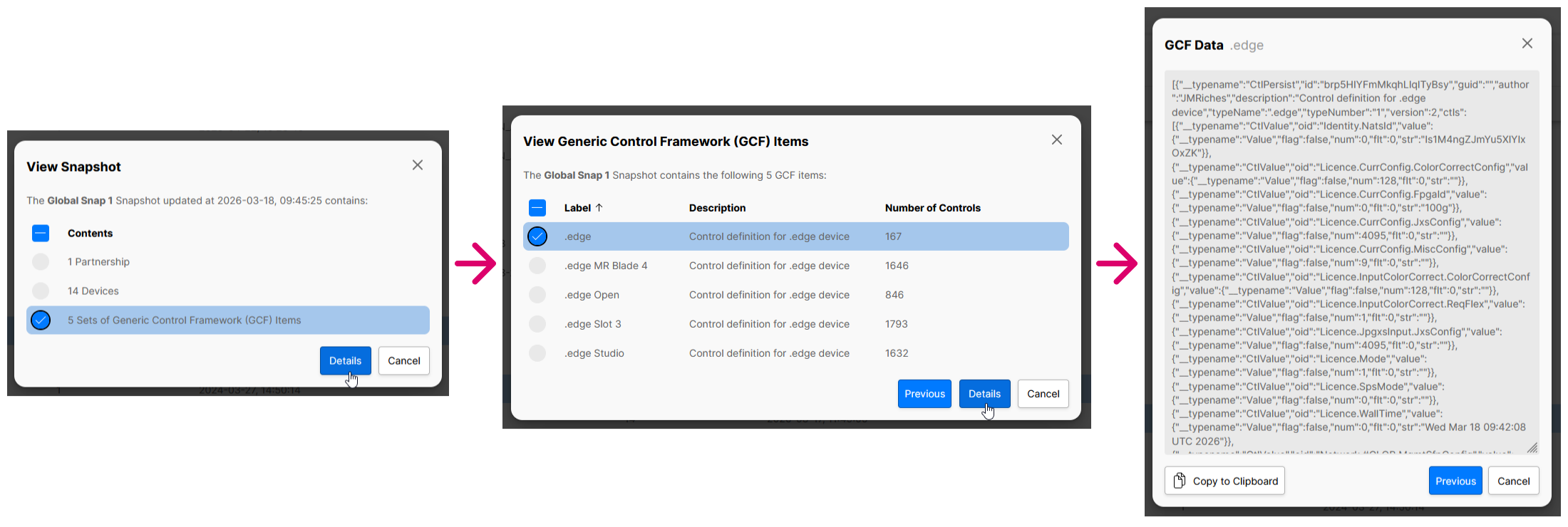
General Control Framework (GCF)
Generic Control Framework is a protocol used by end devices such as .edge to expose parameters to HOME. Every HOME snapshot is capable of capturing the current values of GCF items and saving them as part of the snapshot file. Later when the snapshot is loaded, HOME essentially pushes all GCF parameters back to the end device.
In the example below, GCF Items are saved for all of the .edge processing blades. By selecting a device, you can interrogate the individual parameters further. In this example, the snapshot includes parameters exposed to HOME via GCF, such as the PTP configuration, SDI I/O values, Network Configuration and Operational Mode.