HOME includes an admissions service that aims to keep the network secure.
The admissions service can be enabled or disabled from HOME's system settings (as described here).
When enabled, the admissions service works as follows:
Whenever a new device is detected, it is automatically placed in quarantine.
The user can then check the device's network settings (to avoid duplicate control IPs or multicast addresses) before adding the device to the operational network (using the Approve button as described below).
If there are problems with the network, then a device can be placed in quarantine manually (using the Quarantine button).
Important: Any change is implemented immediately, without confirmation, and so you should make sure that a device's streams are not in use before using the Quarantine function.
Please note: If the admissions service is disabled, then devices are automatically added to the network once they are detected or created. In this instance, the Approve and Quarantine buttons have no function.
Note that the admissions service applies to physical devices only, and so the Approve and Quarantine buttons are greyed out if they are not applicable (e.g. if individual apps are selected).
The steps below describe how to approve or quarantine a device (assuming that the Admissions Service is enabled):
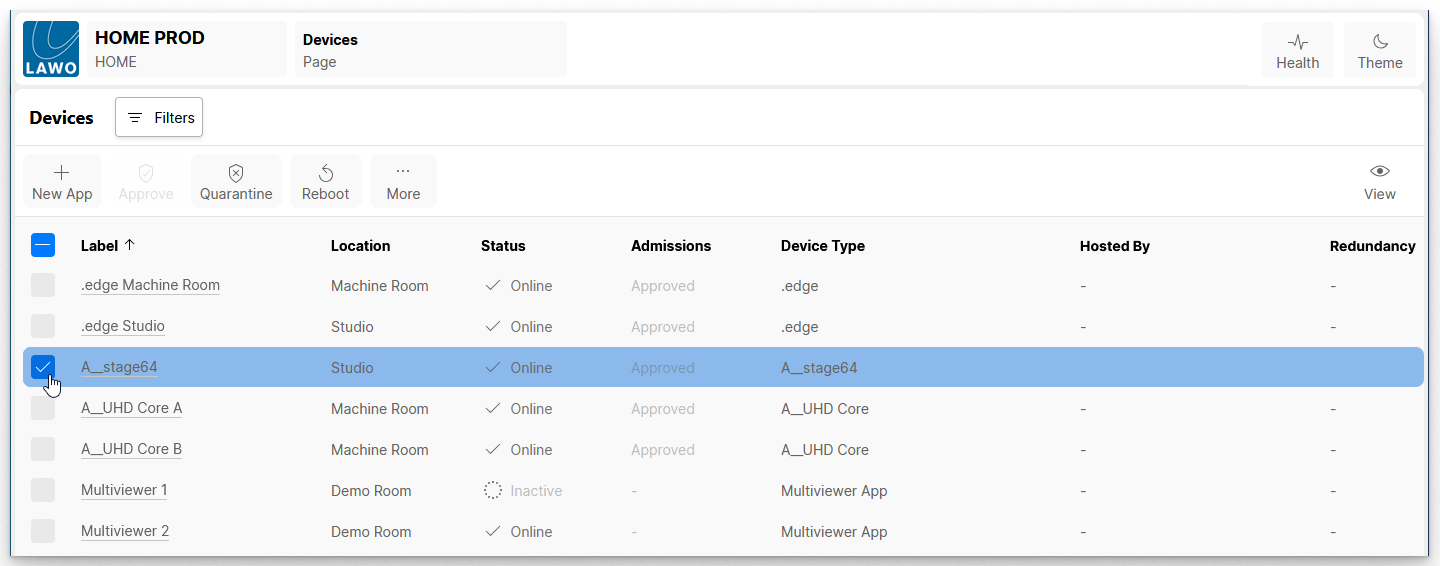
From the main 'Devices' list, select one or more devices (using the tick boxes in the first column):
Click on Approve or Quarantine to change the current status of the selection(s). A confirmation dialog appears.
Select either Approve or Quarantine to confirm. The progress is shown in the Status and Admissions fields.
Once a device is fully approved and operational, then its Status and Admissions should show as Online and Approved.
Alternatively, if a device is placed in quarantine, then its Status shows as Quarantined.