HOME Device - Network Ports
The 'Device → Network Ports' page shows information about the device's network interfaces or, for HOME Apps, the network interfaces of the app server. It can be used to check the status of a port and edit* its network settings.
*Please note: For HOME Apps, the network settings of an app server cannot be edited from the Network Ports page, as this is done (by the Lawo engineering team) during the system configuration.
How to open the Network Ports page is described in HOME - Configuring a device. This topic explains the informational fields and operations. The examples used are taken from an A__stage (physical I/O) device. The same principles can be applied to other device types.
Informational Fields
The 'Network Ports' page lists each of the device's network ports.
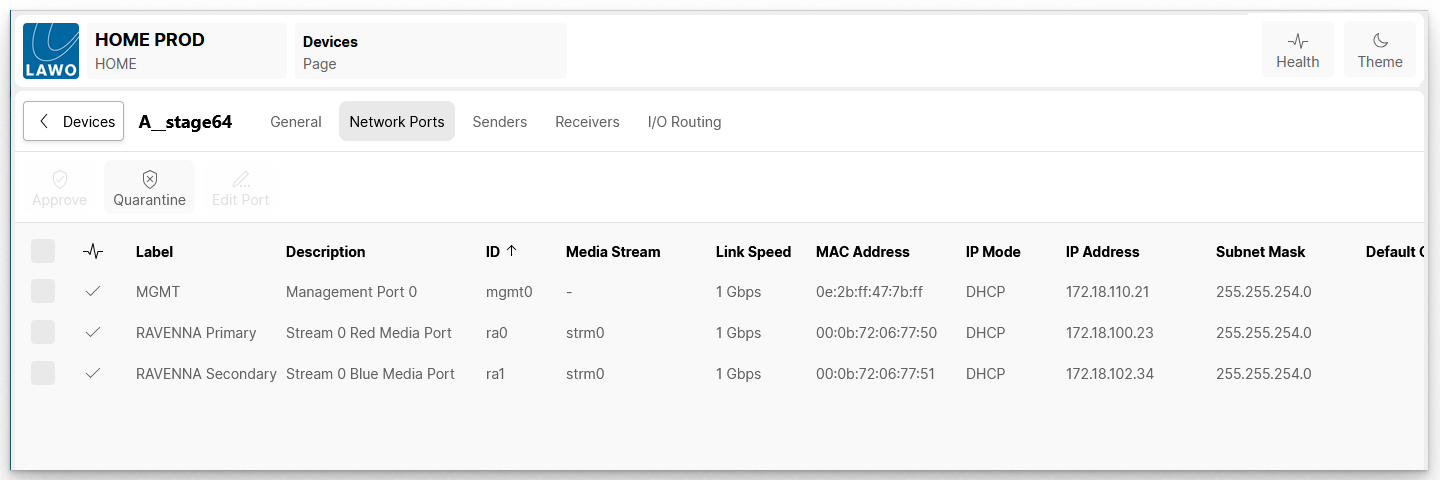
In the example (shown below), the device has a single management port and two RAVENNA streaming ports (for primary and secondary streams).
Network Port Information
The table shows information about each network port including the link state, label, description, internal ID, link speed, MAC address, IP mode, IP address, gateway and information about the connected network switch: system name, chassis ID, port ID and port description. You may need to scroll to the right to see all available information.
Click on a column header to sort the list alphabetically. Each click toggles the sort mode between ascending (A -> Z) and descending (Z -> A). An up or down arrow appears beside the header to indicate the current sort mode.
Connection Status
The icons in the link state column can be used to quickly check the status of the Ethernet connection. This is the second column from the left (before the network port Label).
- Link up (ok) = valid connection. No action is required.
- Link down = connection error. Check the physical connection to the network switch.
- Not in use = the port has been set to "Not in use". This can be used to mark ports that are intentionally unconnected.
Approve or Quarantine
For convenience, the Approve and Quarantine buttons (from the 'Devices' list) are repeated at the top of the page. These can be used to add or remove the device from the operational network. For more information, please see HOME - Approve or Quarantine a Device.
Edit Port
The "Edit Port" dialog can be used to choose the method of IP Address Assignment and, for Static IPs, edit the network settings.
Note that whether you can edit the IP settings is dependent on the type of device. For example, if a physical device is selected, then this has network ports that can be configured. However, if an app is selected, then the network ports of the app server are displayed (for informational purposes) but cannot be edited. In this instance, click on the label of the app server (to open to its 'General' settings) and click on Network Ports (to access the network settings of the app server).
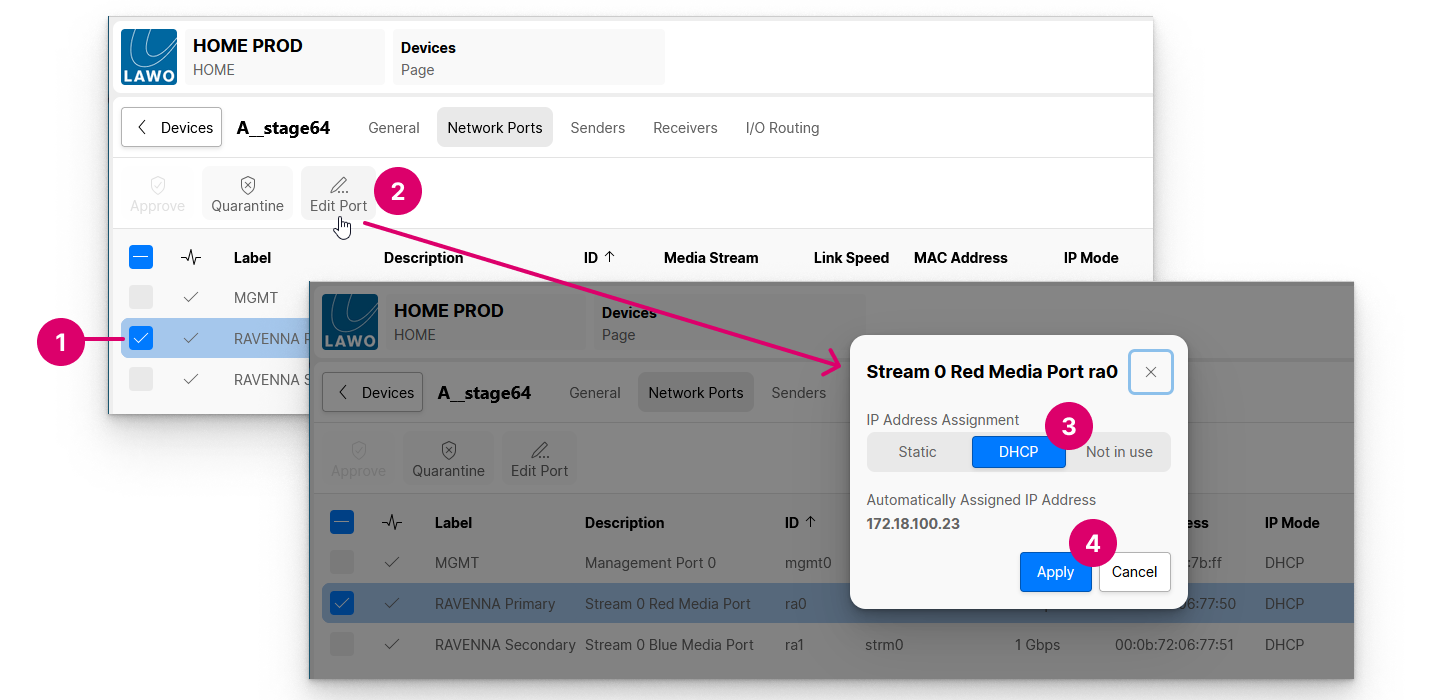
- Start by selecting the port you wish to edit.
- Click on Edit Port. The "Edit Port" dialog opens.
- Select the IP Address Assignment mode (as described below) and, for Static mode, enter the required network settings.
- Click on Apply to confirm any changes. The information in the table, and connection status, updates accordingly.
- Once applied, check the connection status: Link up = connection is ok.
IP Address Assignment Modes
There are three possible IP Address Assignment modes: Static, DHCP or Not in use.
If Static is selected, then the port's network settings can be edited manually: IP Address, Network Mask, Gateway and Primary/Secondary Name Servers.
- The IP Address must be unique and lie within the same IP address range as all other nodes you wish to connect to (i.e. the first three fields must match).
The Network Mask must match the Subnet Mask of all other nodes.
If data packets are to be redirected via a network switch with Layer 3 routing capability, then enter a Gateway and up to two Name Servers. If redirection is not required, then these fields can be left blank.
- If you need access to more technical parameters, then these can be reached from the Network Ports branch of HOME's Advanced parameters.
If DHCP is selected, then a source IP address is assigned automatically by HOME's DHCP server. In this instance, there is nothing further to do and the automatically assigned IP address is displayed.
If Not in use is selected, then the port's link status changes to "Not in use". This can be used to mark ports that are intentionally unconnected.