HOME Apps - General settings
The 'Device → General' settings page is the first landing page that appears whenever you click through to an individual app. It provides basic app management controls, such as Start, Stop, Delete, etc., and general information about the app. From here you can check information about an app and edit its general parameters such as the app label, location, initial configuration and license type.
To open the General settings page: click on the app label (e.g. from the main 'Devices' list). See HOME Apps - Reconfiguring an App.
This topic explains the informational fields and operations. The examples used are taken from a HOME Multiviewer. The same principles can be applied to other app types.
Overview
The 'General' settings page is divided into three main sections with app management operations (at the top), general information (on the left) and other settings (on the right).
The informational fields (on the left) include the app label and location, plus the Software Version (important for compatibility with HOME), and the Device ID which identifies the app within HOME and to external controllers.
The areas (on the right) provide further information about the app including:
- the Lifecycle information: current status (started, stopped, etc.) and health. When the app is running without problems, the app will report as "healthy". If the app reports as "unhealthy", then corrective action should be taken as the app is not operating correctly.
- the Licensing information: the number and type of licenses in use.
- a summary of the app's initial configuration (under App Options).
When an app is stopped (not running), it is possible to edit the app label, location, initial configuration and license type.

Important: The general settings cannot be edited while an app is running. This means that, to edit the label, location and initial configuration, or change the license type, you will need to first stop the app.
Available Controls
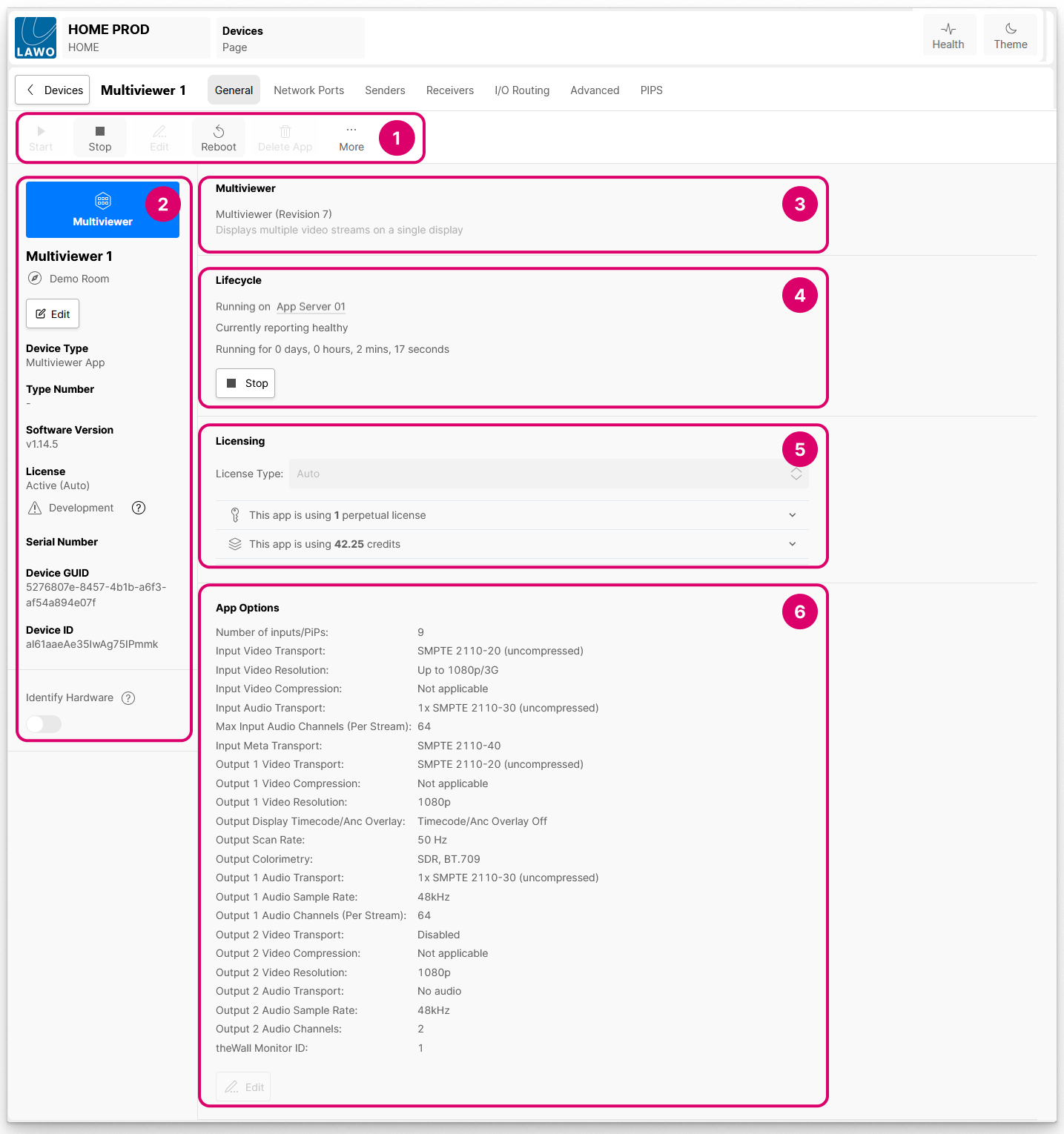
Working from top left to bottom right, the available controls are as follows.
1. App Management Operations
For convenience, the app management operations (from the 'Devices' ...More menu) are repeated at the top of the page.
The available operations depend on whether the app is running or stopped. For example, you cannot edit the initial configuration of an app if it is running.
- Start (or Stop) - opens the start (or stop) app dialogs to start (or stop) the app. See Start App and Stop App.
- Edit - can be used to edit the initial configuration of the app (as described later).
- Reboot - opens the reboot device dialog (to restart the app). While the reboot is in progress, the app will stop running and so you should make sure that an app's streams are not in use before using this function.
- Delete App - opens the delete app dialog (to remove the app from HOME). If you delete an app, then any configuration data associated with the app is permanently lost. This is particularly important if you are using an external control system. See Delete App.
- More - opens a drop-down menu. The menu has no active functions for HOME Apps in the current release.
Important: The Reboot and Delete App operations should be used with caution; please observe the notes above.
2. General Information
Below the app icon are several informational fields that show the app label (and location), app type, etc. These are read-only unless otherwise specified. If you see a question mark icon, then you can hover over this to reveal a tooltip.
Of particular note are:
- the app label and location which are displayed within HOME. The Edit button can be used to edit the app label and location (as described here).
- the Software Version, important for compatibility with HOME.
- the Device ID which identifies the app within HOME and to external controllers. See DeviceID.
The Identify Hardware option is not applicable for HOME Apps (and so this option is greyed out).
3. App Type & Description
To the right of the app icon you will see the app type, its revision and a short description of the functionality. This is provided for information only; you cannot change the type of an existing app.
4. Lifecycle
The Lifecycle area shows the current status and health of the app.
If an app is started, you will see which server the app is using, the health status (reported from the server) and how long the app has been running.
Please note:
- When you start an app, it is normal for the status to be "unhealthy" for a few seconds. This will change once the containers are deployed and the processing is running (on the app server).
- Once the status shows as "Currently reporting healthy", the app is ready to use.
- If the "unhealthy" status persists, then corrective action should be taken as the app is not operating correctly. Please check the status of the app server (by clicking on the server name in the text line "Running on <app server name>").
If an app is stopped, then the Lifecycle area shows how long the app has been stopped.
The Start or Stop buttons are repeated for convenience. See Start App and Stop App.

Tip: Once an app is running, you can access the settings for its app server by clicking on the server name at the top of the Lifecycle area: "Running on <app server name>".
This opens the 'Device → General' settings page for the app server. From here you can see which apps are running on the server and other information such as its label, location and software version.
5. Licensing
The Licensing area shows the licensing information for the app.
The License Type defines which types of license will be used by HOME when the user starts the app. It can be changed, when the app is stopped, by choosing an option from the drop-down menu:
- Auto - HOME uses any available perpetual licenses first, and then tops-up with credits.
- Perpetual - HOME uses perpetual licenses only.
- Credits - HOME uses Lawo Flex credits only.
For more information, please see HOME Apps - License Type (per app).
The two "licensing usage" lines show the number of perpetual licenses and/or credits required to run the app. You can interrogate the licensing requirements further by clicking on the reveal/hide arrow (for the perpetual licenses or credits).
Important: If there are not enough perpetual licenses or credits, then a warning indicator appears beside the licenses or credits icon. Hover over the icon to see how many licenses or credits are missing.
In this instance, you will need to resolve the licensing issue otherwise the app will fail to start (or restart, if it is already running).
For more information, please see HOME Apps - License Usage (per app).
6. App Options (Initial Configuration)
The App Options area shows the initial configuration of the app.
If an app is running, then the information is read-only. If an app is stopped, then it is possible to edit the initial configuration (as described here).
Edit Label and Location
The Label and Location of an app can be edited from the 'Device → General' settings page as follows.
- Click on Edit (below the current label). The 'Edit Device Info' dialog opens.
- Use the fields to edit the label and location.
- Click on Done to confirm.
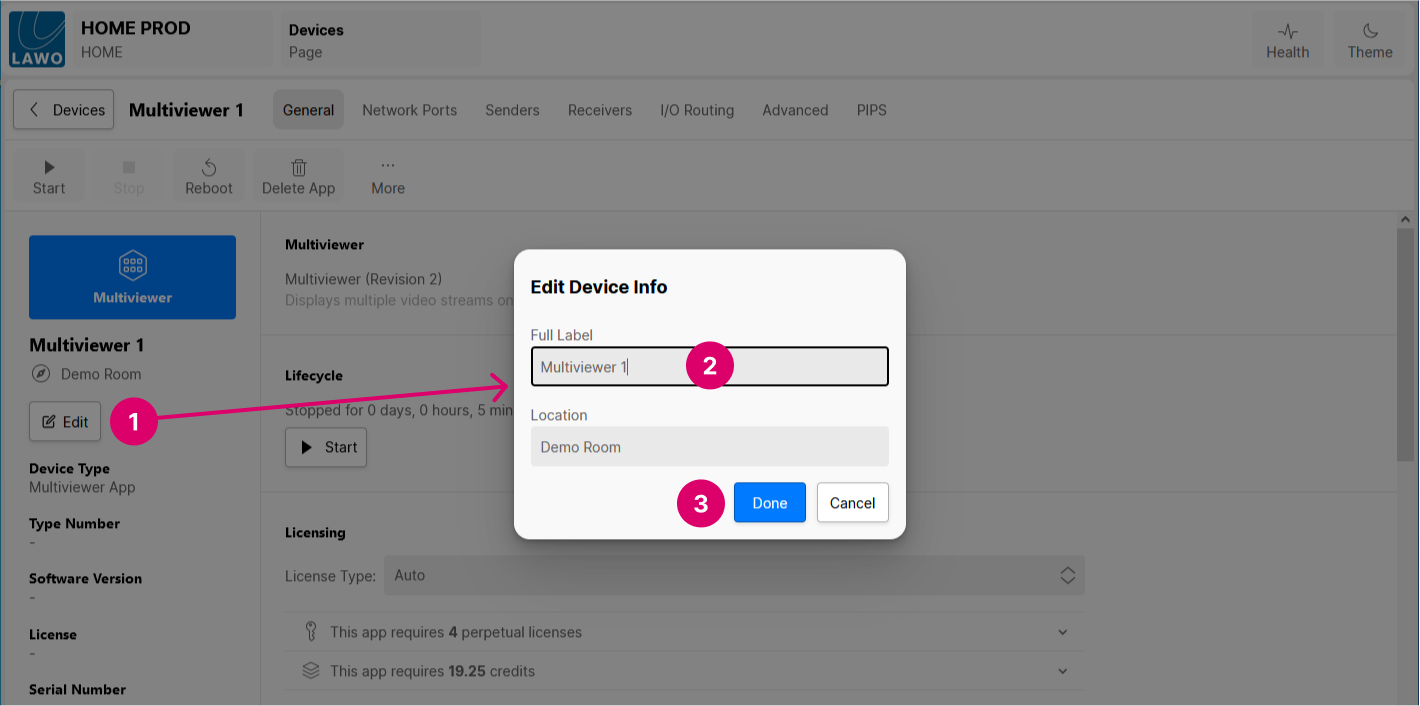
Please note: The Label and Location cannot be changed while an app is running. This means that to edit these fields, you will need to stop the app.
If you attempt to edit the label or location while an app is running, then the changes cannot be applied and a red error message appears. In this instance, click on Stop (to stop the app), apply your changes and then click on Start (to restart the app).
Label
The Label identifies the app (in HOME) and to other network users (where applicable).
- A label must be entered. This field cannot be left blank.
- Each label must be unique (within the HOME system).
- Labels can be edited without affecting the rest of the configuration.
Location
- Entering a location is optional. This field can be left blank.
- Locations can be edited without affecting the rest of the configuration.
Device ID
The Device ID is a unique ID number that identifies an app within HOME and to external controllers. It is assigned automatically (by HOME) whenever an app is created (using New App or Duplicate App). This ID remains with the app, at all times, and does not change if you modify the app label or other settings. This is important as it means that changes can be made to the app's settings without any impact on the rest of the configuration or external control systems (such as VSM).
The Device ID is displayed on the left of the 'General' settings page. Note that there are two IDs (per app). For operational purposes, it is the Device ID that is important. The Device GUID is used, internally, by HOME.
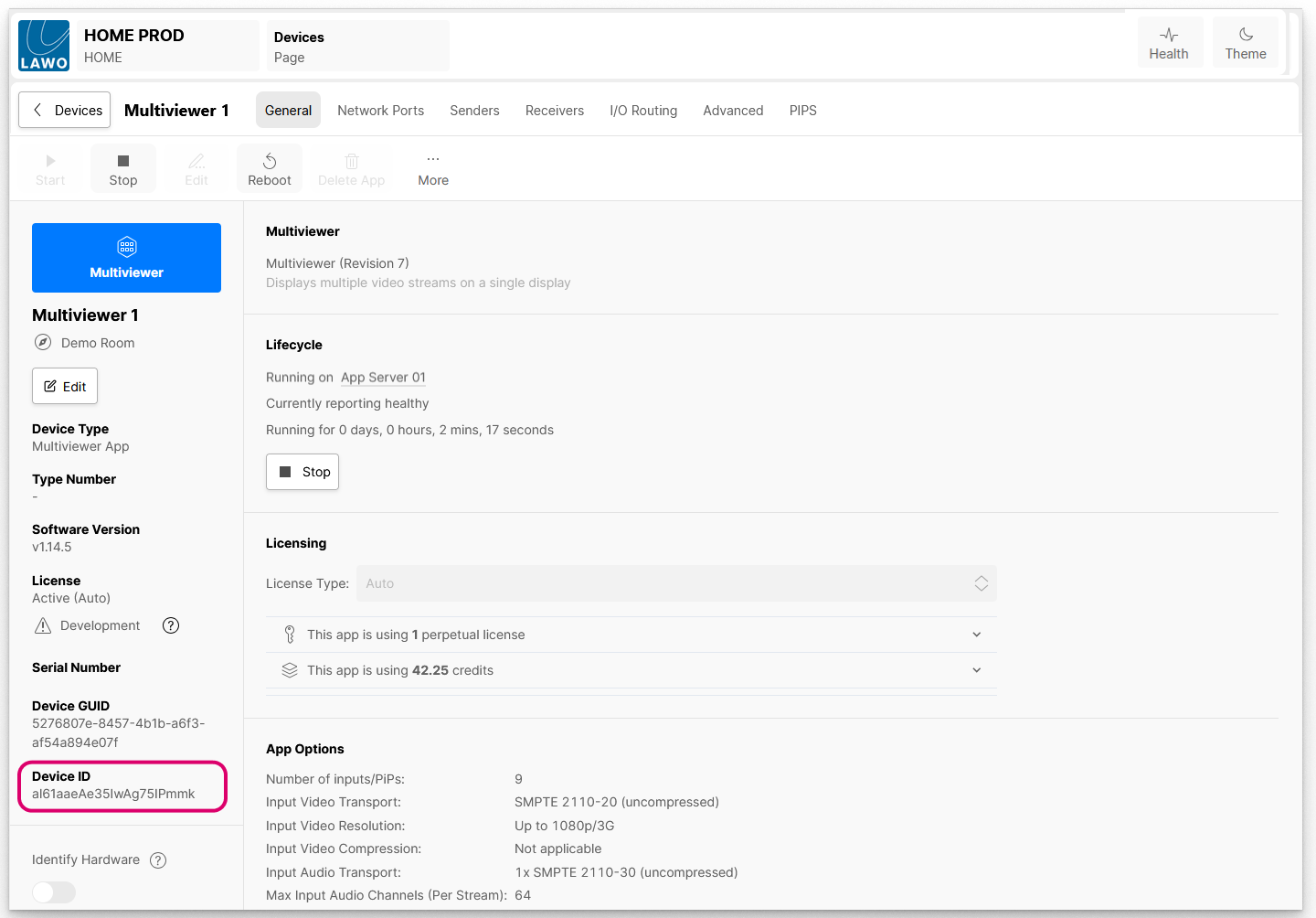
Edit App
The initial configuration of an app can be edited using the Edit (app) button. For convenience, the Edit button appears in two places: in the operations area (beside Start, Stop) and below the 'App Options' summary.
It is not possible to edit the initial configuration while an app is running and so, to make any changes, you will need to first stop the app.
1. Click on Edit (to open the 'Edit App' dialog) using one of the buttons shown below.
Please note: If the app is running, then it is not possible to edit the initial configuration and the Edit buttons are greyed out.
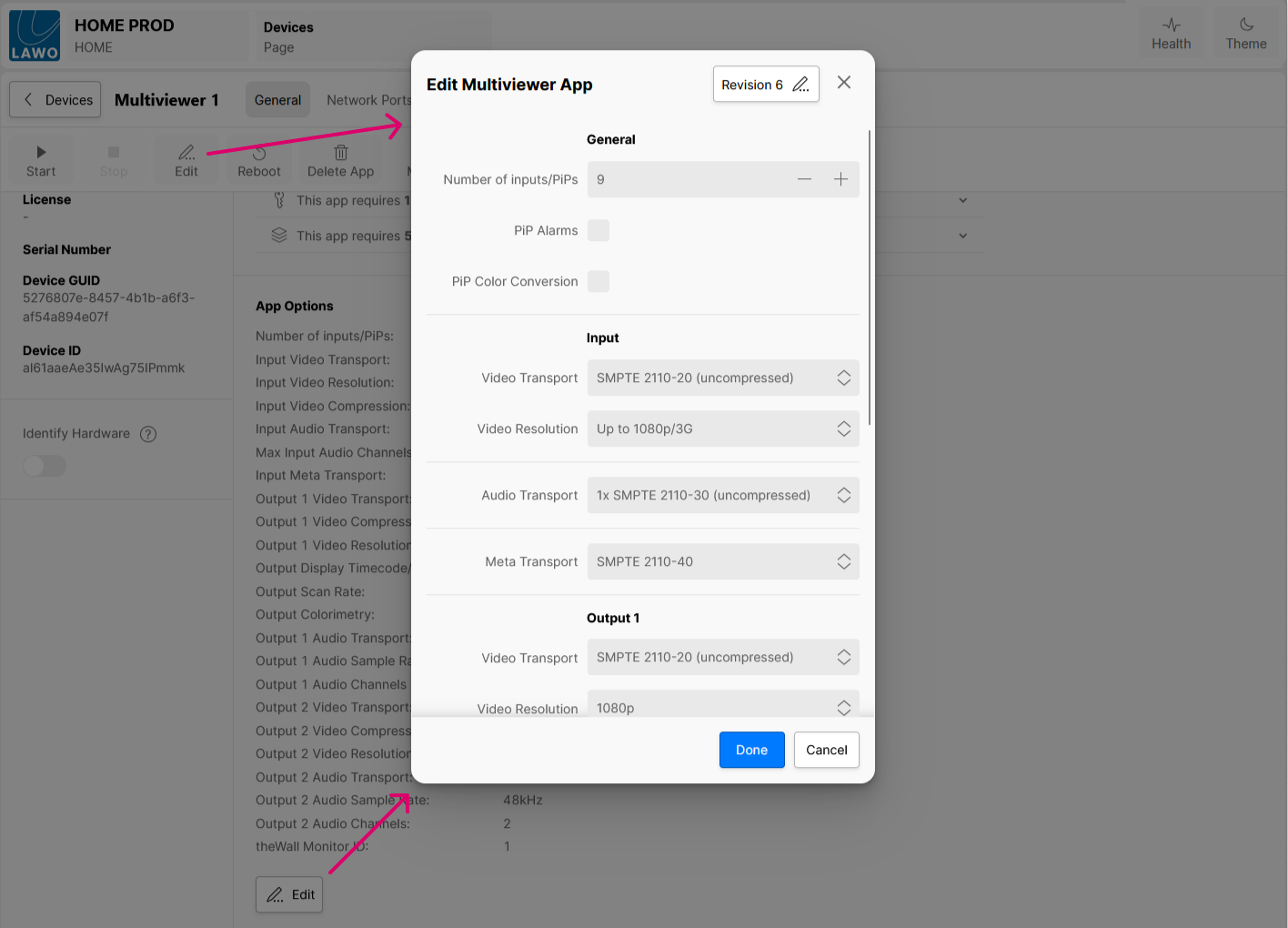
2. Use the 'Edit App' fields to adjust the parameters. This is done in the same way as when you first created the app.
Important: It is recommended to set the initial configuration parameters carefully, so as not to over specify an app. Options such as the number of I/O, the stream transport type, etc. determine how many licenses and/or credits are required to start the app, and also have a cost in terms of the CPU resources (in an app server) and streaming bandwidth (in the network).
More information about each parameter is provided in the app-specific chapters of this manual.
3. Once you are happy with the changes, select Done (to confirm).
4. The app is now ready to be restarted (using the Start button).
Edit App - why is my change not applied?
What happens next depends on the parameter(s) that have been modified and whether this is a first-time start up of the app:
- If a parameter can only be edited in the initial configuration, then the new value is applied when you next start the app. In this instance, any changes to the resource usage are displayed in the 'Start App' dialog.
- If a parameter can be edited in both the initial configuration and during runtime, then the initial configuration value is loaded on the first start-up of the app, after which the latest runtime values are applied (as defined in HOME's other 'Device' settings tabs: Senders, Receivers, I/O Routing, Advanced, etc.)
This second scenario means that, for some parameters, the runtime and initial configuration values may be different. It is important to understand that this is intentional (and useful) and not a mistake.
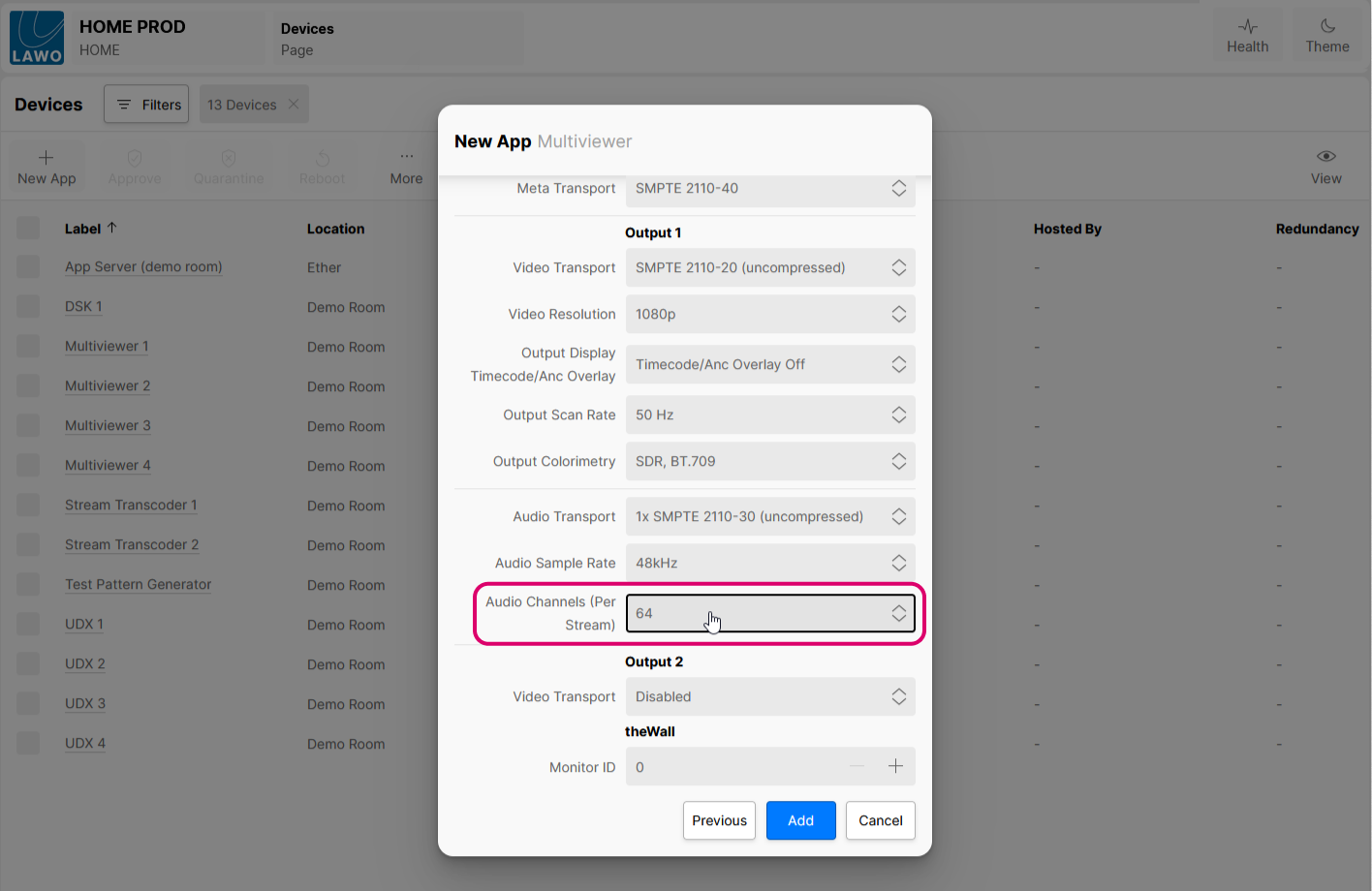
In the example shown below, the Audio Channels (Per Stream) is set to 64 in the initial configuration when the user creates the app. This means that a value of 64 will be loaded on the first-time start-up of the app.
If the number of audio channels per sender is changed to 8 using the 'Edit Audio Sender' dialog in the 'Device → Senders' page, then it is this value (and not the one in the initial configuration) that defines the number of audio channels per stream.
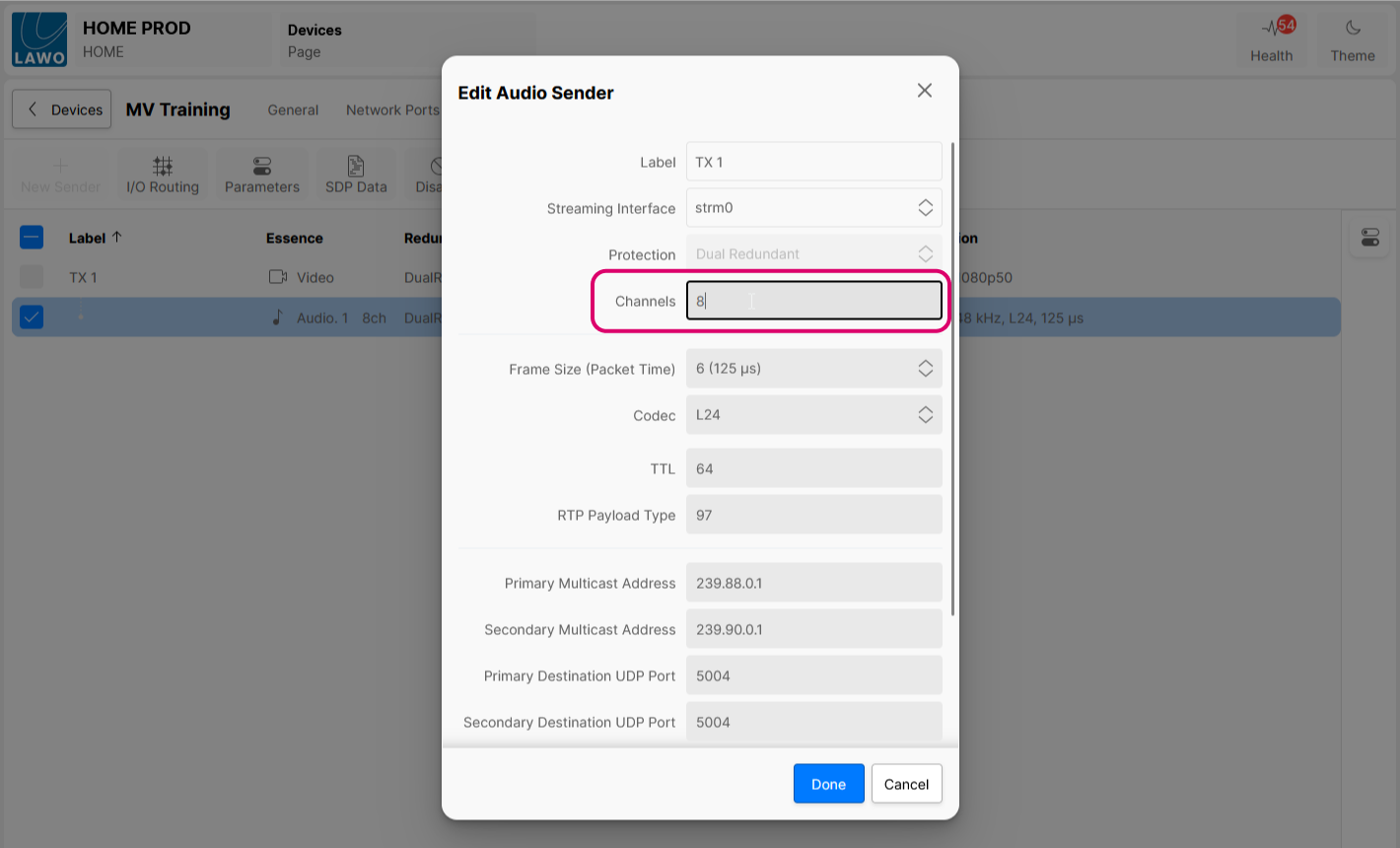
Note that this remains true even if the user stops the app, edits the Audio Channels (Per Stream) in the initial configuration, and then restarts the app (as HOME always loads the latest runtime values for an app).
In this example, the user must use the 'Edit Audio Sender' dialog if they wish to modify the number of audio channels per stream. The initial configuration value (of 64) remains relevant if the user chooses to duplicate the app.
Editing Multiple Apps
If you wish to apply changes to more than one app at a time, then this is possible using the Edit App function (selected from the More... menu in the main 'Devices' list).
In this instance, it is possible to apply changes to multiple apps of the same type (in bulk). For example, to update the app revision or change the streaming format for several apps.
For more information, please see HOME Apps - Edit App(s).
App Revision
The revision of an app is shown at the top right of the 'Edit App' dialog. By default, it is set to the latest revision supported by the HOME Apps software whenever you create a new app.
Sometimes, a new HOME Apps release will introduce a new ‘revision’ for some apps. In this instance, you may need to modify the app revision if you wish to run the latest version of the processing supported by the HOME Apps release.
This can be done either individually per app (as described below), or for multiple apps (using the Edit App function).
Once the 'Edit App' dialog is open:
- Click on the Revision # button (top right) to show or hide the App Revision field:
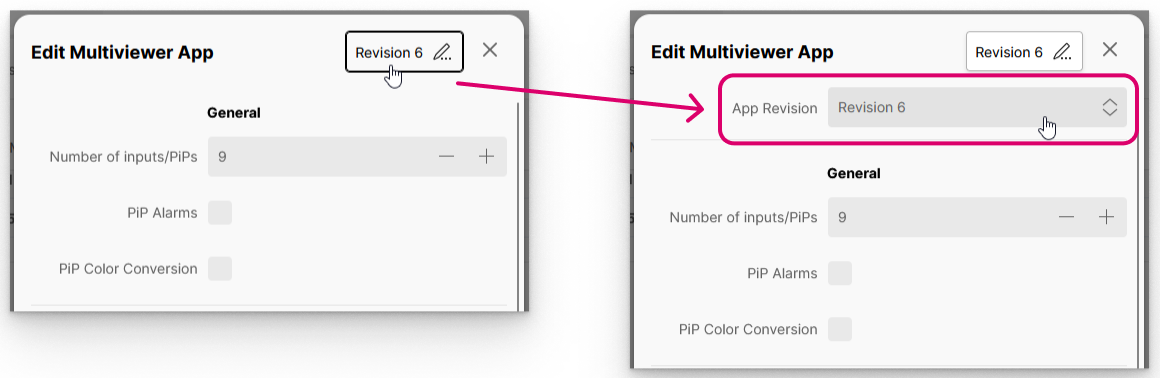
- Choose a revision number from the drop-down menu. The highest number is always the latest revision supported by the current HOME Apps release.
- If new options are supported by the new app revision, then these can be configured using the appropriate fields.
- Confirm by selecting Done - the 'Edit App' dialog closes and the changes are applied.
More about the App Revision
To help explain why different App Revisions are supported, it is useful to understand the difference between the software version and the 'revision' of an app.
HOME Apps allows multiple software versions to be installed at the same time.
As software developments continue, there may be changes to the app orchestration services running on the HOME servers. These changes may not be backwardly compatible with older versions of the apps. Apps therefore have a 'revision' to help resolve these kinds of dependency problems, and to allow multiple versions to co-exist.
When users start an app, HOME looks for the possible software versions that are compatible with the app revision and sets the Version (in the 'Start App' dialog) as follows:
- If the latest software version is compatible with the app revision, then this is automatically selected and no further action is required.
- If an app has been configured using an older revision, then a message appears (in blue) informing the user that the latest version cannot be started. In this instance, you should edit the app revision so that it can run the latest processing feature set.
- If there are multiple versions (of HOME Apps) installed and, when starting an app, the expected software version is not found, the Version list will be empty (blank). In this case, you will need to edit the app revision so that a compatible version may be found.
How to edit the app revision for multiple apps is described here.
The image below shows the message that appears (in the 'Start App' dialog) if a compatible version is found but this is not the latest.
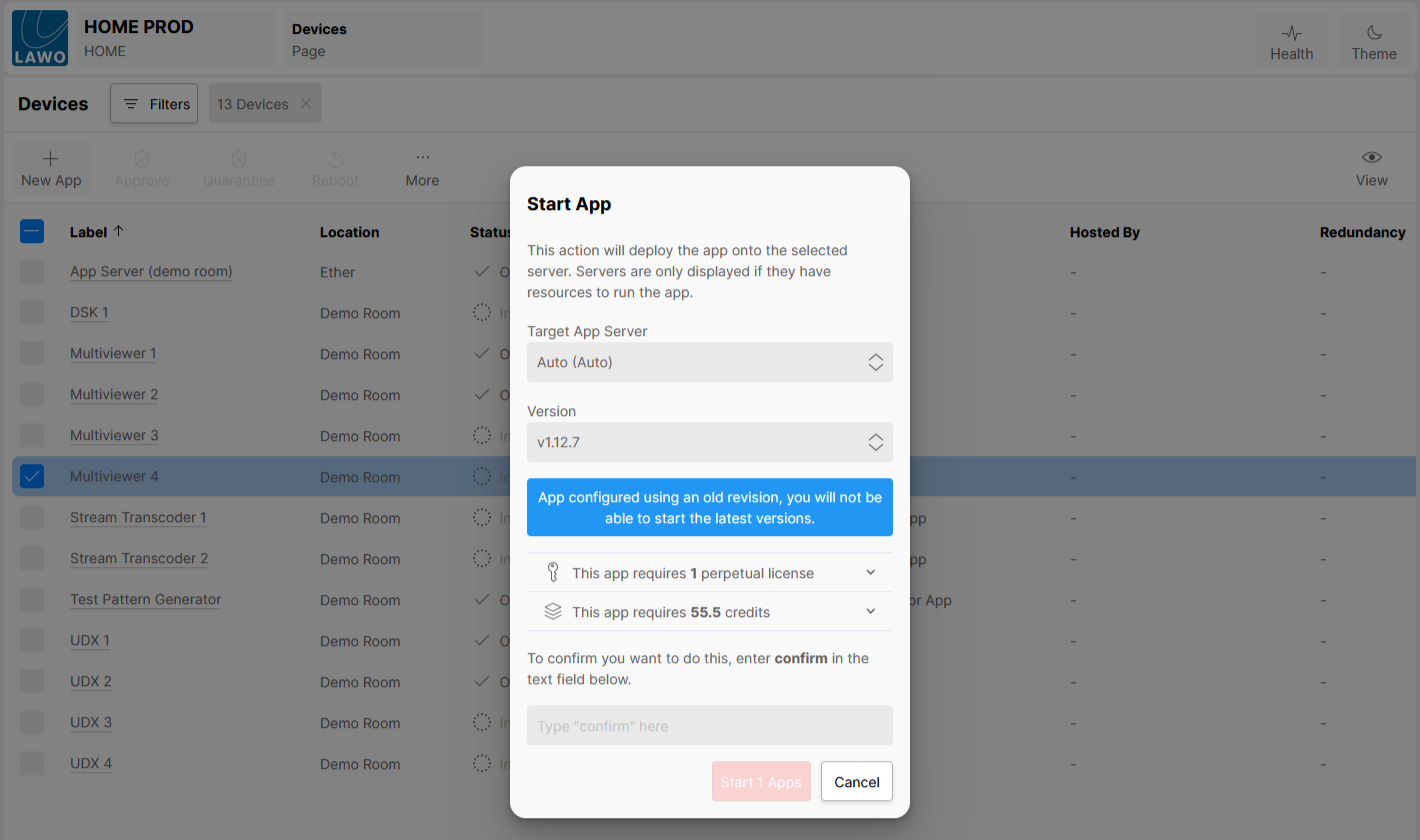
As a general rule, if the latest version is not selected, then it is best to edit the app revision (to access any new features and bug fixes). How to do this for multiple apps (in bulk) is described here.
If you choose to start a previous version (to remain compatible with an older revision), then the implications depend on whether any changes have been made to that app type in the newer release. If no changes have been made, then there will be no difference. If changes have been made, then the app will start but you will not benefit from the new features and bug fixes in the later release.