HOME Apps - Edit App(s)
The Edit App(s) function can be used to edit settings for one or more existing apps of the same type. It is particularly useful to apply changes to multiple apps in bulk. For example, to update the app revision or change the streaming format for several apps.
An individual app can also be edited from the 'Device → General' settings page (if this is preferred).
While the Edit App(s) function is very similar to Edit app (in the 'Device → General' settings page) , there are two main differences :
- It is possible to edit both the initial configuration and the following runtime options: license mode and server group.
- Once confirmed, the same changes are applied to all selected apps.
Please note: You cannot edit an app that is running and so, to use this function, you will need to first stop the app(s). If there are some apps within the selection that are running, then these are excluded from the edit operation.
When editing the initial configuration: If parameters can be edited in both the initial configuration and during runtime, then the initial configuration is overwritten by the runtime controls as the latest (runtime) value always wins. More information about this can be found here.
Editing apps
Start by checking the status of the apps you wish to edit, and then follow the instructions below to edit the selected app(s):
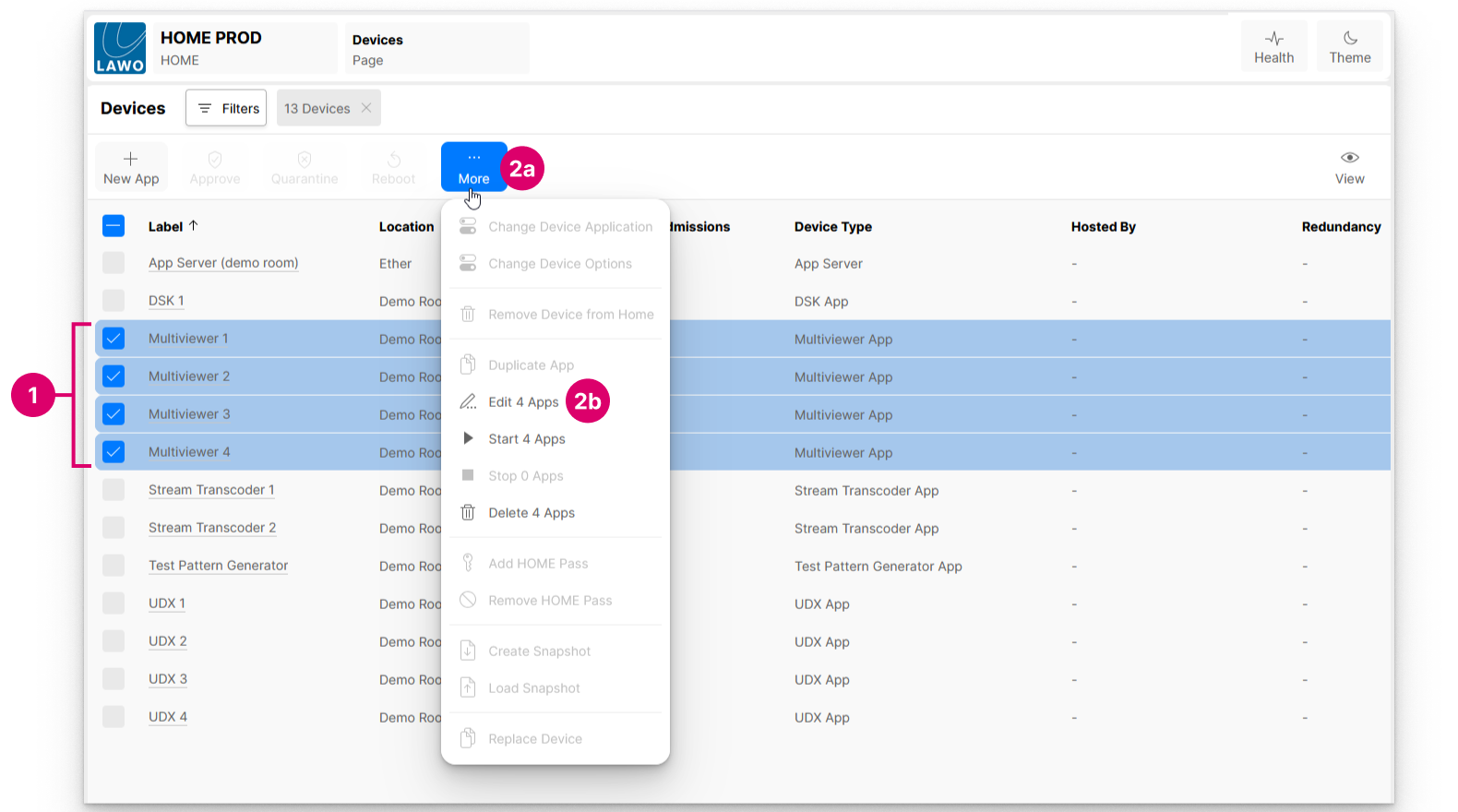
1. From HOME's 'Devices' page, select the app (or apps) you wish to edit.
2. Click on More and choose Edit Apps (from the drop-down menu).
If more than one app is selected, then the menu option confirms how many are selected.
Note that, if some of the selected apps are running, then these cannot be edited and are excluded from the rest of the operation. In this instance, any changes made are applied to the inactive apps within the selection.
By default, the 'Edit Apps' dialog opens to the Configuration page.
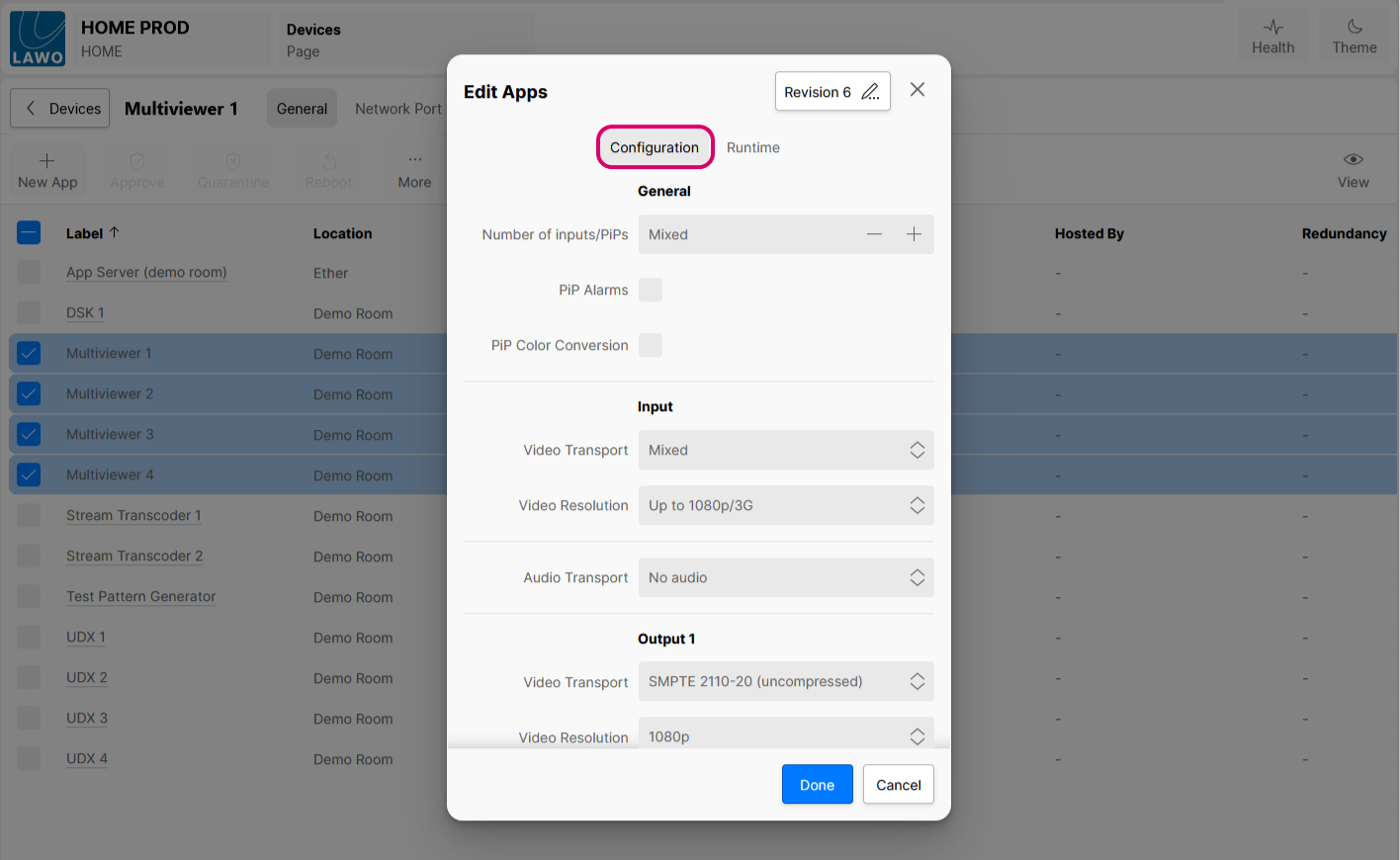
3. Choose either Configuration or Runtime menu tab to edit the available fields.
Any number of changes can be made from either the Configuration and/or Runtime page.
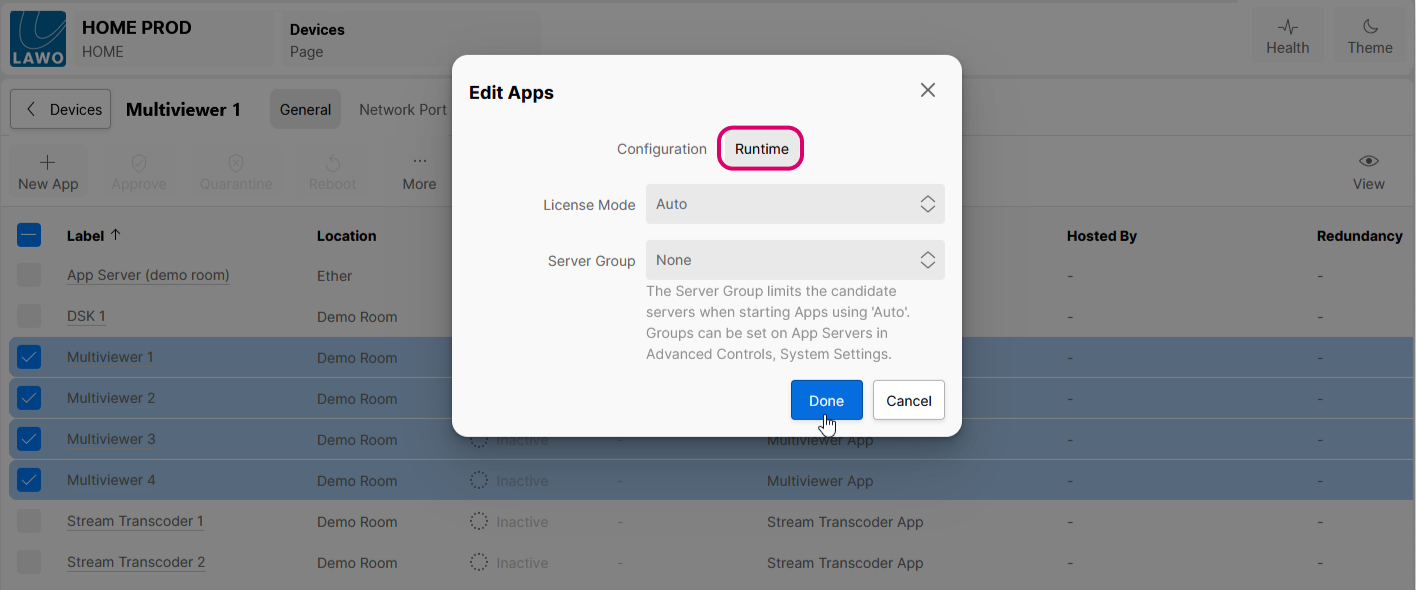
4. Once you are happy with the changes, select Done (to confirm).
A message appears (in blue) to confirm that the app edits have been applied.
Edit Apps → Configuration
The Configuration page can be used to edit the initial configuration of the selected apps. The options are identical to those presented for an individual app (in the 'Edit App' dialog).
Important to note are:
- If a field shows a specific value, then all of the selected apps are set to that value.
- If a field shows "Mixed", then the selected apps are set to different values.
Changes are made in the same way as when you first created the app. For example, click on the Video Transport field to choose a video transport. If the field previously showed "Mixed", then it will now show the new value to be applied:
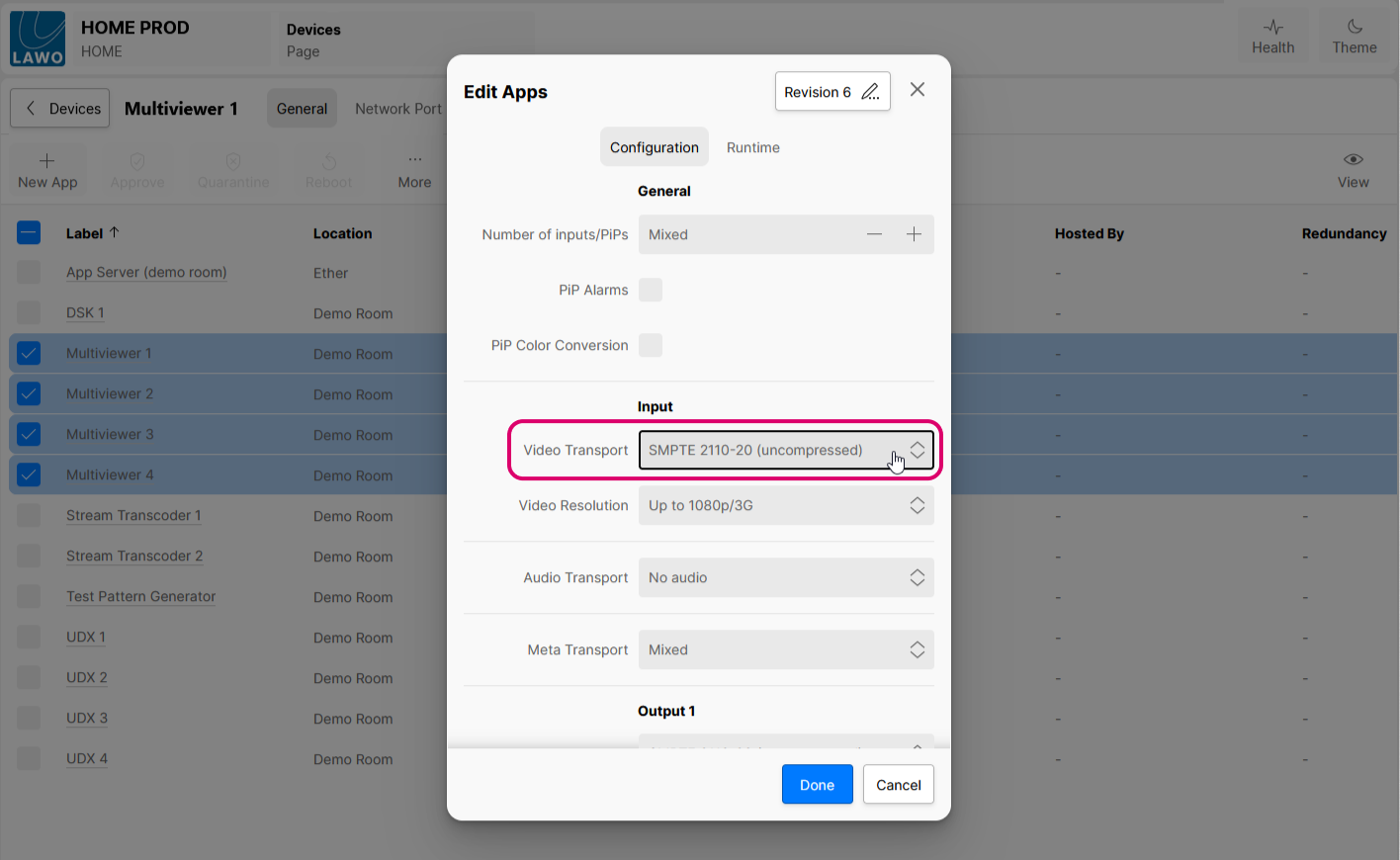
Confirm by selecting Done - the 'Edit Apps' dialog closes and the changes are applied.
The app is now ready to be started. e.g. using the Start App(s) function.
Please note:
- If a parameter can only be edited in the initial configuration, then the new value is applied when you next start the app. In this instance, any changes to the resource usage are displayed in the 'Start App' dialog.
- If a parameter can be edited in both the initial configuration and during runtime, then the initial configuration value is loaded on the first start-up of the app, after which the latest runtime values are applied (as defined in HOME's other 'Device' settings tabs: Senders, Receivers, I/O Routing, Advanced, etc.) An example of how this works, in practice, can be found here.
Edit the App Revision (in bulk)
The Edit Apps function is particularly useful to apply changes to multiple apps in bulk. For example, to update the app revision following a HOME Apps system upgrade.
In this instance, you may need to modify the app revision if you wish to run the latest version of the processing supported by the HOME Apps release. More information about the app revision can be found here.
To edit the revision for several apps at the same time:
- From HOME's 'Devices' page, select the apps you wish to edit. The apps must be of the same type. e.g. all Multiviewer apps.
Click on More and choose Edit Apps (from the drop-down menu). If some apps are running, then these will need to be stopped first.
Click on the Revision # button (top right) to show or hide the App Revision field.
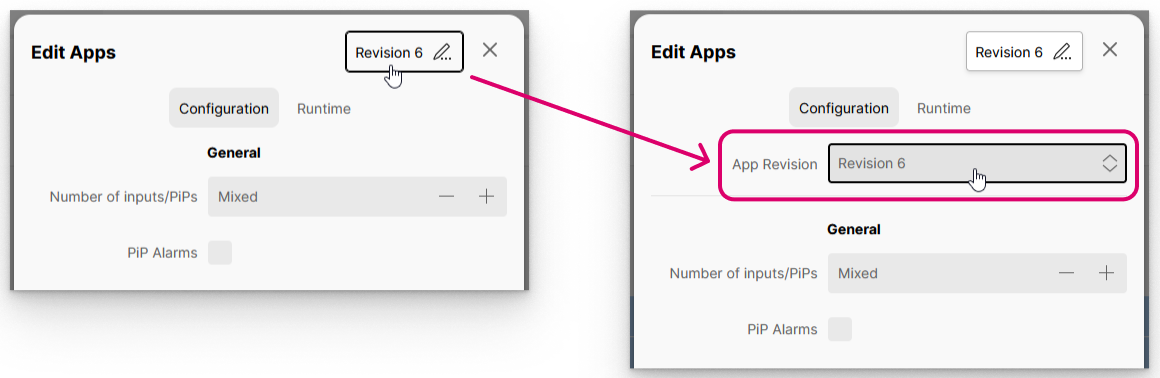
- Choose a revision number from the drop-down menu. The highest number is always the latest revision supported by the current HOME Apps release.
- If new options are supported by the new app revision, then these can be configured using the appropriate fields.
- Confirm by selecting Done - the 'Edit Apps' dialog closes and the changes are applied.
Edit Apps → Runtime
The Runtime page can be used to edit the following runtime options for the selected apps:
- License Mode - changes the license type (of the selected apps).
- Server Group - assigns a preferred server group (to the selected apps).
If a change is made, confirm by selecting Done - the 'Edit Apps' dialog closes and the changes are applied.
When the app is next started, it will use the specified license type and/or preferred server group as described in HOME Apps - Start App(s).