HOME Apps - License Type (per app)
The License Type defines which types of license will be used by HOME when the user starts an app. It can be set, independently for each app, to one of three possible options:
- Auto - HOME uses any available perpetual licenses first, and then tops-up with credits.
- Perpetual - HOME uses perpetual licenses only.
- Credits - HOME uses credits only.0
By default, when an app is first created, its License Type is set to Auto. If you wish to use perpetual licenses (only) or credits (only), then it is necessary to change the License Type as described below.
Please note: The License Type cannot be changed while an app is running and so, to edit this option, you will need to stop the app.
The License Type can be changed either individually for a singe app or for several apps at the same time. This topic describes both methods, and also explains why an app might show that is requires a very large amount of credits:
Changing the License Type (of a single app)
The instructions below describe how to change the License Type of an individual app:
- Click on the app label (e.g. from the main 'Devices' list).
- The 'Device → General' settings page opens. If the app is still running, then click on Stop (to stop the app).
- From the License Type field, choose an option from the drop-down menu: Auto, Perpetual or Credits.
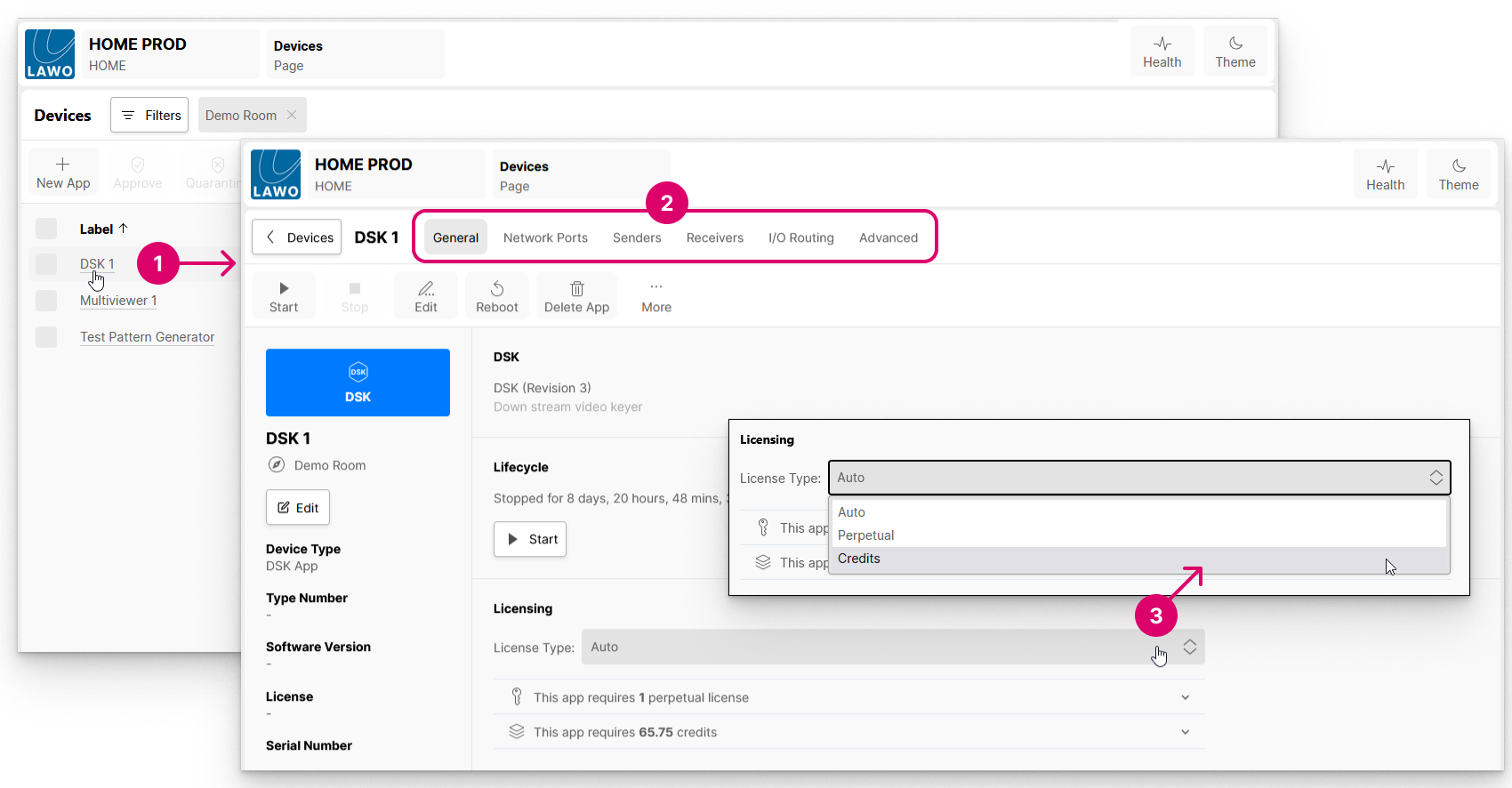
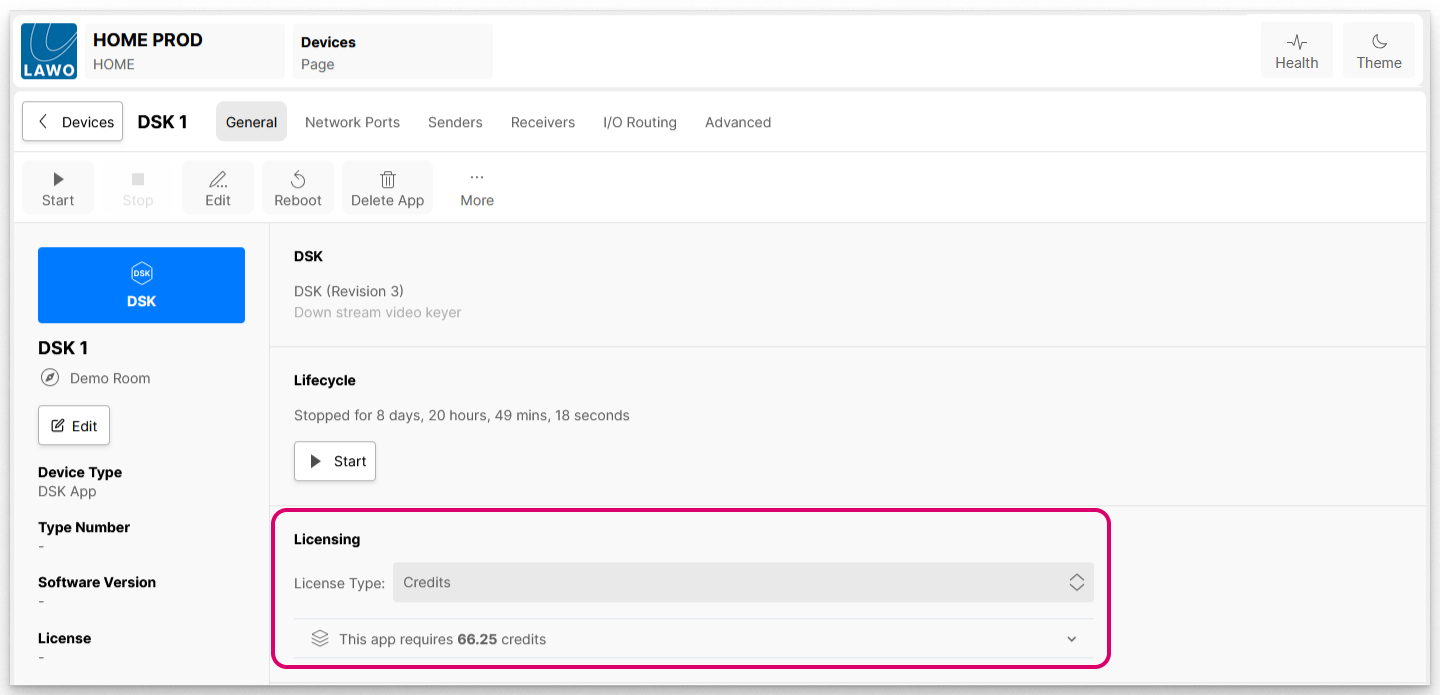
- The new licensing requirements are shown in the Licensing area (and in the 'Start App' dialog when you next start the app).
Important: If there are not enough perpetual licenses or credits, then a warning indicator appears beside the licenses or credits icon. Hover over the icon to see how many perpetual licenses or credits are missing.
You can interrogate the usage further by clicking on the reveal/hide arrow.
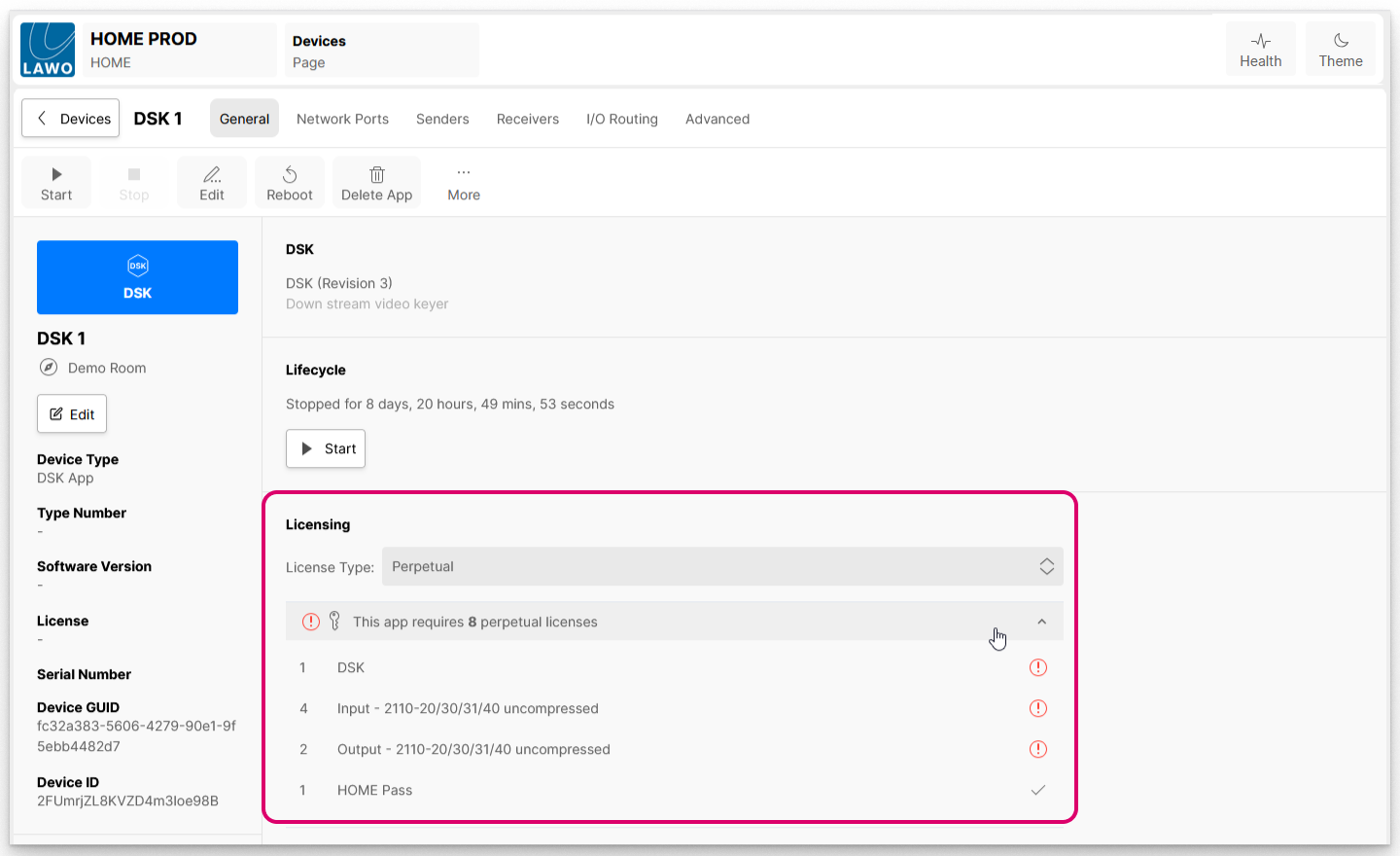
In the example above, the app will fail to start in its current state.
To successfully start this app, you will need to install the required perpetual licenses OR change the License Type to use the system's available credits. Alternatively, for some app types, it may be possible to reduce the licensing requirement by editing the app's configuration.
Once the required perpetual licenses and/or credits are in place, the warning indicators disappear and the app can be started in the usual manner (e.g. click on Start). During the start-up of the app, there is another chance to check the licensing requirements in the 'Start App' dialog.
Changing the License Type (of multiple apps)
The License Type can also be changed for multiple apps at the same time using the License Mode option in the Edit App(s) → Runtime dialog:
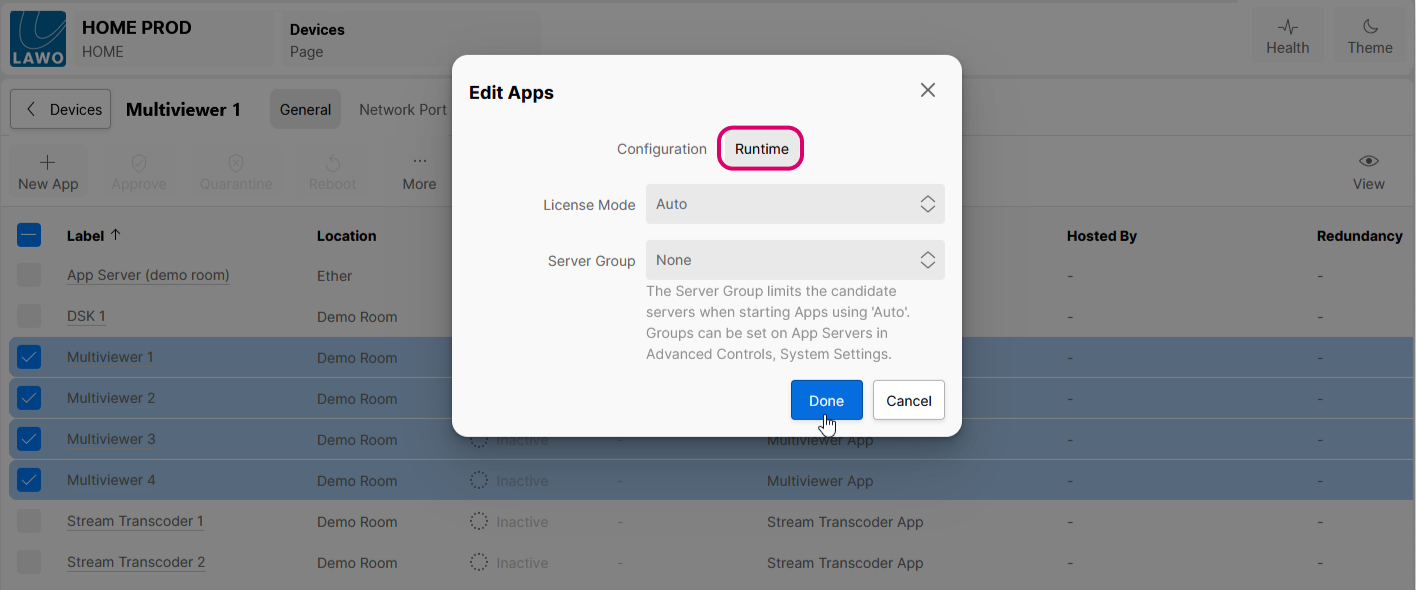
As before, this option can only be modified once the apps are stopped. If the selected apps are set to different License Modes, then the field shows that the modes are "Mixed".
For more information about editing multiple apps at the same time, please see HOME Apps - Edit App(s).
Why does my app require millions of credits?
In this instance, if the License Type is set to Credits, then the app's configured options cannot be licensed. A warning indicator appears beside the credits icon plus a message that says this app requires a very large amount of credits!
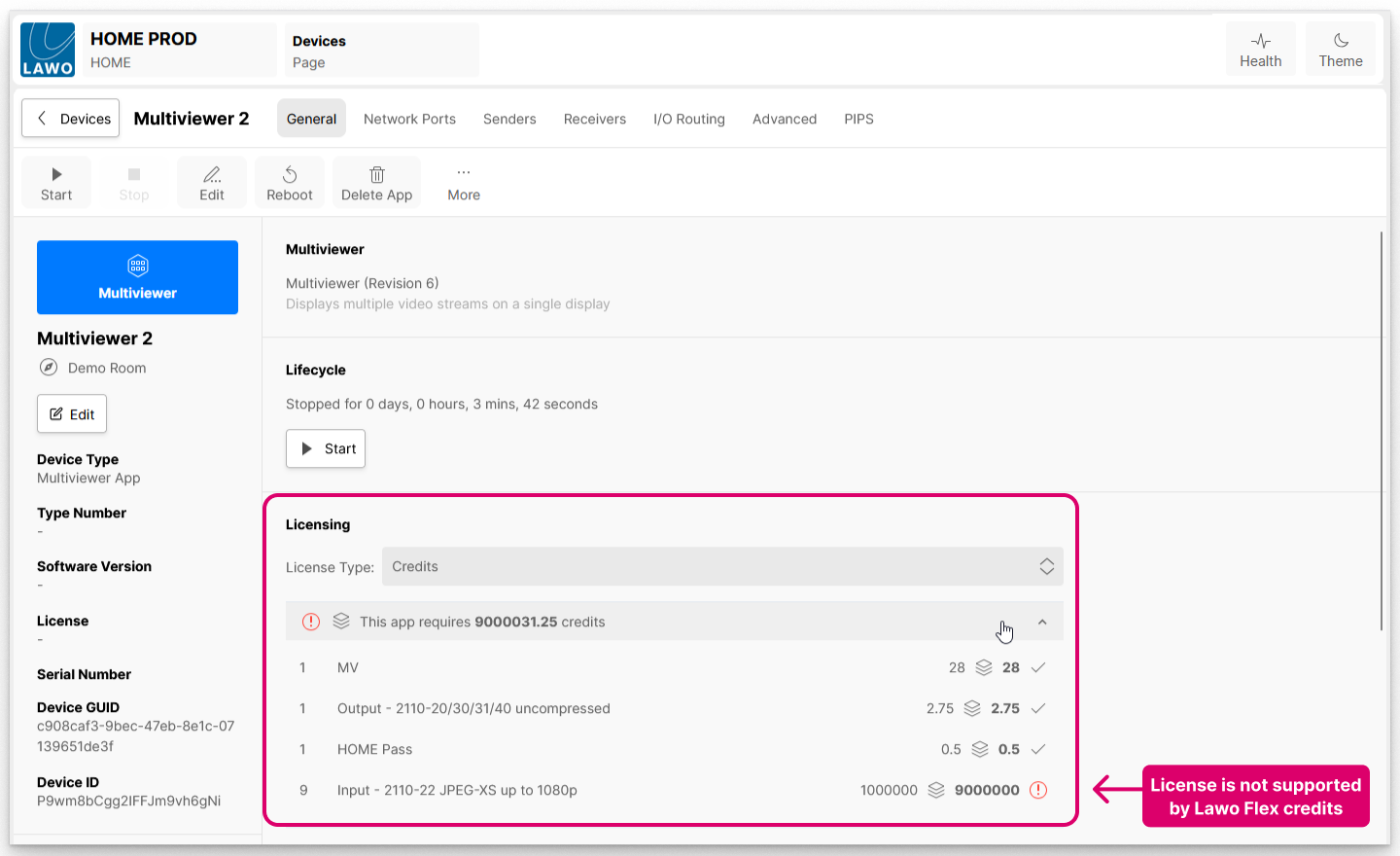
To resolve the incompatibility, the user must either:
- change the License Type (to either Auto or Perpetual), and install the required perpetual licenses;
- or edit the configuration of the app (so that the Input licenses are supported by Lawo Flex).
To check which options are supported by Lawo Flex, please refer to HOME Apps - Available License Options.