HOME Apps - Start App(s)
Once an app exists in HOME's 'Devices' list, it can be started at any time. This step deploys the app's processing to one of the available app servers.
To start an app successfully, there must be sufficient capacity (on a HOME Apps server) and enough available licenses or credits (on the HOME system). The resources can be checked by looking at the Target App Server and Licensing information (in the 'Start App' dialog).
Please note:
- The settings for an app are stored on the HOME management system and not on the app server. This means that an app can be started, with its latest settings, on any available app server (providing the server has sufficient resources to run the features of the app).
- When an app is stopped, its perpetual licenses and credits are returned to the HOME system. This allows you to start a different app instance or repurpose the licenses/credits.
To learn more about the licensing, please see HOME Apps - Licensing Introduction. This topic describes how to start an app.
Starting an app
An app can be started from the 'Devices' list (as described below) or from the 'Device → General' settings page (if this is more convenient). When using the 'Devices' list, it is possible to select and then start multiple apps at the same time.
The instructions below describe how to start a HOME Apps Multiviewer. The same principles can be applied to other HOME Apps.
1. From HOME's 'Devices' list:
- Select the app(s) you wish to start (e.g. Multiviewer 1). You can select more than one app if you wish.
- Click on More and choose Start Apps from the drop-down menu.
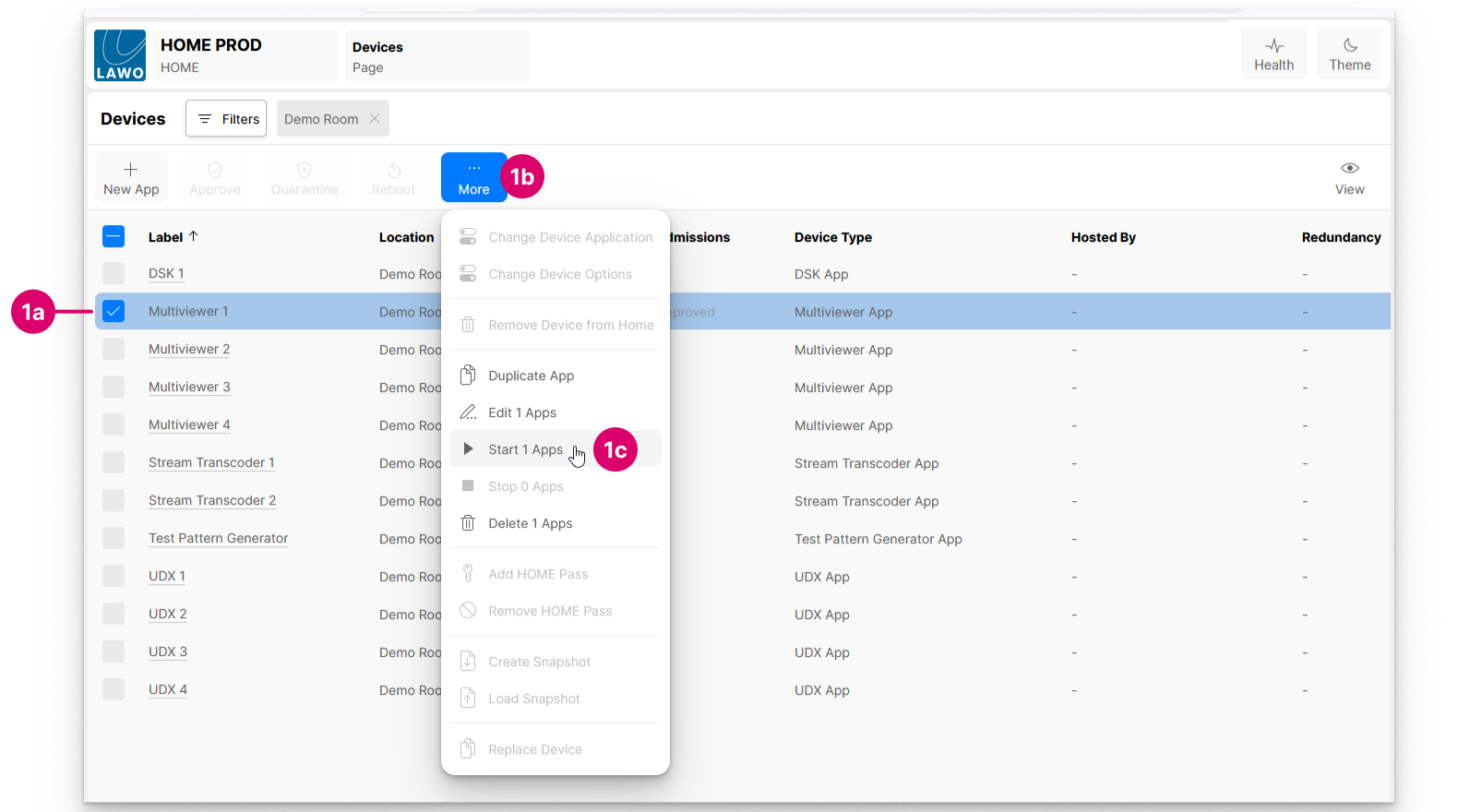
2. Check the options and licensing information in the 'Start App' dialog.
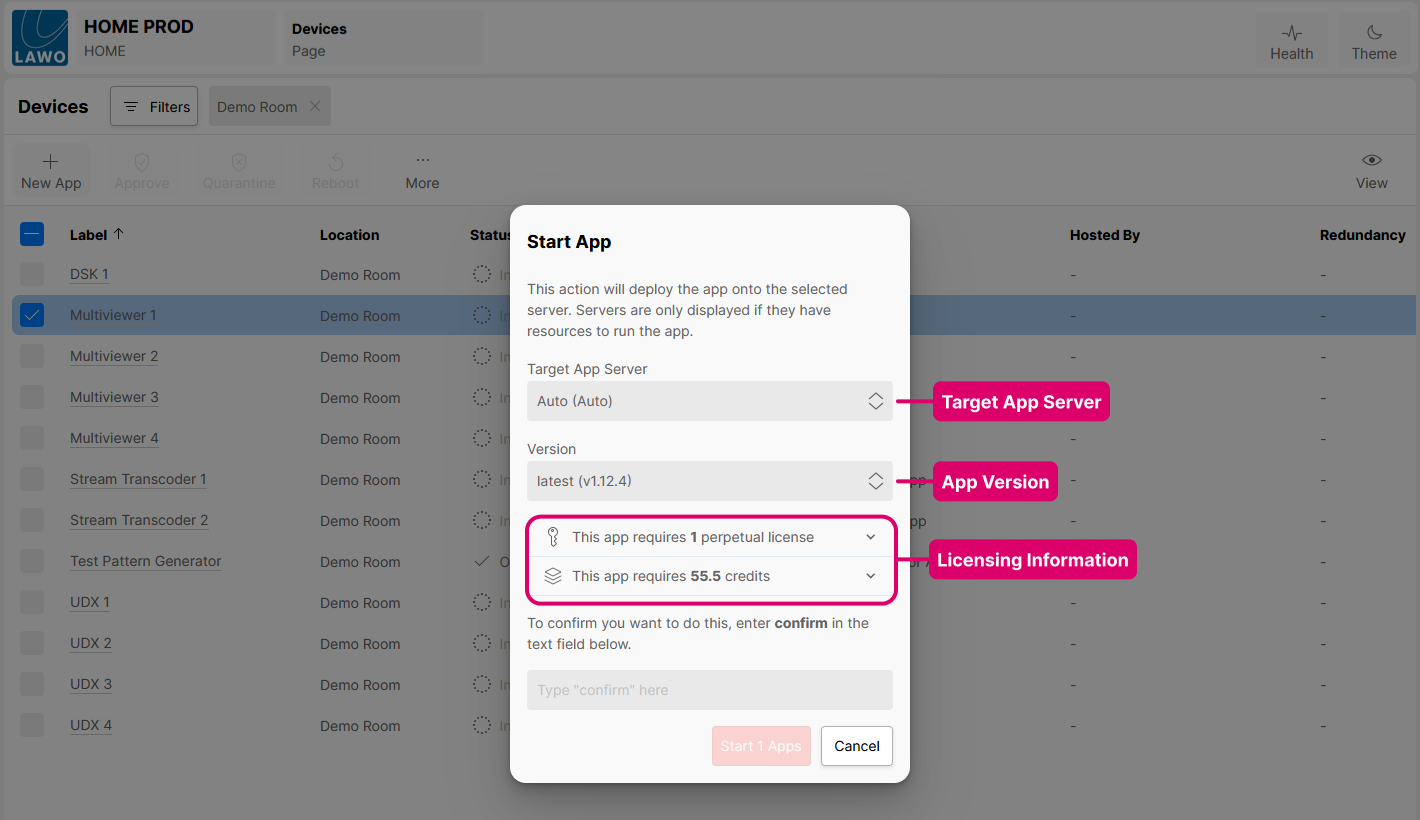
By default, the Target App Server is set to Auto and the Version is set to the latest software version. You can use the drop-down menu(s) to change the settings as follows:
Target App Server - can be set to Auto or a specific HOME Apps server:
- Servers are only displayed if they are online and have sufficient resources to run the app. There are some controls within the app server configuration that can be used to include or exclude specific servers. Please see the App Deployment options in the App Server - Advanced -> System menu.
- If Auto is selected, then HOME chooses a server automatically based on the available resources. More information about the allocation of I/O resources (in an app server) can be found in HOME Apps - I/O Allocation.
- If Auto is selected and a preferred server group is configured, then the app will attempt to start on one of the app servers in the specified server group.
Version - can be set to any software version that is compatible with the configured revision of the app. More information about app revisions can be found here. When users start an app, HOME looks for the possible software versions that are compatible with the app revision:
- If the latest software version is compatible with the app revision, then this is automatically selected and no further action is required.
- If an app has been configured using an older revision, then a message appears (in blue) informing the user that the latest version cannot be started. In this instance, you should edit the app revision so that it can run the latest processing feature set.
- If there are multiple versions (of HOME Apps) installed and, when starting an app, the expected software version is not found, the Version list will be empty (blank). In this case, you will need to edit the app revision so that a compatible version may be found.
As a general rule, if the latest version is not selected, then it is best to edit the app revision (to access any new features and bug fixes). How to do this for multiple apps (in bulk) is described here .
If you choose to start a previous version (to remain compatible with an older revision), then the implications depend on whether any changes have been made to that app type in the newer release. If no changes have been made, then there will be no difference. If changes have been made, then the app will start but you will not benefit from the new features and bug fixes in the later release.
Licensing - the two "licensing information" lines show the number of perpetual licenses and/or credits required to run the app. You can interrogate the usage further by clicking on the reveal/hide arrow (for the perpetual licenses or credits). If HOME has found sufficient licenses, then you are ready to confirm and start the app.
Important: If there are not enough perpetual licenses or credits, then a warning indicator appears beside the licenses or credits icon. In this instance, you will need to resolve the licensing issue, otherwise the app will fail to start. Hover over the license or credit icon(s) to see how many perpetual licenses or credits are missing. For more information, please see HOME Apps - License Usage (per app).
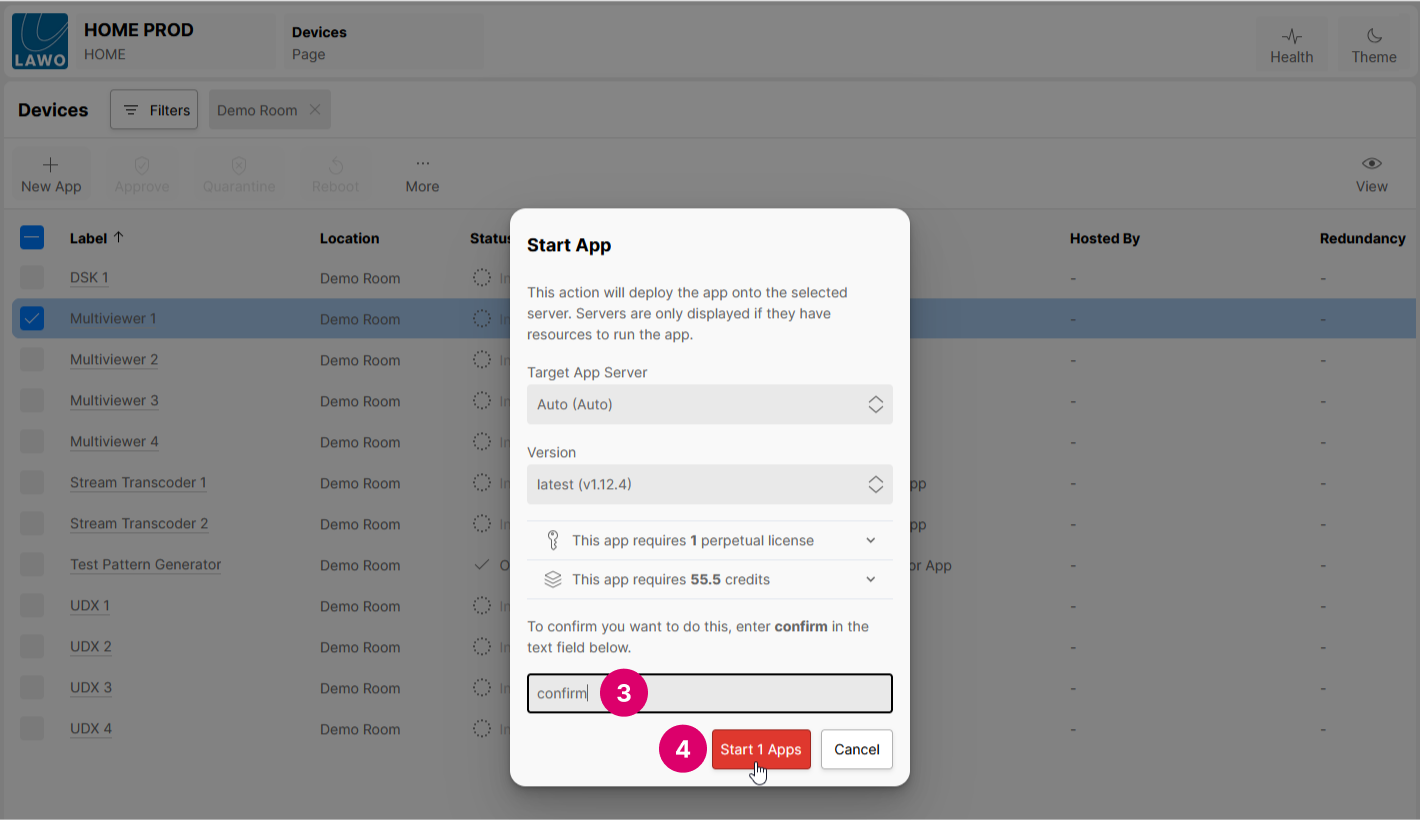
3. Once you are happy with the options, follow the on-screen instructions to confirm.
You must type in the text confirm (in order to select the Start Apps button).
4. Then click on Start Apps.
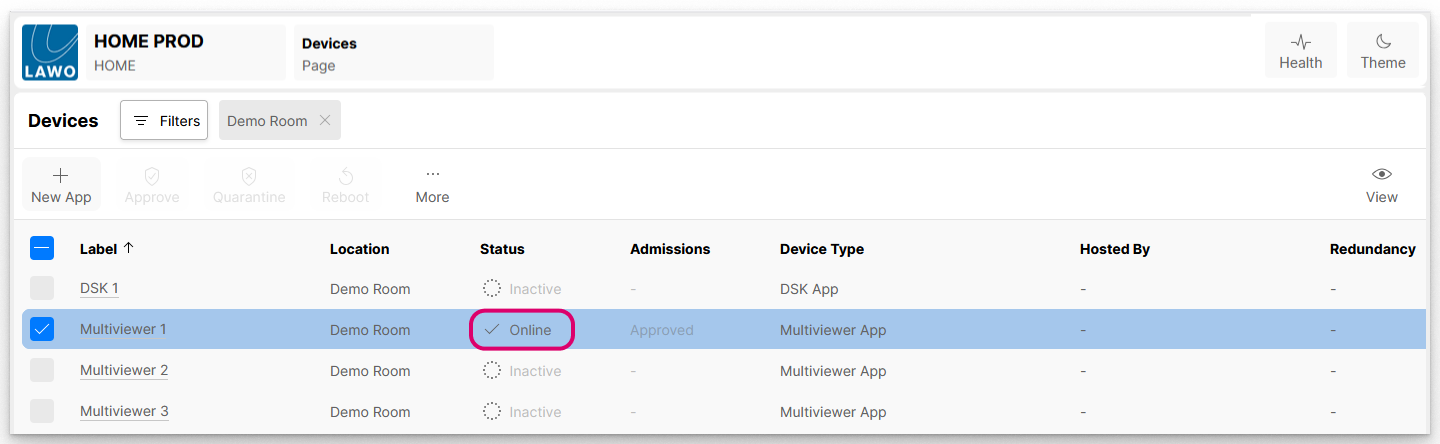
In the 'Devices' list, the app Status changes from Inactive to Online:
Checking the App Health
To confirm that the app is running and "healthy", click on the app label (to open the 'Device → General' settings) and check the Lifecycle area.
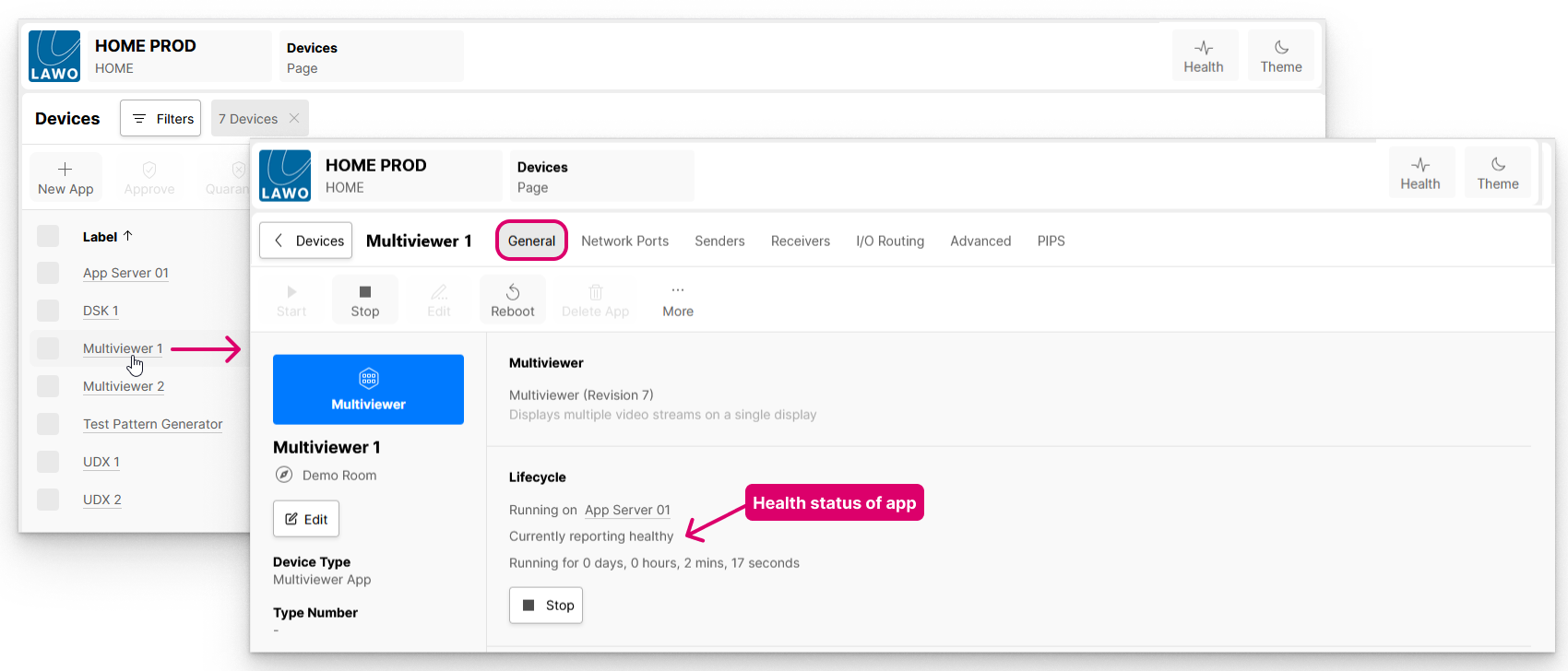
Here you will see which server the app is using, the health status (reported from the server) and how long the app has been running.
When you start an app, it is normal for the app to be "unhealthy" for a few seconds. Once the app is initialized, the status should update.
Once the status shows as "Currently reporting healthy", the app is ready to use.
Using Preferred Servers to run apps
HOME APPS V1.12 (OR HIGHER)
From version 1.12 of HOME Apps, users can specify which app severs they would prefer certain apps to run on. For example, to run all DSK apps on servers 1 to 3 and UDX apps on servers 4 and 5.
Each server group can contain one or more servers, and the user is free to choose the name of the server groups.
Any number of apps can be assigned to each server group, where each group can support different app types.
This feature is configured in two stages: first create a logical group (for the app servers); then assign the server group to the apps.
Step One: Define the Server Groups
The (logical) server groups are defined in the app server Advanced parameters using the System → Server Group (for ‘Auto’ deployment) control.
Each server group can contain one or more servers, and the user is free to choose the name of the groups.
- Open the 'Device → Advanced' parameters (for the app server), and select System (in the advanced parameter tree).
- Use the Server Group (for ‘Auto’ deployment) control to create a new logical group (e.g. enter 'DSK servers').
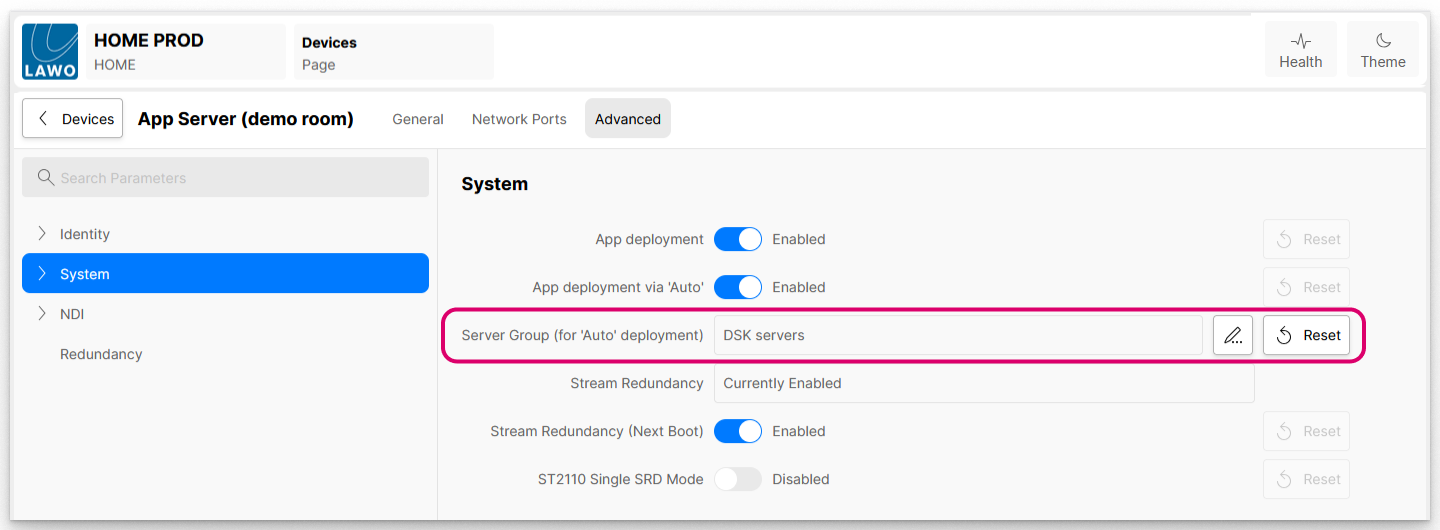
- Repeat this process for each app server.
For our example, two groups can be created by entering ‘DSK servers’ and ‘UDX servers’ as follows:- On servers 1, 2 and 3, set the control to ‘DSK servers’.
- On servers 4 and 5, set the control to ‘UDX servers’.
Step Two: Assign the Server Groups to the apps
Once the server groups are created, they can be assigned to the apps. This is done using the Server Group option (in the 'Edit Apps → Runtime dialog).
Any number of apps can be assigned to each server group, and each group can support different app types.
If you wish to assign apps of different types to the same server group, then this is possible but you will need to repeat the steps below for each set of apps (as Edit Apps is not available for a mixture of app types).
- From HOME's 'Devices' page, select the app (or apps) you wish to assign. e.g. the DSK apps.
The Server Group cannot be changed for apps that are running, so it is important to check that the apps you wish to edit are all stopped. Click on More and choose Edit Apps (from the drop-down menu).
- Select the Runtime page.
- Click on the Server Group option and select the server group you wish to assign - e.g. 'DSK servers'.
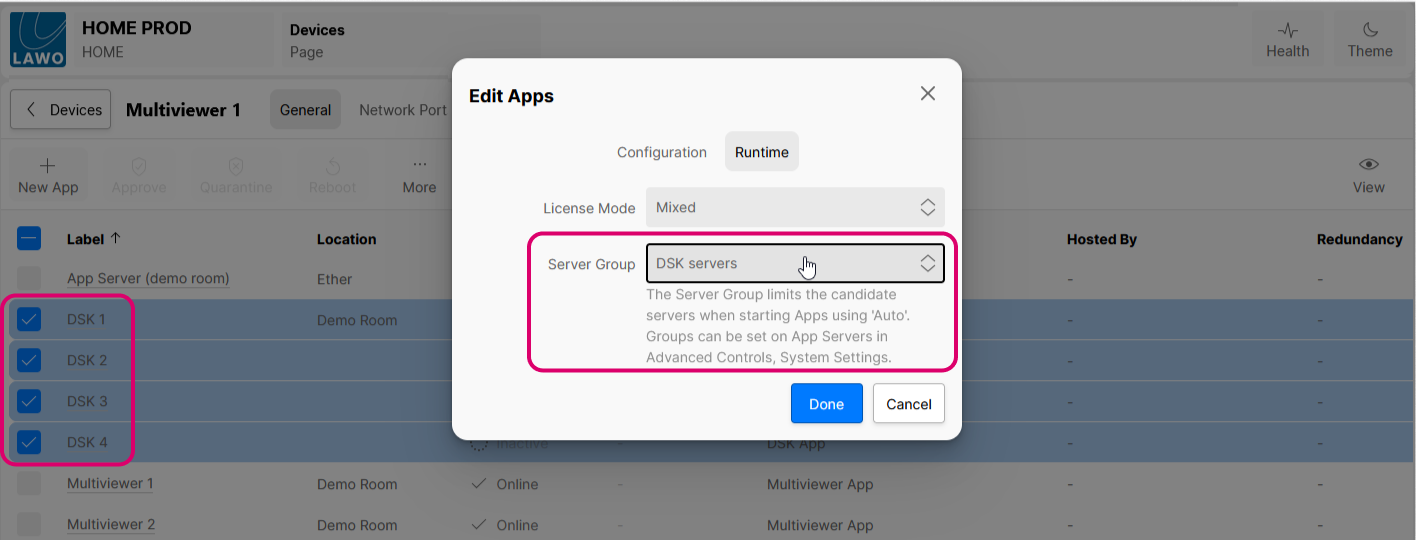
- Click on Done to confirm.
- Repeat the steps above to assign the other apps to their server groups. e.g. the UDX apps to the 'UDX servers'.
Step Three: Check the operation
From now on, when apps within the server group are started and the target app server is set to ‘Auto’, the apps will attempt to start on one of the servers in the specified server group.