App Server - Advanced -> System
The Advanced → System menu provides controls which apply to the App Server and/or all of the Apps running on that server.
There is a main page and three sub-pages:

System
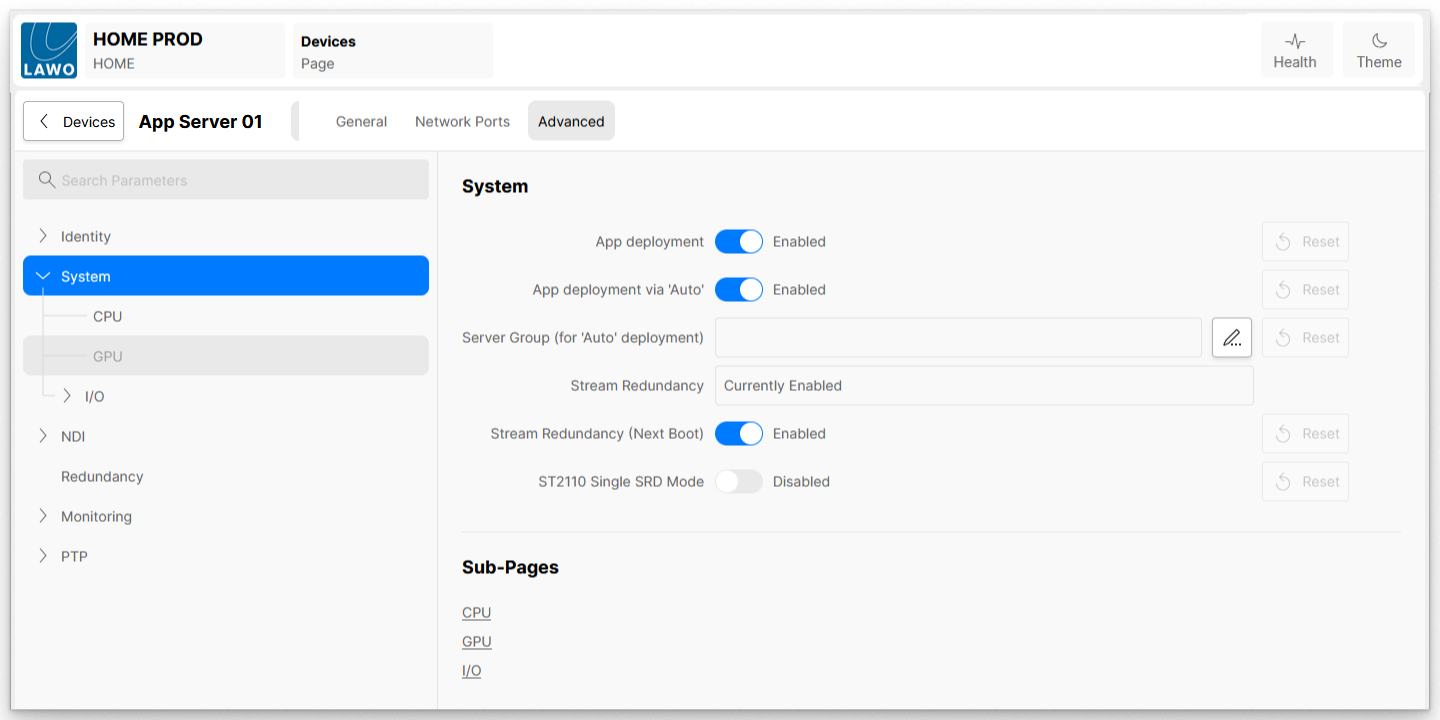
App deployment
Controls whether the App Server is displayed as an available App Server when starting Apps.
- Enabled - Allows Apps to be deployed and run on the App Server.
- Disabled - Prevents Apps from being deployed and run on the App Server.
App deployment via 'Auto'
Controls whether the App Server is available when starting Apps when 'Auto' is selected in the App Server list.
- Enabled - The App server is available as a resource.
- Disabled - The App Server is not available as a resource.
Server Group (for 'Auto' deployment)
Adds the server to a logical group of servers.
- Name defined - The App Server belongs to the named Server Group.
- Name not defined (field is empty) - The App Server is not a member of any Server Group.
This feature allows users to specify which app severs they would prefer certain apps to run on. For example, to run all DSK apps on servers 1 to 3 and UDX apps on servers 4 and 5.
For more information, please see Start App(s): Preferred Server Groups.
Stream Redundancy
Displays whether media stream redundancy (ST 2022-7) is enabled or not.
Stream Redundancy (Next Boot)
Controls whether media stream redundancy (ST 2022-7) is enabled or not.
To achieve dual-redundant streaming, compatible with SMPTE ST2022-7, Stream Redundancy must be enabled. If ST2022-7 is not required, then Stream Redundancy can be disabled (to potentially double the data throughput of the NICs). Note that this option is configured at an app server level, meaning that the senders and receivers of all apps running on that server are either all dual-redundant OR all non-redundant. It is not possible to configure Stream Redundancy per app or per stream.
Please note: Changing this control requires the App Server to be rebooted for the change to take effect.
- When Stream Redundancy is switched on, both Media NICs will mirror each other on the 'Red' and 'Blue' networks. If either of the networks fails, normal operation can continue. This does mean, however, that the maximum data throughput is limited to that of one NIC. e.g. with 2x 100G ports (each port is fully duplex), in practice the throughput to and from the App Server is limited to 100G in and 100G out.
- When Stream Redundancy is switched off, the NICs no longer mirror each other, and they can be used independently. This allows for increased data throughput both into and out of the App Server. Please note that double the throughput may not be achievable in some servers, as there could be other performance-limiting factors, such as the speed of the server's PCIe bus.
Once an app is deployed to an App Server, the Redundancy status of its senders and receivers can be checked from the 'Device → Senders' and 'Device → Receivers' page.
ST2110 Single SRD mode
Controls whether ST2110 senders operate in Single SRD mode or not. Apps that are already running will not be affected until they are restarted.
- Enabled - Single SRD mode is enabled on ST2110 senders.
- Disabled - Single SRD mode is disabled on ST2110 senders.
See Single SRD Mode for further information.
System → CPU
The CPU sub-page provides information about the CPU installed in the App Server:
- Name - Displays the model name, reported by the CPU installed
- Architecture - Displays the CPU Architecture, reported by the CPU installed
- Performance Ratio - Shows a comparison of the compute performance of a CPU core with a known reference. This value is used in the calculation to determine the number of CPU cores that should be allocated to different HOME Apps processes.
- Total Cores - Displays the total (tCores = pCores + vCores) number of processing cores available in the CPU
- Sockets - Displays the number of occupied CPU sockets on the Motherboard
- Threads - Displays the number of threads per Core. Each Core is capable of one 'thread', each pCore has an associated vCore, and so each Core is capable of processing two 'threads'.
- Max Speed - Displays the maximum clock speed of the CPU installed, as reported by the CPU.
- Allocated Cores - Displays the current number of tCores allocated and in use.
When starting an App, HOME will use the Allocated Cores and Total Cores to determine whether an App server has sufficient CPU resources available to run the App.
System → GPU
The GPU sub-page provides information about the GPU(s) installed in the App Server:
- Name - Displays the manufacturer's name of the installed GPU, as reported by the GPU
- Brand - Displays the manufacturer of the installed GPU, as reported by the GPU
- Class - Displays the Class of the installed GPU, as reported by the GPU
- PCIeGen - Displays the supported PCIe Generation of the installed GPU, as reported by the GPU
System → I/O
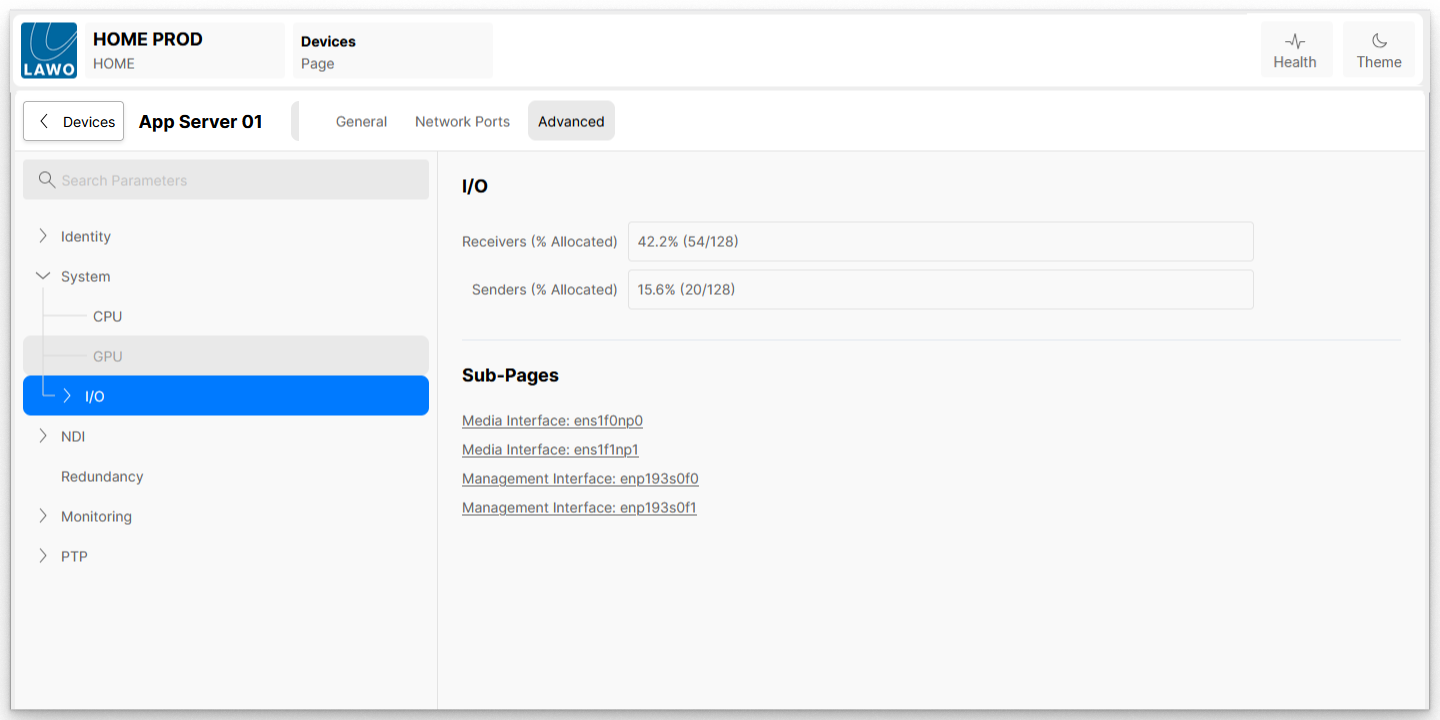 The I/O sub-page provides information about the Network Interface Cards (NICs) installed in the App Server:
- Receivers (% Allocated) - Displays the amount of bandwidth currently allocated for ST2110 media being received into the App Server
- Senders (% Allocated) - Displays the amount of bandwidth currently allocated for ST2110 media being transmitted by the App Server
When starting an App, HOME will use both the Senders and Receivers bandwidth Allocated values to determine whether an App server has sufficient I/O resources available to run the App.
See I/O Allocation for further information.
System → I/O → Media and Management Interfaces
Within the I/O menu, there are further sub-pages for each of the Network Interface Cards (NICs) installed in the App Server.
Each Network Interface installed in the App Server is listed. Each sub-page displays information reported by that Interface (e.g. for the first Media NIC).
- Name - Displays the manufacturer's name of the installed network interface
- Model - Displays the manufacturer's Model information of the installed network interface
- MAC - Displays MAC Address of the installed Network Interface
- PCIe - Displays the PCIe Address associated with the installed network interface
- Vendor - Displays the Manufacturer's name
- Speed - Displays the currently configured speed of the Network Interface, shown in Mbps (100000 = 100Gbps)
- S/N - Displays the Serial Number of the network interface. This is required when purchasing RiverMax licenses for Connect-X Network Interfaces.