HOME Apps - Advanced parameter control
The 'Device → Advanced' page provides access to information and configuration controls for an app, or app server, presented in a simple menu tree structure.
The same parameters can be accessed (over NATs) via the HOME API. This supports integration with external broadcast control systems such as Lawo's VSM.
It should be noted that the available controls may change, depending on the app's configuration. In addition, some controls only become available once the app is running; these appear at the bottom of the parameter tree and host the app's runtime controls.
The latest settings are saved (by HOME) whenever a change is made. If a restart is required, then this is noted in the documentation.
For information about the individual parameters, please refer to the "Advanced parameter control" topics in the app or app server chapters. Here we describe how to view and edit Advanced page parameters from the HOME UI. The examples used are taken from a HOME Multiviewer. The same principles can be applied to other app types.
Opening the Advanced page (in HOME)
To open the Advanced page: click on the app label (e.g. from the main 'Devices' list) and choose the Advanced menu tab. See HOME Apps - Reconfiguring an App.
If this is the first time you have opened the Advanced page in the current browser session, then there is nothing selected in the navigation tree.
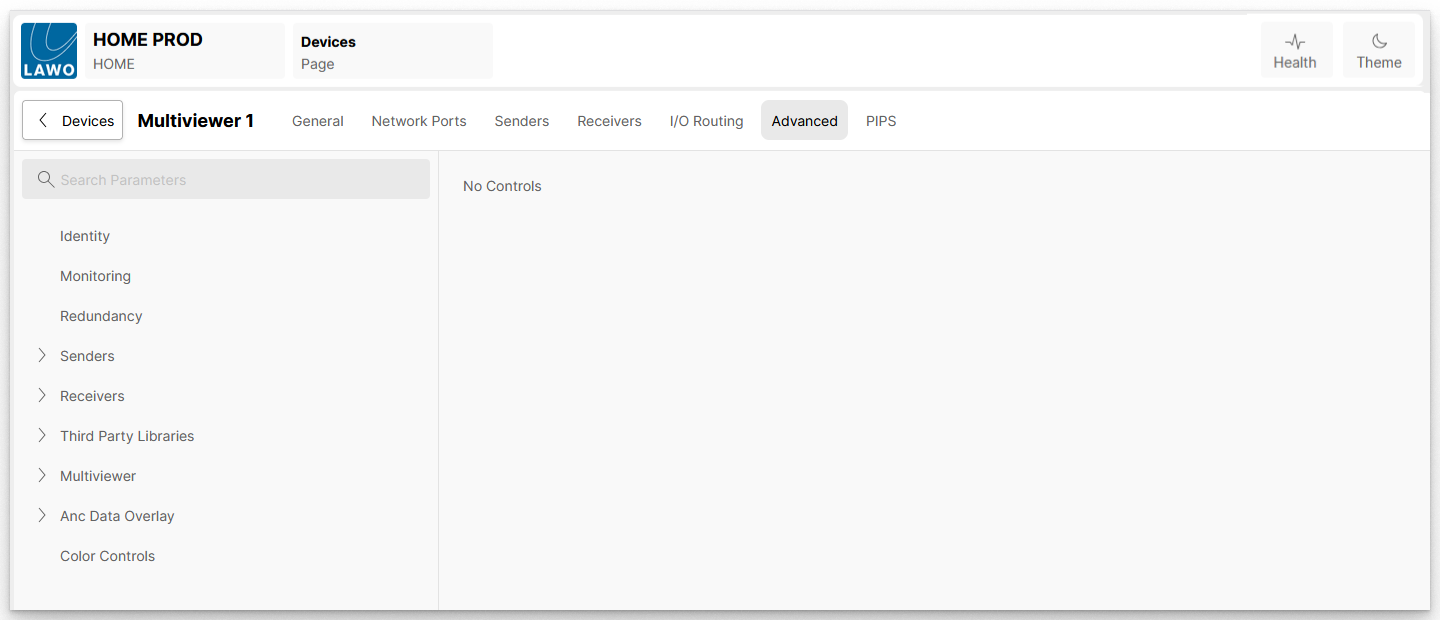
Viewing Parameters
The Advanced page is divided into two sections: the navigation menu tree (on the left) and the parameter area (on the right).
- Select an entry in the tree to display its available parameters - for example, the Redundancy main page.
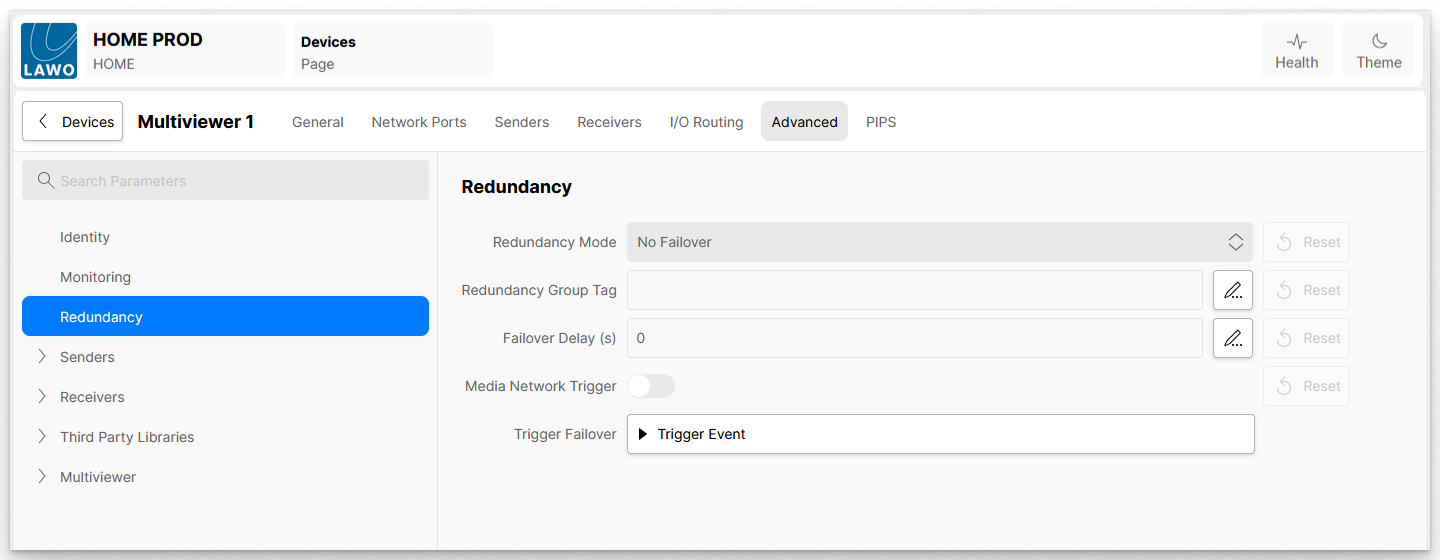
If there are sub-pages available, then these can be accessed in one of two ways:
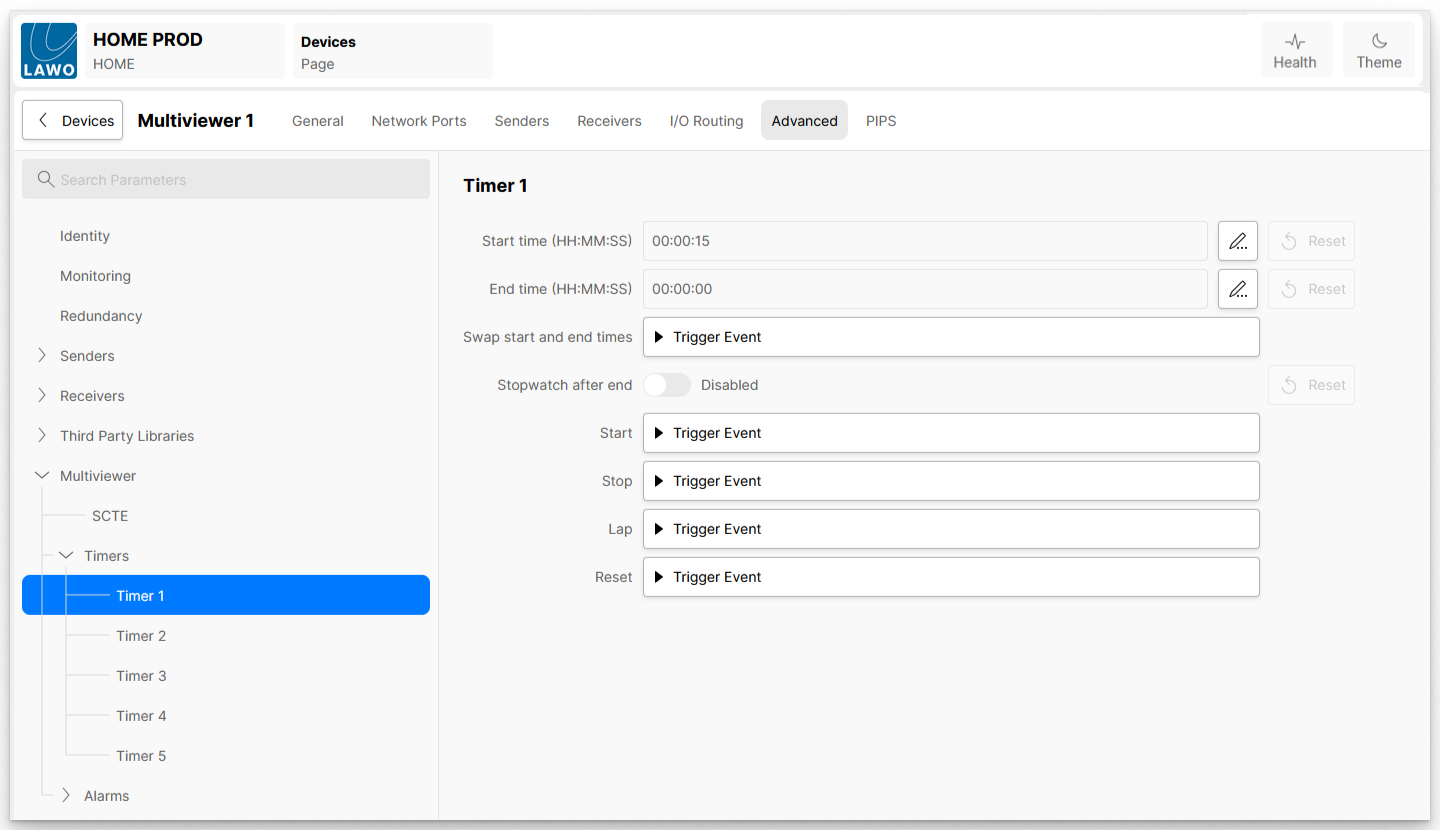
- Click on the arrows in the navigation tree to show or hide the next level.
- Or, scroll down to the bottom of the parameter area to view the Sub-Pages (as a list).
The example below shows how to navigate to the Multiviewer → Timers → Timer 1 page.

You can search for a parameter by typing into the "Search Parameters" field (at the top of the tree). All possible matches are displayed in the navigation area. Make a selection to open the parameter's page.
Click on the X (on the right of the "Search Parameters" field) to clear the search and revert to the unfiltered tree.
Editing Parameter Values
If a parameter's value can be edited, then you will see one of the following options (to the right of the parameter field): on/off slider, drop-down menu, pencil icon or +/- buttons.
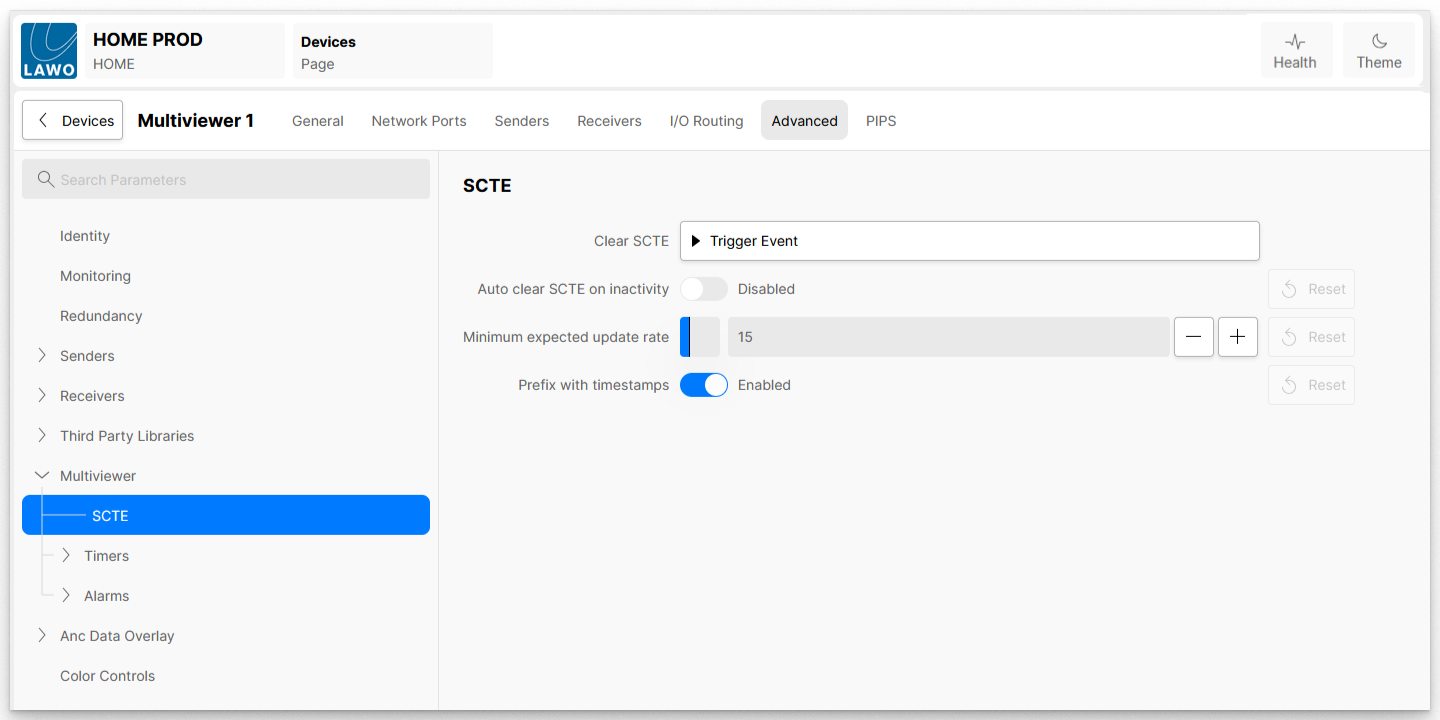
If there is no data entry method present, then a parameter cannot be edited and its value is displayed for informational purposes.
A parameter value can be adjusted as follows:
- On/Off sliders - click to enable or disable the option.
- Drop-down menu - click to select an option from the pre-determined list.
- Pencil icon - either click on the parameter field or pencil icon to type in the new value.
- +/- buttons - indicate that a numerical value must be entered. The current value is represented by the blue colored bar. Either click on the field (to type in a new number) or use the +/- buttons (to increment/decrement the value).
In each case, the Reset button can be used to reset a parameter to its default value or state. If the Reset button is not available (greyed out), then the default is already selected.
If a Trigger Event button is present, then this can be used to apply a change (trigger the event). For example, to clear the SCTE values/state from the "Multiviewer -> SCTE" page. Or, start/stop a timer from the "Multiviewer -> Timers - > Timer #" page.
Further Information
For information about individual parameters, please refer to the "Advanced parameter control" topics for the individual apps or app server: