HOME Apps - Senders and Receivers
The 'Device → Senders/Receivers' pages appear for all apps that support signal streaming. They display information relating to the Video, Audio and Metadata senders and receivers provided by the app.
From here you can check information about a sender (or receiver), and select a sender (or receiver) to access its more advanced options: I/O Routing (for the audio streams), the stream configuration parameters, SDP data and Disable/Enable controls (for the senders).
For most HOME Apps, the senders and receivers are pre-defined according to the configuration of the app. i.e. the number and type of I/O.
Depending on the app type, up to three stream essences are supported: Video, Audio and Metadata, and each sender or receiver may handle multiple flows. e.g. 1x Video + 1x Audio + 1x Meta. As part of the app configuration, users can choose the stream transport type, video resolution, number of audio channels, etc. This allows the IP senders and receivers to be tailored to the application and network (to help manage the bandwidth of the switches and NICs).
To open the Senders or Receivers page: click on the app label (e.g. from the main 'Devices' list) and choose the correct menu tab. See HOME Apps - Reconfiguring an App.
This topic explains the informational fields and operations. The examples used are taken from a HOME Multiviewer. The same principles can be applied to other app types.
Senders
The Senders page lists all of the Video, Audio and Metadata senders provided by the app.
The senders appear once an app is configured and running. If an app is stopped, then there are no available senders to view.
Once an app is running, its senders can be connected to other devices on the media network either using HOME's 'Stream Routing' page or the SDP Patching method (described here). Certain parameters can also be modified during runtime. For example, to change the number of audio channels per stream (in an Audio flow).
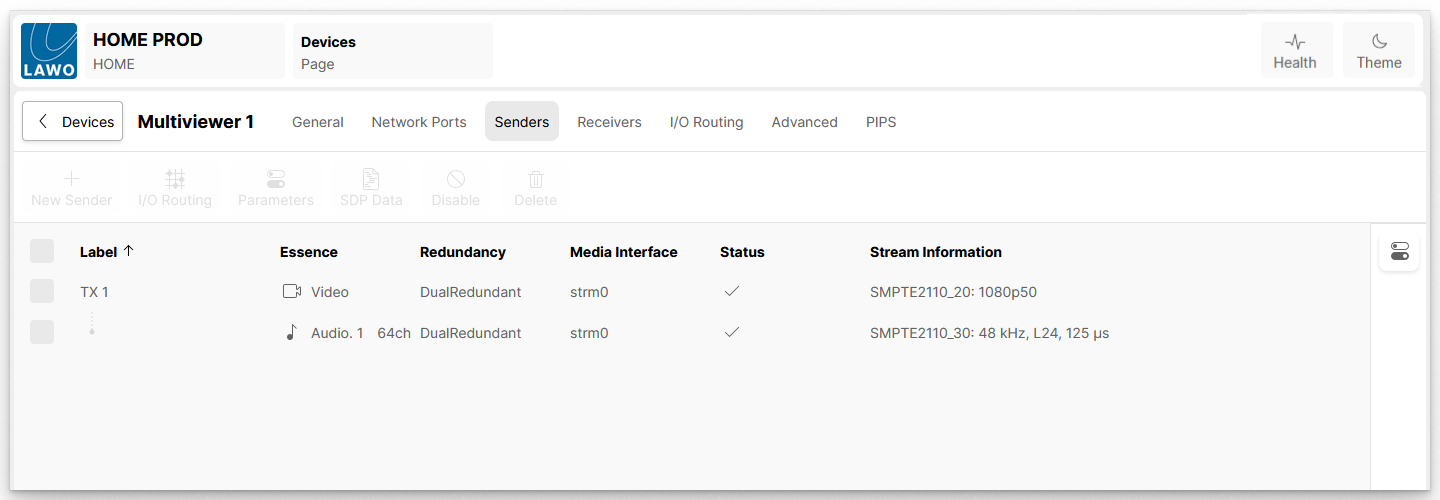
The number (and type) of flows is dependent on the configuration of the app. In the example below, a HOME Multiviewer is configured with a single output and so there is one output sender (TX1). A single 64-channel audio stream is configured, and so the TX1 sender handles two flows: Video and Audio 1.
Sender Information
The following information is displayed for each sender:
- Label - shows the sender's name, as it appears in HOME's 'Stream Routing' page and other menus.
- Essence - shows the essence type of the sender: Video, Audio or Meta. For audio senders, you will also see the number of audio channels carried by the stream.
- Redundancy - shows whether the sender supports DualRedundant or nonRedundant streams. A DualRedundant stream is SMPTE ST2022-7 compatible.
To achieve dual-redundant streaming, compatible with SMPTE ST2022-7, the Stream Redundancy option must be enabled within the app server configuration. If ST2022-7 is not required, then the Stream Redundancy option can be disabled (to potentially double the data throughput of the NICs). Note that this option is configured at an app server level, meaning that the senders and receivers of all apps running on that server are either all dual-redundant OR all non-redundant. It is not possible to configure Stream Redundancy per app or per stream. - Media Interface - shows HOME's stream index for the sender.
- Status - shows whether the sender is operating normally and producing a valid stream. Hover over the status icon to reveal more information.
- Stream Information - shows more detailed information about the stream being produced by the sender:
- For a video stream: the transport type and video resolution.
- For an audio stream: the transport type, sample rate, codec type and packet time.
- For a meta stream: the transport type.
The column headers can be used to sort the list alphabetically by Label, Essence, etc.
- Click on a column header to sort the list.
- Each click toggles the sort mode between ascending (A -> Z) and descending (Z -> A).
- An up or down arrow appears beside the header to indicate the current sort mode.
Sender Operations
Once a sender is selected (using the tick boxes in the first column), the following options become available (below the menu bar).
These are dependent on the selected sender(s); if an option is not supported, then it is greyed out.
- I/O Routing (for audio senders only) - see HOME Apps - I/O Routing (for Audio Streams).
- Parameters - see HOME Apps - Edit Sender or Receiver.
- SDP Data - see HOME Apps - SDP Data.
- Disable (or Enable) - allows the user to disable, and re-enable individual senders. Disabling a sender may be helpful for debugging purposes.
Please note: For most HOME Apps, the IP senders are pre-defined according to the configuration of the app. This means that the following functions are not required, and are greyed out: New Sender and Delete. The exceptions to this rule are the Audio Shuffler and mc2 DSP apps which can be created without any senders or receivers initially so that the user can specify these later (using New Sender and New Receiver). For more information, please refer to the App Configuration topics for these apps.
Also, while it is possible to select a sender and click on the icon (on the right of the table) to reveal the "Sender Properties", there are no properties to view or adjust for HOME Apps.
Receivers
The Receivers page lists all of the Video, Audio and Metadata receivers provided by the app.
The receivers appear once an app is configured and running. If an app is stopped, then there are no available receivers to view.
Once an app is running, its receivers can receive a stream from the media network either by making a connection using HOME's 'Stream Routing' page, or by using the SDP Patching method (described here).
Once a source is connected, the user is able to check and, if necessary, edit the streaming parameters or SDP data (within the receiver) to deal with situations where the SDP provided by the sender is incorrect.
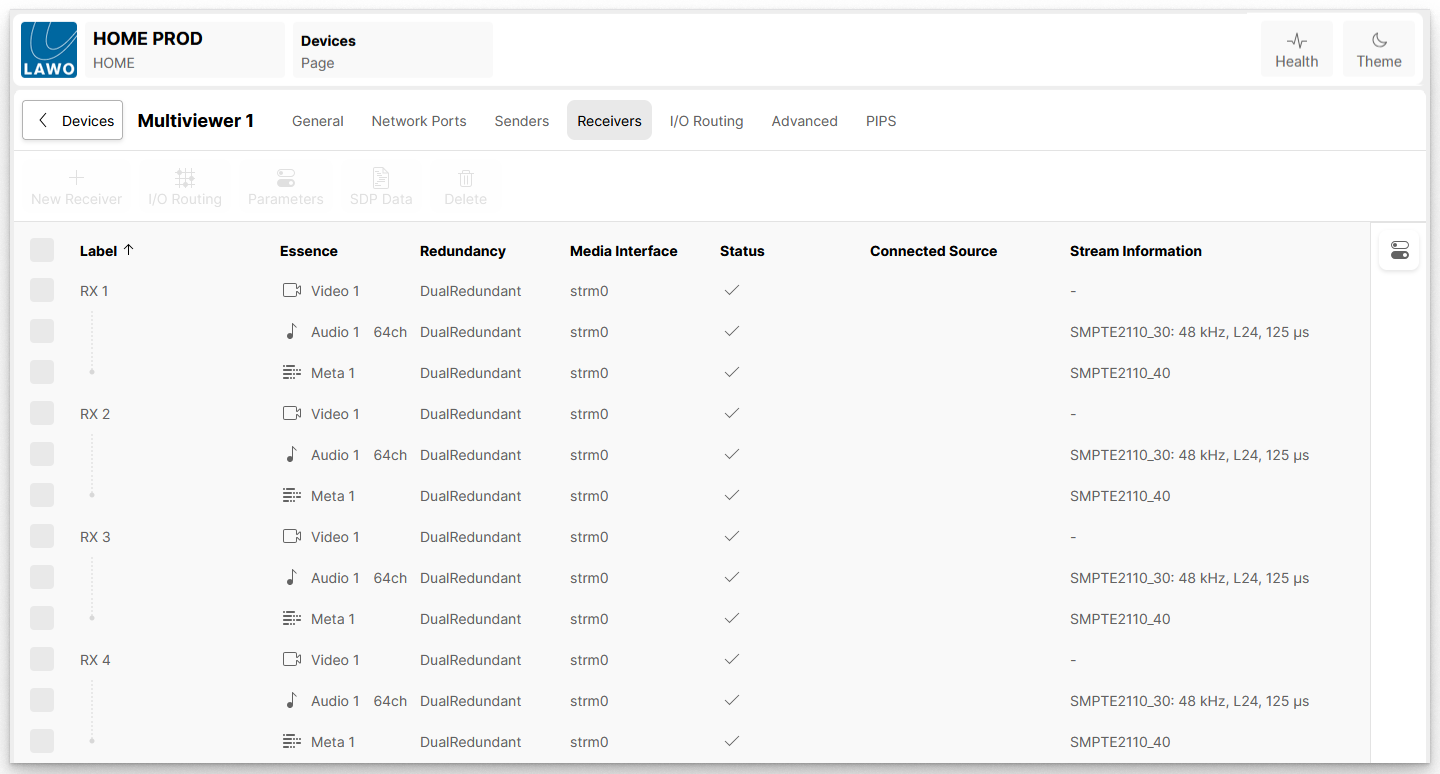
As for the senders, the number (and type) of flows is dependent on the configuration of the app. In the example below, a HOME Multiviewer is configured with 9 video inputs (PIPS) and so there are nine input receivers (RX1 to RX9). A single 64-channel audio stream is configured (for each input), and so the receivers (RX1 to RX9) each handle three flows: Video 1, Audio 1 and Meta 1.
Receiver Information
The following information is displayed for each receiver. This is similar to the information for senders but adds the Connected Source column (to show the connected stream).
- Label - shows the receiver's name, as it appears in HOME's 'Stream Routing' page and other menus.
- Essence - shows the essence type of the receiver: Video, Audio or Meta. For audio receivers, you will also see the number of audio channels being received.
- Redundancy - shows whether the receiver is configured as DualRedundant or nonRedundant. A DualRedundant receiver is SMPTE ST2022-7 compatible.
To achieve dual-redundant streaming, compatible with SMPTE ST2022-7, the Stream Redundancy option must be enabled within the app server configuration. If ST2022-7 is not required, then the Stream Redundancy option can be disabled (to potentially double the data throughput of the NICs). Note that this option is configured at an app server level, meaning that the senders and receivers of all apps running on that server are either all dual-redundant OR all non-redundant. It is not possible to configure Stream Redundancy per app or per stream. - Media Interface - shows HOME's stream index for the receiver.
- Status - shows whether the receiver is operating normally.
- Connected Source - shows the name or label of the source currently routed to the receiver.
- Stream Information - shows more detailed information about the stream being received:
- For a video stream: the transport type and video resolution.
- For an audio stream: the transport type, sample rate, codec type and packet time.
- For a meta stream: the transport type.
The column headers can be used to sort the list alphabetically by Label, Essence, etc.
- Click on a column header to sort the list.
- Each click toggles the sort mode between ascending (A -> Z) and descending (Z -> A).
- An up or down arrow appears beside the header to indicate the current sort mode.
Receiver Operations
Once a receiver is selected (using the tick boxes in the first column), the following options become available (below the menu bar).
These are dependent on the selected receiver(s); if an option is not supported, then it is greyed out.
- I/O Routing (for audio receivers only) - see HOME Apps - I/O Routing (for Audio Streams).
- Parameters - see HOME Apps - Edit Sender or Receiver.
- SDP Data - see HOME Apps - SDP Data.
Please note: For most HOME Apps, the IP receivers are pre-defined according to the configuration of the app. This means that the following functions are not required, and are greyed out: New Receiver and Delete. The exceptions to this rule are the Audio Shuffler and mc2 DSP apps which can be created without any senders or receivers initially so that the user can specify these later (using New Sender and New Receiver). For more information, please refer to the App Configuration topics for these apps.
Also, while it is possible to select a receiver and click on the icon (on the right of the table) to reveal the "Receiver Properties", there are no properties to view or adjust for HOME Apps.
FAQs
What happens after editing the App Configuration?
If changes are made to the initial configuration of an app, then the number of senders and receivers updates accordingly.
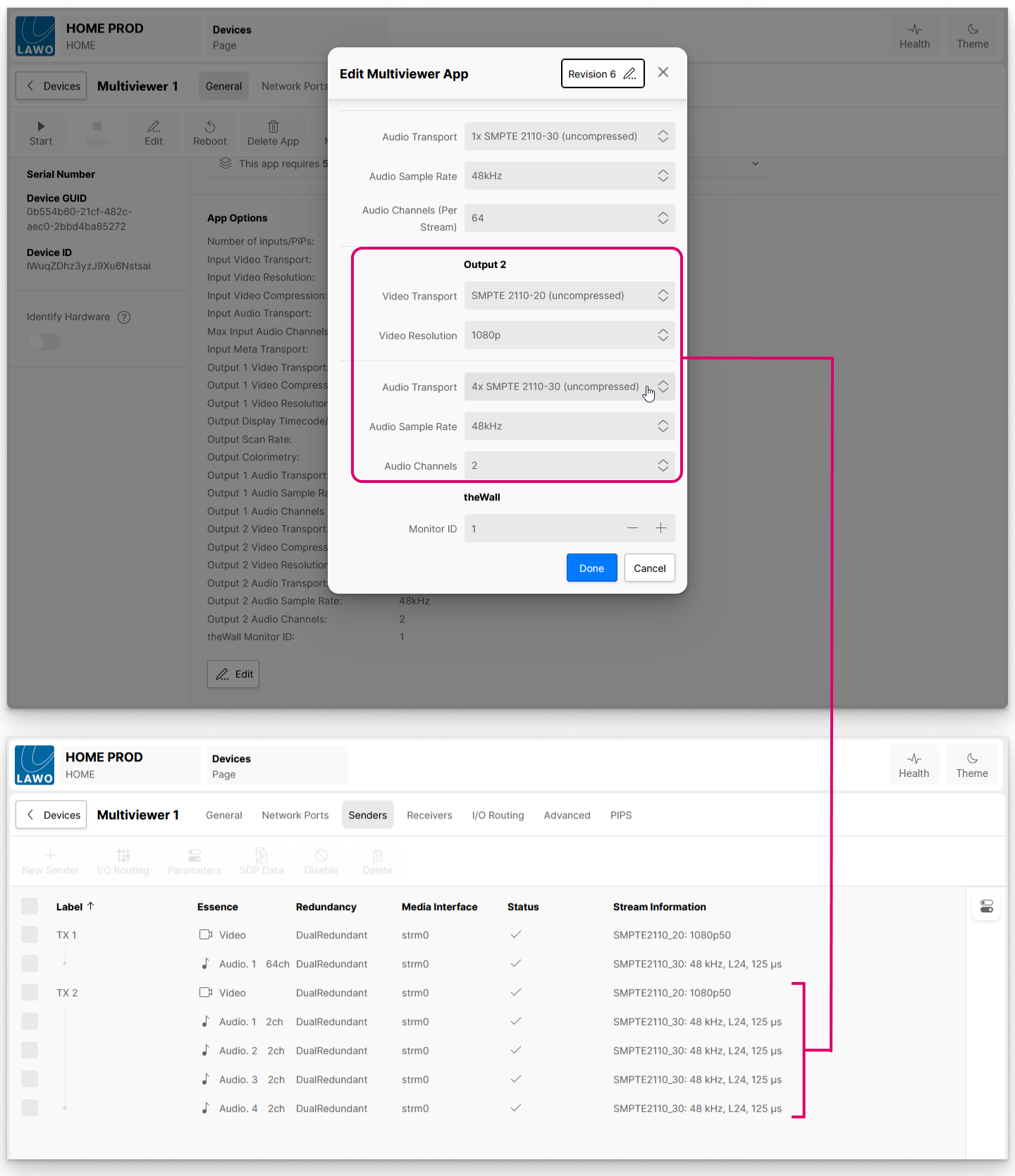
For example, if the Multiviewer's second output is enabled, then another sender is added (TX2) with another set of flows. This time the Audio Transport (for Output 2) is configured for 4x SMPTE 2110-30 and so TX2 handles 1x Video + 4x Audio flows.
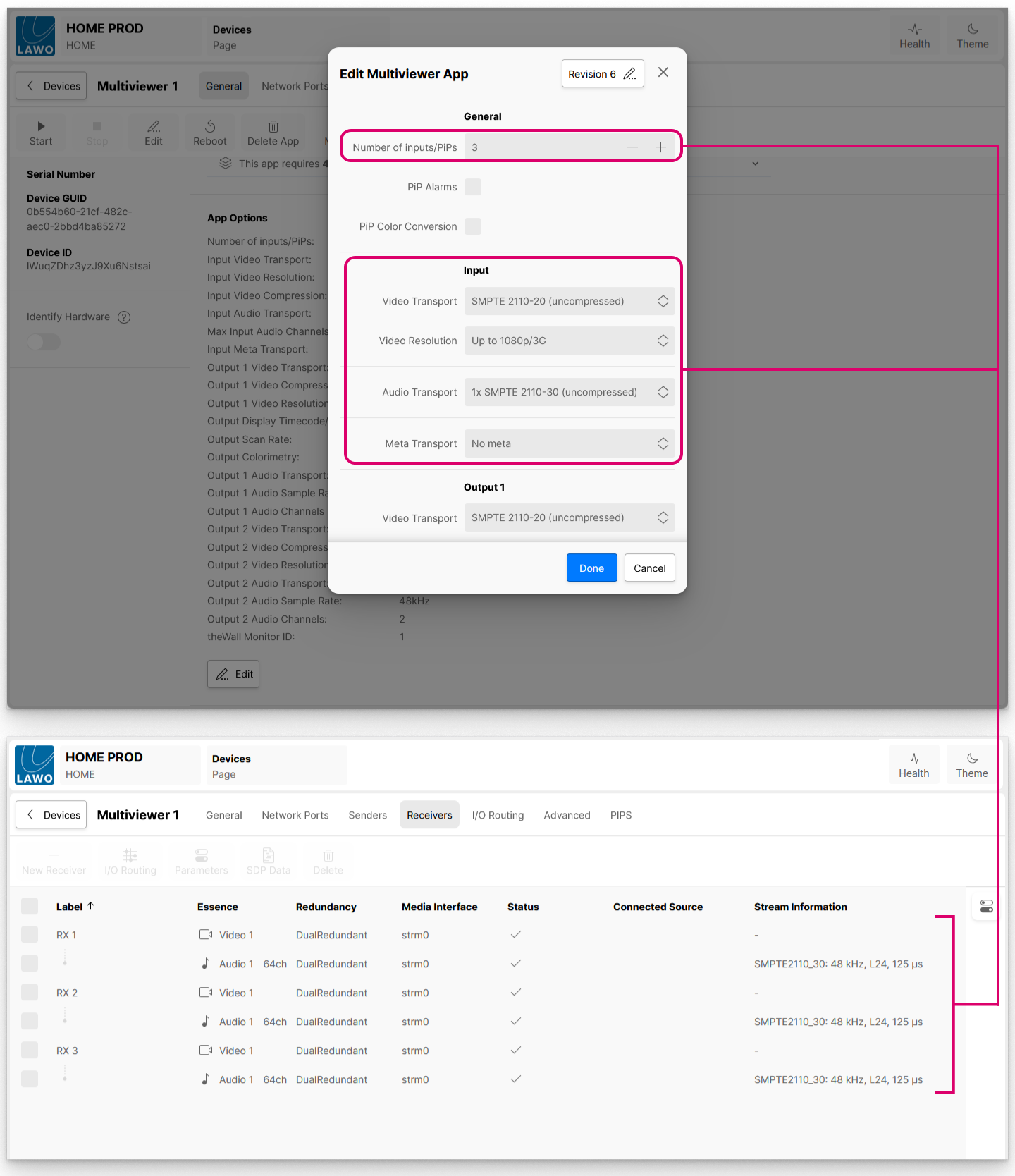
Similarly, if the number of inputs is reduced, then there are fewer receivers.
In the next example, the Number of Inputs/PIPs has been changed to 3 and the Meta Transport is disabled. This means that there are now three input receivers (RX1 to RX3) where each one handles two flows: Video 1 and Audio 1.
How do I edit the sender and receiver parameters?
More information about the streaming parameters can be found in: