HOME Apps - Edit Sender or Receiver
The Parameters button (in the Senders or Receivers page) can be used to open the 'Edit Sender' dialog to view or edit the stream configuration parameters for an existing sender or receiver.
For a sender, the dialog provides access to information and parameters about the selected sender and its transport. The parameters are generated automatically by the app, according to the various app configuration options defined by the user. The 'Edit Sender' dialog provides a more detailed view of the specific stream parameters, and allows certain parameters to be edited during runtime. Note that, if a parameter is modified from here, then this value overrides any related setting in the app configuration. A typical example might be to change the number of audio channels per stream (of an Audio flow).
For a receiver, the dialog provides access to information and parameters about the selected receiver. Most of the information is derived from the SDP file associated with the connected source. As for a sender, there are certain parameters that can be modified from here and others that are read-only. By editing a parameter (within the receiver), the user is able to deal with situations where the SDP file provided by the sending device is incorrect.

SDP (Session Description Protocol) is a format for describing streaming media communication parameters. It is commonly used in standard networking applications.
The rest of this topic explains how to use the 'Edit Sender' and 'Edit Receiver' dialogs. The examples shown below are taken from a HOME Multiviewer. The same principles can be applied to other app types.
Using 'Edit Sender' or 'Edit Receiver'
The instructions that follow describe how to access the stream parameters for a sender. The method for receivers is identical (but from the Receivers tab).
1. From the Senders tab, select a stream and click on Parameters - the 'Edit Sender' dialog opens.
Note that the Parameters button is not available if you select more than one sender.
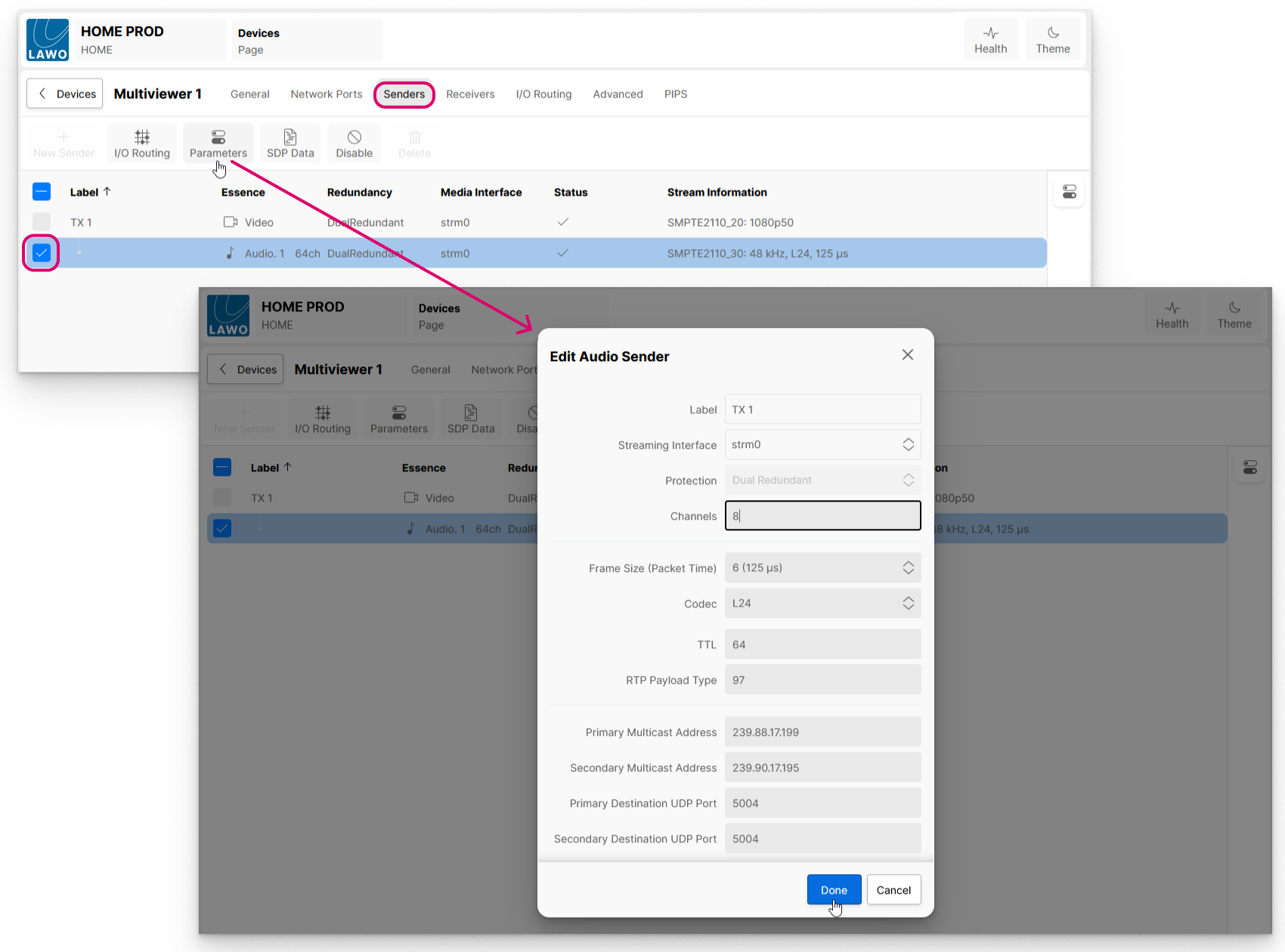
2. Use the fields to check and, if necessary, edit the streaming parameters.
The available parameters vary depending on the selected essence and stream transport type.
- If a parameter can be modified then it has a grey background. In this instance, the modifications made here override any related setting made in the app's initial configuration. An example of how this works in practice is provided here.
- Other parameters (with white backgrounds) are read-only and cannot be edited.
In the example above, an audio sender is selected. This example shows how to change the number of audio Channels per stream. e.g. from 64 to 8.
3. Once you are happy with the changes, select Done to confirm (or Cancel to exit without saving).
The latest values are saved (by HOME) whenever a change is made. If the app is stopped, then the latest values are loaded on the next start up of the app.
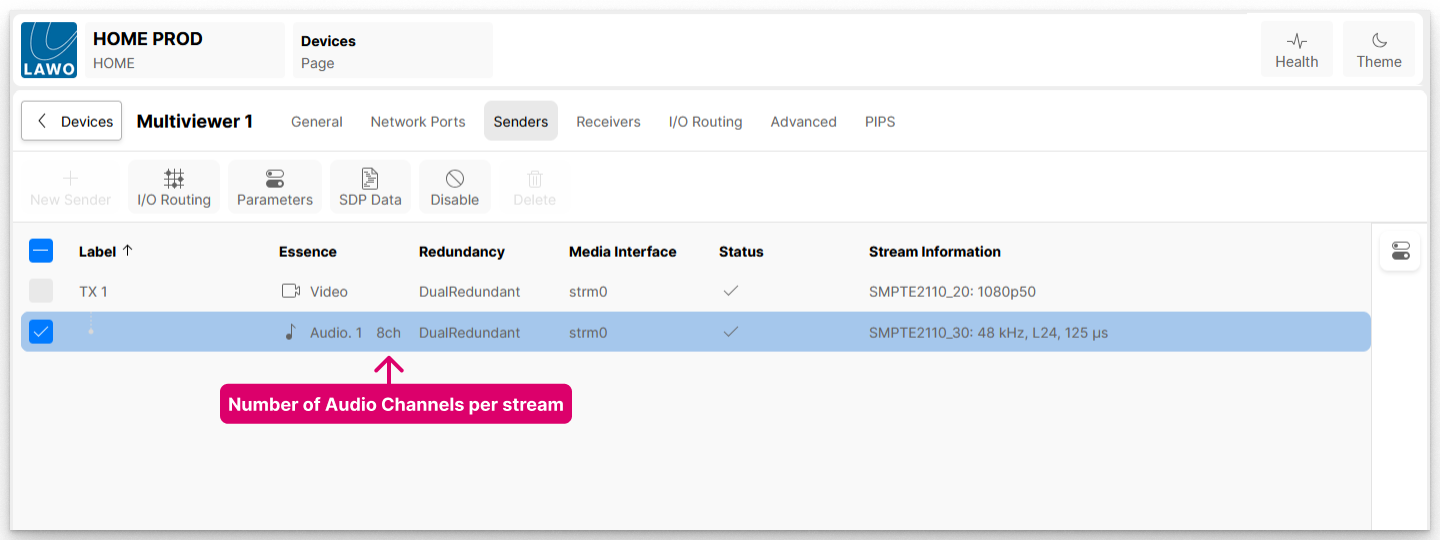
In this example, the new value can be confirmed by looking at the information in the Essence column:
Typical Applications
The examples that follow explain when you might want to use the 'Edit Sender' and 'Edit Receiver' dialogs.
'Edit Audio Sender'
The example above shows how to view and edit parameters for an Audio flow. For example, to change the number of audio channels per stream.
'Edit Video Sender'
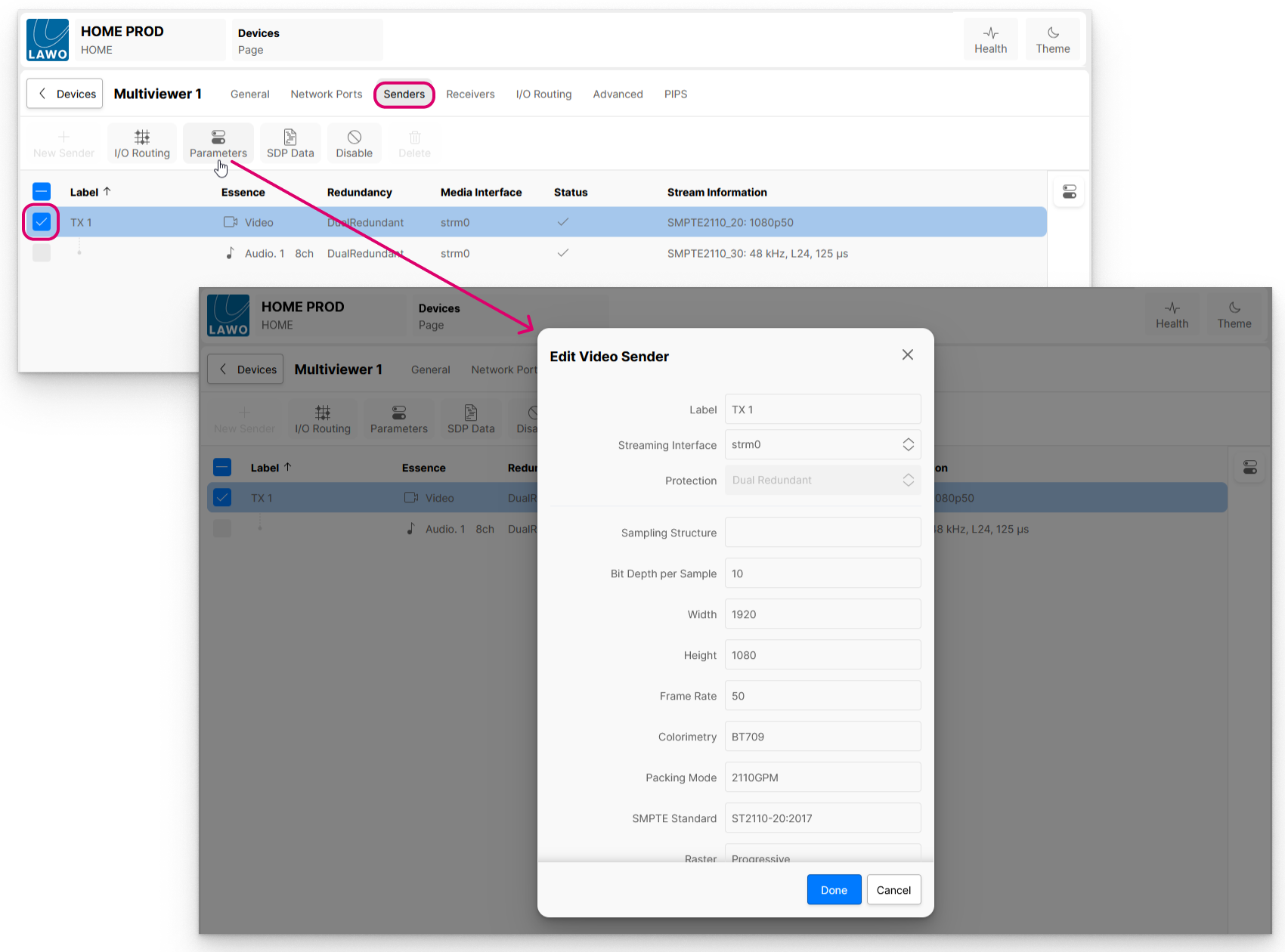
The next example (below) shows how the same steps can be used to view and edit parameters for a Video sender.
In this instance, most of the fields are read-only and can be used for diagnostic purposes.
'Edit Video Receiver'
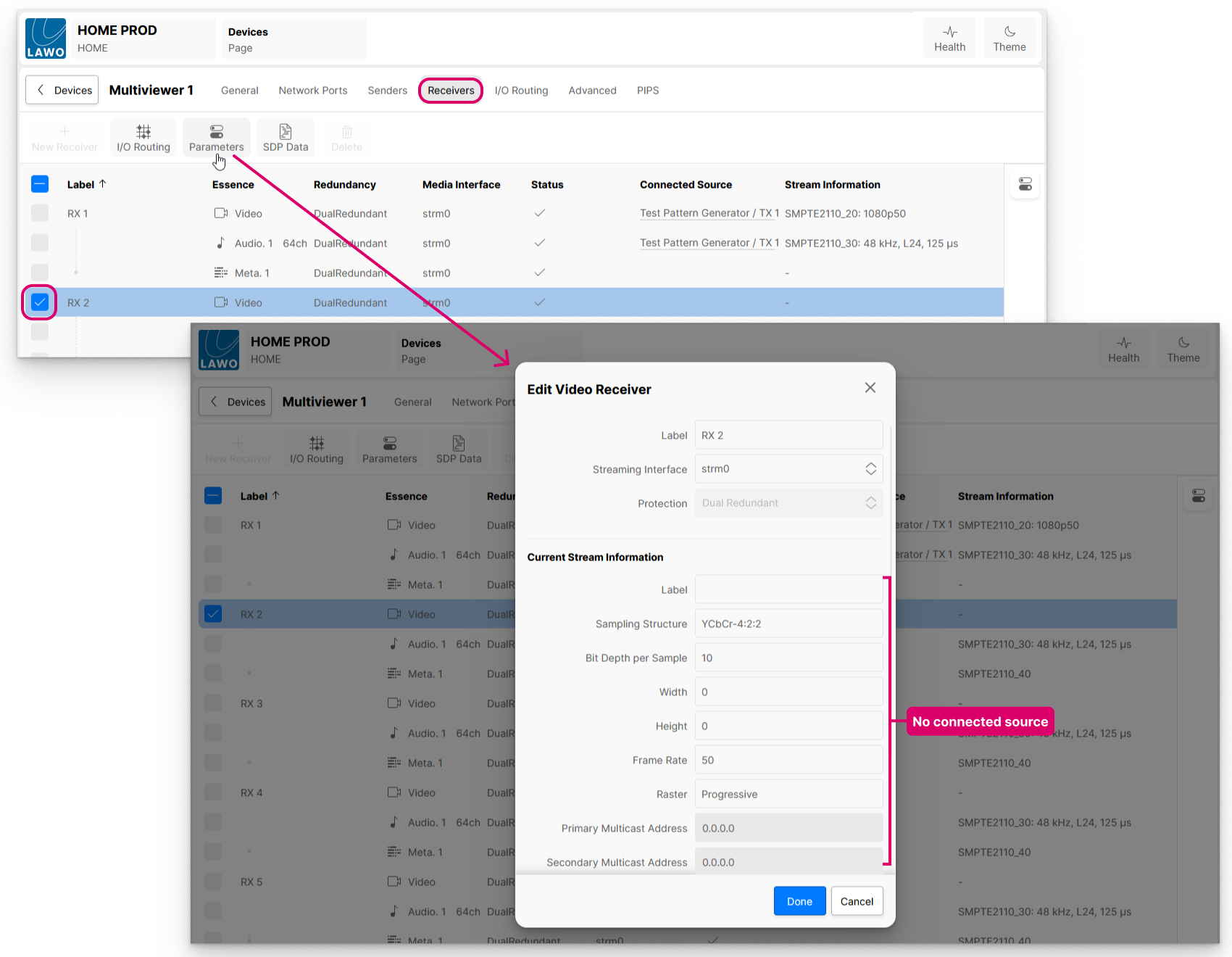
The same method can be used to view or edit the parameters for a selected receiver. In this instance, the 'Edit Receiver' dialogs look different depending on whether the receiver has a connected source or not.
In the first example below, the HOME Multiviewer receiver (RX 2) is not connected and so there is very little that can be adjusted. A source can be connected using either the 'Stream Routing' page or the SDP Patching method (described here).
In the second example, the HOME Multiviewer receiver (RX 1) is connected from a HOME Test Pattern Generator sender. Thus, the 'Current Stream Information' is derived from the SDP file associated with the Test Pattern Generator's source.
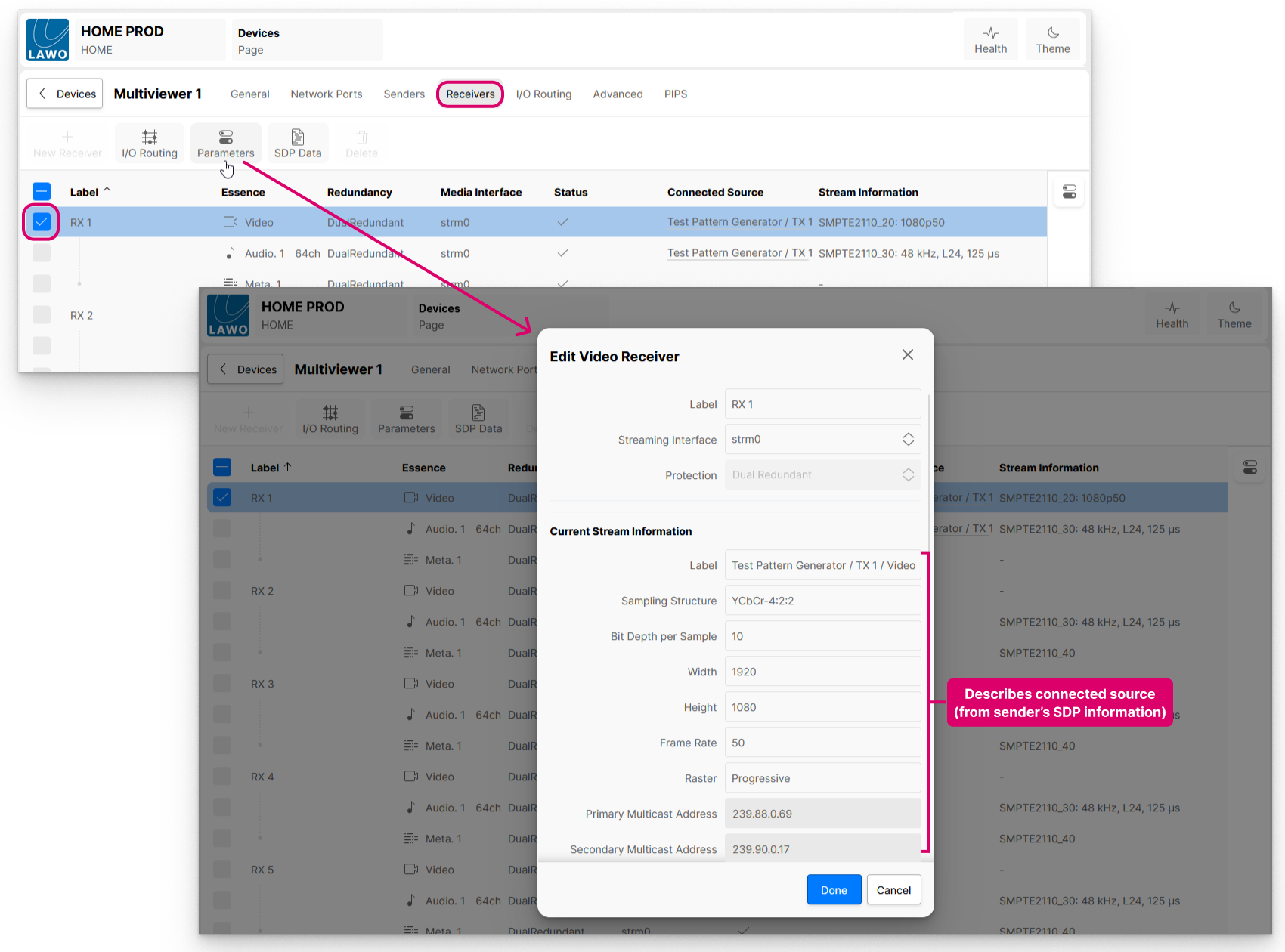 In this instance, the 'Edit Video Receiver' dialog can be used to check the information provided by the sender and, if necessary, use the editable fields (grey background) to make a correction.
Once you are happy with the changes, select Done to confirm (or Cancel to exit without saving).
The latest values are saved (by HOME) whenever a change is made. If the app is stopped, then the latest values are loaded on the next start up of the app.
Further Information
For more information about the streaming parameters for each essence type, please see: