HOME Apps - I/O Routing (for Audio Streams)
The 'Device → I/O Routing' page appears for all apps that handle audio inputs and audio outputs. It provides the ability to route audio channels being received by the app's receivers to the audio channels transmitted by the app's senders.
By default, the audio channels are mapped on a 1:1 basis. The I/O Routing can be edited if you wish to change the default assignments.
In each case:
- Any input audio channel can be routed to any output audio channel.
- An input channel can be routed to multiple output channels.
The examples shown below are taken from a HOME Multiviewer. The same principles can be applied to other app types.
- Opening the I/O Routing
- Using the I/O Routing
- Understanding the Channel Labelling
- Default I/O Routing
Opening the I/O Routing
Depending on how you want to view the information, there are three different ways to open the I/O Routing page:
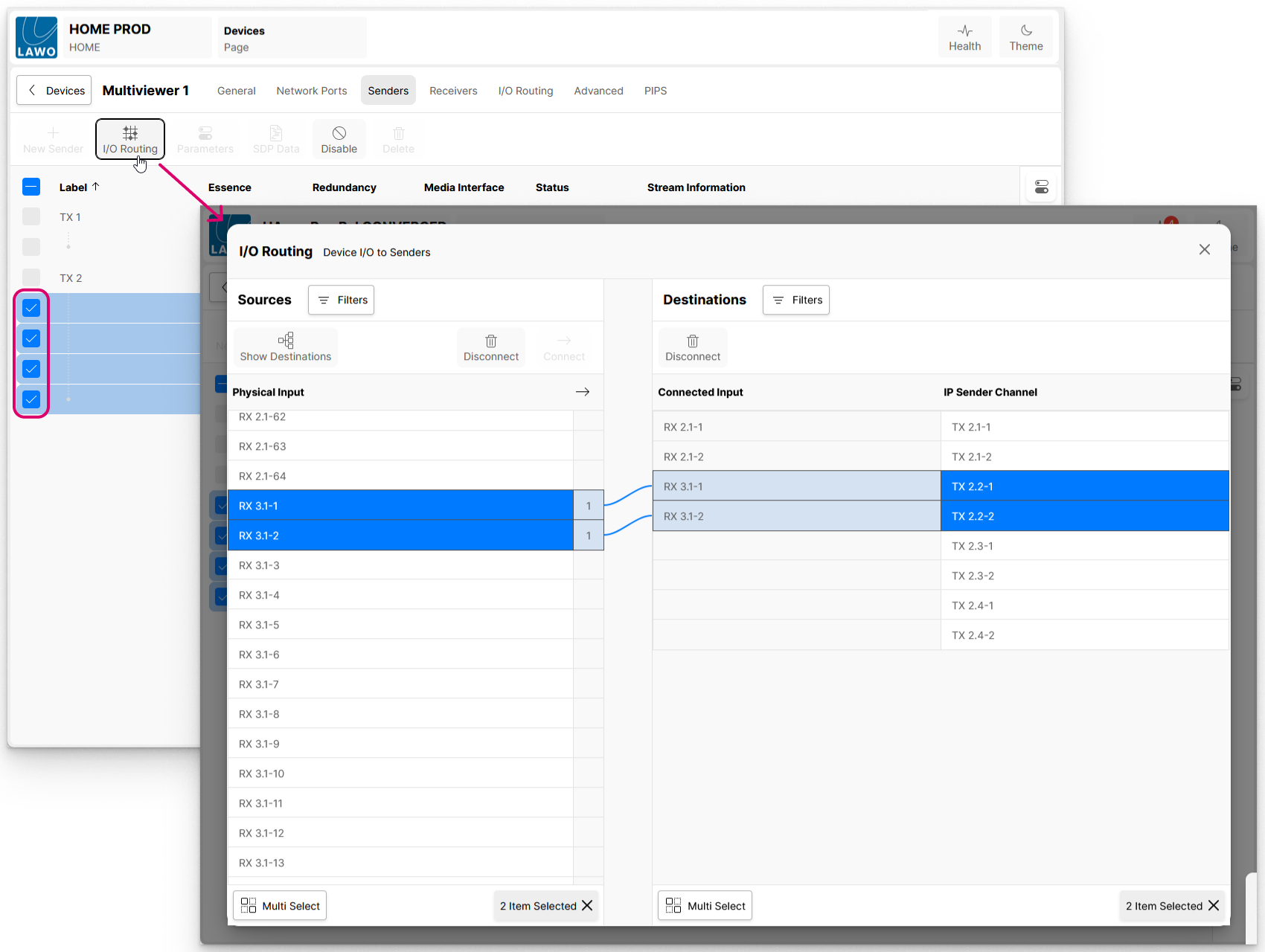
- From the 'Device → Senders' page, select one or more audio sender(s) and click on I/O Routing. This method shows all channels being received (on the left) and channels from the selected sender (on the right).
- From the 'Device → Receivers' page, select one or more audio receiver(s) and click on I/O Routing. This method shows channels from the selected receiver (on the left) and all channels being transmitted (on the right).
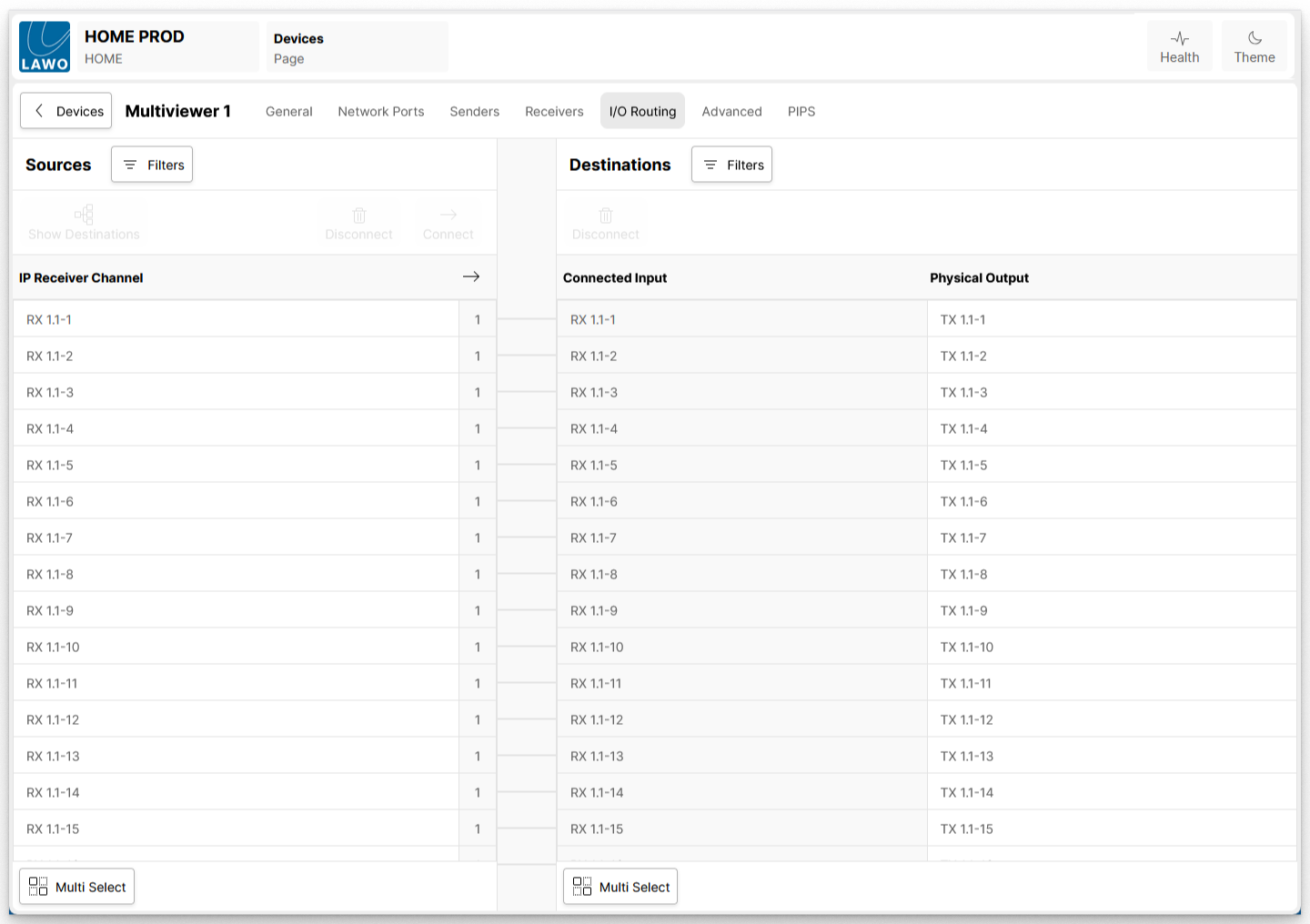
- Click on the app label (e.g. from the main 'Devices' list) and choose the I/O Routing menu tab. This method shows all channels being received (on the left) and all channels being transmitted (on the right).
The first two methods are ideal for handling a particular audio sender or receiver. The third method is better if you want to see all of the app's I/O Routing. The examples that follow illustrate each option.
In the first example, the audio senders for output 2 (TX2) are selected. This allows the user to make connections from any available input - in this example, from RX2, Audio 1, channels 1&2; and RX3, Audio 1, channels 1&2.
In the second example, it is possible check (and edit) all of the I/O Routing for the app. i.e. scroll to view all available receiver channels (on the left) and sender channels (on the right).
Using the I/O Routing
Once open, the I/O Routing page operates in a similar fashion to the 'Stream Routing' page. It shows the mapping of the "Sources" (on the left) to the "Destinations" (on the right):
- If a source is connected, then a number appears in the "source used" column. This indicates the number of connections made. i.e. the number of times a source is used.
- If a destination is connected, then the source label appears in the "Connected Source" column.
The Filters button allows one or more filters to be applied, to reduce the number of channels being displayed.
To map an input channel to an output channel, select a source (on the left) and a destination (on the right); then click on Connect.
To remove the mapping between an input channel and an output channel, select the desired destination (on the right); then click on Disconnect.
More information about using short cuts such as Multi Select can be found at: HOME Device - I/O Routing (for Audio Streams).
Understanding the Channel Labelling
Each sender and receiver has a number that is linked to the app's input(s) and output(s). For the video senders and receivers, the numbering is simple as each RX and TX handles a single video stream: RX1 Video = input 1; RX2 Video = input 2; and so on.
For the audio senders and receivers, the numbering is more complex as the audio for each input and output can be streamed using multiple flows (Audio 1, Audio 2, Audio 3, etc) and each flow carries multiple channels (stereo, 4-channel. 8-channel, etc).
In the I/O Routing page, each individual audio channel has a number that describes the RX (or TX), the Audio flow (1, 2, 3, etc) and then the channel number (within that flow):
- RX1-1.1 = Receiver 1, Audio flow 1, audio channel 1.
- RX1-1.2 = Receiver 1, Audio flow 1, audio channel 2.
- RX1-1.3 = Receiver 1, Audio flow 1, audio channel 3.
- etc.
- RX1-2.1 = Receiver 1, Audio flow 2, audio channel 1.
- RX1-2.2 = Receiver 1, Audio flow 2, audio channel 2.
- RX1-2.3 = Receiver 1, Audio flow 2, audio channel 3.
- etc.
So, the meaning of the following (random) examples is:
- RX3-4.1 = Receiver 3, Audio flow 4, audio channel 1.
- RX3-6.2 = Receiver 3, Audio flow 6, audio channel 2.
- RX5-2.8 = Receiver 5, Audio flow 2, audio channel 8.
Default I/O Routing
By default, the audio channels being received are mapped to the app's senders on a 1:1 basis: RX1-1.1 to TX1-1.1, RX1-1.2 to TX1-1.2, RX1-1.3 to TX1-1.3, and so on.
If the RX or TX handles a different number of audio flows, then the mappings are made on an incremental/best effort basis.
For example, if inputs 1 to 4 are configured as two 8-channel audio receivers and output 1 is configured as a 64-channel audio sender, then the default I/O Routing will be:
- RX1-1.1 to 8 connects to TX1-1.1 to 8
- RX1-2.1 to 8 connects to TX1-1.9 to 16
- RX2-1.1 to 8 connects to TX1-1.17 to 24
- RX2-2.1 to 8 connects to TX1-1.25 to 32
- RX3-1.1 to 8 connects to TX1-1.33 to 40
- RX3-2.1 to 8 connects to TX1-1.41 to 48
- RX4-1.1 to 8 connects to TX1-1.49 to 56
- RX4-2.1 to 8 connects to TX1-1.57 to 64
If there are not enough receiver audio channels to populate the app's sender audio channels, then nothing is connected.