HOME Apps - License Usage (per app)
In HOME Apps, there is no fixed number of perpetual licenses or credit value for an app, as the licensing usage is dependent on three variables:
- the configuration of the app;
- thelicense type of the app;
- the number of available perpetual licenses (in a mixed licenses + credits system).
This topic describes how to check the licensing usage of an app, and what to do (to resolve an issue) if there are not enough available resources.
Licensing Requirements (per app)
In the example below, a HOME Multiviewer is configured with 9 PIPs (video inputs). This means that the following perpetual licenses are required OR an equivalent amount of credits:
- 1x HOME Pass - permits the configuration and control of the app (from HOME).
- 9x Input* - defines the app's input receivers (to stream signals to the app).
- 1x MV - runs the basic functionality of the app.
- 1x Output* - defines the app's output senders (to stream signals from the app).
*The Input and Output licenses come in different types to support a variety of signal streaming formats: SMPTE 2110-20 (uncompressed), SMPTE 2110-22 (JPEG-XS), etc.
If the configuration expands (e.g. more inputs are added), then the app requires more perpetual licenses (of a certain type) or the equivalent amount of credits.

Important: Some of the Input and Output licenses are supported by perpetual licenses only, and cannot be enabled using credits. To check which options are supported by Lawo Flex, please refer to HOME Apps - Available License Options.

All HOME Apps systems are delivered with enough HOME Pass perpetual licenses to run the individual app instances and app server(s). This means that the HOME Pass for an app is usually fulfilled by one of the included perpetual licenses. A HOME Pass can also be achieved using credits if, for example, the HOME Pass perpetual licenses are assigned elsewhere or the app's License Type is set to credits.
Checking the license usage (of an app)
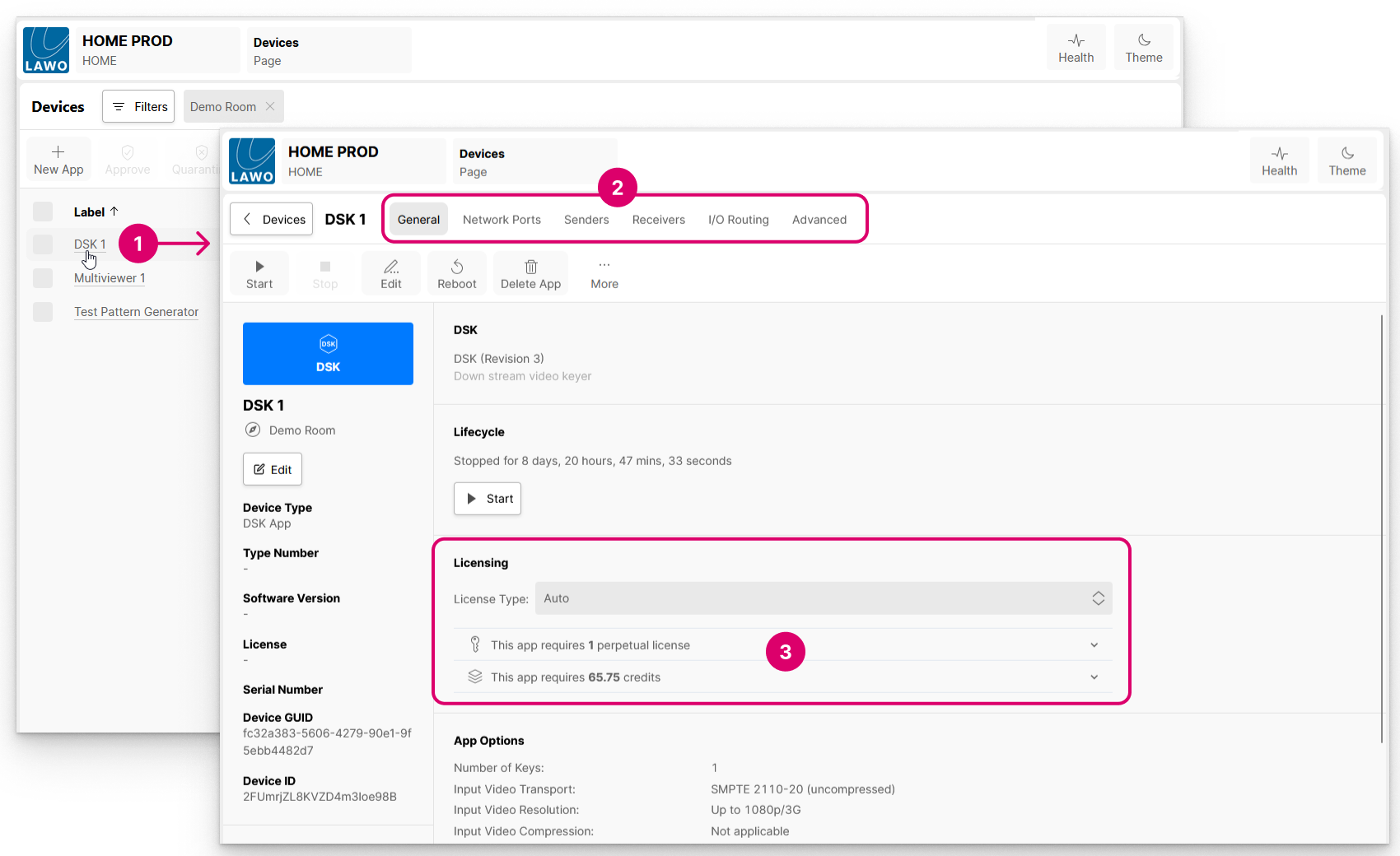
The licenses required to run an app are displayed in the app's 'Device → General' settings page and in the 'Start App' dialog.
To use the first method: open the 'Device → General' settings page and look at the Licensing area (3):
If an app is stopped, then select the app and choose Start App to open the 'Start App' dialog. The licensing information is displayed below the Version field:

Interpretting the Licensing Information
The two "licensing usage" lines show the number of perpetual licenses and/or credits required to run the app. You can interrogate the usage further by clicking on the reveal/hide arrow (for the perpetual licenses or credits).
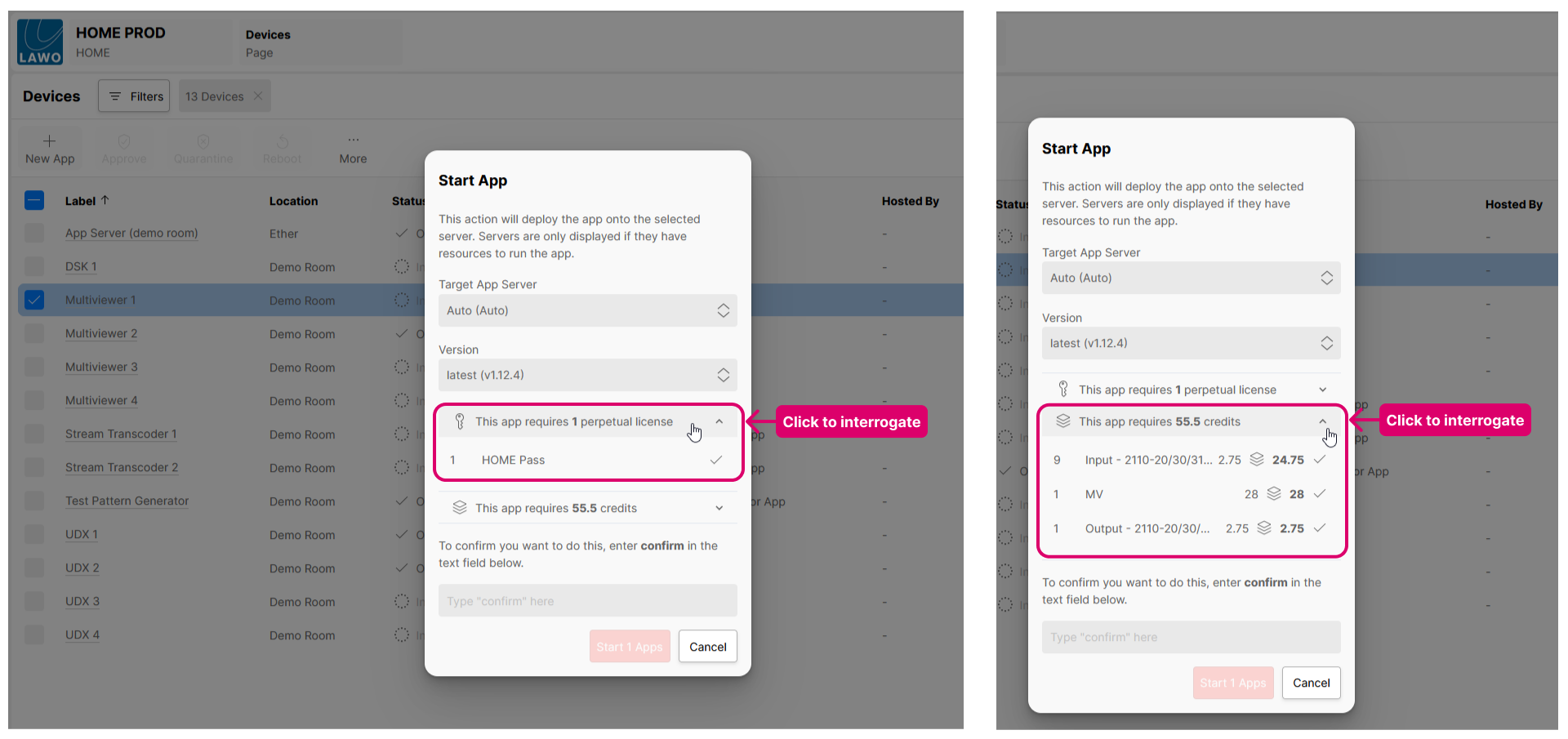
In our example, the HOME Multiviewer is configured with 9 PIPs (video inputs) and so the required licenses are: 1x HOME Pass + 9x Input + 1x MV + 1x Output.
If the License Type is set to Auto, and there is a HOME Pass perpetual license available, then this means that HOME makes the following allocations:
- 1x HOME Pass - using a HOME Pass perpetual license.
- 9x Input + 1x MV + 1x Output - using 55.5 credits.
Remember that the total licensing requirement is dependent on the configuration of the app, so if the user adds more PIPs, then the total number of Input licenses will increase.
In addition, the number of credits is variable depending on the License Type (of the app) and the available perpetual licenses (in HOME). For example, if some Input perpetual licenses are added (or released from another video processing app), then these will be allocated first thereby reducing the number of credits.
Potential Licensing Issues
If there are not enough perpetual licenses or credits, then a warning indicator appears beside the licenses or credits icon. This has different implications depending on whether the app is running or not.
Not Enough Perpetual Licenses or Credits (to start an app)
If there are not enough perpetual licenses or credits to start an app, then you will need to resolve the licensing issue in order to start the app.
Hover over the license or credit icon(s) to see how many perpetual licenses or credits are missing.

As before, you can click on the reveal arrow to interrogate further.
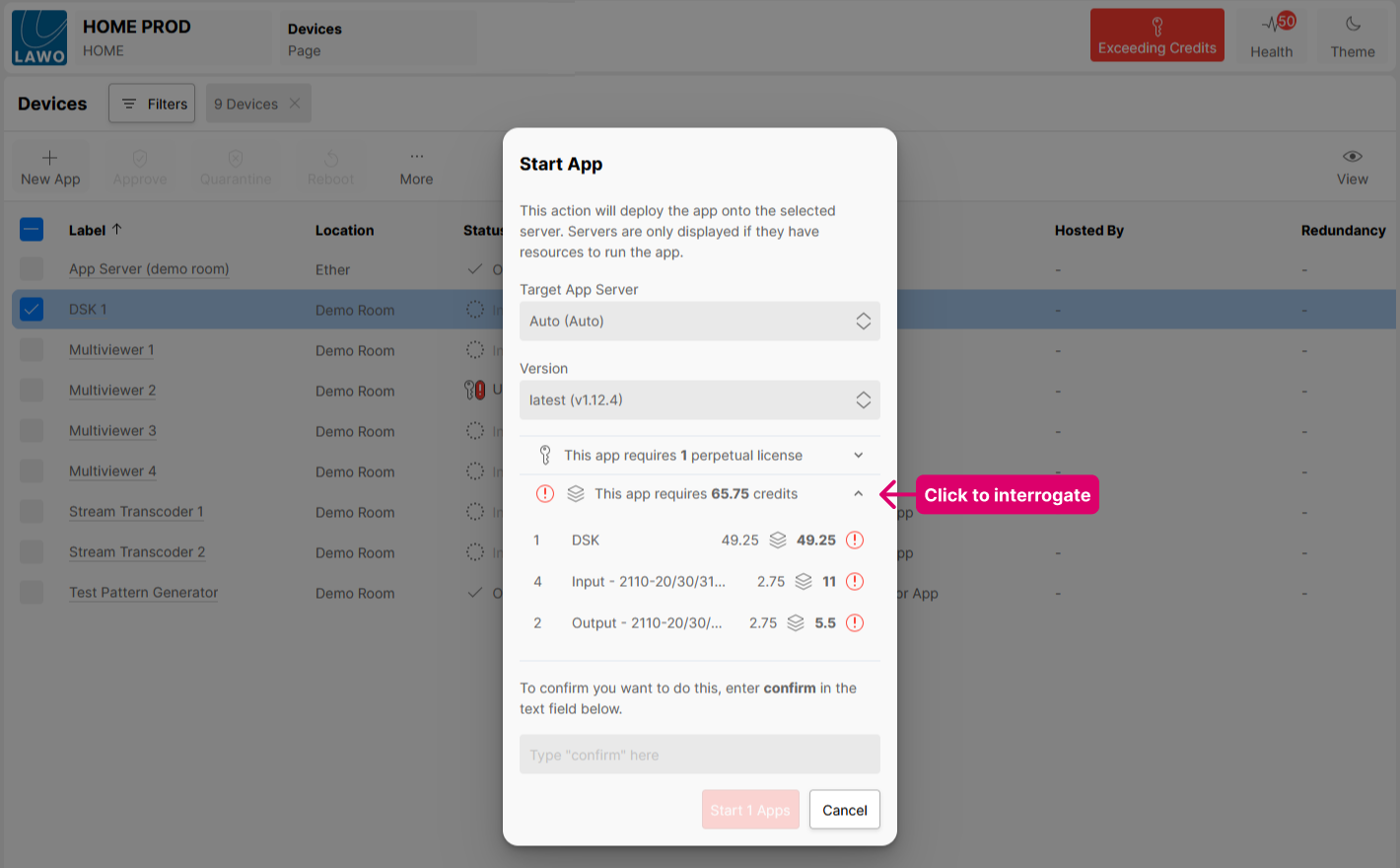
In this example, the user could choose one of the following options to resolve the licensing issue and successfully start the app:
- Add some perpetual licenses (of the correct type).
- Assign more credits to the HOME system (using the my.lawo.com licensing portal).
- Release some credits (e.g. by stopping some other apps).
Once the licensing issue is resolved, the warning indicators clear and you can successfully start the app.
Not Enough Perpetual Licenses or Credits (during runtime)
If an app is already running, and the current usage exceeds the available perpetual licenses and credits, then there is no immediate change to the operation of the app. Any apps that are already started will continue to run in their current state. This allows productions to be completed. The change in usage only becomes relevant once an app is stopped, or the entire system / app server is shutdown. In this instance, the app cannot be started again until the licensing issue is resolved.
To alert the user that some action needs to be taken, the affected apps are marked as Unlicensed in HOME's 'Devices' list. In addition, if the licensing issue is due to missing credits, then two red warnings are displayed: Exceeding Credits (beside the Health icon) and a Critical Error banner (at the bottom of the page).
Exceeding Credits
In the example below, there are four unlicensed apps and we know that the current usage exceeds the available credits.
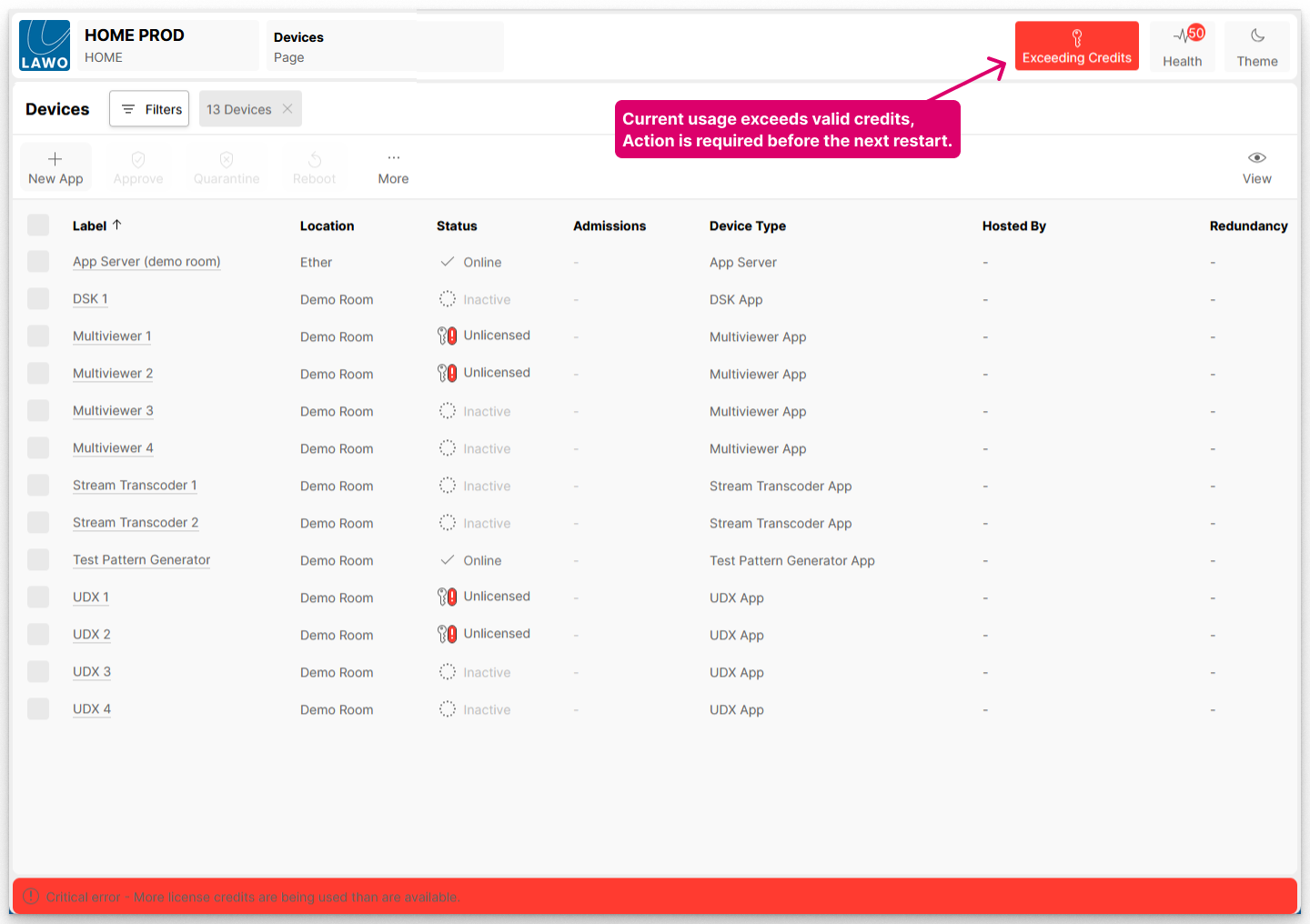
The four apps will continue to run in their current state but, if the apps are stopped for any reason, you will not be able to start them again.
To interrogate the licensing issue further:
- Open the 'Licenses' page and Credits tab to see how many credits are missing in total.
- Or, open the general settings page of each app to see how many credits are required (per app).
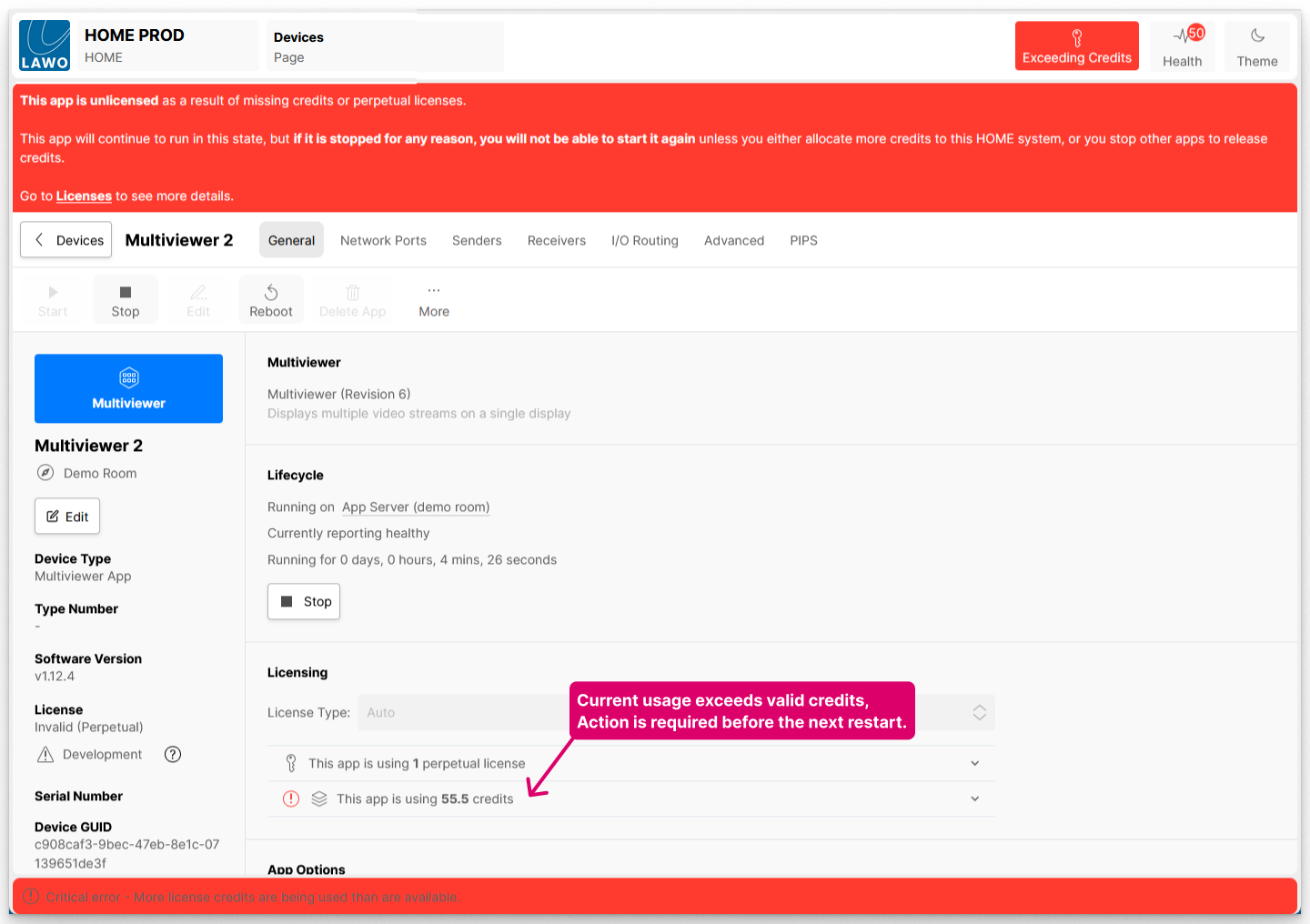
In this example, the simplest solution would be to assign a sufficient amount of credits to the HOME system (using the my.lawo.com licensing portal) or release some credits (e.g. by stopping some other apps).
Once this is done, the warning indicators clear and the app status should now show as Online. It is now safe to stop and restart the apps in the usual manner.
Missing Perpetual Licenses
If the licensing issue is due to missing perpetual licenses (and not credits), then there is no Exceeding Credits alert or Critical Error warning and so the 'Devices' list looks a little different.
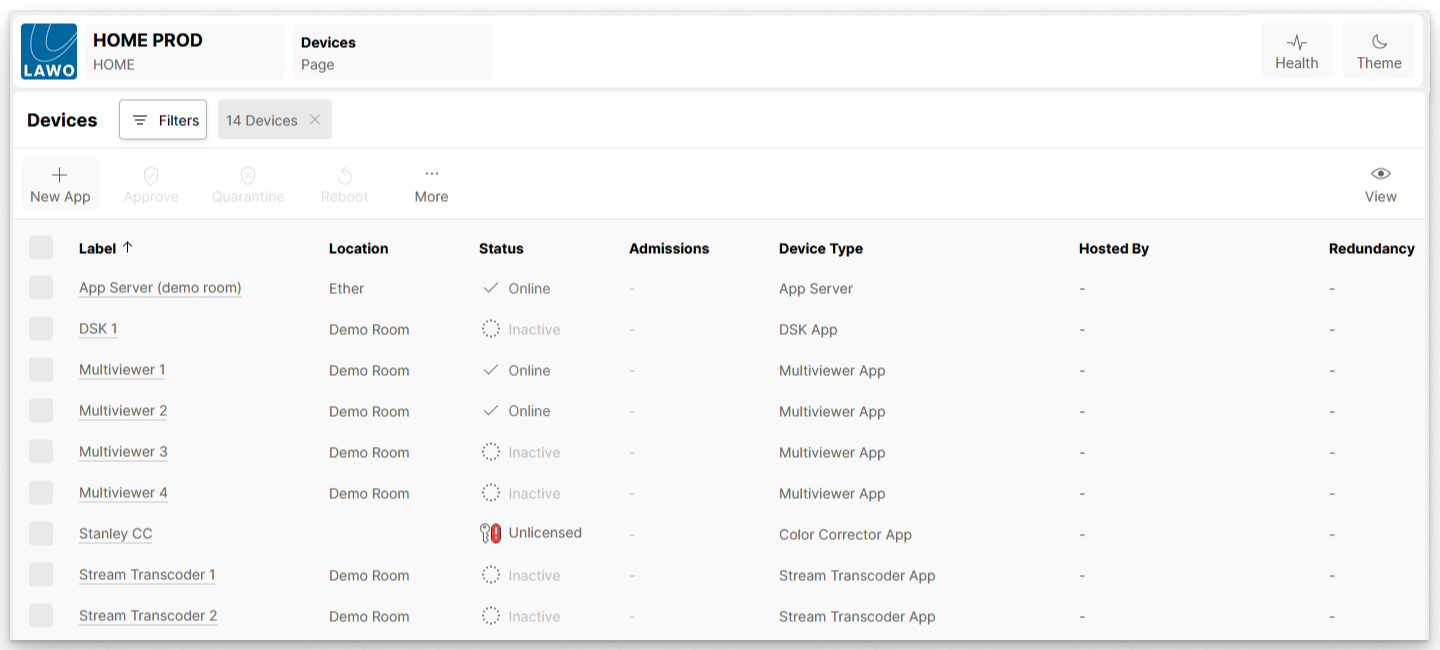
In this instance, the affected app (or apps) are marked as Unlicensed and so you should open their general settings page to investigate further.
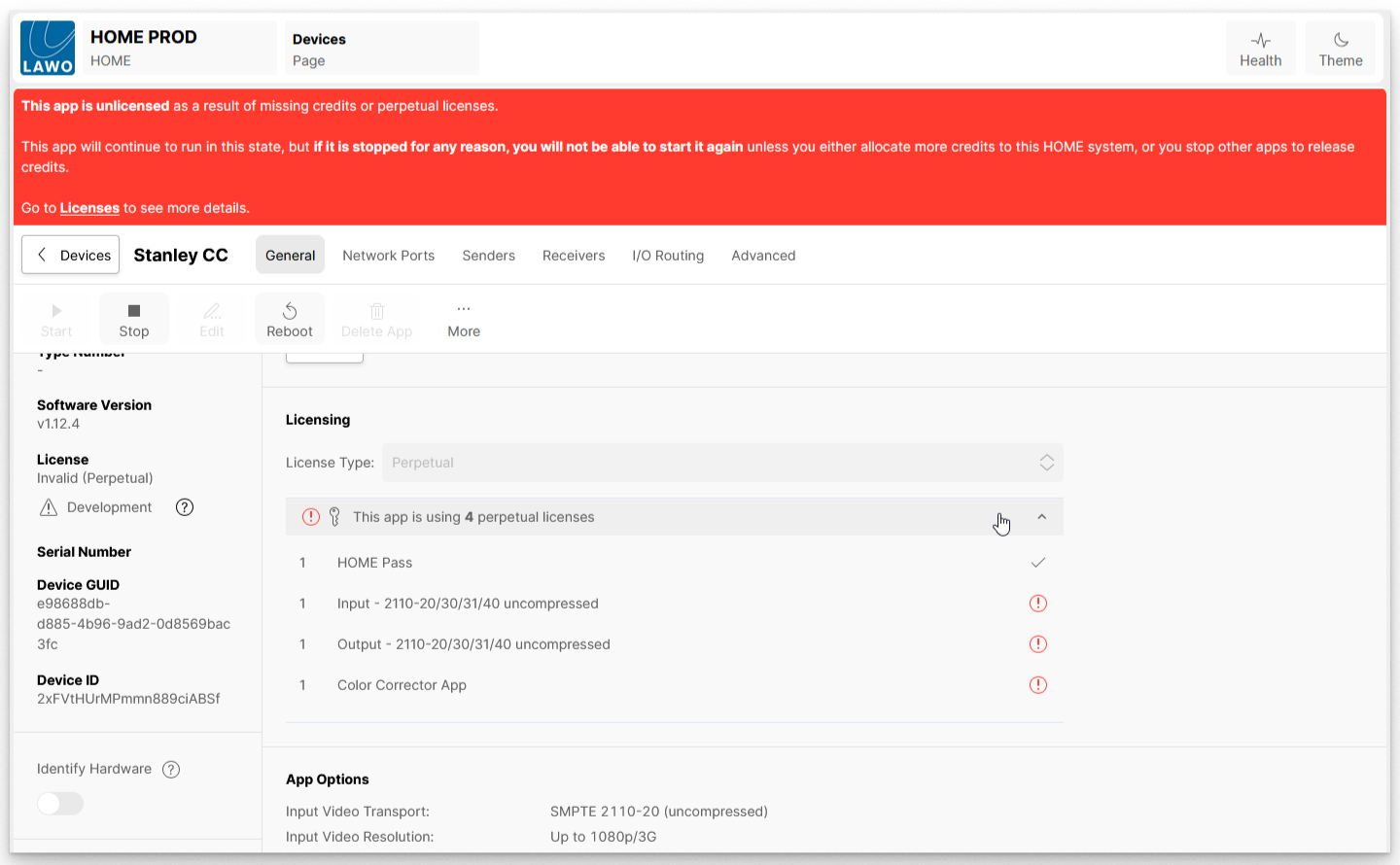
In example shown above, the app's License Type is set to Perpetual and there are not enough available perpetual licenses (of the correct type).
To fix this example, the user could either install the required perpetual licenses or change the app's License Type to Auto (to top up the app's licensing with an amount of credits).
Why does my app require millions of credits?
In this instance, if the License Type is set to Credits, then the app's configured options cannot be licensed. A warning indicator appears beside the credits icon plus a message that says this app requires a very large amount of credits!
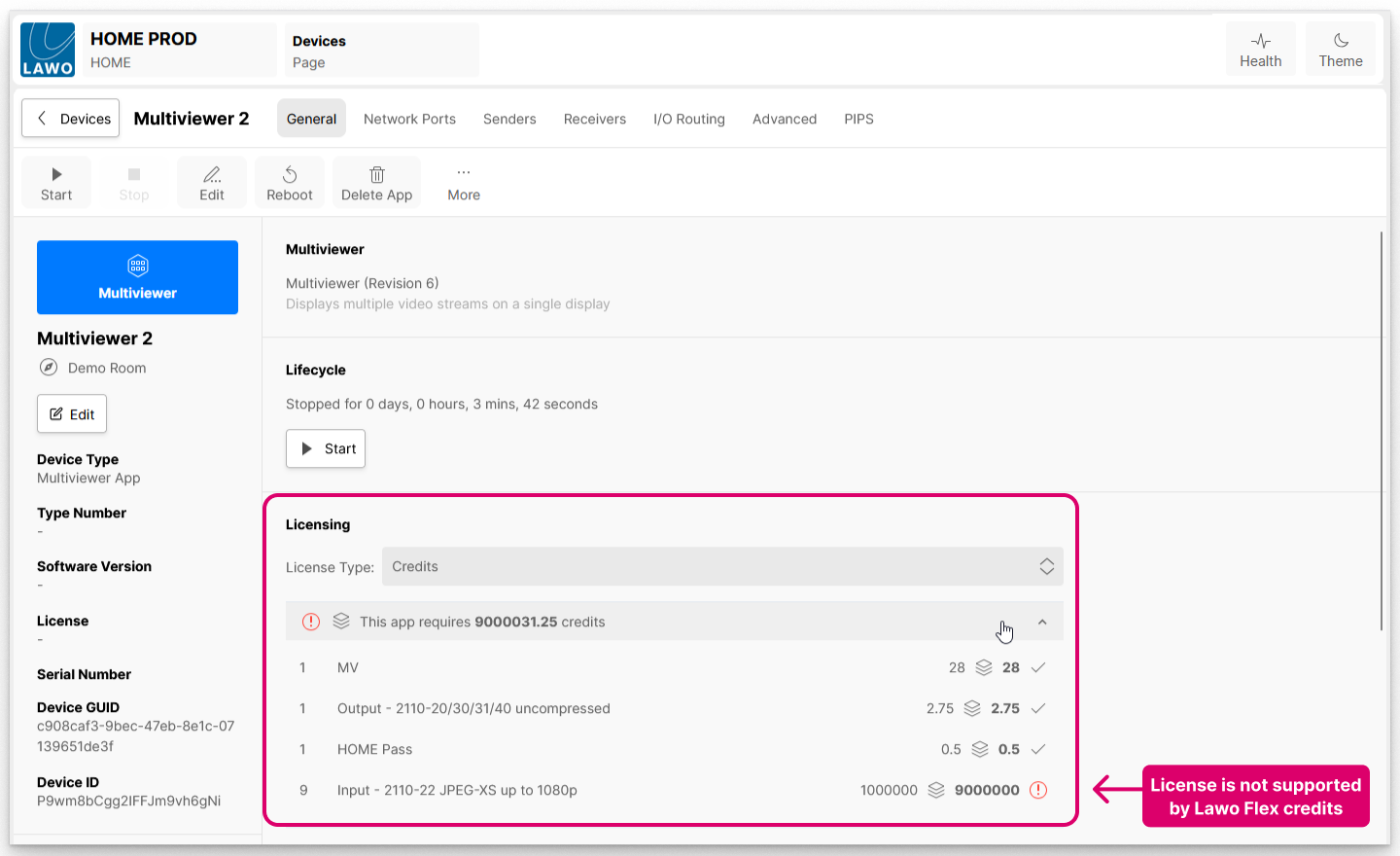
To resolve the incompatibility, the user must either:
- change the License Type (to either Auto or Perpetual), and install the required perpetual licenses;
- or edit the configuration of the app (so that the Input licenses are supported by Lawo Flex).
To check which options are supported by Lawo Flex, please refer to HOME Apps - Available License Options.
Resolving Licensing Issues
Then check the licensing configuration for the individual device(s) or app(s).
If there are not enough available perpetual licenses or credits, then there are four possible courses of action:
- Add more perpetual licenses (of the correct type) by uploading a new licensing file.
- Assign more credits to the HOME system (using the my.lawo.com licensing portal). To do this, you may need to activate a new Lawo Flex subscription or revoke some credits from another HOME system. Please see:
- Release some credits (e.g. by stopping some apps).
- Reduce the licensing requirement (e.g. by editing the configuration of the device or app).