HOME Apps - Duplicate App
The Duplicate App function can be used to create one or more copies of an existing app.
This function copies the initial configuration of the selected app and, by default, adds a suffix to the label (to keep it unique).
Please note:
- Anything that is not part of the initial configuration, such as the Location or License Type, is not included.
- If a parameter can be edited during runtime, then Duplicate App copies the initial configuration and not the runtime value. For this reason, it is recommended to check and, if necessary, edit the initial configuration before proceeding. This can be done from the app's 'Device → General' settings page (as described here).
Start by checking the initial configuration of the app you wish to copy, and then follow the instructions below to duplicate the app:
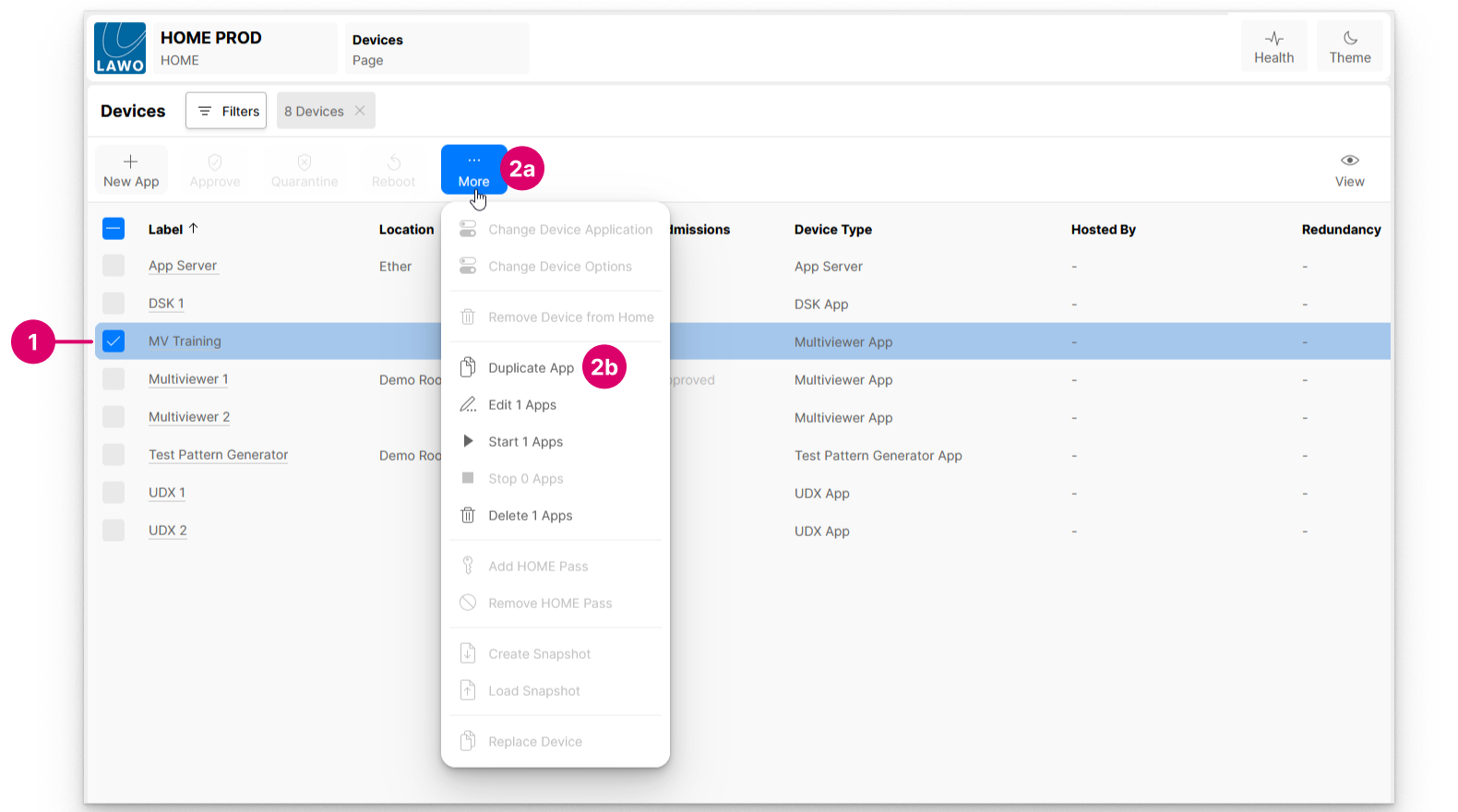
- From the 'Devices' list, select the app you wish to copy.
- Click on ... More and choose Duplicate App (from the drop-down menu).
- The 'Duplicate App' dialog appears.
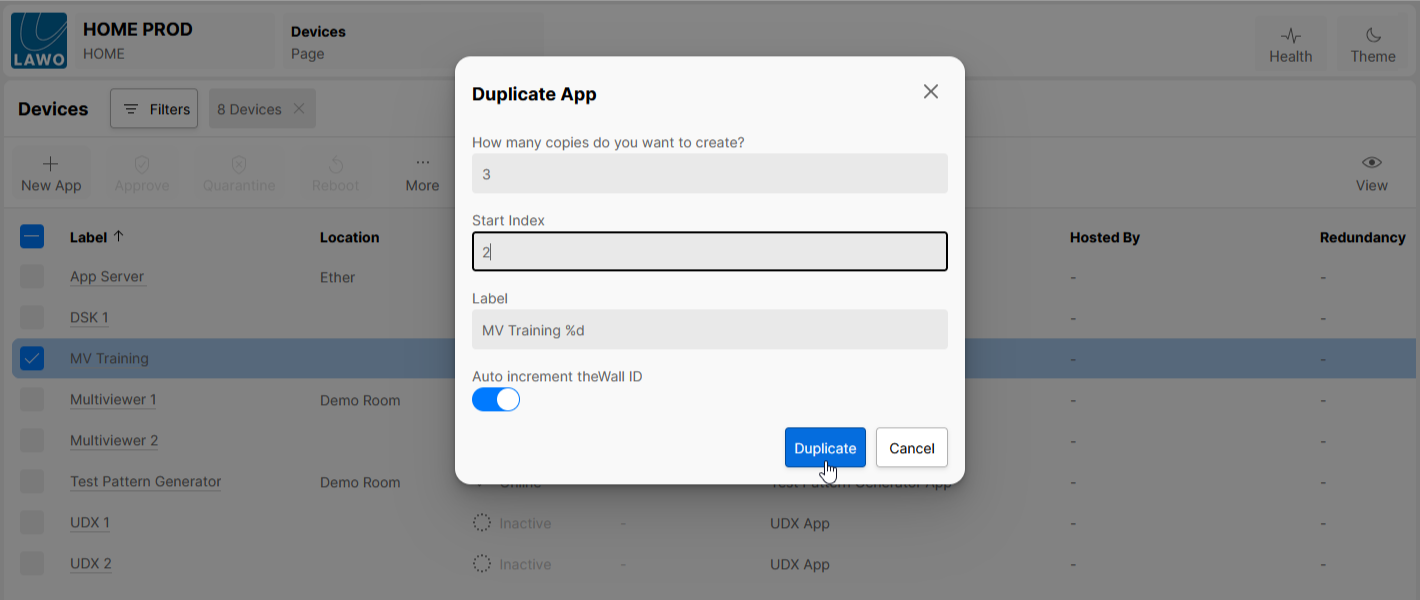 Complete the fields as follows:
- Start by entering the number of copies you wish to make. The default value is 1.
- Then use the Start Index and Label fields to edit the label(s):
- The Label must be unique for every copy. By default, the existing label is entered with an auto-incrementing suffix (%d). By default, the suffix counts up from 1. To change this, edit the Start Index value.
- The Label text can be edited as required. For a single copy, you can remove the %d suffix (as long as the Label remains unique).
- If any of the resultant labels are not unique, then an error appears in step 4 (when you click on Duplicate).
- The Auto Increment theWall ID option is specific to the HOME Multiviewer and defines what happens to the Monitor ID parameter (that can be used to link the MV app in HOME to a particular monitor in theWall).
- When enabled, the Monitor ID increments so that the new duplicate apps are assigned a different ID number.
- When disabled, the Monitor ID does not increment. In this instance, the user will need to enter the Monitor IDs later, by editing the initial configuration of each MV instance (as described here).
- In the example above, the settings will create three copies of the "MV Training" app with incremental monitor IDs and labels.
- Once you are happy with the options, click on Duplicate. The apps are created and added to the 'Devices' list.
If the 'Devices' list has one or more Filters applied, then you may need to clear or edit these in order to see the new apps.
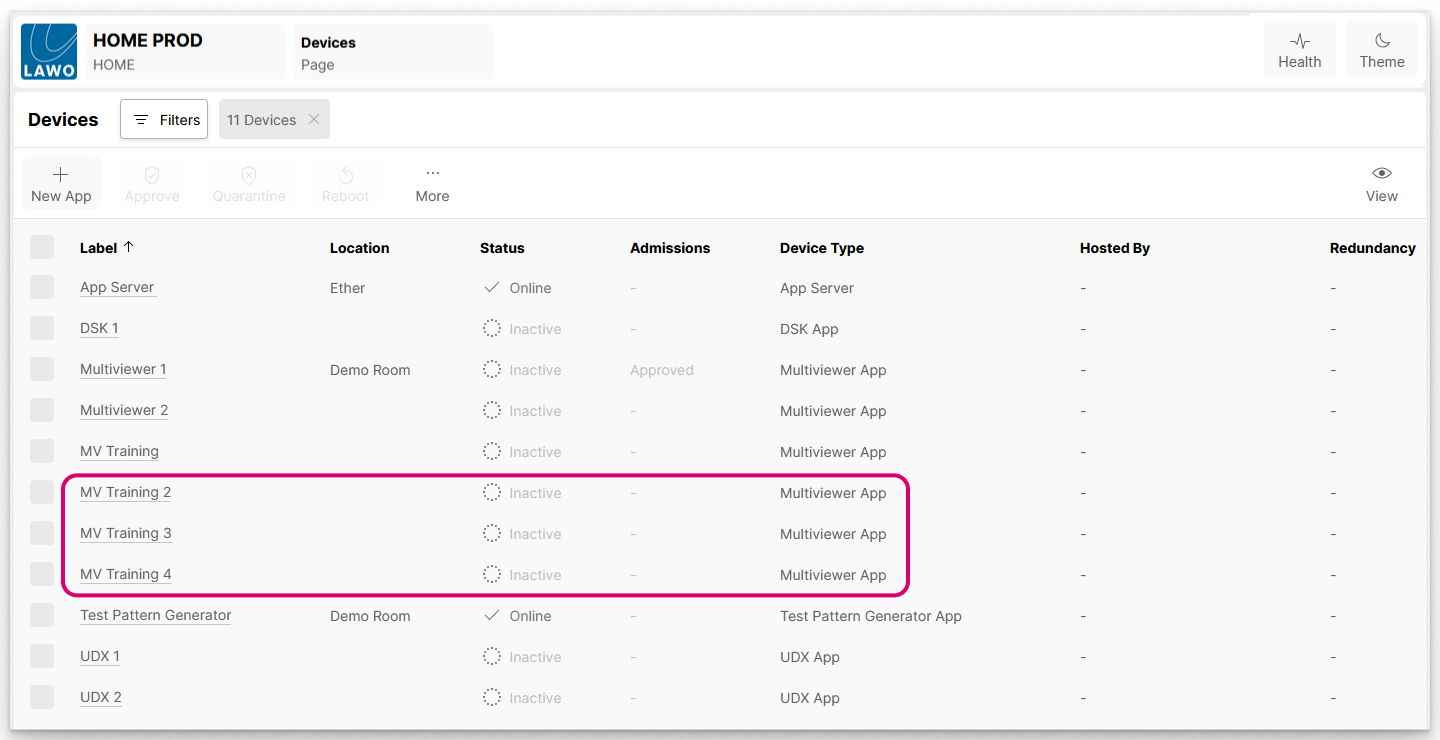
Once created, apps can be started using the Start App function (described here).