The Delete App function can be used to remove any unwanted apps from HOME.
Important: This function should be used with caution, as deleting an app removes it completely from the system and any configuration data associated with the app is permanently lost.
This is particularly important to consider if you are working with an external control system (such as VSM), as an app's Device ID cannot be easily reinstated.
Please note: You cannot delete an app that is running and so, to use this function, you will need to first stop the app.
An app can be deleted from the 'Devices' list (as described below) or from the 'Device → General' settings page (if this is more convenient). When using the 'Devices' list, it is possible to select and then delete multiple apps at the same time.
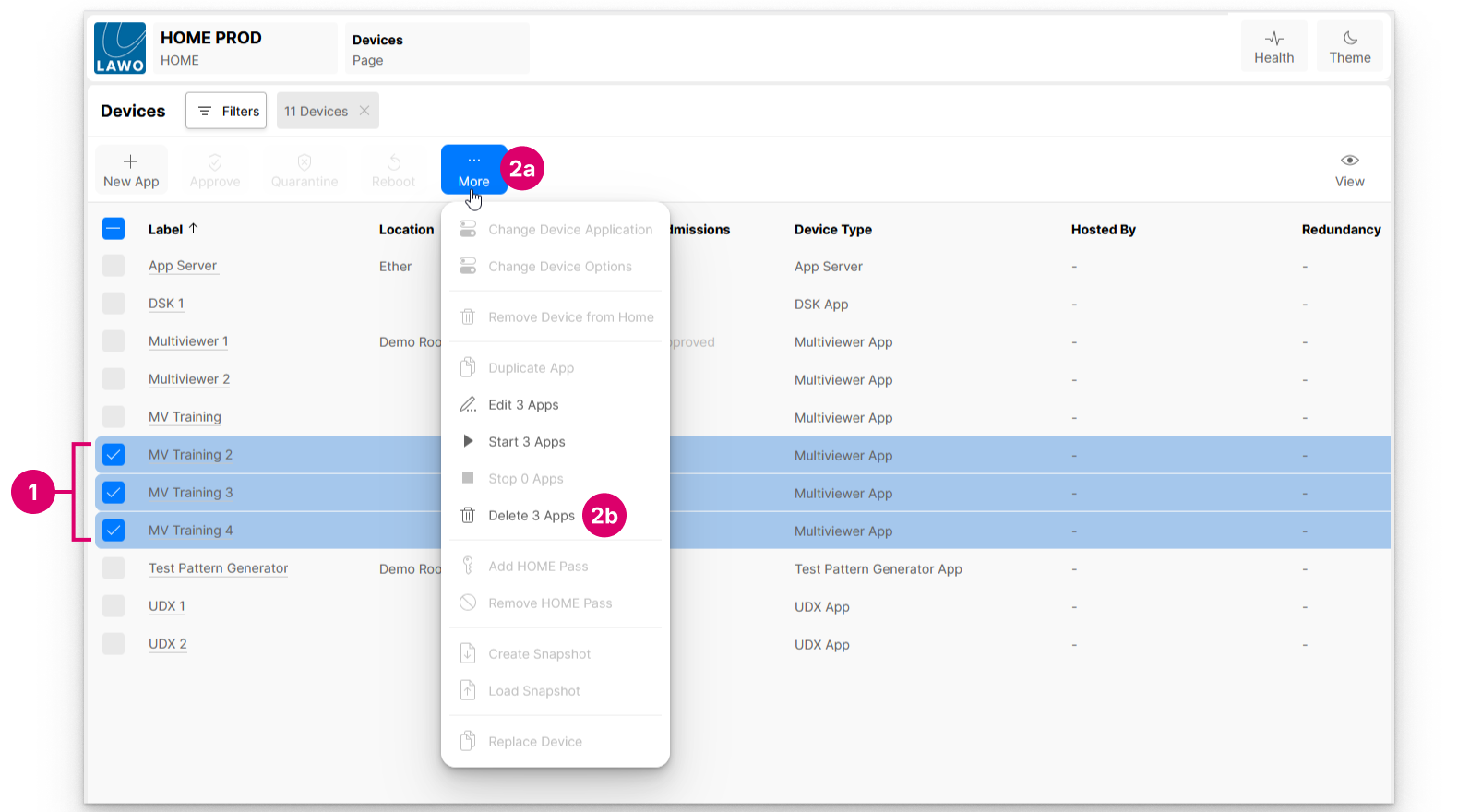
1. From HOME's 'Devices' page, select the app (or apps) you wish to delete.
2. Click on More and choose Delete Apps (from the drop-down menu).
If more than one app is selected, then the menu option confirms how many will be deleted. Note that if some of the selected apps are running, then these cannot be deleted and are automatically excluded from the rest of the operation.
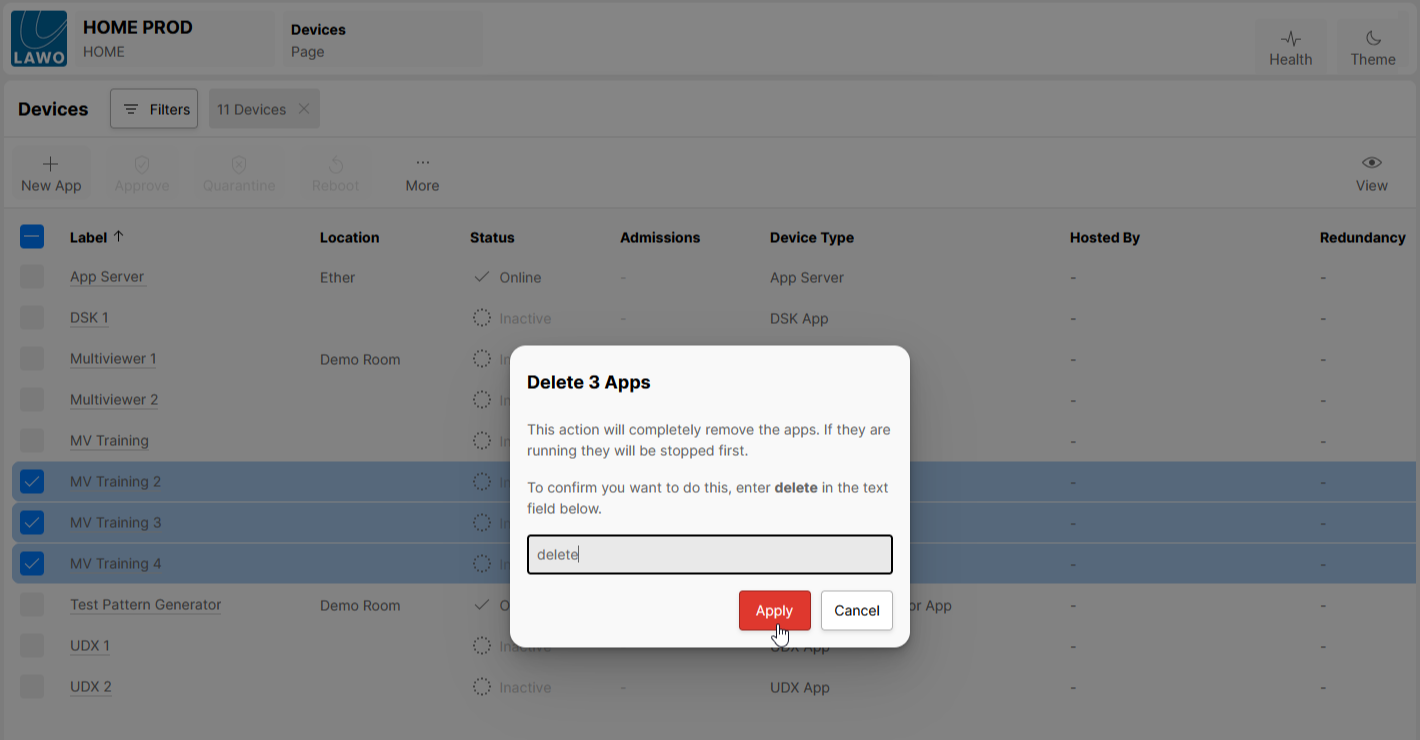
3. Follow the on-screen instructions to confirm.
You must type in the text delete (in order to select the Apply button).
Important: There is no undo for this operation, so please make sure that the correct apps are selected before confirming.
4. Click on Apply to complete the operation.
The apps are removed from the HOME configuration, and the 'Devices' list updates accordingly.
