.edge - Operating Mode
This topic describes how to configure the operating mode of a processing blade, otherwise known as the FPGA mode.
Overview
Each processing blade has a high-performance FPGA that can run in one of five operating modes.
The mode defines the functionality of the blade and which media ports are active: 25G (only), 100G (only) or 100G + 25G (where all six ports are active).
Please note:
- 25G comes as standard; 100G requires an optional license.
- 25Gbps is fine for SD and HD; 100Gbps is required for 3G and UHD.
- If a 100G license is not available, then the blade runs in 25G (only) and the 100G ports are inactive.
The operating mode can be changed (from HOME) via the device's General settings or Advanced → License Configuration page.
Important:
- You will need to set aside some time to change the mode, as the first reboot can take up to 6 minutes (due to the FPGA re-programming).
- The user must ensure that the correct licenses are available to support the selected mode. For example, if one of the 100G operating modes is selected, then the 100G License is required.
The rest of this topic describes all possible modes, the licensing requirements and how to change the mode (from HOME).
FPGA Modes
In the current release, there are five possible operating modes: four with Gateway functionality and one without.
The table below describes the main points.
| FPGA Mode | 25G Gateway SPS + Audio Matrix + Color Corrector | 100G Gateway SPS + Audio Matrix + Color Corrector | 100G Gateway SPS + 25G Proxy SPS + Audio Matrix | 100G Gateway SPS + 25G Proxy SPS + Color Corrector | 100G PROXY (SPS and non SPS), non SPS will be in v3.2 |
|---|---|---|---|---|---|
| Application | 1080i / 1.485Gbps Gateway Workflows | 1080P / UHD Gateway Workflows | 1080P / UHD Gateway Workflows with Proxy Generation | IP Proxy Generation (only), no Gateway | |
| Active Media Ports | 4 x 25GbE | 2 x 100GbE | 2 x 100GbE and 4 x 25GbE | 2 x 100GbE | |
| Additional Options | Audio Matrix + Color Corrector | Audio Matrix + Color Corrector | Audio Matrix | Color Corrector | - |
SDI to IP Gateway
Each of the four Gateway modes provide SDI to IP signal conversion and Gateway functionality. There are four possible options to support 25G operation (only), 100G operation (only), or 100G + 25G Proxy operation (for efficient signal streaming using proxy flows).
In each case, audio matrix shuffling and/or color correction can be enabled via add-on licenses. Note that only one of these options is possible for the 100G + 25G Proxy operation and so you must choose which one when you select the operating mode.
All of the Gateway modes support redundant streaming, compatible with SMPTE 2022-7, via SPS (Seamless Protection Switching).
To run any of the 100G Gateway modes, you will need the optional 100G license. In addition, for the two 100G + 25G Proxy modes, you will need a proxy generator license for each SDI input where proxy flows are required.
When using either of the 100G + 25G Proxy modes, all six media ports are active: 4 x 25GbE and 2 x 100GbE.
- The 100GbE ports handle the original (full size) signals: at 1:1 resolution.
- The 25GbE ports handle the (reduced size) proxy flows: at 1:4, 1:16 and 1:64 resolution.
- For more information, see .edge - Video Proxies.
IP to IP Proxy Generation
The 100G PROXY mode is an IP to IP signal configuration mode only. It can be used to create a large number of (reduced size) video proxies from original (full size) IP sources. Typically, it can be used to stream lots of signals to a HOME Multiviewer.
In this mode, no SDI connections (on the rear panel) are used and there is no SDI to IP Gateway functionality. Thus, the audio matrix and color correction options are not applicable (or possible).
The 100G PROXY mode supports redundant streaming, compatible with SMPTE 2022-7, via SPS (Seamless Protection Switching).
Up to 32 proxies are supported (in SPS mode).
To run the 100G PROXY mode, you will need the optional 100G license.
When using the 100G PROXY mode, only the 100G ports are active: 2 x 100GbE.
Key Points
In summary, the supported FPGA modes are:
- 25G Gateway SPS + Audio Matrix + Color Corrector. This is the default mode.
- Provides SDI to IP signal conversion and Gateway functionality.
- Only the 25G ports are active: 4 x 25GbE.
- Audio matrix shuffling and color correction are supported via add-on license(s).
- 100G Gateway SPS + Audio Matrix + Color Corrector
- Provides SDI to IP signal conversion and Gateway functionality.
- Only the 100G ports are active: 2 x 100GbE.
- This mode requires the 100G license.
- Audio matrix shuffling and color correction are supported via add-on license(s).
- 100G Gateway SPS + 25G Proxy SPS + Audio Matrix
- Provides SDI to IP signal conversion and Gateway functionality.
- All six ports are active: 4 x 25GbE and 2 x 100GbE. The 100G ports carry the original signals; the 25G ports carry the proxy flows.
- This mode requires the 100G license plus a proxy generator license for each SDI input where proxy flows are required.
- Audio matrix shuffling is supported via an add-on license.
- Color correction cannot be used in this mode.
- 100G Gateway SPS + 25G Proxy SPS + Color Corrector
- Identical to the previous option, except that color correction is supported via an add-on license.
- Audio matrix shuffling cannot be used in this mode.
- 100G PROXY (SPS and non SPS)
- Provides IP to IP signal configuration; no SDI to IP conversion or Gateway functionality.
- Only the 100G ports are active: 2 x 100GbE. They carry both the original signals and the proxy flows.
- This mode requires the 100G license only. No additional proxy licenses are required.
- Other licensed options, such as audio matrix and color correction, are not supported.
Licensing Requirements
Remember that each licensed option can also be unlocked using an equivalent amount of credits, providing that the system meets the Lawo Flex conditions.
License | Base / Option | Max per blade | 25G Gateway SPS | 100G Gateway SPS | 100G Gateway SPS | 100G Gateway SPS | 100G Proxy (SPS*) |
.edge_sdi_inc | Base | 1 | Y | Y – no 25GbE | Y | Y | Y – no 25GbE |
.edge_100G | Opt | 1 | Required | Required | Required | Required | |
.edge_sdi | Opt | 2 | Y | Y | Y | Y | |
.edge_audio_matrix_shuffler | Opt | 1 | Y | Y | Y | ||
.edge_gbox | Opt | 12 | Y | Y | Y | Y | |
.edge_fsync | Opt | 32 | Y | Y | Y | Y | |
.edge_proxy | Opt | 32 | Y | Y | |||
.edge_color_correction | Opt | 32 | Y | Y | Y | ||
| *In the current release, the 100G Proxy mode supports up to 32 SPS (redundant) streams. A non-redundant version of this mode, supporting up to 64 non-SPS streams, is planned for a future release. | |||||||
Changing the Operating Mode
In HOME, there are two ways to change the FPGA mode of a processing blade: via the General settings or Advanced → License Configuration. The first method is usually simplest. The second method may be more convenient if you have new licenses to configure.
In each case. you will need to set aside some time to change the mode, as the first reboot can take up to 6 minutes (due to the FPGA re-programming).
General Settings
The instructions below describe how to change the FPGA mode from the blade's General settings (in HOME).
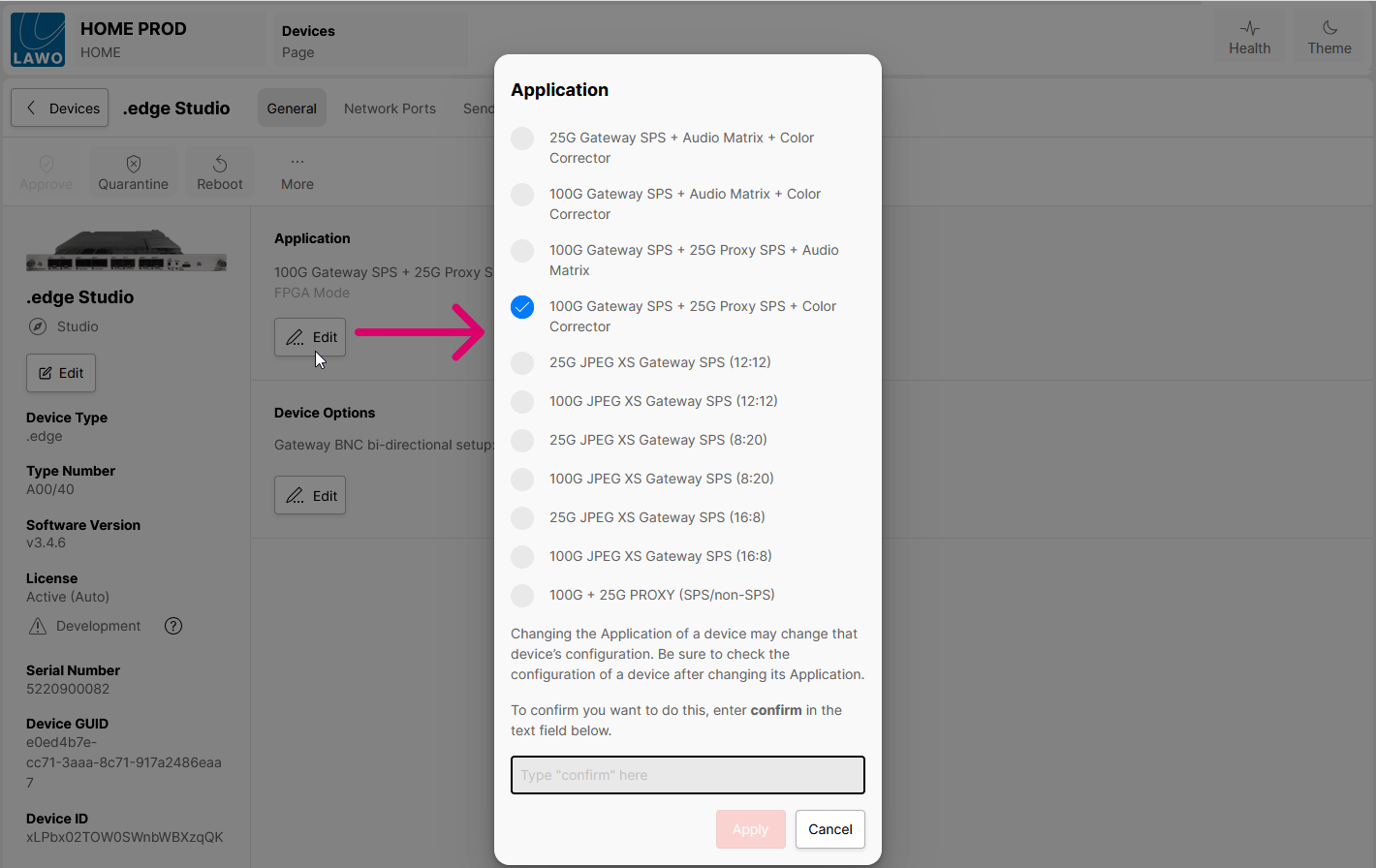
- From HOME's 'Devices' list, click on the label of a processing blade to open its 'General' settings page.
- Click on the Edit button (under ‘Application’). The Application dialog appears.
- Choose one of the available options.
Please note: You must ensure that the correct licenses are available to support the selected mode. This can be done either before or after the change of mode (as described here). - For security, you must enter the confirmation text and then click on Apply.
- The processing blade now goes offline while it reprograms the FPGA and reboots. This can take up to 6 minutes (due to the FPGA re-programming).
- After the reboot, you can use the 'Application' area to check the new mode.
- The next steps are to check the rest of the configuration (for changes to the active media ports and options such as the Audio Matrix and Color Corrector).
Advanced → License Configuration
The instructions below describe how to change the FPGA mode using the blade's Advanced → License Configuration parameters (in HOME). There are three relevant fields (highlighted in the screenshot below).
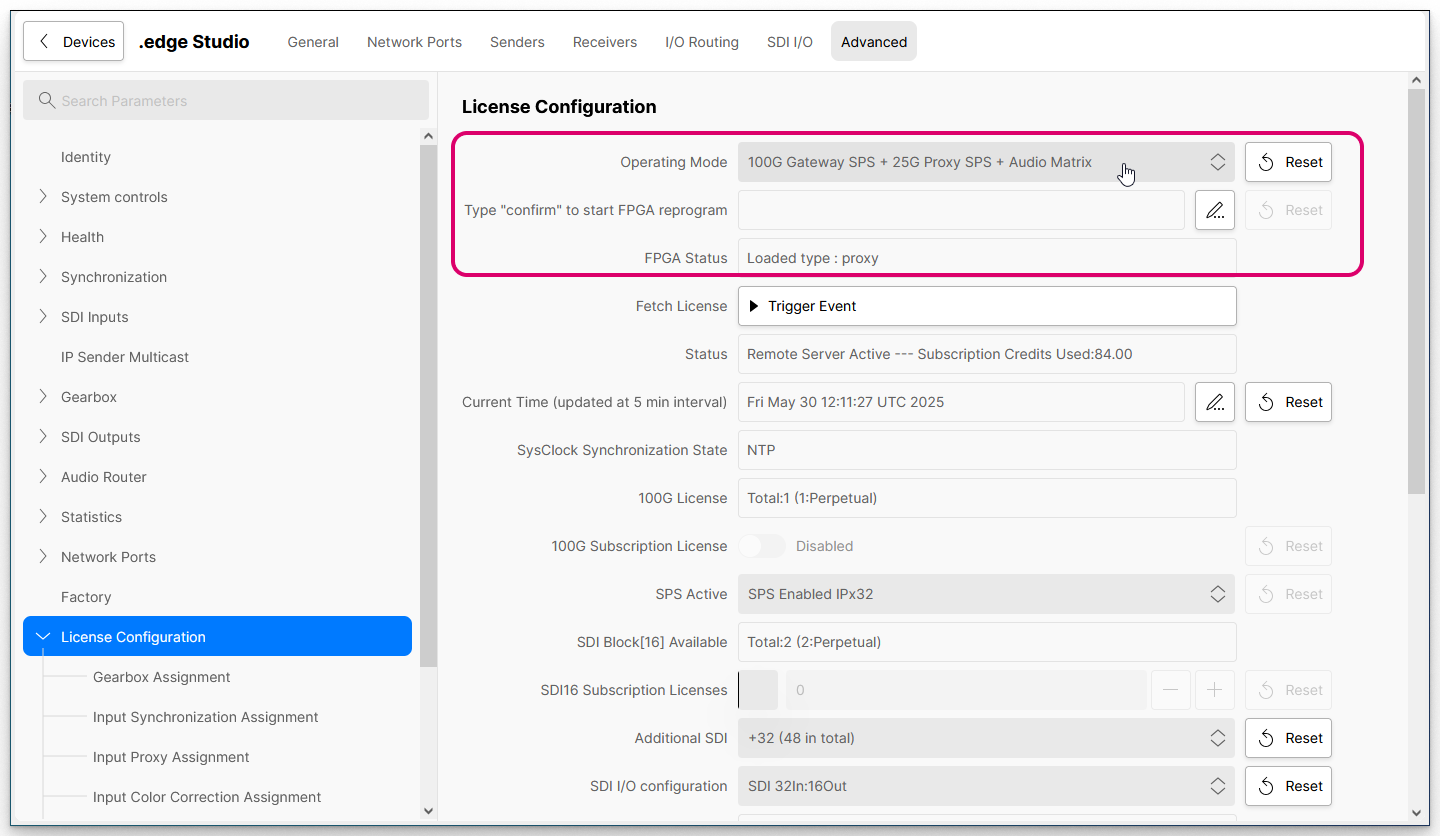
- From the main 'Devices' list, click on the processing blade label (to open the 'Device Details' as described earlier).
- Select the Advanced tab and navigate to the License Configuration page.
- Use the Operating Mode drop-down menu to prepare the new mode. You can select any of the available options (described earlier).
Please note: You must ensure that the correct licenses are available to support the selected mode.
You can use Fetch License to fetch any newly available perpetual licenses (from HOME), or use the Subscription License fields to unlock a licensed option using Lawo Flex credits. This can be done either before or after the change of mode (as described here). - For security, the change of mode must be confirmed: click on the pencil icon (to open the confirmation dialog), type in "confirm" and then click on Confirm.
- The processing blade now goes offline while it reprograms the FPGA and reboots. This can take up to 6 minutes (due to the FPGA re-programming).
- During this time, you can use the FPGA Status field to check the progress:
- After a change of mode, you will see "Reprogramming", and then "Rebooting", with the time left to complete.
- Once you see "Loaded type:<FPGA mode>", the FPGA is ready for operation.
- The next steps are to check the rest of the configuration (for changes to the active media ports and options such as the Audio Matrix and Color Corrector).
Additional notes (for licensing)
If one of the 100G modes is selected and there is no 100G license, then the blade will start up with a very limited Advanced parameter tree. In this instance, the first step must be to sort out the 100G license.
If one of the other licenses is missing, then this is less critical and you can configure the license(s) later as and when they are required. For example, if the FPGA mode supports the Audio Matrix and there is no Audio Matrix license, then the Audio Router option cannot be enabled (and its senders and receivers will be missing from the Advanced parameters, Stream Routing, etc).
For more information about the licensing aspects, please see .edge - License Activation.