HOME Apps - Installation Overview
During the installation of HOME Apps, there are a number of configuration decisions to be made. This means that, at the current time, each new HOME Apps release must be installed by the Lawo engineering team.
To schedule a new installation or upgrade, please contact Lawo Support. You can find information about the latest release here.
This topic provides an overview of the installation process, including guidance on server, network and licensing requirements. The information here is intended as a simple introduction. If you have further questions, or require more detailed technical information, then please contact your local Lawo sales representative.
Hardware Components
To run HOME Apps you will need a HOME system (Lawo's IP management platform) plus at least one HOME Apps server. The HOME system handles the management and control of all apps, while the app server(s) deliver the processing. If HOME Apps is installed as a 'converged' system, then the HOME (management) and HOME Apps (processing) run on the same network server
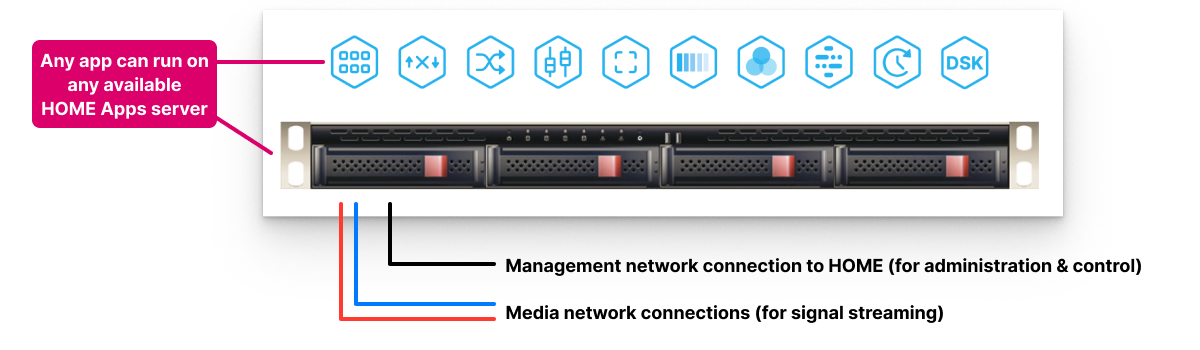
For the HOME (management) system, Lawo can supply a complete package where HOME comes pre-installed onto a suitable host server platform. In most cases, this platform is a server cluster consisting of 3 (three) single servers. If the customer wishes to specify their own host server(s), then please follow the information provided in the HOME Technical Documentation. See HOME - Host Platforms.
For the processing, it is preferred that customers supply their own app servers. Lawo has certified a number of servers for use with HOME Apps. These range from small to large depending on the customer requirements. For more information about the Lawo-certified server packages, please contact your local Lawo sales representative. In the current release, the app server(s) must be configured by the Lawo engineering team (as part of the software installation process described below).
Network Considerations
The network topology will vary depending on the customer requirements.
Lawo provides a portfolio of validated network designs that are suitable for IP broadcast applications. The designs cover broadcast control / management networks, PTP integration and distribution networks, and the streaming media networks (for audio and video). All Lawo Validated Networks (LVNs) follow the best practices of major network vendors in terms of topology design, unicast and multicast routing and the integration of timing/reference synchronisation. LVNs also provide a standardised approach to integrating Lawo product lines, ensuring optimal performance. For more information about LVNs, please contact your local Lawo sales representative.
When preparing the management and media networks, it is useful to know that:
- The app server(s) must be properly configured and connected to HOME via the management network.
A different network/subnet can be used as long as the app server(s) can be reached by HOME. If the app server(s) are in a different subnet, then a Layer 3 routing configuration must be applied to the network switches. - The number of app servers will vary depending on the amount of processing required. One of the advantages of HOME Apps is that the system is easy to scale, by adding (or removing) server capacity.
An introduction to the system architecture and orchestration is provided here. - Once configured, the app servers behave just like any other HOME-native device. This means that they are discovered automatically, when connected to the network, and appear in HOME's 'Devices' list.
If the HOME admissions service is enabled, then each app server must be approved (to add it to the operational network). - The I/O signals for an app are streamed via the media network. The IP senders and receivers are defined when you configure the app (in HOME). As part of the app configuration, users can choose the stream transport, video resolution, number of audio channels, etc. This allows the IP senders and receivers to be tailored to the application and network (to help manage the bandwidth of the switches and NICs).
Once an app is running, its streams are transmitted and received via the media network interface cards (NICs) of the target app server. To achieve dual-redundant streaming, compatible with SMPTE ST2022-7, the NICs must be configured in pairs to support the primary and secondary streams. This is achieved by switching on the Stream Redundancy option in the app server configuration. If ST2022-7 is not required, then the Stream Redundancy option can be disabled (to potentially double the data throughput of the NICs). Note that this option is configured at an app server level, meaning that the senders and receivers of all apps running on that server are either all dual-redundant OR all non-redundant. It is not possible to configure Stream Redundancy per app or per stream.
For correct synchronization, the media network requires a PTP master clock source. You can learn more about the PTP configuration here.
Licensing
The licensing of HOME Apps is managed by the customer using perpetual licenses (for permanent availability), credits (that are subscription-based) or a hybrid approach with perpetual licenses + credits (for baseline functionality + subscription-based top-ups).
Before the installation of a HOME Apps system, customers should order the required perpetual licenses and/or Lawo Flex subscriptions. For more information about the licensing model, please see HOME Apps - Licensing Introduction.
A list of part numbers for the perpetual licenses can be found here.
Software Releases

- The HOME version can be checked by clicking on the LAWO logo (at the top left of the HOME UI).
- The app version is shown in the Software Version field (in the 'Device → General' settings). This is the same for all apps contained in the release bundle, and so you only need to check one of the apps.
- To check the compatibility, please refer to the respective release notes for the HOME Apps release.
Software Installation
During the installation of HOME Apps, there are a number of configuration decisions to be made. This means that, at the current time, each new HOME Apps release must be installed by the Lawo engineering team.
For a first-time setup, the Lawo engineering team will complete the following tasks:
- HOME system - operational and tested.
- HOME Apps server(s) - operational and tested.
- HOME Apps - installed, operational and tested.
- HOME Apps server(s) - integrated with HOME.
- Network(s) - operational and tested.
- PTP - operational and tested.
- HOME Apps server(s) - locked to PTP.
- HOME server(s) (NTP), HOME Apps server(s) (PTP), and Lawo Flex portal (UTC) - in sync.
- HOME Apps servers - have sufficient resources available.
- All necessary licenses - available and imported into HOME.
- For HDR ↔︎ SDR conversion - prepare the necessary 33-cube 3D lookup tables (LUTs) in the industry-standard .cube file format.
Please note: The LUTs (Look-Up Tables) must be prepared by the customer ahead of the HOME Apps installation.
To schedule a new installation or upgrade, please contact Lawo Support. You can find information about the latest release here.
Depending on the server hardware and app types, the customer may need to take care of the following points for the Connect-X Cards (in the App Servers) and their Rivermax licenses (required for video processing apps).
Connect-X Cards
Dell produce their own variants of the Connect-X cards, under license from nVidia/Mellanox.
Connect-X cards generally fall into two groups, those produced by Dell, and those produced by anybody else.
During the HOME Apps installation / upgrade process, the installer will check and compare the currently installed driver version of the Connect-X card(s) fitted to the App Server with those bundled into the Installation Package.
If the versions differ, the HOME Apps installer will try to upgrade or downgrade the installed driver to the version in the HOME Apps package being installed.
For non-Dell Connect-X cards, when the driver is installed, the process of installing the driver will also up/downgrade the Connect-X board's firmware too, to the version which matches the driver.
However, for Dell branded Connect-X boards, when the driver is installed, the firmware is NOT up/downgraded. This could potentially lead to compatibility issues. In these cases, the user is strongly recommended to make use of the Dell Life-Cycle controller (available through the iDrac interface) and ensure the appropriate firmware is installed. This may require an internet connection.
Rivermax
Rivermax is a technology developed by nVidia to provide high performance media streaming.
The Rivermax technology is supported on the ConnectX network interface cards, and is enabled by means of a license file installed on the server hosting the ConnectX card.
The license file is locked to the serial number of the NIC itself.
HOME Apps video processing apps require that the Rivermax technology be enabled in order to produce SMPTE ST 2110-20 and ST 2110-22 video streams, and therefore require a Rivermax license to be installed on the app server. The installation instructions explain how to install the Rivermax license.
Audio only HOME Apps do not currently require a Rivermax license, nor do Apps that only process Metadata streams (ST 2110-40).
App Server Configuration
For more information, please see HOME Apps - App Server Configuration.
Further Information
Further information about the App Server configuration, and other key topics, can be found in the rest of this chapter:
Next Steps
Once the software installation process is complete and the App Server(s) are configured, users can create and manage their apps (using the HOME UI).