HOME - Working with the User Interface
The HOME user interface (UI) appears in one of two views, depending on the width of the browser window. The only difference is the location of the page menu:
- In a full-width window, the page menu appears in a sidebar on the left of the screen.
- If the width is reduced, then the sidebar disappears and the page menu moves to the headline bar.
Page Layout & Elements
The example below shows the 'Devices' page (at full width).
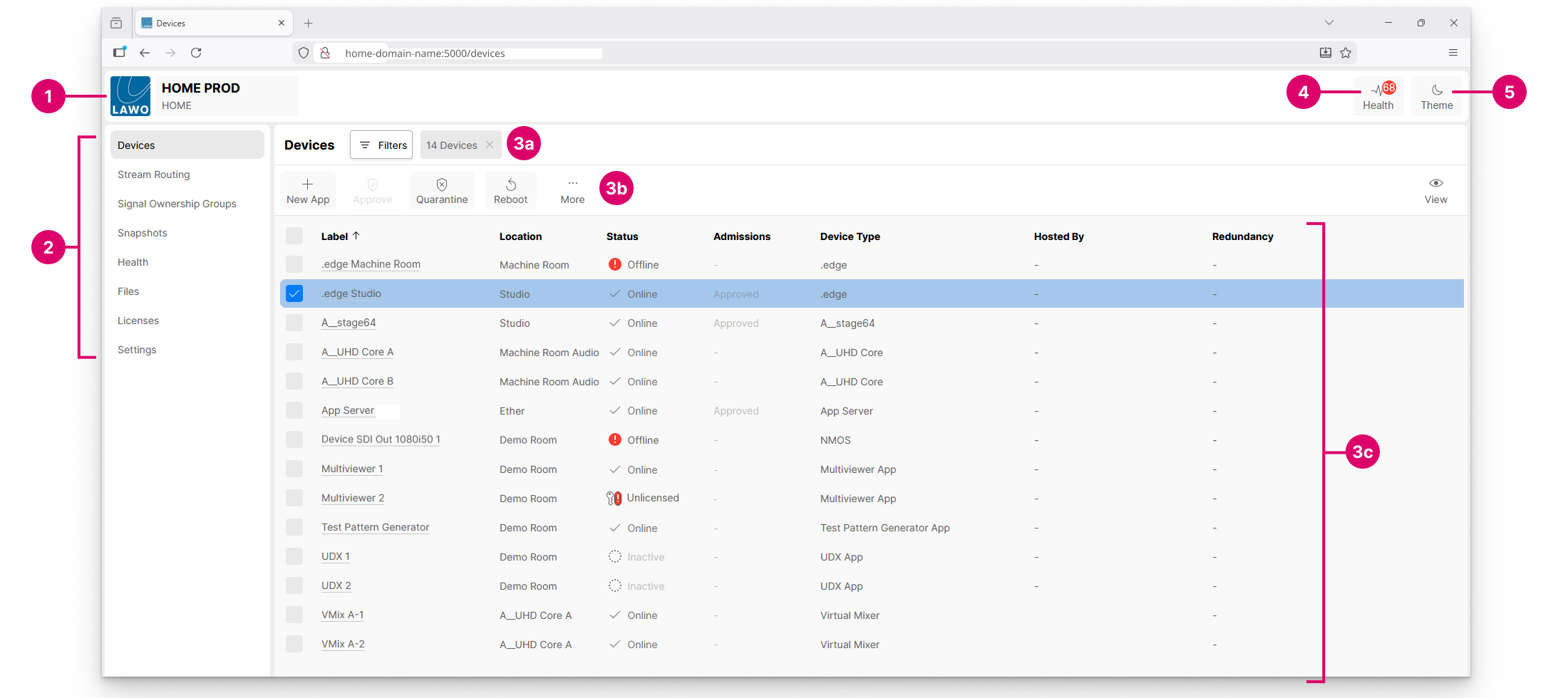
All pages have five main elements.
1. LAWO Logo – click here to view the HOME UI release version and get directed to the debug information and application log file screens.
2. Page Menu – click here to select a main page.
3. Working Area – shows the page contents. For the 'Devices' page, there are three areas: filters (3a), available functions (3b) and the devices list (3c).
4. Health – the health icon shows the number of active issues reported to HOME. The background color indicates the severity: orange = warnings; red = critical issues. For more information, click on the icon to open the 'Health' page.
5. Theme – the HOME user interface can be viewed in either light or dark mode. Click on the Theme icon to toggle between the two modes.
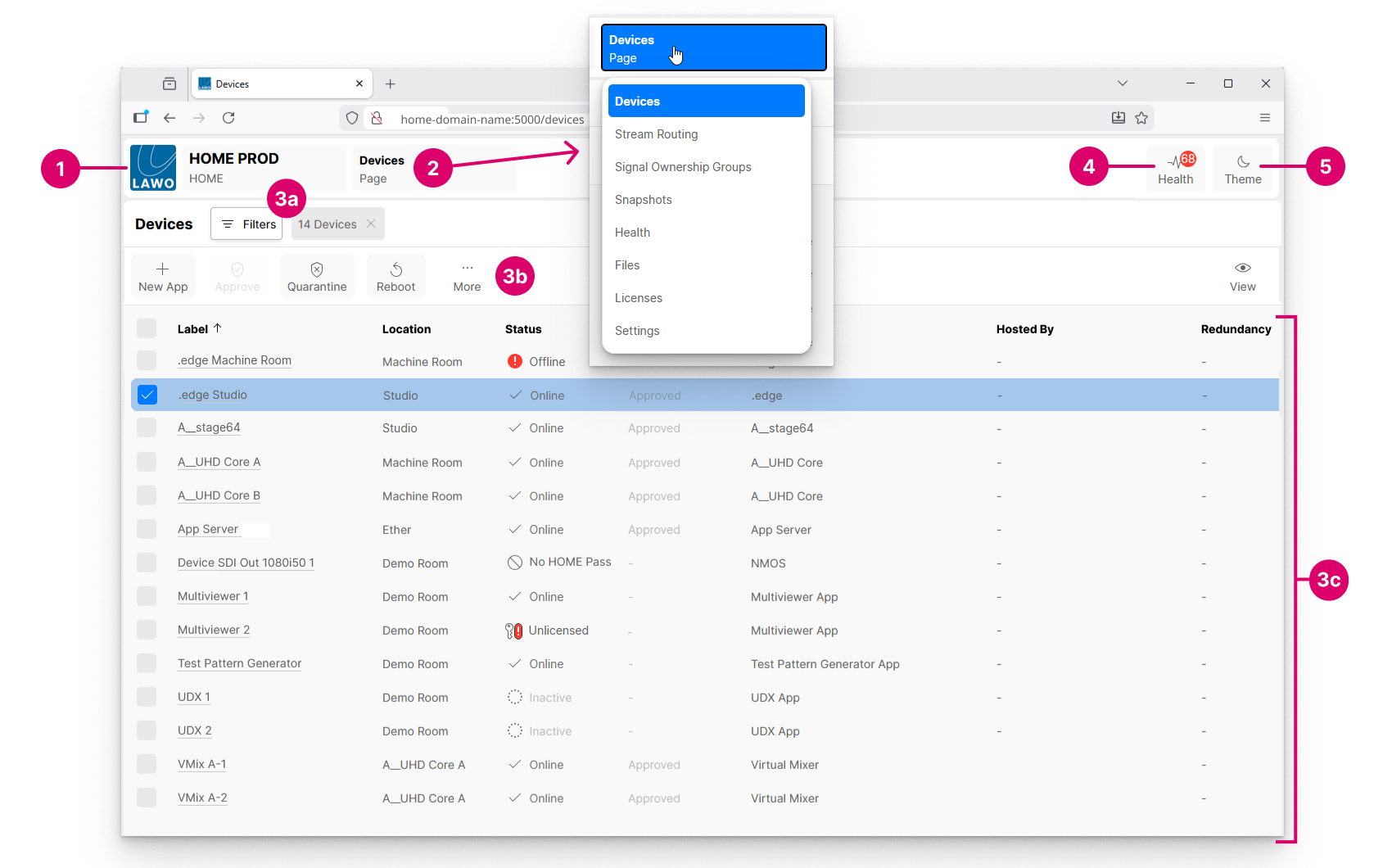
Below is the same page at reduced-width. The sidebar is gone. To change page, click on the current page name (2) to open the drop-down menu.
Available Pages
In the current release of HOME, there are eight main pages:
- Devices - lists all devices, apps and services known to HOME. From here, you can manage and configure the devices. e.g. approve or quarantine a physical device, create a new app, access the device settings pages.
- Stream Routing - manages the network's streaming connections between the IP senders and receivers.
- Signal Ownership Groups - manages the ownership of signal parameters. For example, to allocate mic preamp control to a particular audio console.
- Snapshots - manages the system's snapshots, to create backups of the configuration and stream routing for the physical devices.
- Health - shows all active issues reported to HOME.
- Files - manages the files stored locally on the HOME system. For example, to upload more perpetual licenses.
- Licenses - has two tabs: Perpetual and Credits, to check the available perpetual licenses and Lawo Flex credits.
- Settings - provides access to the HOME system settings. This page is organized into a series of sub-pages for Admissions, Device Proxies, DHCP, etc.
Page Navigation
Depending on the width of the browser window, you can navigate to a different page by clicking on an option in the sidebar or drop-down menu.

Sub Pages/Menus
Within the 'Devices', 'Licenses' and 'Settings' main pages, there are additional sub pages/menu tabs. These provide access to the settings for an individual device, the licensing overviews and a range of HOME system settings.
For more information, please see: