HOME Apps - Redundancy (App Failover)
HOME APPS V1.6 (OR HIGHER)
From HOME Apps v1.6, the system can be configured so that if (in very rare circumstances) an app fails, it will automatically restart on a different App Server to minimise disruption.
To achieve redundancy, a logical group of App Server(s) must be configured. Each group can contain multiple app servers, and one or more Redundancy groups can be configured.
Within each app, there are redundancy controls to configure whether the app will failover, or not, and to which App Server Redundancy Group. A manual immediate failover control is also provided to allow the user to test the app failover, and trigger a failover manually should the need arise.
During normal operation, the system monitors the health of the apps and servers to automate the failover. Particular attention has been paid to the avoidance of false positive fail conditions.
The rest of this topic describes how the App Failover feature works and the configuration steps required.
App Failover
The HOME Apps redundancy feature works by defining one or more Redundancy Groups that can include a number of app servers.
An individual app can then be configured to automatically failover so that it is restarted on a another app server within the redundancy group.
The Redundancy parameters for each app allow users to determine what happens if an app fails. For example, to restart the app (or not) and, where failover is configured, which redundancy group to use.
Please note:
- The user is able to define any number of redundancy groups.
- Each redundancy group can contain any number of app servers.
- An app server can be part of only one redundancy group.
- The Redundancy parameters for each app are defined on a per-app basis. This allows some apps to be configured for failover and others not.
- When triggered, the app failover is handled automatically (by HOME) without any intervention from the user.
- To test the redundancy, a manual failover can be triggered (by the user) from the app's Redundancy controls.
- When an App Failover is triggered, there is a brief interruption to the signal(s) while the app restarts on the new server.
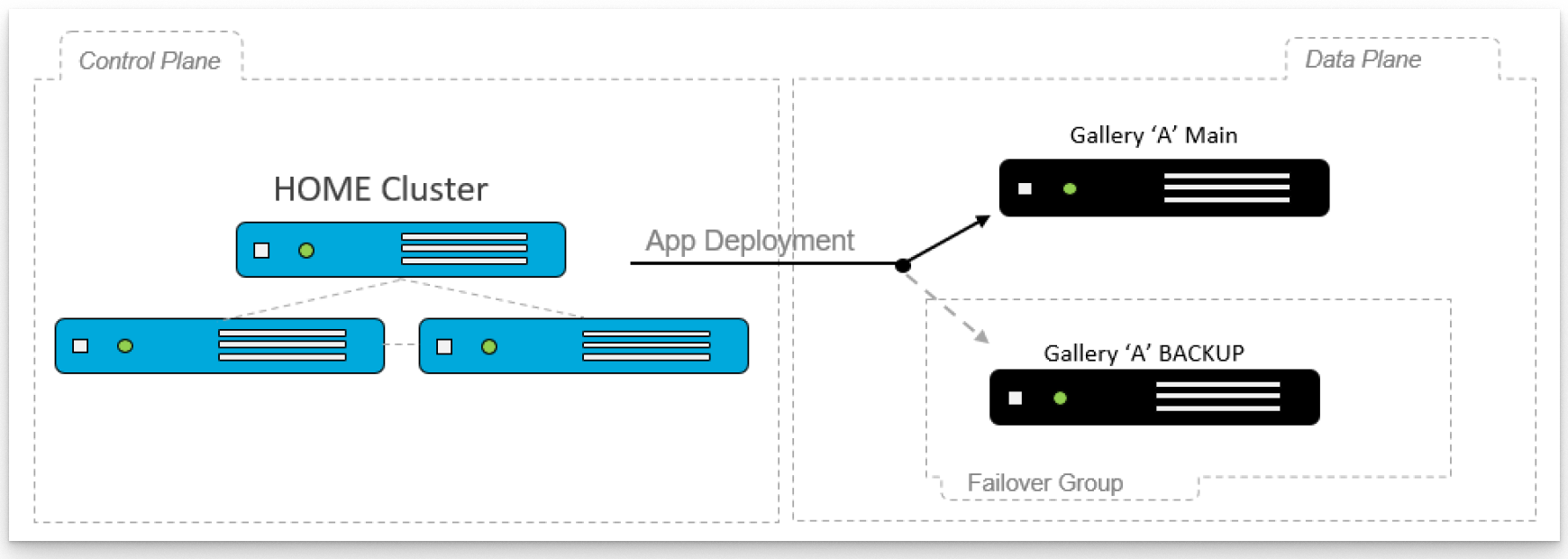
In the example shown below, a single redundancy group contains two app servers: Gallery 'A' Main and Gallery 'A' Backup, and an app is configured to failover to this redundancy group.
If the configured app is running on the Gallery 'A' Main server and a fail condition is detected, an app failover is triggered, In this example, HOME will automatically restart the app on another server within the specified redundancy group - in this example, on the Gallery 'A' Backup server.
Important: In order for the restart of the app to be successful, there must be sufficient resources available to run the app. So, if there are no available app servers in the redundancy group, or the available server(s) do not have enough resources, then the app will not failover.
Reasons for App Failure
There are a number of reasons why an app may be detected as failed and so careful attention has been paid to minimise "false positives" triggering a failover.
The most likely cause of an app failing would be due to an app server failure.
False positives, where the app may look like it has failed but hasn’t, could be:
- The app management service has been restarted or crashed, but the app itself is fine.
- Network congestion, where health messages from the app to the app management service are not being received in a timely manner.
- Loss of the management network.
- Loss of the media network(s).
More information about the possible causes of failure, and prevention of false positives, is provided later in this topic.
Configuration
To configure HOME Apps redundancy, there are two steps: first, define the Redundancy Group(s) within the app servers; then define the Redundancy parameters for each app.
The examples below are taken from a HOME mc2 DSP. The same principles can be applied to other app types.
Step One: Configure Redundancy Groups (in the App Servers)
A redundancy group is created by entering a Redundancy Group Tag in the app server configuration.
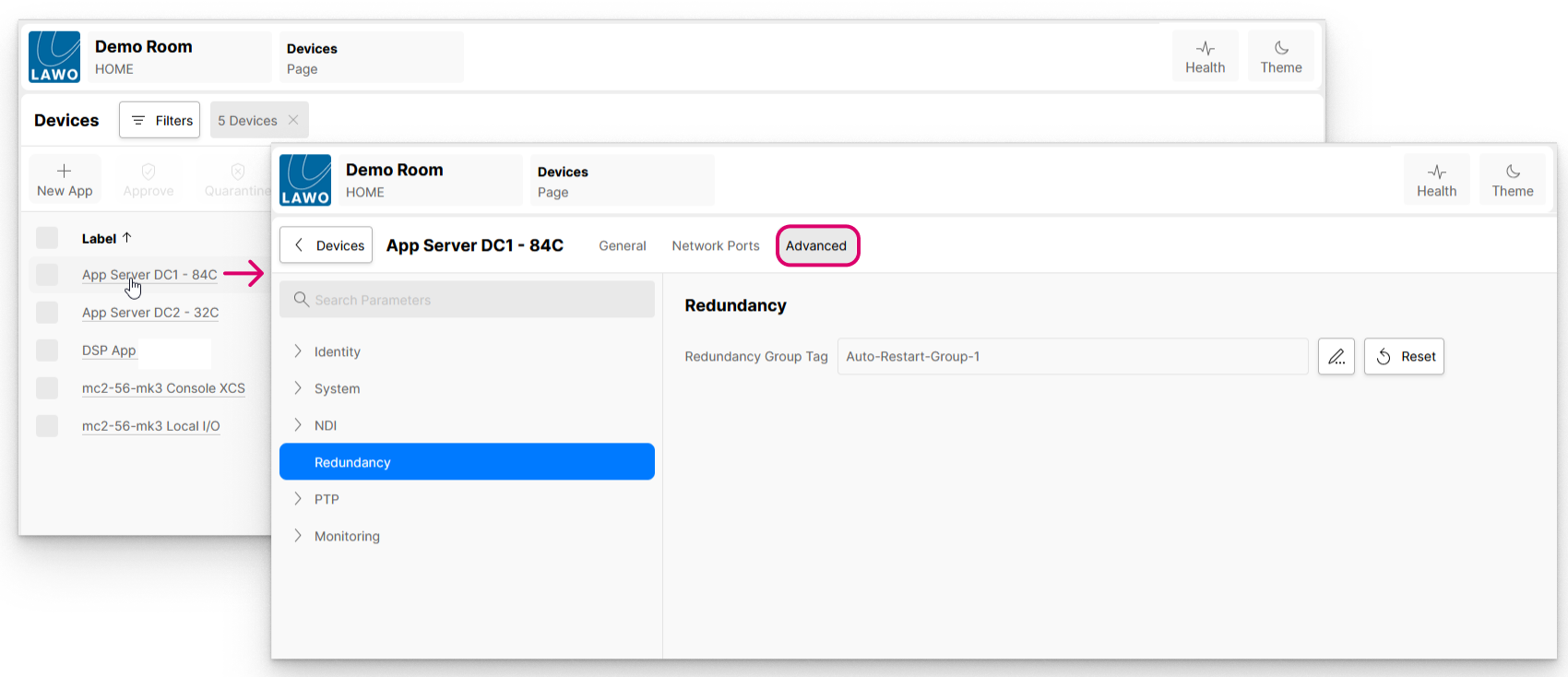
- Start by opening the Device → Advanced parameters page for the app server and navigate to Redundancy (in the menu tree).
- Use the Redundancy Group Tag control to define the redundancy group (e.g. Auto-Restart-Group-1).
- Repeat these steps for each app server:
- If the same Redundancy Group Tag is entered, then multiple app servers are added to the same redundancy group.
- If a different Redundancy Group Tag is entered, then this defines a new redundancy group.
- It is a good idea to make a note of each Redundancy Group Tag and its app server assignments to keep track of the redundancy groups.
Step Two: Configure the Redundancy Controls (per app)
Once the redundancy group(s) are configured, the app's Redundancy controls can be defined. These determine how the app reacts when a potential failover event occurs.
- Start by opening the Device → Advanced parameters page for the app and navigate to Redundancy (in the menu tree).
- Set the Redundancy Mode control to determine whether the app will failover or not. This control has two possible values:
- No Failover - the app will not failover.
- Failover Within App Server Redundancy Group - the app will failover to an available app server in the redundancy group specified by the Redundancy Group Tag control.
- Assuming you have set the app to failover, enter the name of the redundancy group you wish to use in the Redundancy Group Tag field. It is important to enter the correct syntax for the redundancy group (e.g. Auto-Restart-Group-1).
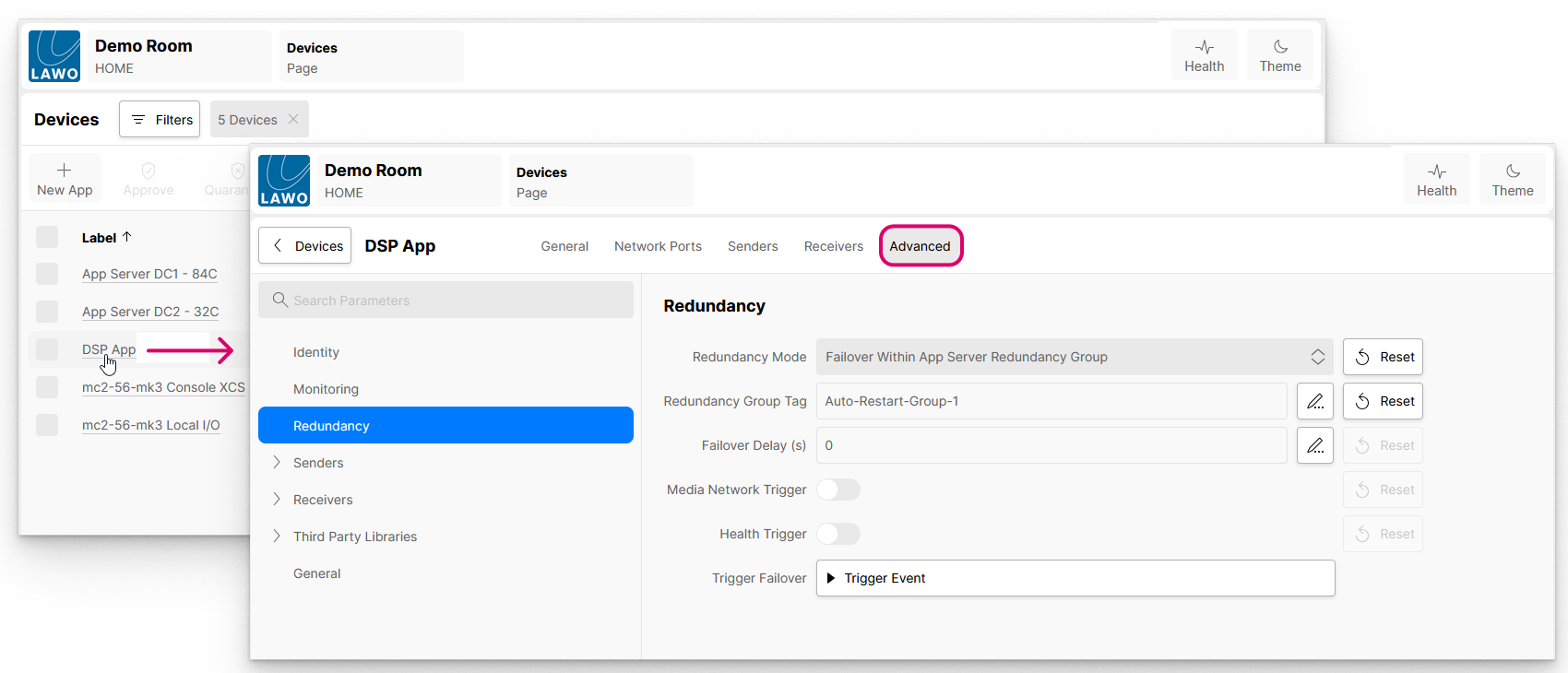
- Use the remaining controls to define the app failover behaviour - for example, whether to delay the failover (or not).
- Once all controls are configured, you can test the operation by clicking on Trigger Failover → Trigger Event to force a manual failover.
- When an App Failover is triggered, there is a brief interruption to the signal(s) while the app restarts on the new server.
- Once the restart is complete, navigate to the app's 'General' settings page and look at the 'Lifecycle' information. This shows which server the app is running on and whether the app status is healthy.
Troubleshooting
If the app does not failover as expected, then there are two likely scenarios:
- There is a syntax error in the Redundancy Group Tag for the app server or app. In this instance, check both parts of the configuration and make sure that an identical text string is entered.
- The configuration is fine, but there are no available app servers in the redundancy group, or the available server(s) do not have enough resources. In this instance, check the current status of the app server(s). If the server(s) are running but do have enough available resources, then stop some other apps (to release more resources) and try the Trigger Failover again.
Redundancy Controls (per app)
Each app supports five controls within the 'Advanced → Redundancy' menu. The table below describes the function of each control.
| Redundancy Mode | Determines whether the app will failover or not. It can be set to one of two possible values:
|
|---|---|
| Redundancy Group Tag | Defines the redundancy group to be used by this app if its Redundancy Mode control is set to 'Failover Within App Server Redundancy Group'. Here you should enter the redundancy group you wish to use. Take care to enter the correct syntax as this must match the Redundancy Group Tag entered in the app server configuration. If the app's Redundancy Mode is set to 'No Failover', then this control (and all other controls on this page) are ignored and perform no function. |
| Failover Delay (s) | Defines the period of time, measured in seconds, that an app should wait before failover occurs. This control can be used to add a 'hold-off' period before the app starts the failover process. For example, to give the detected problem time to recover. If the value is set to zero ('0'), then the app failover process begins as soon as a failover event has occurred. The amount of Failover Delay can be set to any value between 0 and 600 seconds. |
| Media Network Trigger | This option can be enabled or disabled:
|
| Health Trigger | This option can be enabled or disabled:
Note that, whenever you start an app, it is normal for the app status to be reported as 'unhealthy', and for this to change to 'healthy' once all the app's containers are successfully deployed. To avoid this initial state of 'unhealthy' triggering a failover, a hold-off period is implemented, whereby the app must have been in a ‘healthy’ state for at least 30 seconds before a transition to ‘unhealthy’ will trigger a failover. |
| Trigger Failover | This control can be used to trigger a manual failover. For example, to test the redundant operation once it is configured, or to force a failover should the need arise. Clicking on Trigger Event starts the app failover to the specified Redundancy Group, bypassing health checks. The usual conditions apply so if, for example, there are no available app servers in the redundancy group, or the available server(s) do not have enough resources, then the app will not failover. |
Additional Information
The descriptions below provide more information about the possible causes of an app failure and how the recovery is handled.
Causes of Failure
Failover will occur if:
- The App Server is fully shut down.
- All app containers are terminated.
- Both media and management NICs are down.
False Positives Prevention
Failover will not be triggered by:
- Temporary network congestion.
- Restart of the App Management service.
- Temporary NATS layer interruption.
Recovery Handling
Scenarios:
- Server Reboot: Deployment flags stored in the Internal Data Store prevent re-starting of the app.
- Network Cable Pulled: the Internal Data Store checks deployment status upon reconnection.
- Multicast Addressing: The multicast address remains constant after failover, except for the source IP.
Failover Scenarios
| Manual Failover (Home UI) | Immediate Failover | Immediate |
| Loss of Control Network (Media Network OK) | No Failover | N/A |
| 2022-7 System: Loss of Media A (B OK) | No Failover (Continues on Media B) | N/A |
| 2022-7 System: Loss of Media B (A OK) | No Failover (Continues on Media A) | N/A |
| 2022-7 System: Loss of Both Media A & B | No Failover | N/A |
| Non 2022-7 System: Loss of Media Network | No Failover | N/A |
| Loss of PTP | No Failover (App continues free-running) | N/A |
| App Server Failure | Failover (Apps not contactable) | User Defined (0-600s) |
| App Server Manual Shutdown | Failover (Apps not contactable) | User Defined (0-600s) |
| App Goes "Unhealthy" | Failover | App must have been 'healthy' for at least 30s before a failover is triggered |
| App Dies (Not Contactable) | Failover | User Defined (0-600s) |
Frequently Asked Questions (FAQs)
This section answers the most frequently asked questions about what happens when an app failover occurs.
Multicast and Subscriptions
- HOME checks if the app’s containers exist on the new server.
- If missing or outdated, they are deployed.
- ASR* ensures automatic reconnection of streams.
- The multicast address remains unchanged, but the source IP updates.
Failover Duration
- Depends on network congestion, server performance, and container size.
- Holdoff time can delay failover (to prevent false triggers).
Media Network Failures
- In a redundant (2022-7) system, the app will continue running if one media port fails.
PTP (Precision Time Protocol)
- Lack of PTP does not trigger a failover.
App Recovery After Failover
- If the original server recovers, the app will not automatically revert.
- The Internal Data Store ensures it remains running on the failover server.
(*) ASR = Auto-Subscribing Receivers.
ASR is a mechanism in HOME which uses a SDP attribute 'X-src-gate' to encode the <deviceID>::<srcID>::<flowID>. Using that information, HOME is capable of knowing what is, or was, the source connected to the destination. In a redundant failover scenario, HOME essentially knows what is the redundant source that should be connected to the downstream receiver in case an event of failover.