HOME Apps - App Server Configuration
For a complete guide to all available parameters, please see App Server - Advanced parameter control.
This topic describes how to check the network status of an App Server and configure the most important options:
App Server Status
Start by checking the App Server status from HOME's 'Devices' list.
The Status (and Admissions) should show as Online (and Approved). If HOME's admissions service is disabled, then the Admissions column can be ignored.
- If the status shows as Offline, then check that the app server is powered and connected to the HOME network.
- If the status is showing as Quarantined, then the admissions service is enabled and the app server must be approved before it can be used.
To learn more about the admissions service, please see Approve or Quarantine a Device (in the HOME User Manual).

Accessing the Advanced Parameters
Then use the App Server's Advanced parameters page to check and adjust the main options, including the mandatory PTP Configuration options (essential for proper synchronization of the media streams).
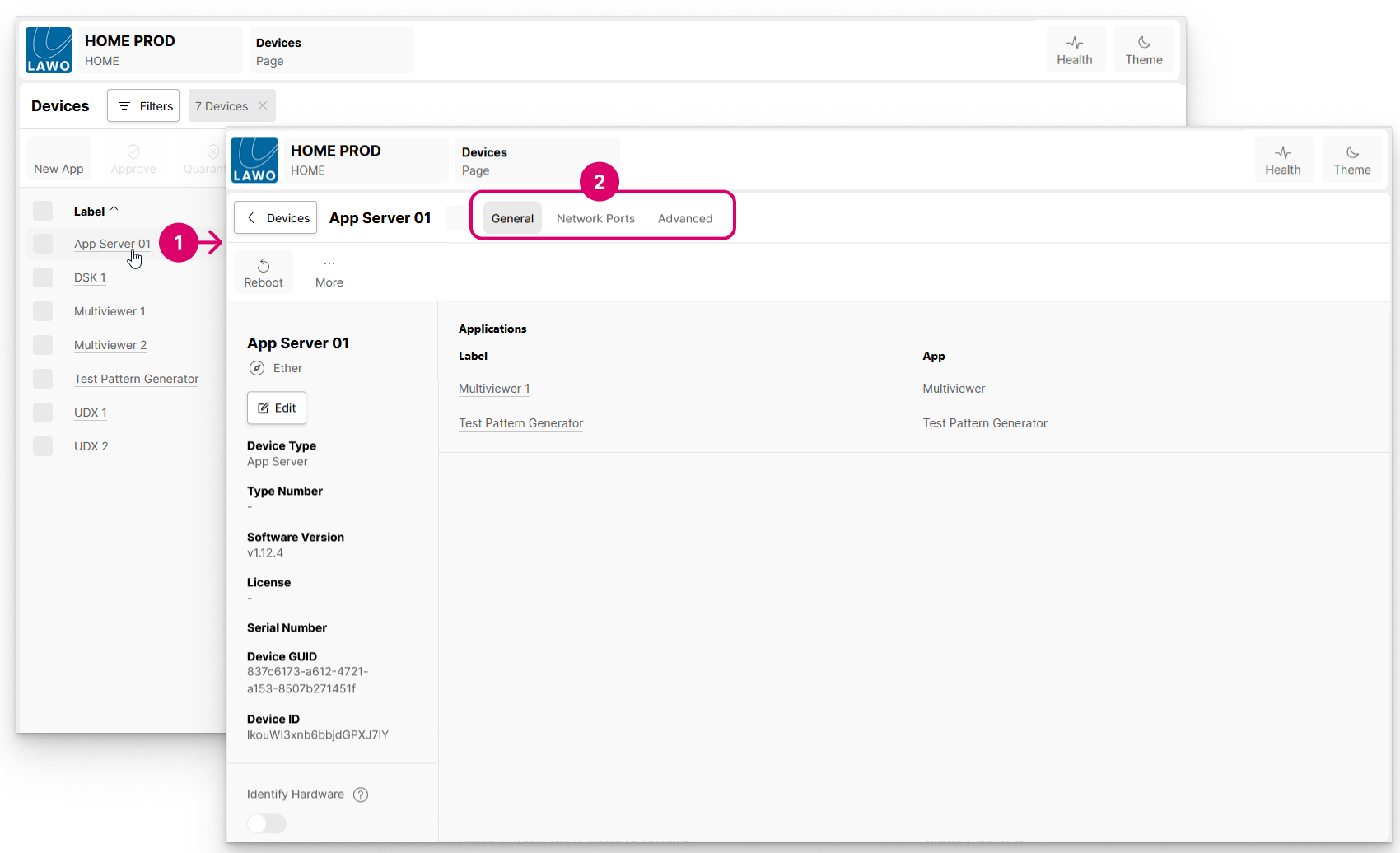
1. Click on the app server label (1) and choose the General menu tab (2).
The Applications area lists all of the apps running on the server.
2, Select the Advanced menu tab.
All available controls are presented in a simple tree-like structure.
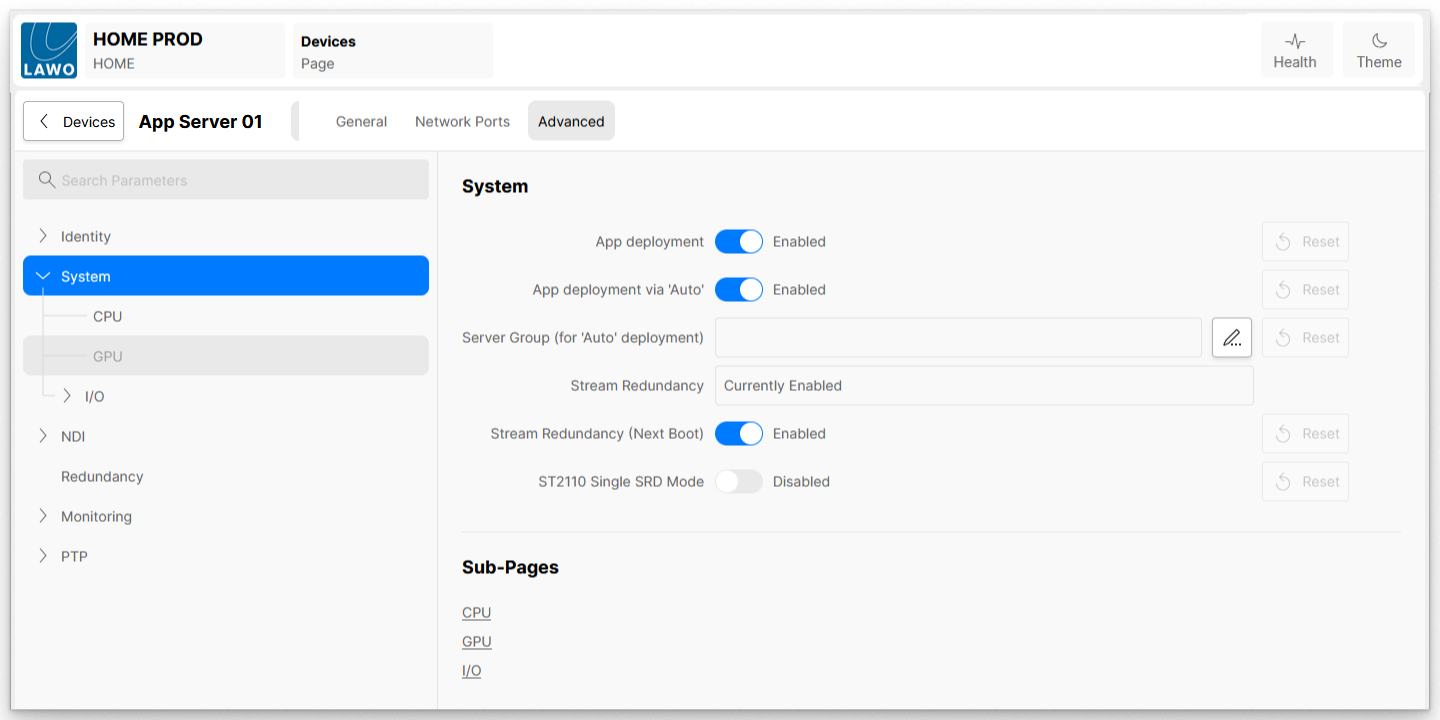
3. To view parameters: select an entry in the tree (on the left) to display its parameters (on the right).
For example, select System to access the main App Server system parameters:
Key Options
The App Server's Advanced page provides an extensive range of information and configuration controls that are described in App Server - Advanced parameter control.
For now, it is useful to highlight some of the most important options. You can search for these by typing into the "Search Parameters" field (at the top of the menu tree).
App Deployment
The following options (in the App Server's 'Advanced → System' menu) can be used to control how an app server is used for the deployment of HOME Apps:
- App deployment - must be enabled (to allow apps to run on this App Server).
- Auto deployment via 'Auto' - ensures that the App Server is used as a potential Target App Server for apps that are started using 'automatic ('Auto') deployment.
- Server Group (for 'Auto' deployment) - allows user to define and use preferred server groups. For example, to run all DSK Apps on servers 1 and 2 and UDX Apps on servers 3 and 4.
See Start App(s).
Stream Redundancy
The Stream Redundancy option (in the App Server's 'Advanced → System' menu) must be enabled to achieve dual-redundant streaming, compatible with SMPTE ST2022-7. This feature is essential for audio and video applications requiring dual-redundant streaming via the primary ('red') and secondary ('blue') networks.
See Stream Redundancy.
Single SRD Mode
The ST2110 Single SRD Mode (in the App Server's 'Advanced → System' menu) is important for compatibility with some third-party (video) devices.
See Single SRD Mode.
Redundancy Groups
The Redundancy Groups option (in the App Server's 'Advanced → Redundancy' menu) works in the conjunction with the 'Advanced → Redundancy' options (for an app). Together they can be used to configure an automatic app failover (to another server) in the unlikely event of a detected 'fail' condition, thereby ensuring continued operation of the app.
See Redundancy (App Failover).
Note that, for the mc2 DSP App, this feature can be used to configure redundancy for the console's audio signal processing and routing matrix, equivalent to installing a main and backup A__UHD Core.
PTP Configuration (for ST2110-xx)
The PTP Configuration options (in the App Server's 'Advanced → PTP' menu) is where you can set and adjust mandatory Precision Time Protocol (PTP) parameters, including domain, announce and sync intervals, delay request intervals, and unicast mode.
Options like TAI offset and hybrid mode can also be enabled or adjusted, ensuring precise synchronization for your system.