.edge - General Settings
This topic describes how to check information about the processing blade, edit its label and location; and use the "Identify Hardware" function (to locate the device).
Overview
In HOME, the 'Device → General' settings page can be used to check information about a device and edit its general settings.
To open the page, click on the processing blade label from the main 'Devices' list (as described earlier).
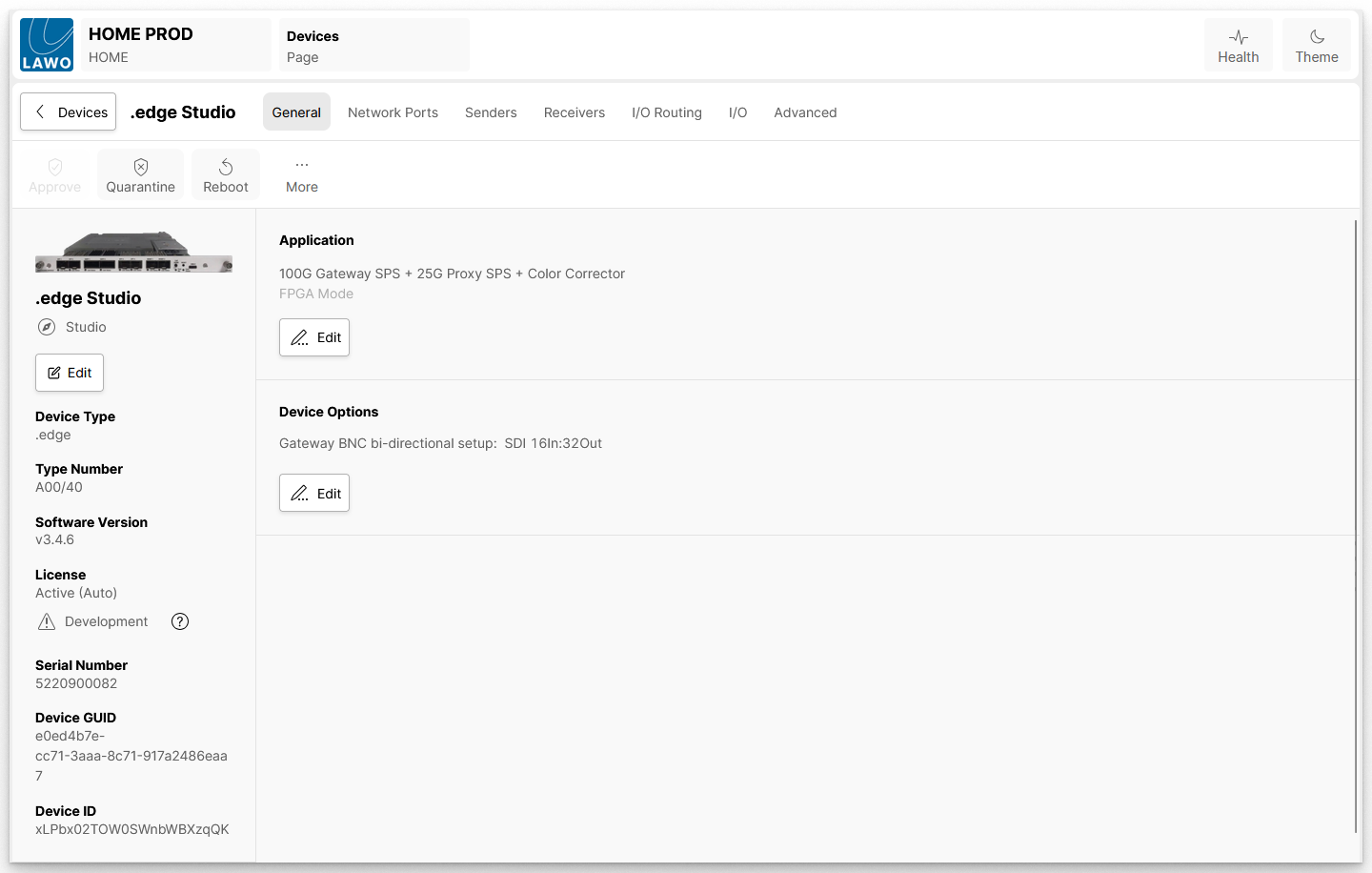
The General settings page is divided into three main sections with device management operations (at the top), general information (on the left) and other settings (on the right).
Device → General
Device Management Operations
For more information, please see:
General Information
Below the device image/icon are several informational fields that show the device label (and location), device type, type number, etc. These are read-only unless otherwise specified. If you see a question mark icon, then you can hover over this to reveal a tooltip.
Of particular note are the Software Version and Serial Number which are important for compatibility and licensing, and the Device ID which identifies the device within HOME and to external controllers.
The Edit button can be used to edit the device label and location.
The Identify Hardware button can be used to identify a physical device.
Application
This area describes the current FPGA mode (e.g. 100G Gateway SPS + 25G Proxy SPS + Color Corrector).
The Edit button can be used to change the operating mode. See .edge - Operating Mode.
Device Options
This area describes the SDI I/O configuration (e.g. 32in/16out).
The Edit button can be used to change the configuration. See .edge - SDI Configuration.
Edit Label and Location
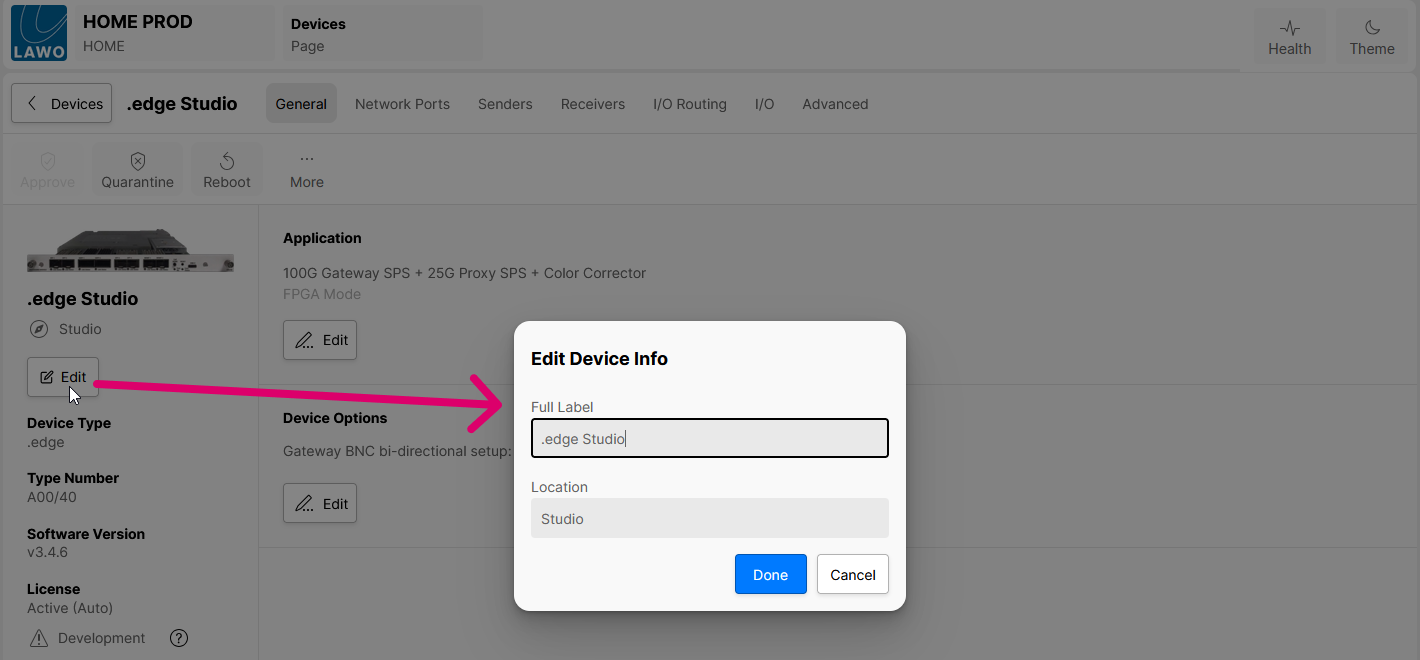
The Edit button (on the left of the 'General' settings page) can be used to edit the device Label and Location.
- Click on Edit (below the current label). The 'Edit Device Info' dialog opens (as shown below).
- Use the fields to edit the label and location.
- Click on Done to confirm.
Label
- A label must be entered. This field cannot be left blank.
- Each label must be unique (within the HOME system).
- A default label is assigned to all devices that are automatically detected by HOME.
- Labels can be edited without affecting the rest of the configuration.
Location
- Entering a location is optional. This field can be left blank.
- Locations can be edited without affecting the rest of the configuration.
Device ID
The Device ID is a unique ID number that identifies the processing blade within HOME and to external controllers. It is assigned automatically (by HOME) whenever a blade is first discovered and added to the network. This ID remains with the processing blade, at all times, and does not change if you modify the device label or other settings. This is important as it means that changes can be made to the blade's settings without any impact on the rest of the configuration or external control systems (such as VSM).
For more information, please see Device ID (in the HOME User Manual).
Identify a Processing Blade
The Identify Hardware button can be used to identify the hardware in the equipment rack. It works in conjunction with the ID (LED) on the blade's front panel as follows.
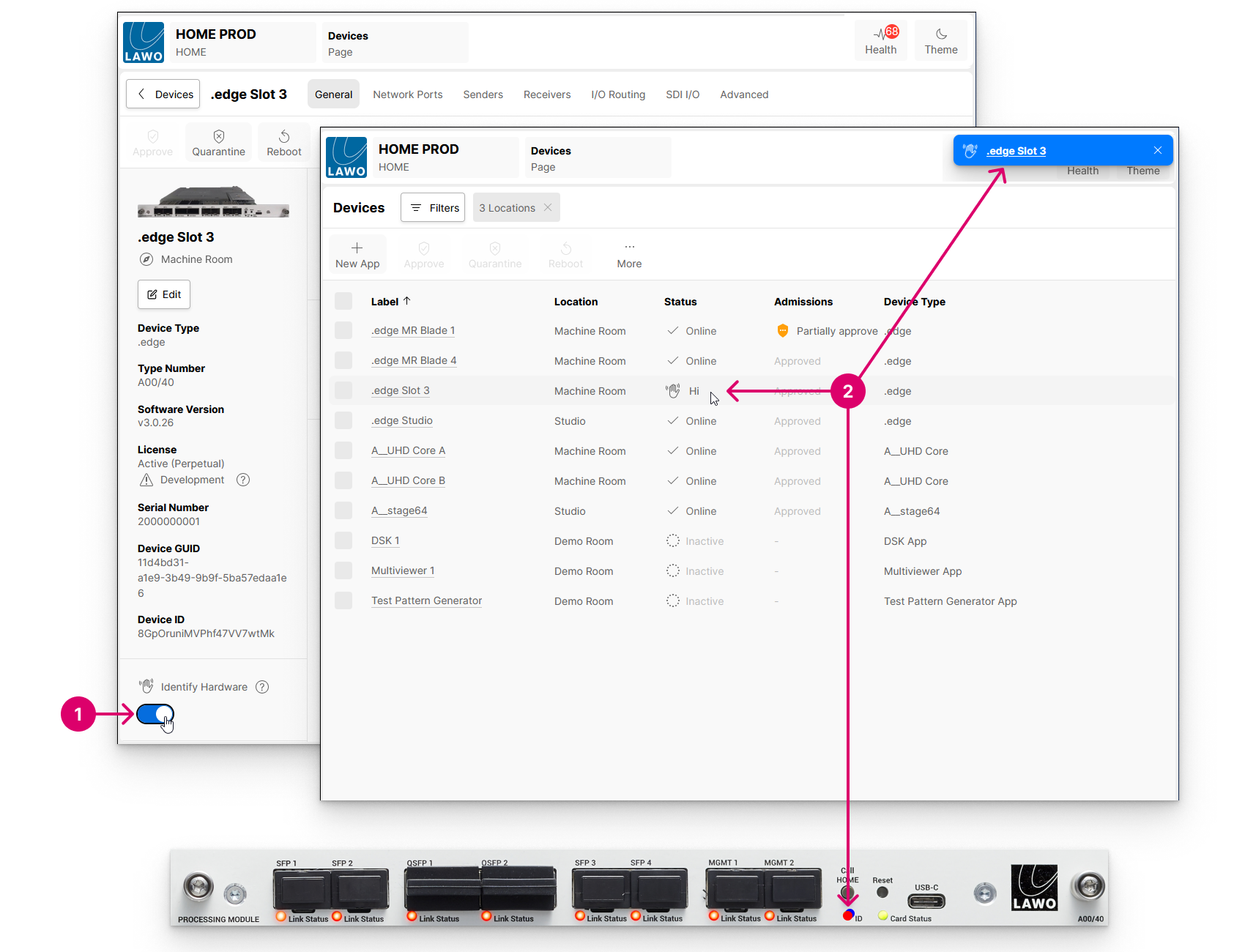
- To identify a processing blade, either press and hold Call Home (on the unit) for at least 2 seconds or select Identify Hardware (in HOME's Device → General tab).
- A “Says Hi” message appears in the "Devices" list and in the status area (beside the "Health" icon). On the processing blade, the ID (LED) repeatedly changes color from red to blue.
If other users have the HOME Web UI open, then they will see the on-screen alert. They can either click on the device label to open the "Device Details" page, or click on X to close the alert.

Tip: To quickly clear all of the on-screen alerts, refresh the browser window.
To cancel the "Identify Hardware" mode, either turn off Identify Hardware (on the GUI) or press and hold the Call Home button again (on the unit).