HOME UDX - App Configuration
The choices made here will determine the resources required to run the app: I/O bandwidth, CPU resources, etc.
These initial configuration options appear in the 'New App' dialog. To streamline the process, a set of default values are entered and so, in most cases, all you need to provide is a label for the app.
The parameters can be edited later for a single app via the 'Edit App' dialog (in the General settings page), or for multiple apps using 'Edit Apps'. Note that this is only possible once the app is stopped. Further 'runtime controls' are available in the app's other settings pages: Senders, Receivers, etc.
Please note:
- The initial configuration cannot be edited while an app is running and so, to make any changes, you will need to first stop the app.
- Some of the menu items are dependent on previous settings. For example, the Video Compression ratio control is only displayed once the Video Transport is set to JPEG-XS. If a different video transport type is selected, then the Video Compression control is hidden.
- Some of the parameters can also be edited during runtime from the app's settings pages. In this instance, the initial configuration values are overwritten by the runtime controls as the latest (runtime) value always wins. An example is described here.
Using the Controls
A HOME UDX is an up/down/cross converter that offers a de‑interlacer, an HDR/color processor, a scaler and two outputs. Conversions can be performed between SD, HD, 3G and UHD as well as for SMPTE ST2110, SRT and NDI®.
Optionally, HDR processing can be enabled to convert from HDR to SDR, and vice versa. Other options include additional delay, image enhancement, color correction and advanced audio processing. Note that some of these options are licensed: HDR Processing, Color Correction and Advanced Audio.
Once the app is configured and running, parameters such as the aspect ratio can be adjusted using the app's Advanced menu controls: Advanced -> Resizer Controls, Advanced -> Enhancer Controls, etc.
I/O Streams
A HOME UDX provides a single input (RX 1) and up to two outputs (TX 1 and TX 2) that are configured separately, and support the following streams: Video (only); Video and Audio; Video and Meta; or Video, Audio and Meta. Note that Output 1 and Output 2 can be configured differently. e.g. to send a different transport and/or scan type (where applicable).
- Use the 'Input' Video/Audio/Meta Transport options to define the stream types that can be received.
- Use the 'Output n' Video/Audio/Meta Transport options to define the transport of the outgoing streams.
- The Audio/Meta Transport options can be set to Disabled (if audio and/or meta are not required).
By default, Output 2 is disabled. If you wish to use the second output, then set the 'Output 2' Video Transport to the required streaming format - the corresponding options for Output 2 are then revealed.
Once enabled, Output 1 and Output 2 carry the same converted signal but can be configured separately. For example, to specify a different transport type, video scan type (where applicable), and/or graphics overlay.
Video Format Conversion
To convert one video format to another: set the 'Input' Video Resolution to be equal to, or higher than, the resolution of the incoming stream. Then set the 'Output 1' Video Resolution to the desired output format.
If Output 2 is enabled, then this can be set to a different video scan type, where applicable. The table below shows how the options for Output 2 are dependent on the selected format for Output 1.
Streaming Protocol Conversion
The 'Input' Video Transport should be set to match that of the incoming stream. If you wish to convert to a different protocol, then set the 'Output n' Video Transport to the desired transport type.
If Output 2 is enabled, then a different Video Transport can be selected for Output 1 and Output 2. For example, to stream the same converted signal to ST2110 broadcast environments AND to remote locations or desktops using a compressed format such as SRT.
Graphics Overlay
The 'Output n' Overlay URL control allows the user to overlay an HTML graphic over the background video (arriving at the video input).
To activate an overlay: enter the web URL of the HTML graphic into the 'Output n' Overlay URL field. Or, clear the field to disable the graphic overlay function,
If Output 2 is enabled, then a different URL can be specified or the field can be left blank. One example would be to transmit the same converted signal with or without graphics - to generate simultaneous “clean” feed and “dirty” feed outputs.
Optional Features
A HOME UDX offers some optional features that require an additional amount of resource. By default, each option is disabled so as not to overprovision the app.
In each case, you will need to enable the option in the app configuration and take care of the licensing, where applicable. Then, start the app and go to the Advanced menu to locate the runtime controls.
| App Configuration option | Runtime Controls | Additional Licenses |
| Max Additional Delay (> 0 fields/frames) | 'Advanced → Delay' | none |
| Adaptive Deinterlacer (enabled) | n/a | none |
| Image Enhancer (enabled) | 'Advanced -> Enhancer Controls' | none |
| HDR Processing/Color LUTs (enabled) | 'Advanced -> Color Controls' | 1x HDR Processing |
| Color Correction (enabled) | 'Advanced -> Color Controls' | 1x Color Correction |
| Advanced Audio (enabled) | 'Advanced -> Audio Processing' | 1x UDX Adv Audio |
Control Descriptions
The rest of this topic describes all possible options for the app configuration controls.
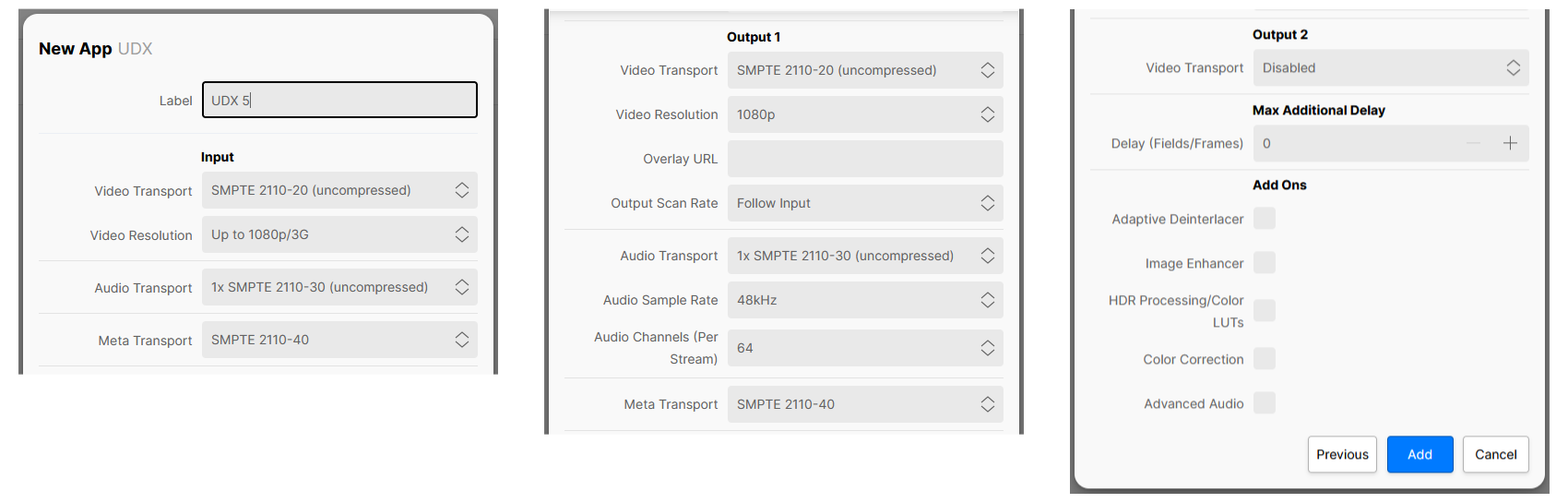
| Control | Description | ||||||||||||||||||||||||||||||||||||||||||
|---|---|---|---|---|---|---|---|---|---|---|---|---|---|---|---|---|---|---|---|---|---|---|---|---|---|---|---|---|---|---|---|---|---|---|---|---|---|---|---|---|---|---|---|
| Label | A text field allowing the user to name the app being created. All app names in a system must be unique. | ||||||||||||||||||||||||||||||||||||||||||
Input | |||||||||||||||||||||||||||||||||||||||||||
| Video Transport | Sets the type of input video transport, over which the app will receive video streams:
This control will affect all of the app's video receivers. The choice made will affect the amount of resources required by the app and will also require the appropriate software licenses. See HOME Apps - Available License Options. | ||||||||||||||||||||||||||||||||||||||||||
| Video Resolution | Defines the maximum resolution of video streams which can be routed into the app's video receivers:
This control will affect all of the app's video receivers. The choice made will affect the amount of resources required by the app. | ||||||||||||||||||||||||||||||||||||||||||
| Video Compression | This control appears when the Input Video Transport is set to an option which supports SMPTE 2110-22 (JPEG-XS). The selection made affects which JPEG-XS sources can be routed to the receiver based on the source’s compression ratio. For example: with ‘At least 8:1’ selected, sources with a compression ratio of 8:1 or more (9:1, 10:1, 11:1 etc) may be routed to the receiver, sources with lower compression ratios will be rejected. The available options are :
The option chosen may affect the input bandwidth provisioned for the app. | ||||||||||||||||||||||||||||||||||||||||||
| Audio Transport | When the Input Video Transport is set to SMPTE 2110-20 (uncompressed) or SMPTE 2110-22 (JPEG-XS) Defines the maximum number of audio streams that can be received by the app's input. This, in turn, defines the maximum number of audio channels that can be received from those streams. The options are:
If an audio stream which contains more channels than the maximum is routed to a receiver, then the additional channels are ignored. When the Input Video Transport is set to NDI / NDI HX2 Defines whether the app's input should receive audio or not:
When the Input Video Transport is set to SRT Defines whether the app's input should receive audio or not:
| ||||||||||||||||||||||||||||||||||||||||||
| Meta Transport | Not visible when the Input Video Transport is set to NDI or SRT. When the Input Video Transport is set to SMPTE 2110-20 (uncompressed) or SMPTE 2110-22 (JPEG-XS) Enables the app's ST 2110-40 receiver, allowing ANC metadata to be received. The options are:
The choice made will affect the amount of resources required by the app. | ||||||||||||||||||||||||||||||||||||||||||
Output 1 & Output 2Output 2 is a clone of Output 1, but can be provided on a different transport type and, where applicable, at a different video resolution. | |||||||||||||||||||||||||||||||||||||||||||
Video Transport | Defines the output stream transport type of the app's video sender:
The choice made will affect the amount of resources required by the app and will also require the appropriate software licenses. See HOME Apps - Available License Options. If the Output Video Transport is set to WebRTC, then further configuration controls are provided via the app's Advanced → WebRTC menu. See HOME UDX - Advanced -> WebRTC.For Output 2 (only), the Video Transport can be set to Disabled. In this instance, the app supports a single output (TX 1) and the Output 2 (TX 2) senders are not configured. | ||||||||||||||||||||||||||||||||||||||||||
Video Compression | Not visible when the Output Video Transport is set to SMPTE 2110-20 (uncompressed) or NDI. When the Output Video Transport is set to SMPTE 2110-22 (JPEG-XS) When the app starts, an amount of output bandwidth is allocated (for the app) on the network interface. JPEG-XS allows the user to dynamically change the compression ratio while the app is running. This control can be used to prevent the app from over-allocating bandwidth unnecessarily. The available options are:
The choice made will affect the amount of resources required by the app and will also determine the list of actual compression ratios available. When the Output Video Transport is set to NDI HX2, SRT or WebRTC Provides a basic level of control of the compression ratio implemented by the chosen transport stream. The available options are:
Important: More advanced controls can be found in the app's 'Advanced → Senders → TX n' menu. Once used, the Advanced (runtime) controls will override this value. | ||||||||||||||||||||||||||||||||||||||||||
Video Resolution | Sets the frame-size (resolution) and scan type (interlaced or progressive) of the video output. The UDX app is able to upscale or downscale the source video to a different format. This control sets the destination format.
If Output 2 is enabled, then this can be set to a different scan type, where applicable (e.g. to output both "1080i" and "1080p"). The table below shows how the options for Output 2 are dependent on the configuration of Output 1.
| ||||||||||||||||||||||||||||||||||||||||||
| Overlay URL | UDX is able to overlay an HTML graphic over background video (the video source present on the app's input). This control is where the user should enter the web URL of the HTML graphic. If this control is left blank, the graphic overlay function is disabled. | ||||||||||||||||||||||||||||||||||||||||||
| Output Scan Rate | Sets the video framerate (FPS) of the output. UDX is not able to convert video from one frame rate to another and so, in most cases, this control should be left set to 'Follow Input'. The UDX is able to render an HTML graphic (as described above) when there is no video on the input. In this case, the HTML will be rendered over black. As there is no source video to define the output scan rate, the user must define a scan rate using this control.
| ||||||||||||||||||||||||||||||||||||||||||
| Audio Transport | When the Output Video Transport is set to SMPTE 2110-20 (uncompressed) or SMPTE 2110-22 (JPEG-XS) Defines the number of audio streams provided by the app's output. This, in turn, defines the maximum number of audio channels supported by those streams. The options are:
Defines whether the app's output should send audio or not:
When the Output Video Transport is set to SRT Defines whether the app's output should send audio or not:
When the Output Video Transport is set to WebRTC Defines whether the app's output should send audio or not:
| ||||||||||||||||||||||||||||||||||||||||||
| Audio Sample Rate | Only visible when an Output Audio Transport is set. Defines the audio sample rate of the app's output. In the current release, the app supports 48 kHz only. | ||||||||||||||||||||||||||||||||||||||||||
| Audio Channels (Per Stream) | Defines the initial number of audio channels available per stream, provided by the app's output:
| ||||||||||||||||||||||||||||||||||||||||||
| Meta Transport | Not visible when the Output Video Transport is set to NDI, SRT or WebRTC. When the Output Video Transport is set to SMPTE 2110-20 (uncompressed) or SMPTE 2110-22 (JPEG-XS) Enables the app's ST 2110-40 sender, allowing ANC metadata to be sent. The options are:
The choice made will affect the amount of resources required by the app. Any meta data arriving on the SMPTE 2110-40 receiver will automatically be delayed before being present on the SMPTE 2110-40 metadata output, to compensate for any video processing delay. This ensures that the metadata stream remains synchronous to the video stream. | ||||||||||||||||||||||||||||||||||||||||||
Max Additional Delay | |||||||||||||||||||||||||||||||||||||||||||
Delay (Fields/Frames) | This control sets the maximum additional delay that is supported by the app. When a positive value is set (up to 16 Fields / Frames), the user is able to apply additional delay to the app's media streams (via the app's 'Advanced → Delay' menu). If the value is set to zero (0), then no additional delay is available and the 'Advanced → Delay' menu is hidden. For more information, see HOME UDX - Advanced -> Delay. | ||||||||||||||||||||||||||||||||||||||||||
Add Ons | |||||||||||||||||||||||||||||||||||||||||||
| Adaptive Deinterlacer | When selected, enables the Adaptive Deinterlacer function. | ||||||||||||||||||||||||||||||||||||||||||
| Image Enhancer | When selected, enables the Image Enhancer function. | ||||||||||||||||||||||||||||||||||||||||||
| HDR Processing/Color LUTs | When selected, enables the app to process video through a 3D LUT (.cube file). This feature is normally used to convert between different TCS types, and color spaces (SDR <> HDR conversion). See Advanced -> Color Controls. This option requires 1x HDR Processing license. See HOME Apps - Available License Options. | ||||||||||||||||||||||||||||||||||||||||||
| Color Correction | When selected, enables the Color Correction function. This option requires 1x Color Correction license. See HOME Apps - Available License Options. | ||||||||||||||||||||||||||||||||||||||||||
| Advanced Audio | When selected, enables the Advanced Audio function. This option requires 1x UDX Adv Audio license. See HOME Apps - Available License Options. | ||||||||||||||||||||||||||||||||||||||||||
Adaptive Deinterlacer
When UDX is taking a source containing interlaced video and is converting that source to progressive video UDX will pass the video through a 'deinterlacer' function.
For any given temporal sampling point, interlaced video has half the vertical resolution of a progressive equivalent. The process of deinterlacing involves using the contents of the video stream to generate and insert the 'missing' lines.
UDX has two deinterlacer functional blocks, Normal and Adaptive. When the Adaptive Deinterlacer control is disabled, the Normal deinterlacer is used. The normal deinterlacer uses a more simple technique to deinterlace the video stream passing through it, to generate the 'missing' data. The Normal deinterlacer works very well on most media content, producing better than acceptable results.
However, some video content, such as that with highly detailed backgrounds where there is little motion, scorecards, graphics, for example, would benefit from using the Adaptive Deinterlacer mode.
The Adaptive Deinterlacer analyses the fields and frames around the current being deinterlaced and applies a motion adaptive filter, for the cases of low motion highly detailed backgrounds, scorecards, graphics etc, this can often produce superior results over the Normal deinterlacer.
The Adaptive Deinterlacer requires additional compute to process the video, when enabled the UDX will provision additional CPU cores.