HOME UDX - Advanced -> Color Controls
The controls are used to tell the color processing engine the color format of the video signal present on the app's receiver, configure the desired color format of the video signal produced by the color corrector processing, and which method to use when converting between formats. It is therefore very important to correctly configure these controls.
An example of when a color space conversion may be required is as follows.
If there are two cameras pointing at the same scene, but each working in a different color space, they will produce different RGB values for any given pixel. This is due to the color primaries being different between different colorspaces, and hence the size of the colorspace also differs. Colorspace conversion is used to convert the video signal from one colorspace to another.
Color Controls
The controls provided and their function can differ slightly, depending on whether the HDR Processing add-on has been enabled in the app configuration, and whether a Look-Up table has been selected or not.
There are three different combinations; the function of the controls is described for each, below:
- HDR processing DISABLED
- HDR processing ENABLED, no LUT selected
- HDR Processing ENABLED, LUT selected
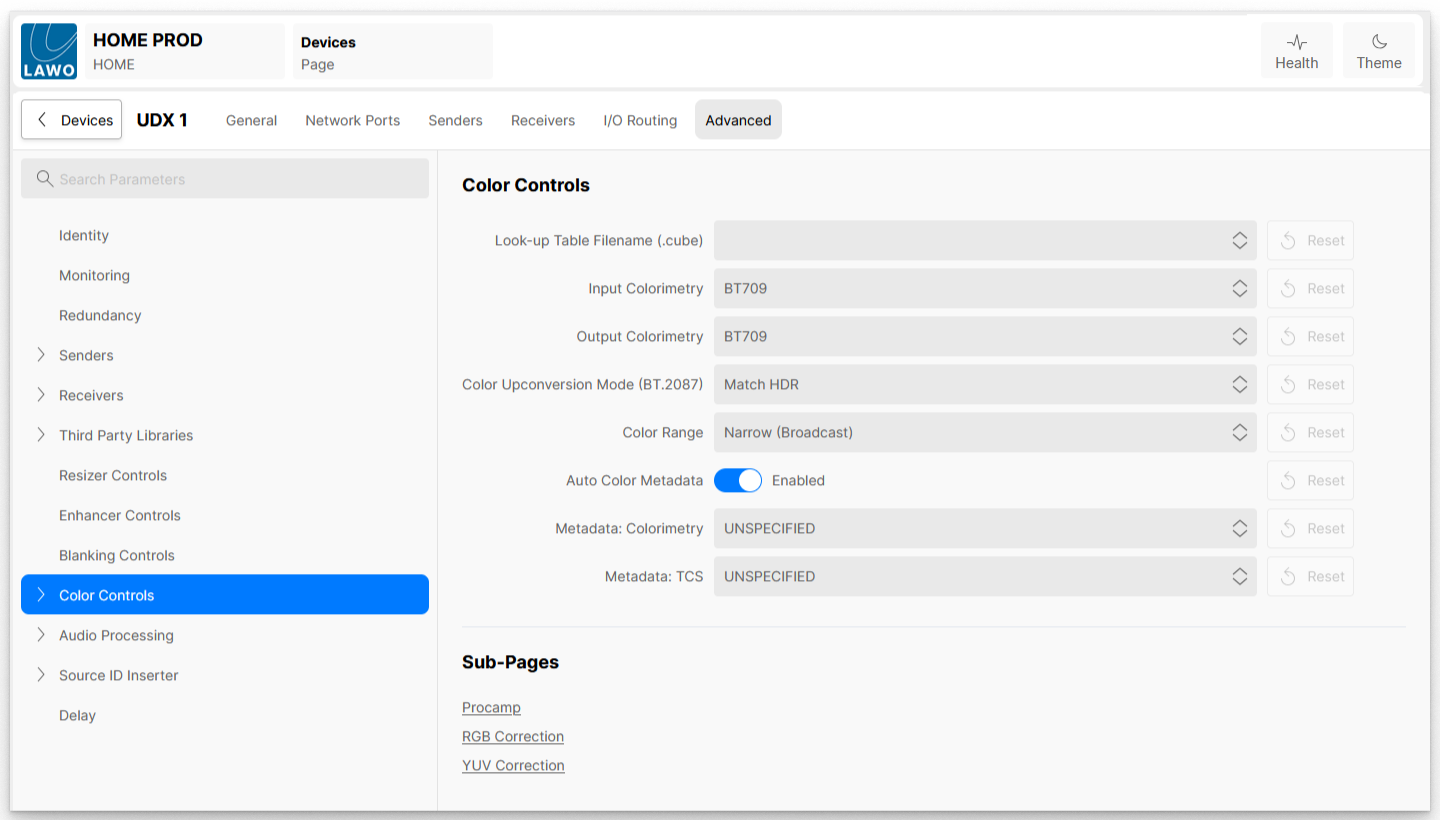
HDR Processing DISABLED
As HDR processing is disabled, a conversion between colorspaces is performed in linear light. Conversion between transfer characteristics is not performed.
| Look-up Table Filename | Not displayed, as HDR processing has been disabled. |
| Input Colorimetry | The user must set this control to match the Colorspace of the incoming routed video source. This guides the processing engine. |
| Output Colorimetry | The user must set this control to set the desired Colorspace of the outgoing video. The video is processed and converted from the 'Input Colorimetry' to the 'Output Colorimetry'. This sets the output SDP - colorimetry parameter. |
| Color Upconversion Mode (BT.2087) | Only applicable when converting from a smaller to a larger colorspace. There are two possible values:
To explain the values further, an example is required. Imagine two cameras pointing at the same scene. One camera works in Rec. 709 colour space, this camera is feeding a Rec. 709 monitor. The second camera works in Rec. 2020 colour space, this camera is feeding a Rec. 2020 monitor. The RGB values for each given pixel will differ between the Rec. 709 and Rec. 2020 signals. The image displayed on the Rec. 709 monitor will very closely represent the scene captured by the Rec. 709 camera. The image displayed on the Rec. 2020 monitor will be slightly dimmer and slightly redder than the original scene. Now, if we wish to display the signal from the Rec. 709 camera on the Rec. 2020 display we need to convert the signal from Rec. 709 to Rec. 2020, but we must also decide whether we want the picture to look how it does on the Rec. 709 monitor (very close to the original scene), or how it looks when the Rec. 2020 camera is feeding the Rec. 2020 display (slightly dimmer and redder). In this scenario:
|
| Color Range | Must be set to steer the Luma range when Luma gain is applied. - not used when just ColorSpace conversion is being applied |
| Auto Color Metadata | Affects the operation of Metadata Colorimetry and Metadata TCS, as described below. |
| Metadata Colorimetry | When Auto Color Metadata is Enabled Displays what the Colorimetry parameter in the output SDP is set to. (i.e. what is set in the Output Colorimetry control). When Auto Color Metadata is Disabled Allows the user to force the Colorimetry parameter in the output SDP to the selected value. Affects the value in the SDP only, does not affect the processing of the video. |
| Metadata TCS | When Auto Color Metadata is Enabled Displays what the TCS parameter in the output SDP is set to. This will always be 'UNSPECIFIED' when HDR Processing is not enabled and a LUT hasn't been selected. When Auto Color Metadata is Disabled Allows the user to force the TCS parameter in the output SDP to the selected value. Affects the value in the SDP only, does not affect the processing of the video. |
HDR ENABLED and no LUT selected
As HDR processing is enabled but no LUT has been selected, a conversion between colorspaces is performed in linear light. Conversion between transfer characteristics is not performed.
Same as shown in the table above.
HDR ENABLED and LUT Selected
A conversion between colorspaces and transfer characteristics is performed. The LUT (3D Cube) is used to convert input values to output values.
| Look-up Table Filename | Allows the user to select the appropriate LUT which will be used to convert between two TCS. LUTs must first be uploaded to HOME, as described below. |
| Input Colorimetry | The user must set this control to match the Colorspace of the incoming routed video source. This guides the processing engine. |
| Output Colorimetry | The user must set this control to set the desired Colorspace of the outgoing video. The video is processed and converted from the 'Input Colorimetry' to the 'Output Colorimetry'. This sets the output SDP - colorimetry parameter. |
| Color Upconversion Mode (BT.2087) | When a LUT is selected, this control does nothing. |
| Color Range | Must be set to steer the Luma range when Luma gain is applied. Procamp and LUT can be enabled simultaneously in an additive manner. |
| Auto Color Metadata | Affects the operation of Metadata Colorimetry and Metadata TCS, as described below. |
| Metadata Colorimetry | When Auto Color Metadata is Enabled Displays what the Colorimetry parameter in the output SDP is set to. This is derived from the LUT filename. When Auto Color Metadata is Disabled Allows the user to force the Colorimetry parameter in the output SDP to the selected value. Affects the value in the SDP only, does not affect the processing of the video. |
| Metadata TCS | When Auto Color Metadata is Enabled Displays what the TCS parameter in the output SDP is set to. This is derived from the LUT filename. When Auto Color Metadata is Disabled Allows the user to force the TCS parameter in the output SDP to the selected value. Affects the value in the SDP only, does not affect the processing of the video. |
LUTs
Before they can be used by the Color Corrector processing, Look-up tables (LUTs) must first be uploaded to HOME. This will make them available to all instances of the Color Corrector processing, regardless of which App Server they happen to be running on.
To upload a LUT, browse to HOME's 'Files' menu, then click on 'LUTs'.
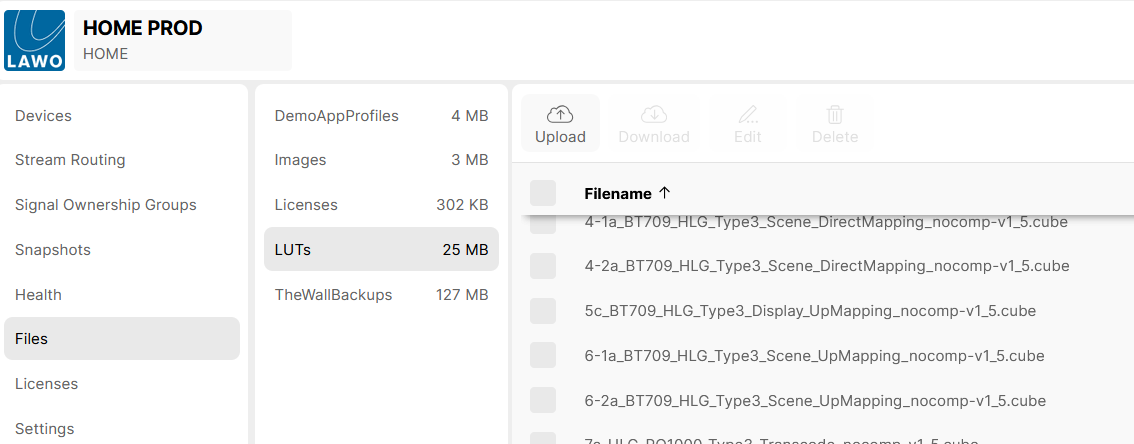
Click the 'Upload' button, then follow the on-screen instructions.
LUT files must be in the '.cube' file format.
Supported LUT types
- 33x33x33 point 3D LUT (.cube)
- 65x65x65 point 3D LUT (.cube)
Sub-Pages
The topics that follow describe the Color Controls sub-menus: