HOME - Device Status Meanings
In HOME's 'Devices' list, the Status column show the status of a device:
- For a physical device, the status can be online, offline, quarantined, unlicensed or No HOME Pass.
- For an app, the status can be online, inactive, unlicensed or No HOME Pass.
Note that, for a physical device, the Status and Admissions combine to indicate whether a device is fully approved (and part of the operational network) or in some other state (e.g. partially approved or in quarantine). In this instance, the Approve and Quarantine buttons can be used to manage which devices are part of the operational network. This is described in more detail here.
Please note: The admissions service can be disabled from HOME's system settings. See HOME Settings - Admissions. In this instance, only the status field is relevant and the admissions show as "-" for all devices.
The example below shows a mixture of gear (Lawo and third-party) where the admissions service is enabled:
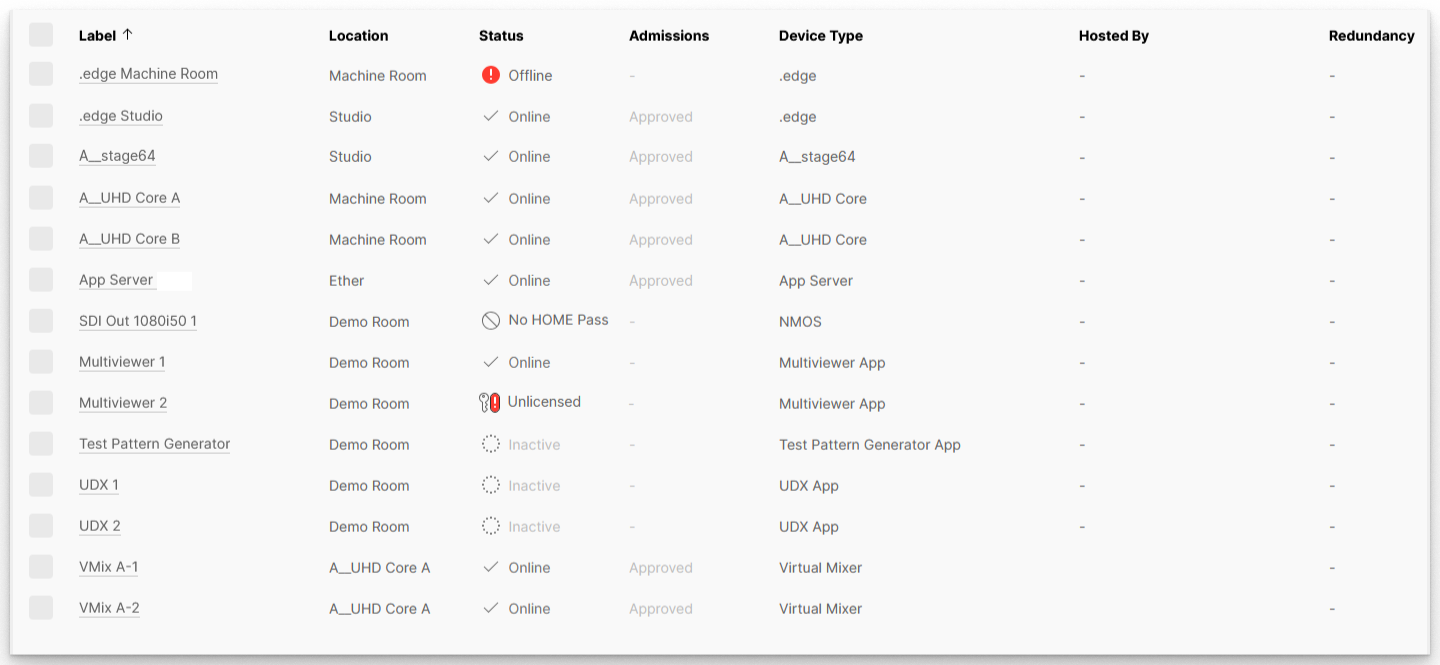
The descriptions that follow explain how to interpret the Status (and Admissions) fields.
Physical Devices
For a physical device, the Status and Admissions combine to indicate the following meanings.
Please note: If the admissions service is disabled, then only the status field is relevant and the admissions show as "-" for all devices.
| Status | Admissions | Meaning | |
|---|---|---|---|
Online | Approved | The device is fully approved and part of the operational network. | |
Online | Partially Approved | The device is partially approved. | |
Online | Unknown VLAN | The device belongs to an unknown VLAN. | |
Offline | - | The device is either powered off or not connected to the network. | |
Quarantined | - | The device is in quarantine and awaiting approval. How to approve (or quarantine) a device is described here. | |
Unlicensed | - | If a device is Unlicensed, then there is a device-specific licensing issue to resolve. See Unlicensed. | |
No HOME Pass | - | If a device has No HOME Pass, then it cannot be controlled or configured (by HOME). See No HOME Pass. | |
HOME Apps
The admissions service is not relevant to the individual apps, but does apply to the app servers (as described above). This means that, for the individual apps, there are four possible statuses.
| Status | Meaning |
|---|---|
Online | If an app is Online, then it has been started (using Start App). Note that the Online status does not necessarily mean that the app is ready for operation (as there could be an issue with the deployment of the processing on the app server or the startup of the app). To confirm that the app is running and "healthy", click on the app label (to open the 'Device → General' settings) and check the Lifecycle area. Here you will see which server the app is using, the health status (reported from the server) and how long the app has been running. If the status shows as "Currently reporting healthy", then the app is ready to use. |
Inactive | If an app is Inactive, then it is configured but not running. An app becomes Inactive after it is stopped (using Stop App). |
Unlicensed | If an app is Unlicensed, then there is an app-specific licensing issue to resolve. See Unlicensed. |
No HOME Pass | If an app has No HOME Pass, then it cannot be controlled or configured (by HOME). See No HOME Pass. |
Unlicensed
If a device, app or service is Unlicensed, then there is a device-specific licensing issue to resolve. For example, if a licensed feature has been configured and now either the perpetual licenses are missing or the credit validity has expired.
In this instance, the device, app or service can be configured (by HOME), but some or all of its operation will be limited until the licensing issue is resolved. Note that this is different to No HOME Pass (which affects the configuration and control of the device from HOME).
Important: When using credits, it is important to check the credit validity and, if necessary, perform a manual refresh.
If there are not enough available perpetual licenses or credits, then there are four possible courses of action:
- Add more perpetual licenses to the HOME system (by uploading a new licensing file).
- Top-up the available credits (by assigning more credits to HOME).
To do this you may need to activate a new Lawo Flex subscription or revoke some credits from another HOME system. - Sacrifice an existing resource (e.g. by stopping an app).
- Reduce the licensing requirement (e.g. by editing the configuration of an app).
No HOME Pass
The No HOME Pass status can occur if a HOME Pass has been removed by a user, or if new devices have been added to the network and their HOME Passes have not been uploaded or assigned to the HOME system.
You can find more information about HOME Passes here. For now, it is useful to know that:
A valid HOME Pass is required for each device, app or service that you wish to configure and control from HOME.
This can be achieved using either a perpetual "HOME Pass" license or an equivalent amount of credits.
- From HOME v4.0 onwards, all new Lawo gear (including HOME Apps) ships with a perpetual HOME Pass license (included).
- HOME Passes for any NMOS-compatible or third-party devices must be ordered separately. In this instance, 1x HOME Pass is required for each operational device.
- HOME Passes are generic and can be used for any device, app or service.
- The assignment of HOME Passes is controlled from the ...More drop-down menu in HOME's 'Devices' list. This allows users to manually reassign HOME Passes (as described here).