HOME Stream Transcoder - Reconfiguring an App
Once an app has been created, it appears in HOME's 'Devices' list and its settings can be accessed as follows: click on the app label (1) and choose a menu tab (2).
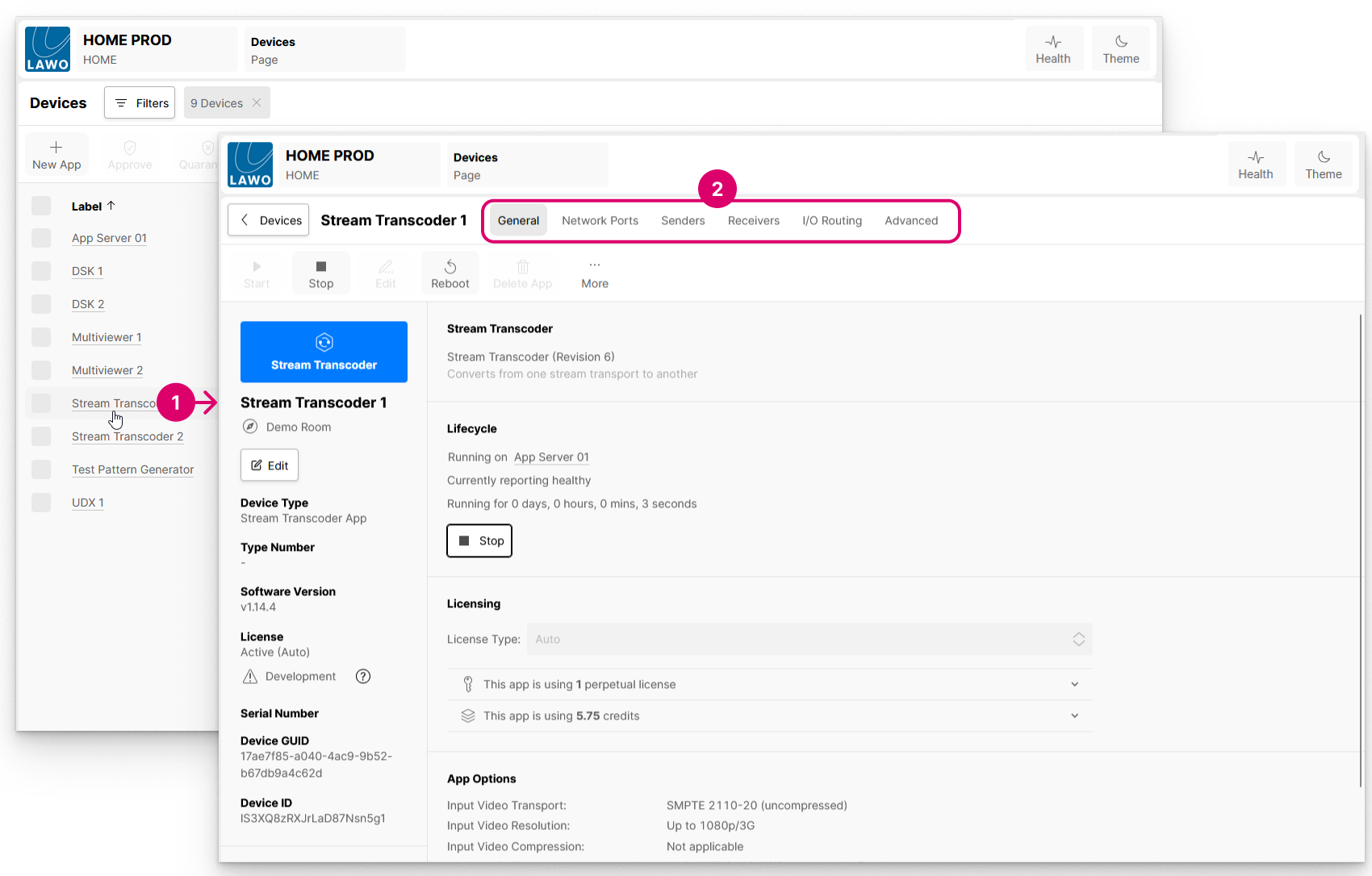

If an app has No HOME Pass, then a page with minimal content opens. In this instance, you will need to check that the app has a valid HOME Pass (license).
All HOME Apps systems are delivered with enough HOME Pass perpetual licenses to run the individual app instances and app server(s). This means that the HOME Pass for an app is usually fulfilled by one of the included perpetual licenses. A HOME Pass can also be achieved using credits if, for example, the HOME Pass perpetual licenses are assigned elsewhere or the app's License Type is set to credits.
For more information about the licensing, please see HOME Apps - Licensing Introduction and HOME Passes (in the "HOME User Manual").
To return to the main 'Devices' list, click on the < Devices button (to the left of the app label). From here, you can repeat the steps above to access another device or app.
Where are the settings saved?
The latest settings for each app are saved (by HOME) whenever a change is made.
Note that the settings are stored on the HOME management system and not on the app server. This means that an app can be started with its latest settings on any available app server (with sufficient resources).
What can be controlled?
There are several pages of settings that are handled in a similar way for all app types.
For a HOME Stream Transcoder, there are six pages: General, Network Ports, Senders, Receivers, I/O Routing and Advanced.
The following topics describe each page:
Initial Configuration vs Runtime Controls
Before editing an app, it is important to understand the difference between editing the initial configuration and using the runtime controls.
These initial configuration parameters appear in the 'New App' dialog. To streamline the process, a set of default values are entered and so, in most cases, all you need to provide is a label for the app.
When an app is started for the first time, the initial configuration values are loaded and saved (elsewhere). From here on, there are some parameters that can only be changed when the app is stopped (by editing the initial configuration), and others that can be modified while the app is running (using the 'runtime' controls). If parameters can be edited in both the initial configuration and during runtime, then the initial configuration is overwritten by the runtime controls as the latest (runtime) value always wins.
An example of how this works in practice is provided here. For now, it is useful to know that:
- If a parameter can only be edited in the initial configuration, then the user must first stop the app, edit the initial configuration (via 'Edit App' or 'Edit Apps'), and then restart the app. Any changes are applied on the next start up of the app. If there is a change to the resource usage, then this is displayed in the 'Start App' dialog.
- The 'runtime' controls appear, once the app is running, in the other 'Device' settings pages: Senders, Receivers, Advanced, etc. The latest values are saved (by HOME) whenever a change is made and loaded on the next start up of the app. Note that the runtime controls have no impact on the resource usage. If a parameter has a runtime control then, after the first start-up of the app, any changes must be made using the runtime control (and not the initial configuration), as the initial configuration will be overwritten by the runtime value on the next start up of the app.
Editing Multiple Apps
If you wish to apply changes to more than one app at a time, then this is possible by selecting the apps in the main 'Devices' list and choosing Edit App (from the More... menu).
In this instance, it is possible to edit both the initial configuration and the following runtime options: license mode and server group. For more information, please see HOME Apps - Edit App(s).