HOME DSK - App Configuration
The choices made here will determine the resources required to run the app: I/O bandwidth, CPU resources, etc.
These initial configuration options appear in the 'New App' dialog. To streamline the process, a set of default values are entered and so, in most cases, all you need to provide is a label for the app.
The parameters can be edited later for a single app via the 'Edit App' dialog (in the General settings page), or for multiple apps using 'Edit Apps'. Note that this is only possible once the app is stopped. Further 'runtime controls' are available in the app's other settings pages: Senders, Receivers, etc.
Please note:
- The initial configuration cannot be edited while an app is running and so, to make any changes, you will need to first stop the app.
- Some of the menu items are dependent on previous settings. For example, the Video Compression ratio control is only displayed once the Video Transport is set to JPEG-XS. If a different video transport type is selected, then the Video Compression control is hidden.
- Some of the parameters can also be edited during runtime from the app's settings pages. In this instance, the initial configuration values are overwritten by the runtime controls as the latest (runtime) value always wins. An example is described here.
Using the Controls
For a HOME DSK, the options in the app configuration define the number of keyers and the app's input and output streams.
A HOME DSK supports up to three independent key layers over an A/B background mix. Each keyer provides a Key and a Fill input, can be controlled separately and operates in one of three keying modes: Luma, Linear or Self-Key. Underneath the keyer(s), the app allows for A/B mixing of two video background sources. This can provide 'Make-Before-Break' type switching with a choice of transition types including Cut, Fade and Cross Fade.
Note that the Number of Keyers defines how many input receivers are provisioned. This can be used to save input receiver resources if not all three keyers are required.
Optionally, the Advanced Audio feature can be enabled to provide gain, mute and phase control for all audio channels passing through the app. Note that this option is licensed.
Once the app is configured and running, parameters such as the keying mode, transition type, etc. can be adjusted from the app's Advanced menu: see Advanced -> Video Keyer Controls and Advanced -> Video Mixer Controls.
Input Receivers
A HOME DSK provides two inputs (RX 1 and RX 2) for the Background A and B signals, plus a further two inputs for each configured Keyer: Key 1 + Fill 1, Key 2 + Fill 2 and Key 3 + Fill 3.
Note that the Keyers do not support audio and so there is a difference between the stream (essence) types that can be received:
- Background A and Background B - Video (only), or Video and Audio.
- Key n and Fill n - Video (only).
Use 'Input' Video/Audio Transport options to determine the number and type of flows:
- Start with the Video options to define the Video receivers for all inputs.
- Then, use the Audio options to define the Audio receivers for the Background A and Background B inputs, if audio is required.
Output Senders
A HOME DSK provides two outputs: Program (TX 1) and Preview (TX 2).
The Program output carries the result of the composition of the selected Background plus any active Keyers.
By default, the Preview output carries the non-selected Background (to preview the next Background source). It can be forced to the same Background as the Program output (using the runtime controls) if this is required.
Each output is configured separately, and can transmit the following streams: Video (only), or Video and Audio.
Use the 'Program Output/Preview Output' Video/Audio Transport options to determine the number and type of flows:
Note that the Video Transport and Audio Transport options can be set independently (per output), while the Video Resolution and Output Scan Rate appear for the 'Program Output' only and affect both outputs.
Optional Features
A HOME DSK offers advanced audio processing that requires an additional amount of resource. By default, this option is disabled.
To use this feature, you will need to enable the Advanced Audio option in the app configuration and take care of the licensing (1x UDX Adv Audio license is required). Then, start the app and follow the instructions in Advanced -> Audio Processing.
Control Descriptions
The rest of this topic describes all possible options for the app configuration controls.
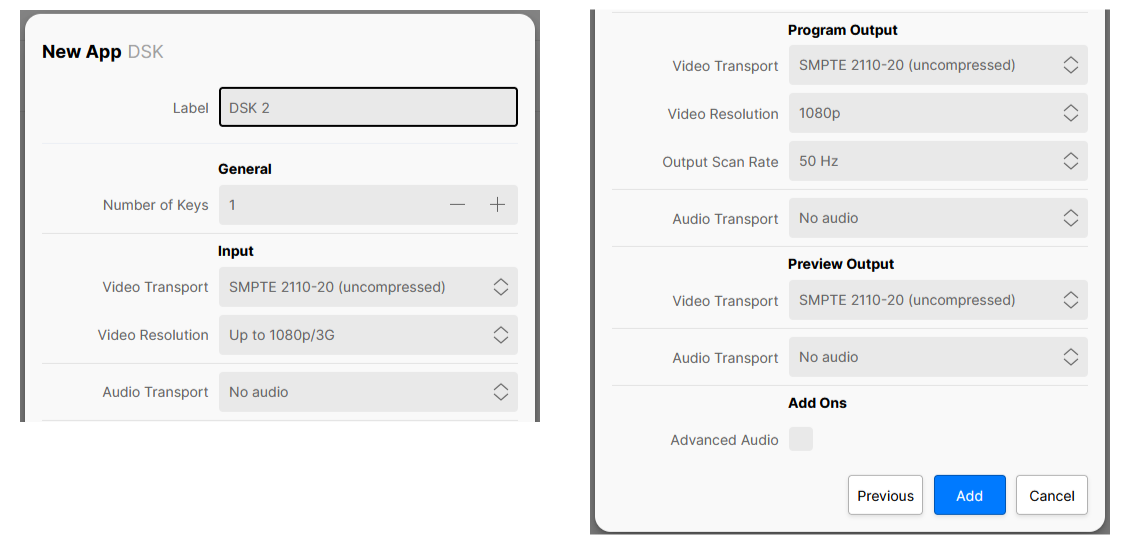
| Control | Description |
|---|---|
| Label | A text field allowing the user to name the app being created. All app names in a system must be unique. |
General | |
| Number of Keyers | Configures the number of Keyers available in the app:
This option will affect the amount of the resources required by the app. If the value is set to 0, then there are no Keyers configured and the app provides Background A/B mixing only. If the value is set to 1, 2 or 3, then the Key and Fill receivers are automatically provisioned, and each Keyer can be controlled using the Advanced -> Video Keyer Controls. |
Input | |
| Video Transport | Sets the type of input video transport, over which the app will receive video streams:
This control will affect all of the app's video receivers. The choice made will affect the amount of resources required by the app and will also require the appropriate software licenses. See HOME Apps - Available License Options. |
| Video Resolution | Defines the maximum resolution of video streams which can be routed into the app's video receivers:
This control will affect all of the app's video receivers. The choice made will affect the amount of resources required by the app. |
| Video Compression | This control appears when the Input Video Transport is set to an option which supports SMPTE 2110-22 (JPEG-XS). The selection made affects which JPEG-XS sources can be routed to the receiver based on the source’s compression ratio. For example: with ‘At least 8:1’ selected, sources with a compression ratio of 8:1 or more (9:1, 10:1, 11:1 etc) may be routed to the receiver, sources with lower compression ratios will be rejected. The available options are :
The option chosen may affect the input bandwidth provisioned for the app. |
| Audio Transport | When the Input Video Transport is set to SMPTE 2110-20 (uncompressed) or SMPTE 2110-22 (JPEG-XS) Defines the maximum number of audio streams that can be received by the app's input. This, in turn, defines the maximum number of audio channels that can be received from those streams. The options are:
If an audio stream which contains more channels than the maximum is routed to a receiver, then the additional channels are ignored. When the Input Video Transport is set to NDI / NDI HX2 Defines whether the app's input should receive audio or not:
When the Input Video Transport is set to SRT Defines whether the app's input should receive audio or not:
This control will affect Background A & B only; the Keyers do not support audio. |
Program Output & Preview Output | |
Video Transport | Defines the output stream transport type of the app's video sender:
The choice made will affect the amount of resources required by the app and will also require the appropriate software licenses. See HOME Apps - Available License Options. If the Output Video Transport is set to WebRTC, then further configuration controls are provided via the app's Advanced → WebRTC menu. See HOME DSK - Advanced -> WebRTC. |
Video Resolution | Defines the video resolution of both the Program and Preview outputs. The choices available are dependent on the Input Video Resolution setting:
The choice made will affect the amount of resources required by the app. Important: The DSK app does not support video scaling, and so all video sources routed to the app should be of the same 'size' as the app's outputs. i.e. 1920x1080. This means that, when the user sets the Output Video Resolution (in the app configuration), this also defines what resolution the DSK expects to receive on its video input receivers. |
| Output Scan Rate | Defines the video frame rate of both the Program and Preview outputs. The choices available are dependent on the Output Video Resolution setting:
Important: The DSK app does not support frame rate conversion, and so the frame rate of the video sources routed to the app should match the Output Scan Rate defined for the app's outputs. |
Video Compression | Not visible when the Output Video Transport is set to SMPTE 2110-20 (uncompressed) or NDI. When the Output Video Transport is set to SMPTE 2110-22 (JPEG-XS) When the app starts, an amount of output bandwidth is allocated (for the app) on the network interface. JPEG-XS allows the user to dynamically change the compression ratio while the app is running. This control can be used to prevent the app from over-allocating bandwidth unnecessarily. The available options are:
The choice made will affect the amount of resources required by the app and will also determine the list of actual compression ratios available. When the Output Video Transport is set to NDI HX2, SRT or WebRTC Provides a basic level of control of the compression ratio implemented by the chosen transport stream. The available options are:
Important: More advanced controls can be found in the app's 'Advanced → Senders → TX n' menu. Once used, the Advanced (runtime) controls will override this value. |
| Audio Transport | When the Output Video Transport is set to SMPTE 2110-20 (uncompressed) or SMPTE 2110-22 (JPEG-XS) Defines the number of audio streams provided by the app's output. This, in turn, defines the maximum number of audio channels supported by those streams. The options are:
Defines whether the app's output should send audio or not:
When the Output Video Transport is set to SRT Defines whether the app's output should send audio or not:
When the Output Video Transport is set to WebRTC Defines whether the app's output should send audio or not:
|
| Audio Sample Rate | Only visible when an Output Audio Transport is set. Defines the audio sample rate of the app's output. In the current release, the app supports 48 kHz only. |
| Audio Channels (Per Stream) | Defines the initial number of audio channels available per stream, provided by the app's output:
|
Add Ons | |
| Advanced Audio | When selected, enables the Advanced Audio function. This option requires 1x UDX Adv Audio license. See HOME Apps - Available License Options. |