HOME - Devices
This topic describes how to manage the operational network using HOME's 'Devices' list.
Overview
The 'Devices' page lists all devices and apps known to HOME. A device must appear here before it can be configured.
Note that a device can be either a physical device or an app such as Lawo's HOME Apps or VSC.
How are devices discovered?
Whether automatic discovery is possible depends on the device type as follows:
- HOME-native devices. All Lawo IP nodes and devices which "live@HOME" are discovered automatically when they are connected to the network.
- NMOS-compatible devices. Devices that are compatible with NMOS IS-04/IS-05 can also be discovered automatically, if HOME is running a valid NMOS license.
- Third-party devices. Devices that are not detected automatically can be added manually by configuring a proxy. An example is included here.
- HOME Apps. In a HOME Apps system, each app server is discovered automatically (as a HOME-native device). The individual apps must be created manually (using either New App or Duplicate App).
Device Information
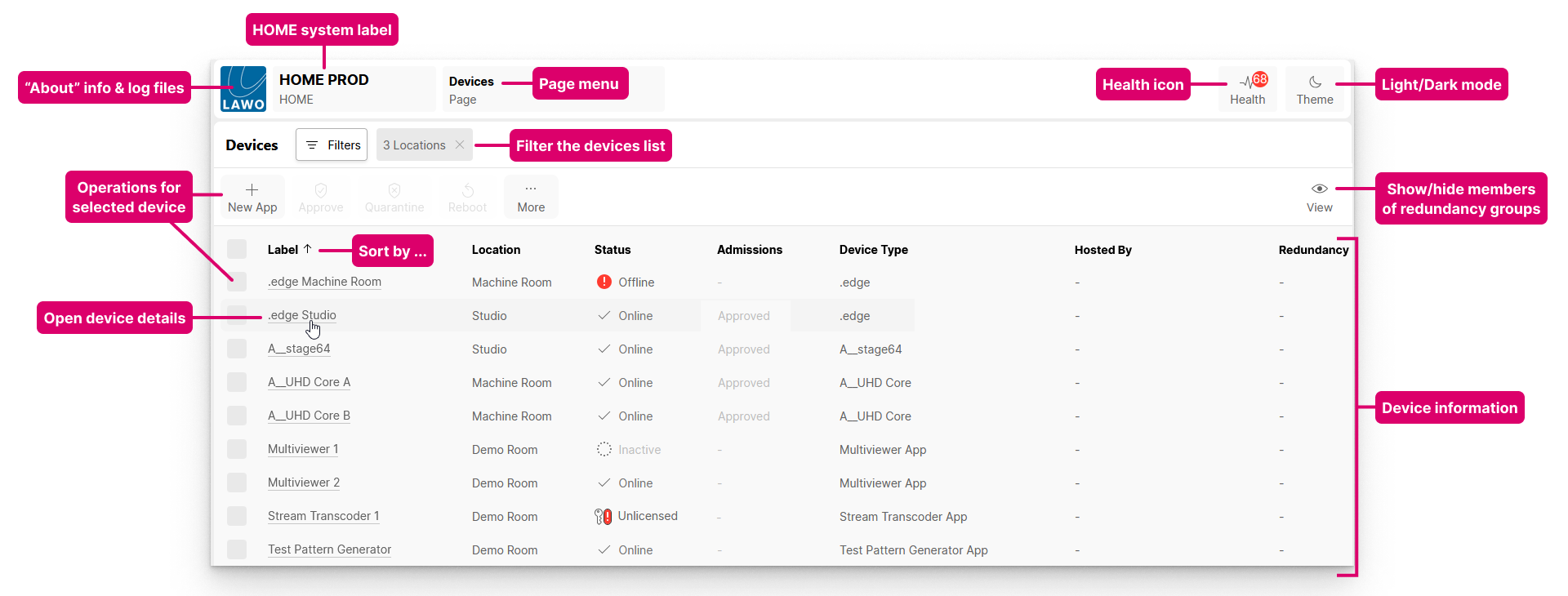
The main working area displays information about each device or app.
- A label must be entered. This field cannot be left blank.
- Each label must be unique (within the HOME system).
- Labels can be edited without affecting the rest of configuration.
- For all devices that are automatically detected by HOME, a default label is assigned.
- Entering a location is optional. This field can be left blank.
- Locations can be edited without affecting the rest of the configuration.
- By default, for all new devices, the location field is left blank.
The Status shows the status of the device or app.
- A device can be online, offline, in quarantine or unlicensed.
- An app can be online, inactive or unlicensed.
- How to interpret the status (and admissions) is described later.
The Admissions column shows the admissions status of the device (if the admissions service is enabled). This field is relevant for devices only (and not apps). When enabled, the Approve (and Quarantine) buttons can be used to manage which devices are part of the operational network.
The Device Type describes the device or app. This field is fixed and cannot be edited.
The Hosted By and Redundancy columns apply if redundancy groups are configured:
- Hosted By shows where the redundant group or member is hosted.
- Redundancy shows the members of the redundancy group.
Please note: If devices are paired to create a redundancy group, then a group icon appears in the Device Type column (before the description of the device type). In this instance, the View button (top right) can be used to toggle the view:
- Full - shows all redundant groups and their members.
- Consolidated- collapses the view to show only the redundant groups.
Device Operations
From the main 'Devices' list, the following operations are possible:
- Click on the Filters button to apply a filter.
This can be used to restrict the view. For example, to view only the devices in a particular location. See Using Filters. - Click on a column header to sort the list alphabetically by Label, Location, etc.
Each click toggles the sort mode between ascending (A -> Z) and descending (Z -> A). An up or down arrow appears beside the header to indicate the current sort mode. - Click on the label of a device or app to open the 'Device Settings' pages.
From here, you can view and edit settings for the individual device or app. For example to edit the label, location, configuration options, IP settings, senders and receivers, etc. - Select a device (or devices) and click on a function. If a function is not available, then it is greyed out.
- Approve - adds the device to the operational network.
- Quarantine - removes the device from the operational network.
- Reboot - reboots the device.
- More - provides access to more operations.
The rest of this topic describes the 'Devices' list operations in more detail:
Status Meanings
Physical Devices
For a physical device, the Status and Admissions fields combine to indicate the following meanings.
Please note: The admissions service can be disabled from HOME's system settings. In this instance, only the status applies and the admissions show as "-" for all devices.
| Status | Admissions | Meaning | |
|---|---|---|---|
Online | Approved | The device is fully approved and part of the operational network. | |
Online | Partially Approved | The device is partially approved. | |
Online | Unknown VLAN | The device belongs to an unknown VLAN. | |
Offline | - | The device is either powered off or not connected to the network. | |
Quarantined | - | The device is in quarantine and awaiting approval. | |
Unlicensed | - | There is a licensing issue to resolve (see below). | |
HOME Apps
For HOME Apps, the Admissions apply to the app servers only and are not relevant to the individual apps. Thus, for an app, there are three possible statuses: online, inactive or unlicensed.
If an app is Online, then it has been started (using Start App) but is not necessarily running (as there could be an issue with the deployment of the processing on the app server or startup of the app).
To confirm that an app is running and "healthy", click on the app label (to open the 'Device → General' settings) and check the Lifecycle area. Here you will see which server the app is using, the health status (reported from the server) and how long the app has been running. If the status shows as "Currently reporting healthy", then the app is ready to use.
If an app is Inactive, then it is configured but not started. An app can be started at any time, providing that there is sufficient capacity (on a HOME Apps server) and enough available licenses or credits (assigned to the HOME system).
Unlicensed
If the Status of a device or app shows as Unlicensed, then there is a licensing issue to resolve. This can occur if the (perpetual) licenses are missing or there are not enough Lawo Flex credits (assigned to the HOME system).
- Add more perpetual licenses (by uploading a new licensing file).
- Top-up the available credits (by activating a new Lawo Flex subscription).
- Revoke some credits (from another HOME system) so that they can be reassigned.
- Sacrifice an existing resource (by stopping a licensed app or function).
- For HOME Apps, edit the configuration of the app (to reduce its licensing requirements).
Approve or Quarantine a Device
HOME includes an admissions service that aims to keep the network secure.
The service is enabled and disabled from HOME's system settings. When enabled, the Approve and Quarantine buttons can be used to manage which devices are part of the operational network.
- Whenever a new device is detected, it is automatically placed in quarantine.
- The user can then check the device's network settings (to avoid duplicate control IPs or multicast addresses) before adding the device to the operational network (using the Approve button).
- If there are problems with the network, then a device can be placed in quarantine manually (using the Quarantine button).

Important: Any change is implemented immediately, without confirmation, and so you should make sure that a device's streams are not in use before using the Quarantine function.
Please note: If the admissions service is disabled, then devices are automatically added to the network once they are detected or created. In this instance, the Approve and Quarantine buttons have no function.
Follow the steps below to approve or quarantine a device. It is assumed that the Admissions Service is enabled.
- From the main 'Devices' list, select an entry (or entries) using the selection checkboxes (on the left of the table).
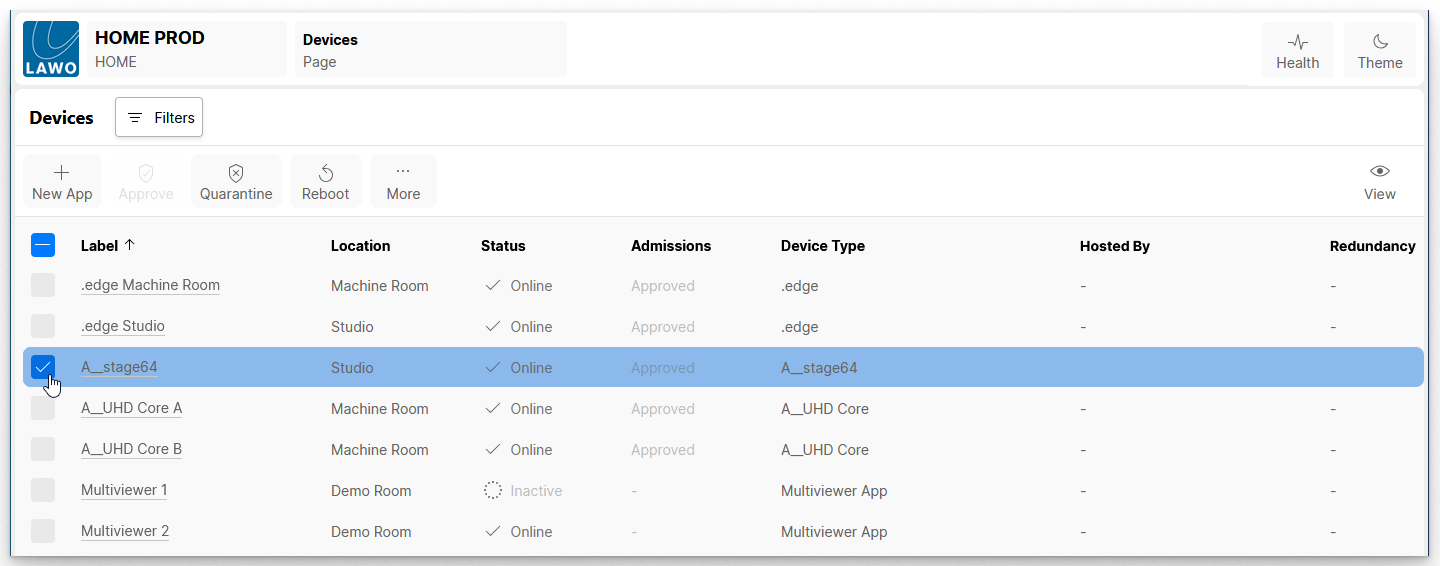
- Click on Approve or Quarantine to change the current status of the device.
- The progress is shown in the Status and Admissions fields.
Reboot a Device
The Reboot button can be used to restart a device.
Important: The reboot is implemented immediately without any confirmation, and so you should make sure that a device's streams are not in use before using this function.
- From the main 'Devices' list, select an entry (or entries) using the selection checkboxes (on the left of the table).
- Click on Reboot to reboot the device.
- While the reboot is in progress, the device will lose its network connection and show as Offline (in the Status field).
- Following a successful reboot, the Status should return to Online (if the device is connected and powered).
More Operations
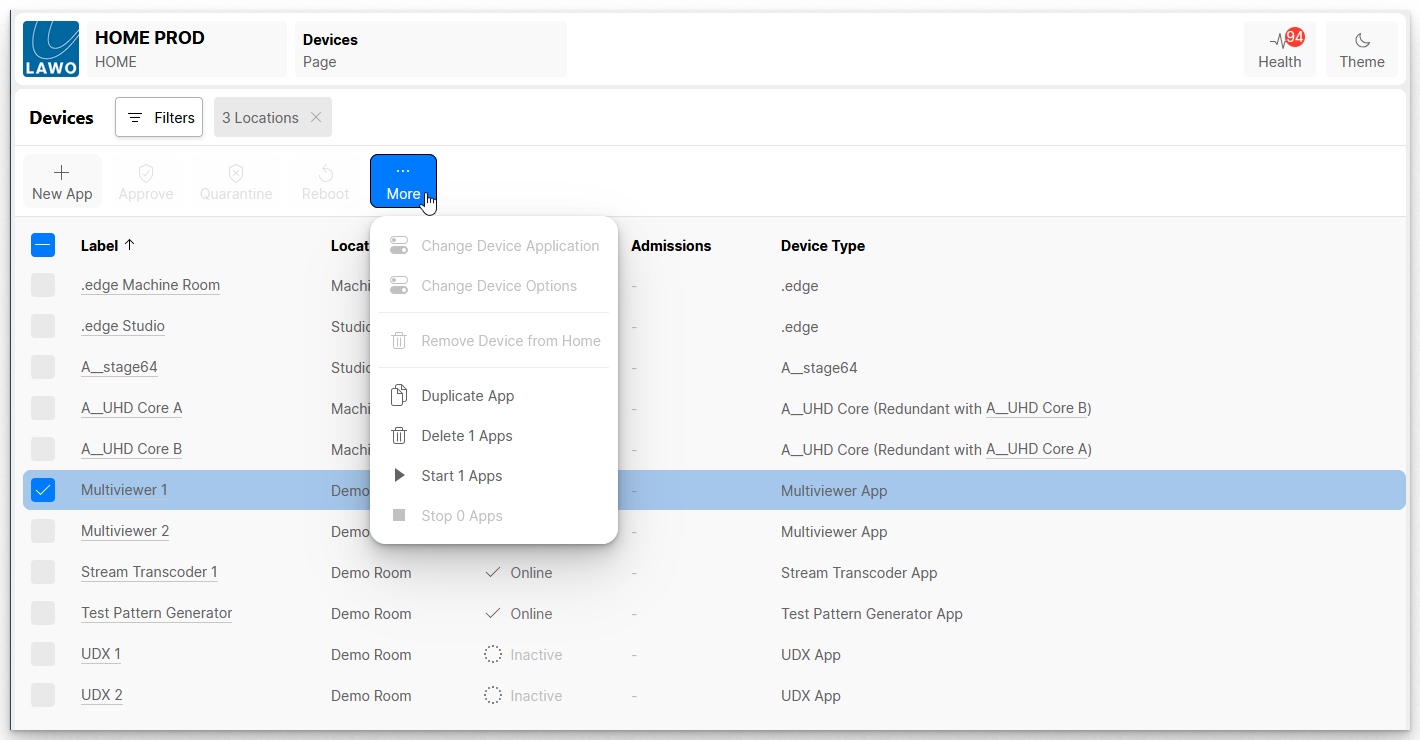
The More button opens a drop-down menu where you can access additional options for the selected device. If an option is not supported, then it is greyed out.
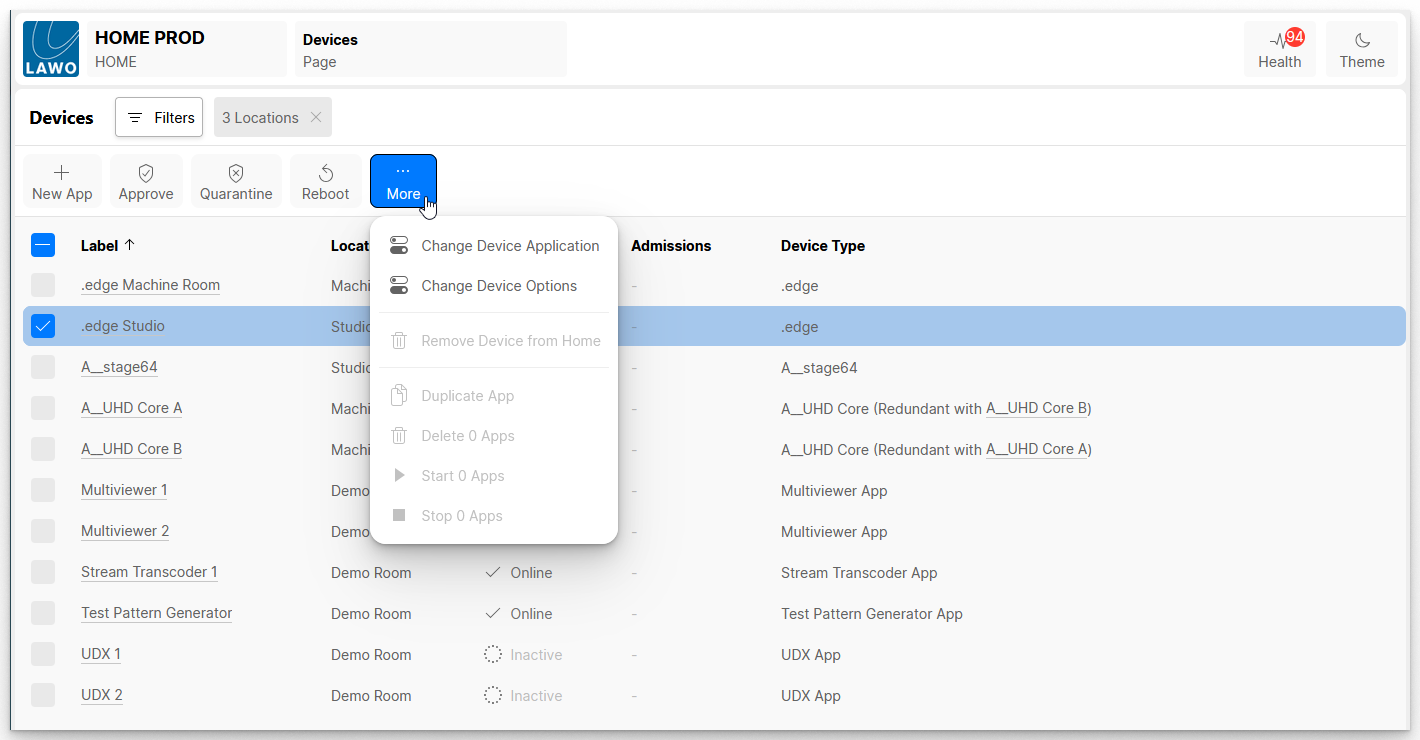
Change Device Application or Options
The Change Device Application and Change Device Options can be used to change settings specific to the device.
The same windows can be accessed from the 'Device Details' page (via the General tab). The settings vary depending on the device type.
Remove Device from Home
The Remove Device from Home option opens a pop-up window where you can choose to remove the device from the Home database:
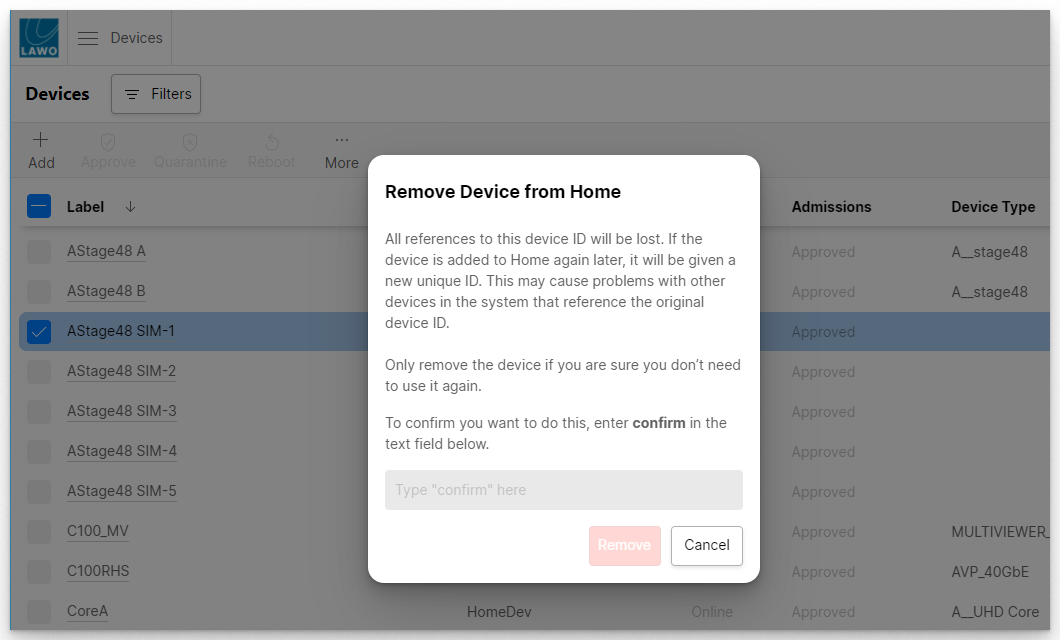
This function should be used with caution as it removes all references to the device ID, but can be useful if you need to remove an obsolete device.
To proceed, follow the on-screen instructions: enter confirm into the text field and then click Remove.
Operations for HOME Apps
The Duplicate, Delete, Start and Stop App options apply to HOME Apps. They can be used to duplicate, delete, start or stop the selected app.
For more information, please see the "HOME Apps User Manual".