How to create a Project Bug Report (Partners only)
This page describes how to open Project Bug Reports. This is a dedicated type of ticket which should only be used during runtime of a project by partners. Your organization needs to be set up in our database so your account is able to open such a request. This process also requires a partner PIN which you can view using the button on the upper right corner called "My Organizations".
If you want to join the partner programm or you are already a partner and want to be able to open project bug reports please reach out opening a support incident here.
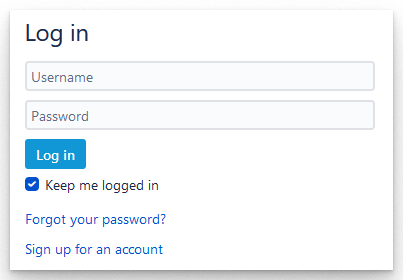
1. Log into the Customer Service Portal here.
Enter your username and password, set a new password or sign up for an account. Your account might need to be linked to an existing partner organization before this process works.
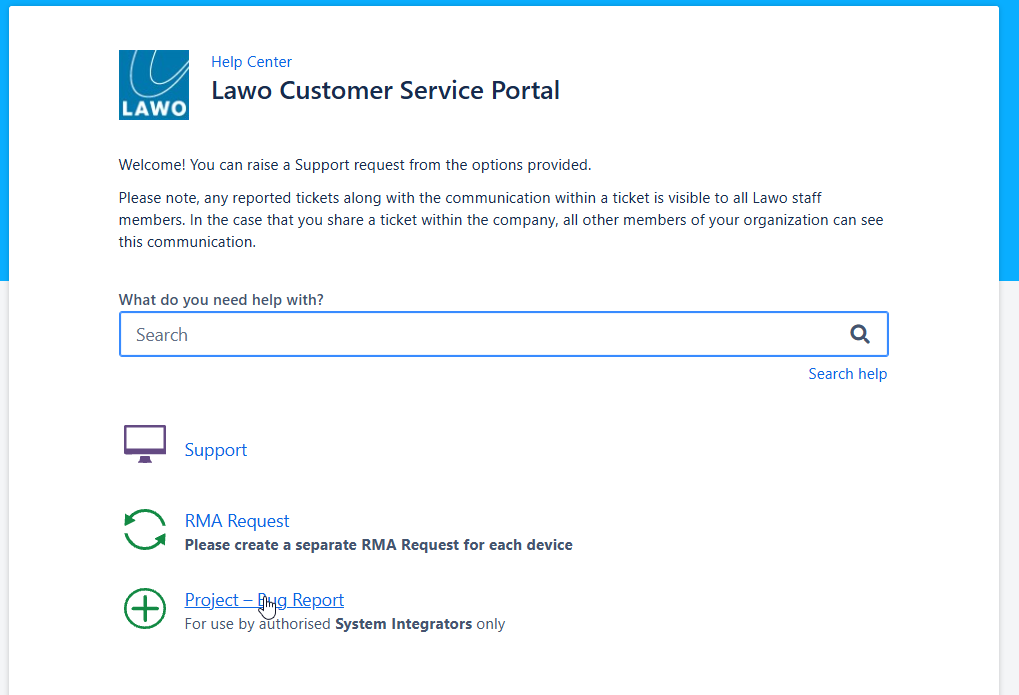
2. Click on Project - Bug Report.
3. Create your Incident(INC).
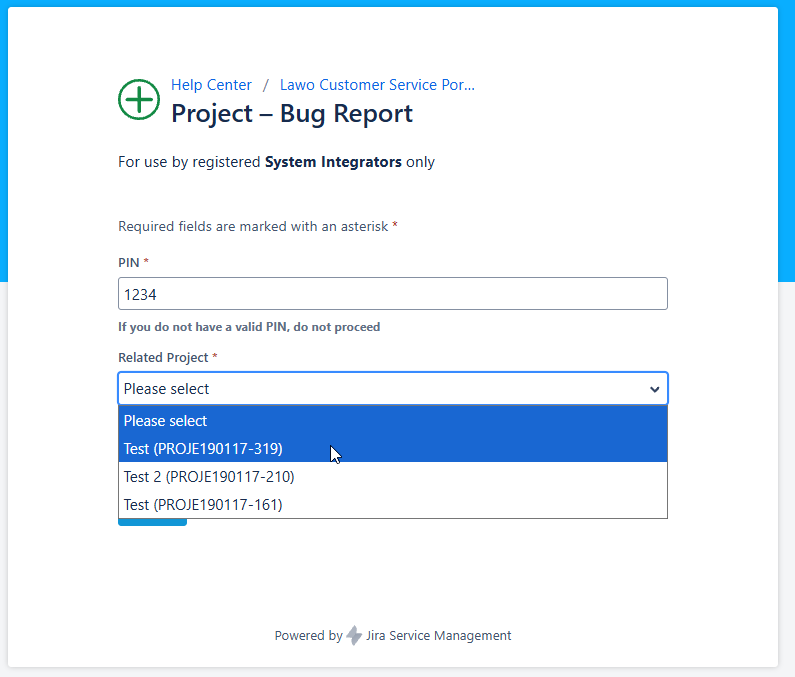
As mentioned above your account needs to be part of an organization that has the right to open a Project - Bug Report. Additionally you need a PIN which can by found in "My Organizations".
If either your organization isn't set up correctly or the PIN is wrong Jira won't display the according fields and no ticket will be opened. In case of any issue open a normal support request.
The 24/7 SLA PIN differs to the parner PIN and can't be used in this field.
If the PIN is correct the field Related Project will provide you with a drop down list of project to choose from. Projects which are closed won't be shown in the list. If the project is already closed please open an usual support incident. If your project is still open but is not displayed in the list please get in touch with the according project manager.
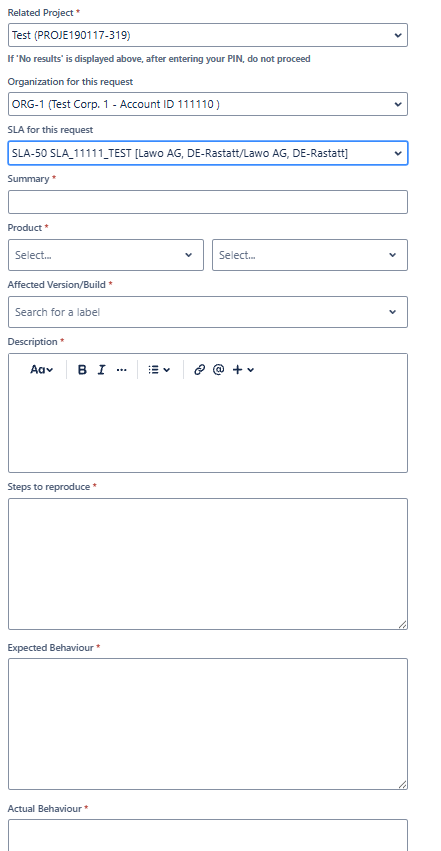
Once a project is chosen Jira will present you with all other required fields. Please provide our support team with as much information as possible about the issue to assist us in understanding, isolating, reproducing and resolving the cause.
The following details would be helpful:
- Choose an organization from which the SLA is applied. This can either be your own organisation or one linked to yours. The ticket is automatically shared with the chosen organization and is visible in the portal to everybody assiciated with the organization.
- If a link between organizations needs to be created please get in touch trough an service request choosing the poduct Other/Third Party, Jira
- SLAs associated with the organization chosen above. Select the one applying to your system and product.
- An accurate issue summary
- Product category & sub category.
- Version information.
- A detailed description of the issue.
- Steps on how to reproduce the issue on your system. Include screenshots and videos to understand more quickly what needs to be done to see the issue. Files can be added in the Attachment section.
- Describe what is the expected beahviour from the system
- Describe what is actually happening on the system
- The severity details can be seen here.
4. Once the fields are complete, click on "Create" to submit the form.
If a ticket needs to be shared after it was opened please use the share button on the right hand side of the ticket or put the according mail adresses into CC when replying to an email.