HOME TPG - App Configuration
The choices made here will determine the resources required to run the app: I/O bandwidth, CPU resources, etc.
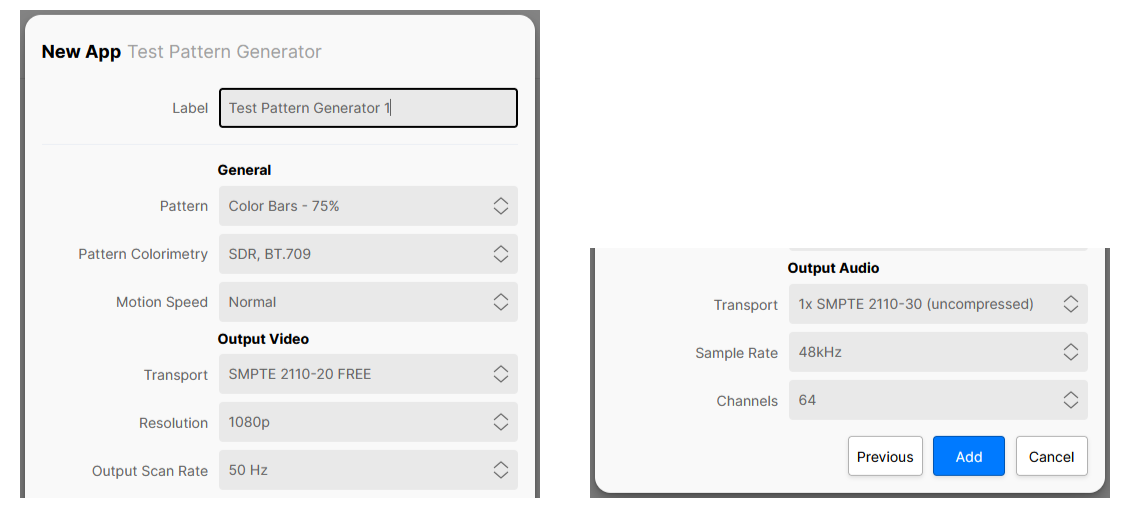
These initial configuration options appear in the 'New App' dialog. To streamline the process, a set of default values are entered and so, in most cases, all you need to provide is a label for the app.
The parameters can be edited later for a single app via the 'Edit App' dialog (in the General settings page), or for multiple apps using 'Edit Apps'. Note that this is only possible once the app is stopped. Further 'runtime controls' are available in the app's other settings pages: Senders, Receivers, etc.
Please note:
- The initial configuration cannot be edited while an app is running and so, to make any changes, you will need to first stop the app.
- Some of the menu items are dependent on previous settings. For example, the Video Compression ratio control is only displayed once the Video Transport is set to JPEG-XS. If a different video transport type is selected, then the Video Compression control is hidden.
- Some of the parameters can also be edited during runtime from the app's settings pages. In this instance, the initial configuration values are overwritten by the runtime controls as the latest (runtime) value always wins. An example is described here.
Using the Controls
For a HOME TPG, the options in the app configuration define the video test pattern being generated and the app's output streams.
A HOME TPG provides a single output sender (TX 1) that can be configured to transmit Video (only) or Video and Audio streams.
The video output can be configured to carry one of a number of simple test patterns. In each case, the pattern can be set to Static or Moving with options to support different Pattern Colorimetry.
- Use the 'General' controls to define the video test pattern and its related options.
- Use the 'Output Video' controls to define the transport, resolution and scan rate of the video stream.
If you wish to output a video test pattern and audio test tones, then an Output Audio Transport must also be defined. In this instance, the app's test tone generator provides a selection of incremental frequencies from 200Hz to 48kHz, where each audio channel carries a specific frequency: e.g. channel 1= 200Hz, channel 2= 400Hz, etc.; up to 64 channels.
- Use the 'Output Audio' controls to define the transport, sample rate and number of channels (per stream) of the audio streams.
Note that it is not possible to configure the app to output audio test tones only, however, the video sender can be left unconnected if it is not required.
Control Descriptions
The rest of this topic describes all possible options for the app configuration controls.
| Control | Description | ||||||||||||||||||||||||||||||||||||||||||||||||||||||||||||||||||||
|---|---|---|---|---|---|---|---|---|---|---|---|---|---|---|---|---|---|---|---|---|---|---|---|---|---|---|---|---|---|---|---|---|---|---|---|---|---|---|---|---|---|---|---|---|---|---|---|---|---|---|---|---|---|---|---|---|---|---|---|---|---|---|---|---|---|---|---|---|---|
| Label | A text field allowing the user to name the app being created. All app names in a system must be unique. | ||||||||||||||||||||||||||||||||||||||||||||||||||||||||||||||||||||
General | |||||||||||||||||||||||||||||||||||||||||||||||||||||||||||||||||||||
| Pattern | Selects the video test pattern which the app produces; available options are:
| ||||||||||||||||||||||||||||||||||||||||||||||||||||||||||||||||||||
| Pattern Colorimetry | Selects the colorimetry of the video output; available options are:
| ||||||||||||||||||||||||||||||||||||||||||||||||||||||||||||||||||||
| Motion Speed | Each test pattern can be made to scroll across the screen from right to left:
| ||||||||||||||||||||||||||||||||||||||||||||||||||||||||||||||||||||
Output Video | |||||||||||||||||||||||||||||||||||||||||||||||||||||||||||||||||||||
| Transport | Defines the output stream transport type of the app's video sender:
The choice made will affect the amount of resources required by the app and will also require the appropriate software licenses. See HOME Apps - Available License Options. If the Output Video Transport is set to WebRTC, then further configuration controls are provided via the app's Advanced → WebRTC menu. See HOME TPG - Advanced -> WebRTC. | ||||||||||||||||||||||||||||||||||||||||||||||||||||||||||||||||||||
Video Compression | Not visible when the Output Video Transport is set to SMPTE 2110-20 (uncompressed) or NDI. When the Output Video Transport is set to SMPTE 2110-22 (JPEG-XS) When the app starts, an amount of output bandwidth is allocated (for the app) on the network interface. JPEG-XS allows the user to dynamically change the compression ratio while the app is running. This control can be used to prevent the app from over-allocating bandwidth unnecessarily. The available options are:
The choice made will affect the amount of resources required by the app and will also determine the list of actual compression ratios available. When the Output Video Transport is set to NDI HX2, SRT or WebRTC Provides a basic level of control of the compression ratio implemented by the chosen transport stream. The available options are:
Important: More advanced controls can be found in the app's 'Advanced → Senders → TX n' menu. Once used, the Advanced (runtime) controls will override this value. | ||||||||||||||||||||||||||||||||||||||||||||||||||||||||||||||||||||
| Resolution | Sets the frame-size (resolution) and scan type (interlaced or progressive) of the generated video stream; available options are:
| ||||||||||||||||||||||||||||||||||||||||||||||||||||||||||||||||||||
| Output Scan Rate | Sets the video framerate (FPS) of the generated video stream; available options are:
| ||||||||||||||||||||||||||||||||||||||||||||||||||||||||||||||||||||
Output Audio | |||||||||||||||||||||||||||||||||||||||||||||||||||||||||||||||||||||
| Audio Transport | When the Output Video Transport is set to SMPTE 2110-20 (uncompressed) or SMPTE 2110-22 (JPEG-XS) Defines the number of audio streams provided by the app's output. This, in turn, defines the maximum number of audio channels supported by those streams. The options are:
Defines whether the app's output should send audio or not:
When the Output Video Transport is set to SRT Defines whether the app's output should send audio or not:
When the Output Video Transport is set to WebRTC Defines whether the app's output should send audio or not:
| ||||||||||||||||||||||||||||||||||||||||||||||||||||||||||||||||||||
| Audio Sample Rate | Only visible when an Output Audio Transport is set. Defines the audio sample rate of the app's output. In the current release, the app supports 48 kHz only. | ||||||||||||||||||||||||||||||||||||||||||||||||||||||||||||||||||||
| Audio Channels (Per Stream) | Defines the initial number of audio channels available per stream, provided by the app's output:
| ||||||||||||||||||||||||||||||||||||||||||||||||||||||||||||||||||||