vsmWebPanel Server and Client - Setup and Operation
Starting the vsmWebPanel Service
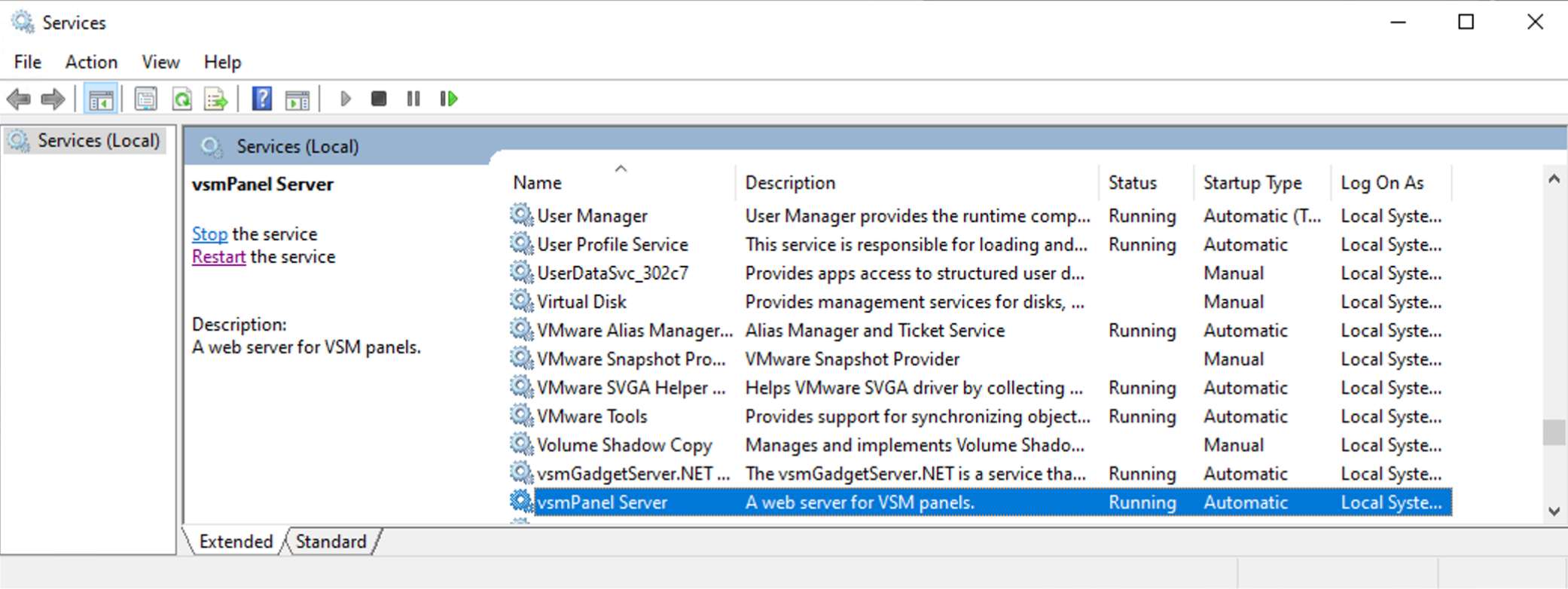
By default, the service starts automatically when the Windows machine is started. The startup behavior can be changed in the Windows services UI (services.msc). You can also manually start, restart and stop the service there.
Prerequisites for the operation
After installation but before a vsmWebPanel Client can successfully connect to a vsmStudio Host/ Cluster, some configuration is required on the vsmStudio side.

vsmPanel Server 1.0.0 requires vsmStudio Release 26.1.1 (B2494) or newer.
Pre-Shared Key
To identify a vsmWebPanel Server in vsmStudio, a Key must be shared between vsmStudio and the respective vsmWebPanel Server. This key can be generated in vsmStudio and must be shared with the vsmWebPanel Server.
In order to create a Pre-Shared Key please refer to the respective documentation in vsmStudio - Pre-Shared Keys.
Creating Users
vsmWebPanel Clients have to login with a valid User account. Users must be known on the vsmStudio system.
In order to create a new User please refer to the respective documentation in vsmStudio - Users.
Once a User is created and enabled on the vsmStudio system, the respective User will be able to login with his credentials as a vsmWebPanel Client from any modern web browser.
Configuration of the vsmWebPanel Server
Before Users can finally sign in as vsmWebPanel Clients and open their assigned panels, the Panel Server must be set up once. This setup can be done via webBrowser UI.
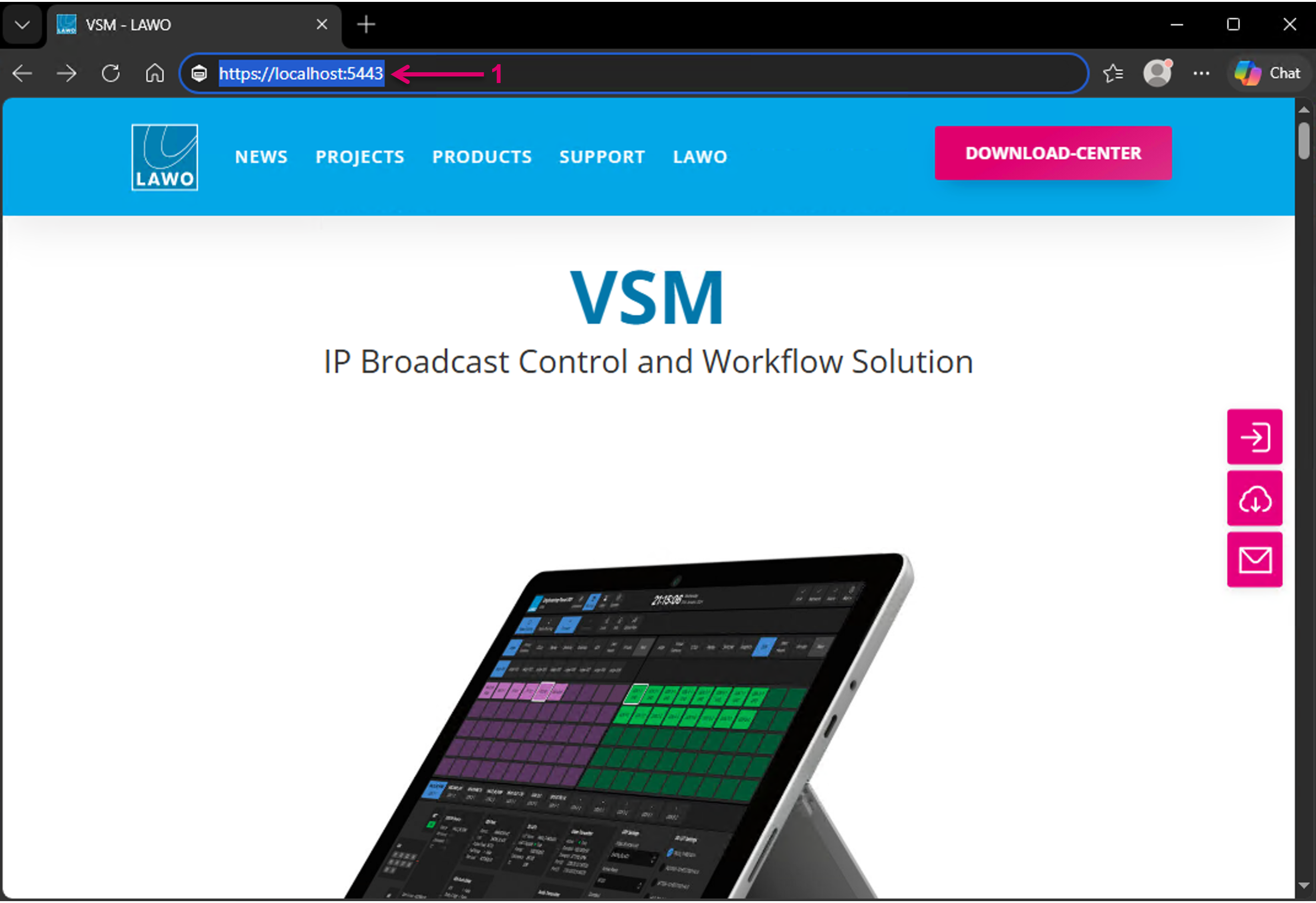
Therefore, open a webBrowser window, like Edge, Chrome, Safari, Firefox, and connect to the vsmWebPanel Server via url: "https://hostaddress:5443" (1).
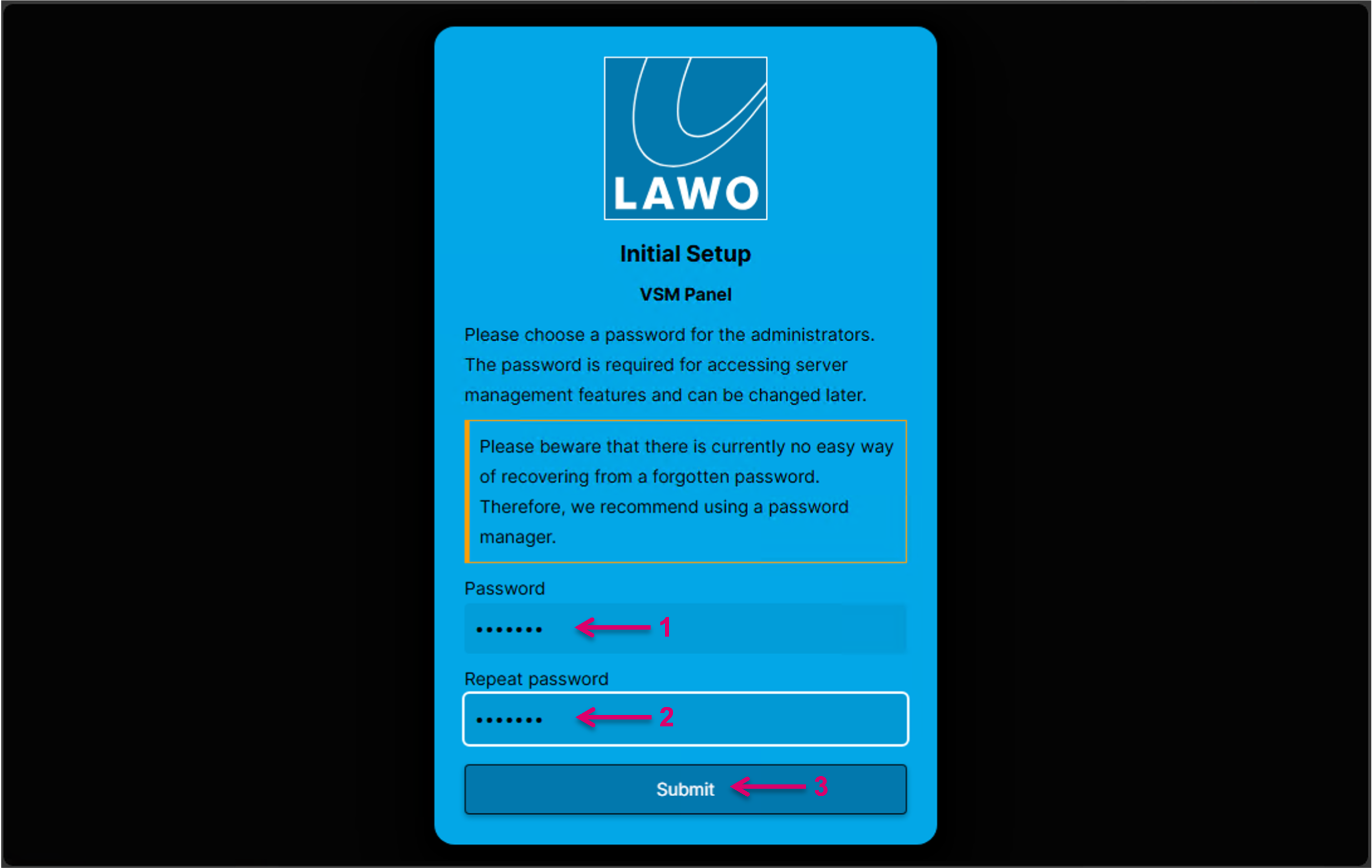
At first connection and part of the Initial Setup, it is required to set an Administrator Password. This password is required for accessing Server specific management features. The password can also be changed later. Set (1) and Repeat (2) the chosen Password. Confirm with Submit (3).
Please be aware that there is currently no easy way of recovering from a forgotten password. Therefore, we recommend using a password manager. If resetting the Administrator Password is required later, following steps are necessary:
- On the machine where the server is installed, navigate to the installation folder and delete
\vsmPanelServer\Data\credentials.json - Restart the vsmPanel Server service.
- The next time you connect to the server, the Initial Setup dialogue will appear again and prompt to choose a new Administrator Password.
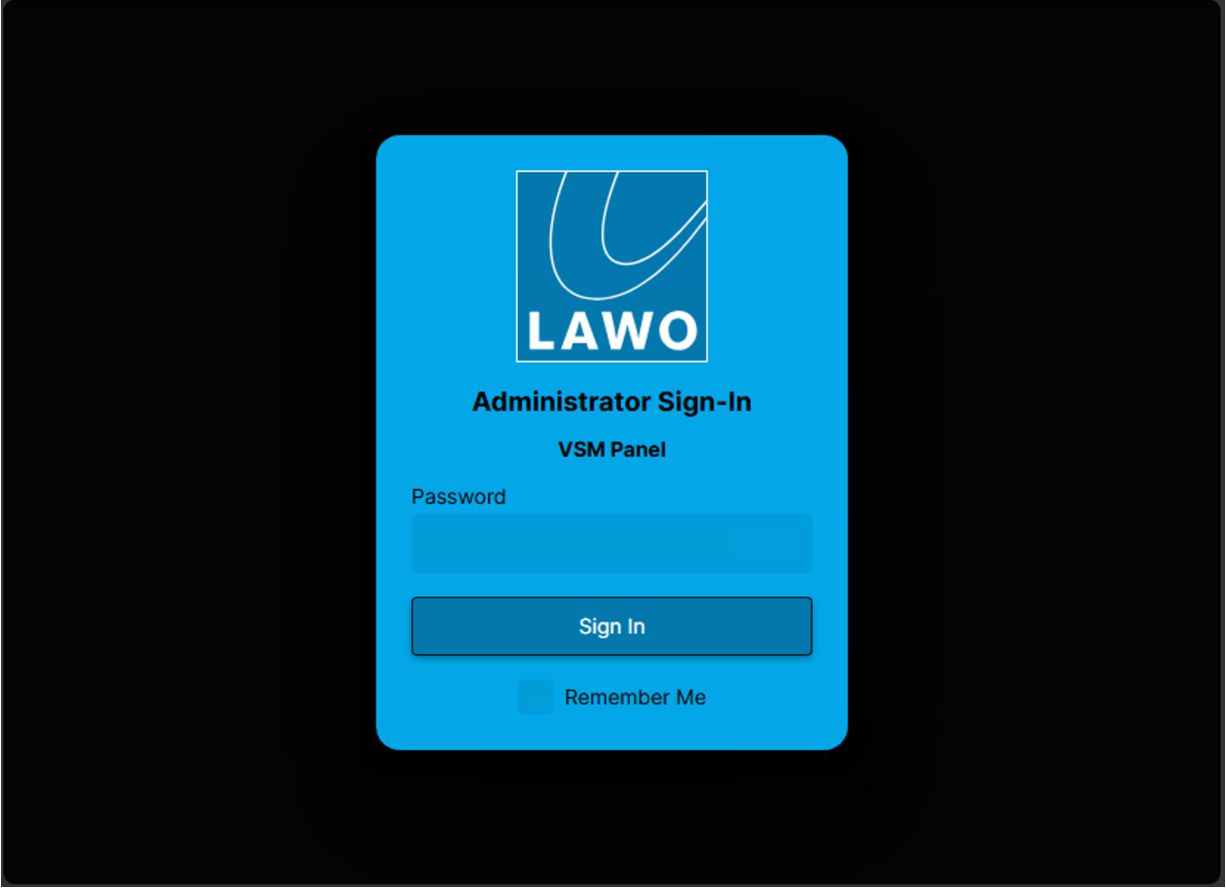
In the next step, sign in with the Administrator Password (1). With the "Remember Me" option (2), it is possible to stay logged in for a period of 24h. Proceed with Sign In (3).
In the next step, the Administrator gets access to the Panel Server Settings (1). Under tab Server (2) an optional Display name can be set (3). Otherwise the name of the Panel Server will be used and displayed (4). Also on this tab, the Ports for HTTP and HTTPS can be set (5). Default value for HTTPS port is 5443 (6). Section TLS allows to configure a Certificate for HTTPS (7). Confirm any settings with Save (8). Please note that some settings might require a server restart to take effect.
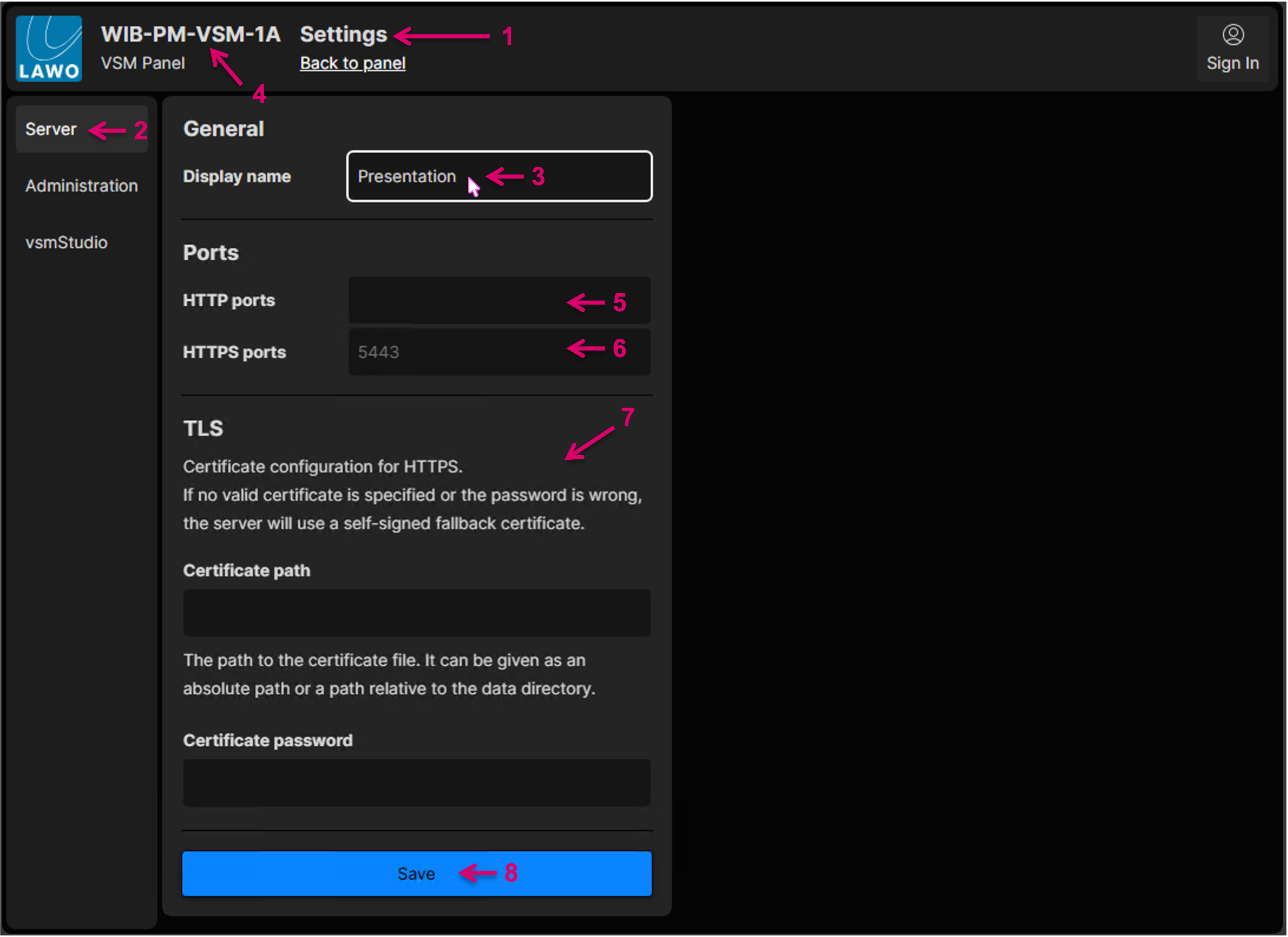
The server will always redirect the client to HTTPS if possible. Removing the HTTPS port to force HTTP is not recommended for security reasons.
All vsmStudio Host related settings can be accessed under tab vsmStudio (1). Here the Host IP addresses of the respective vsmStudio Host Servers (one up to six) can be entered (2).
To enable a secure communication between the vsmStudio Host and the vsmPanel Server, it is mandatory to Import a Pre-Shared Key, generated in vsmStudio. Please refer to vsmStudio - Pre-Shared Keys for further information. The Key must be copied from the respective vsmStudio system and pasted here (3).
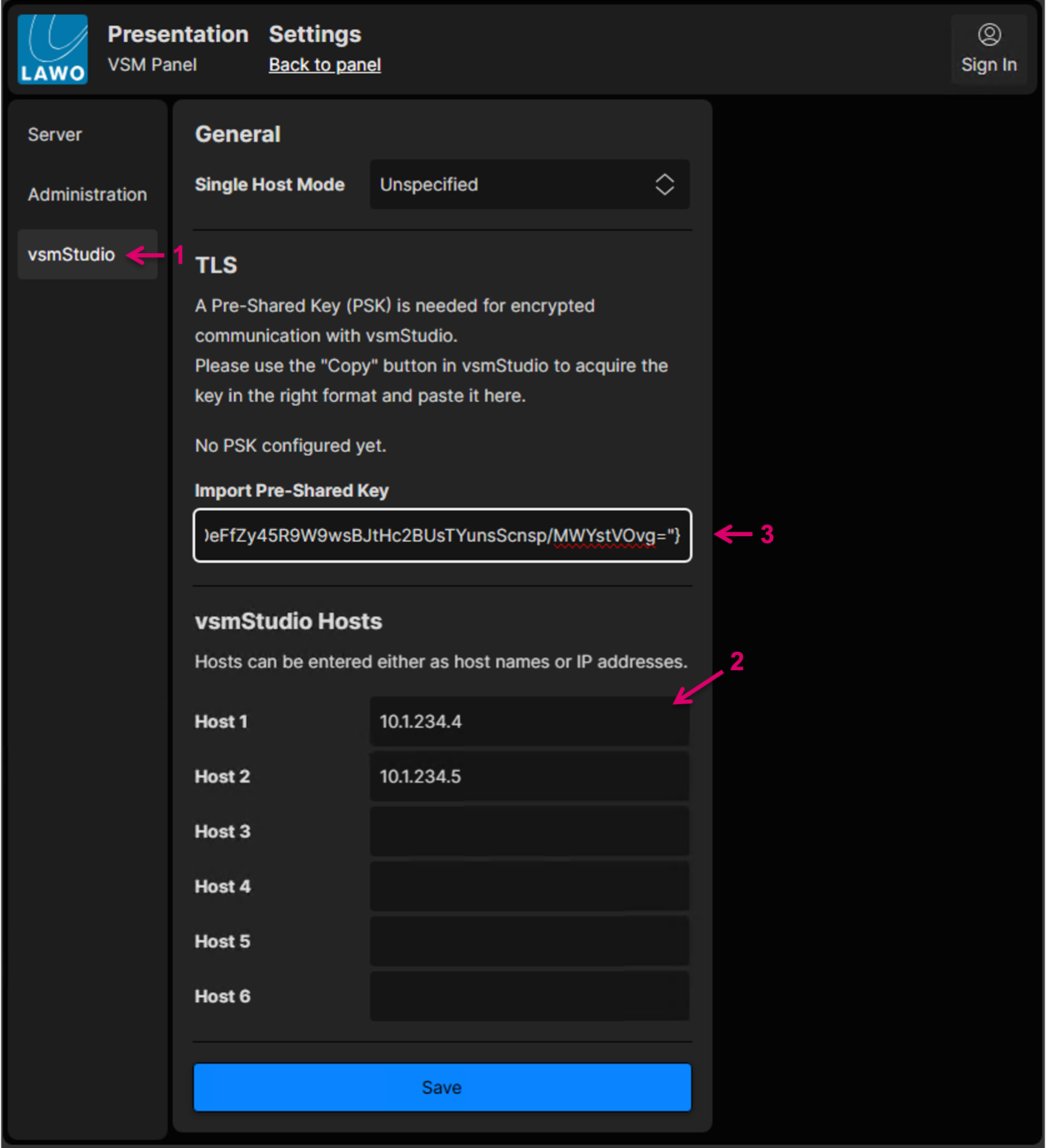
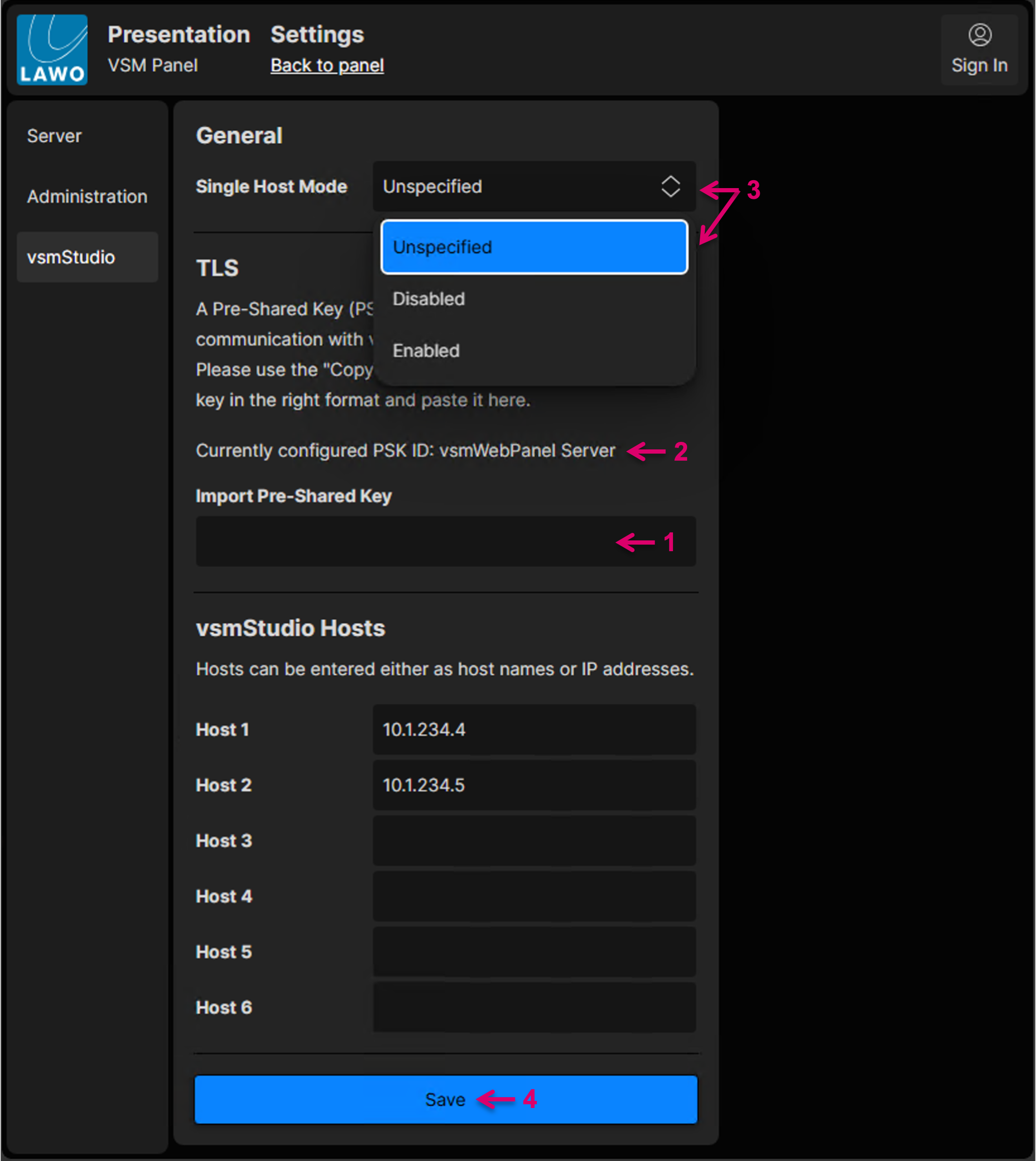
The Pre-Shared Key will not show again (1) after it was saved on the Panel Server and the UI was switched once to a different tab. To identify if any and which Pre-Shared Key is active, the Name/ID is displayed (2).
By default the vsmPanel Server will connect to the vsmStudio system based on the VSM Zonemap. Means, initially the Server will connect to any of the entered vsmStudio Hosts, depending on who will answer first. In case the chosen Host connection gets lost, the Panel Server will connect to any other Host announced via the Zonemap. This default behavior can be changed via Single Host Mode (3). The selectable options for Single Host Mode are:
- Unspecified: Current default behavior, failover based on Zonemap
- Disabled: Single Host Mode off, failover based on Zonemap
- Enabled: Single Host Mode on, Zonemap will not be considered
Confirm any settings with Save (4). Please note that some settings might require a server restart to take effect.
Please note that if a configuration is loaded the first time onto a vsmStudio Cluster, Users may have to be manually "lifted from Quarantine" on each Cluster Server.
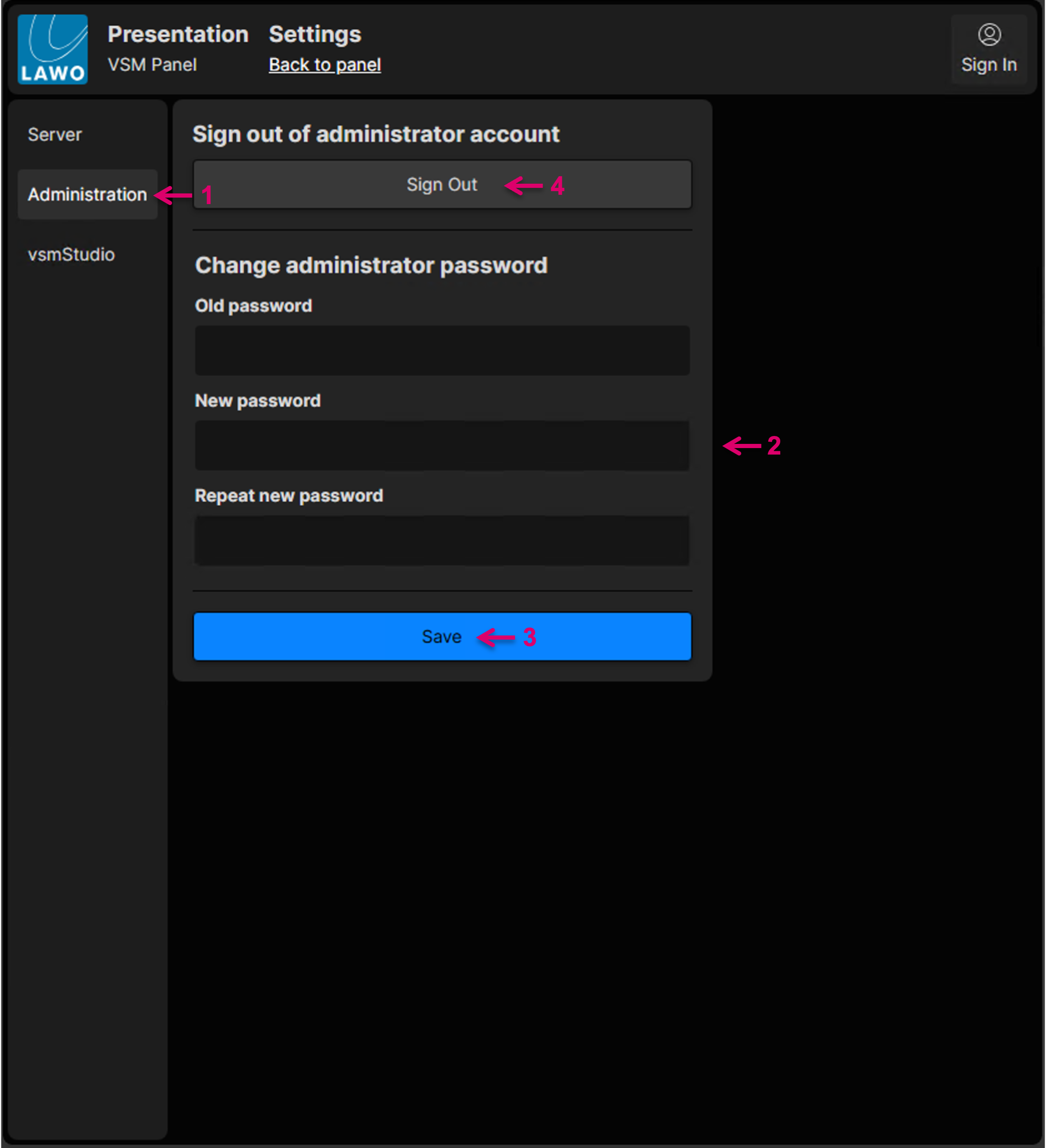
Under tab Administration (1) it is possible to set a new Administrator Password (2). Confirm the new Password with Save (3). Please note that some settings might require a server restart to take effect. Also in this window, the Administrator can Sign Out (4).
Once Signed Out from the Administrator Account, the Panel will show the "Connecting to vsmStudio" screen (1). The Sign In button in the top-right corner of the screen (2), indicates that no User is signed in at this point. Via click on the Sign In button, it is possible to get back to the Administrator Sign-In, by selecting Server Settings (3). Or a User can Sign In (4) as webPanel Client.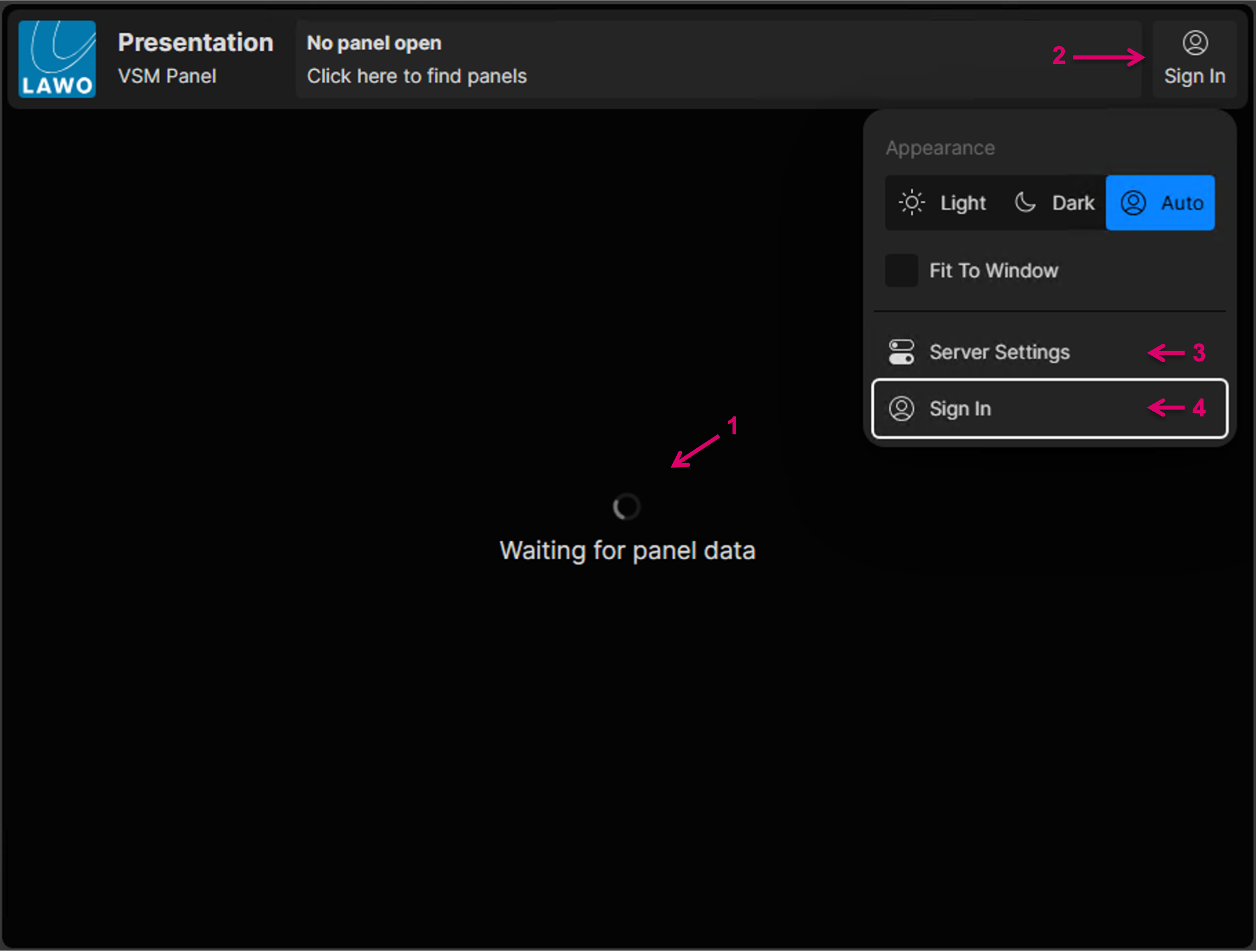
vsmWebPanel Client Sign-In and Panel operation
If selecting Sign In, the User can enter his Username (1) and Password (2). If the "Remember Me" option (3) is checked, the User will remain signed-in on the respective Client machine, even if the browser is closed over a period of 24 hours, or the page is reloaded. Confirm entries with Sign In (4) to access and operate the Panels assigned to the respective User.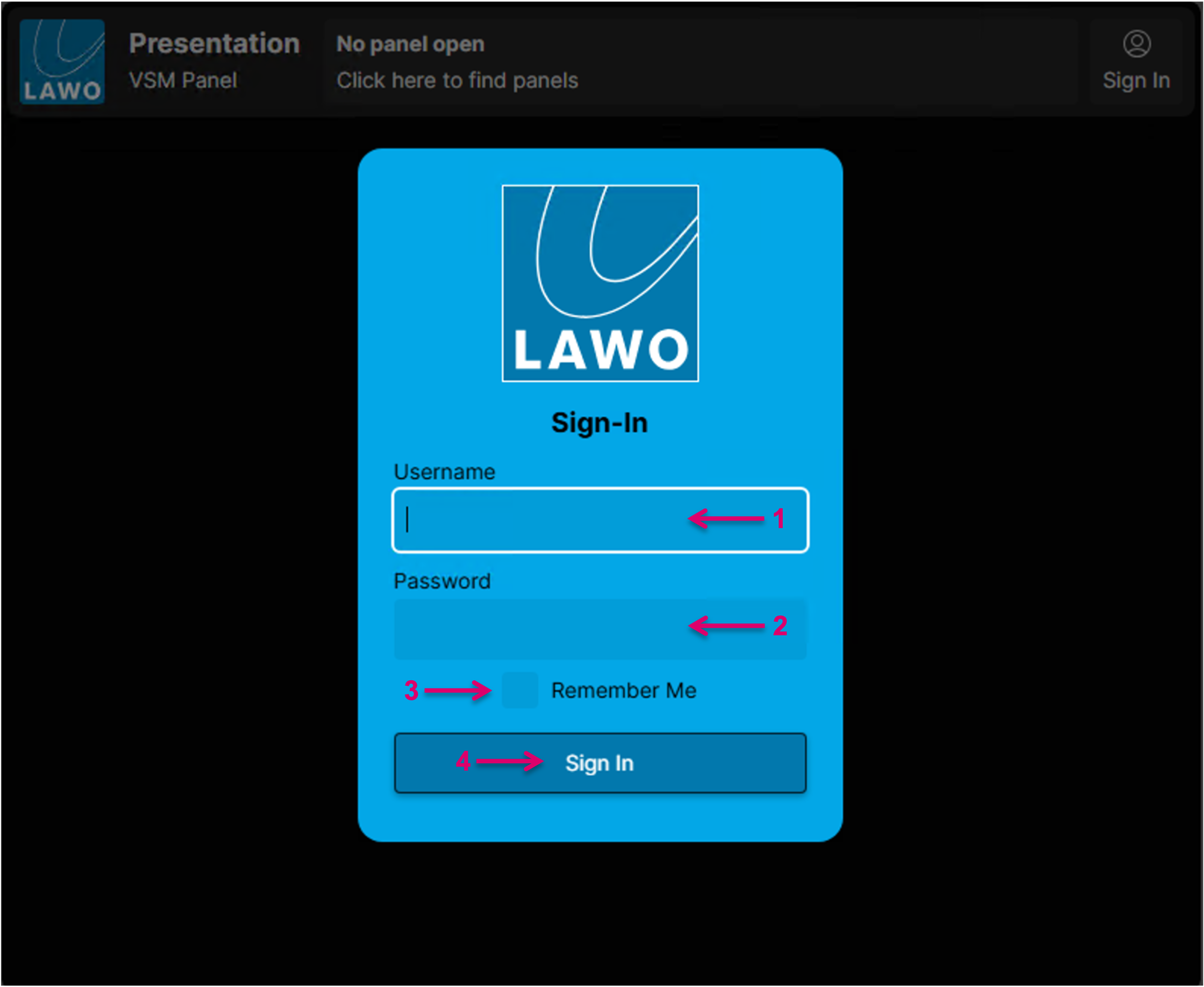
It may be required by the Administrator to change the User Password (1) if the respective option was set accordingly within vsmStudio. In this case enter (2) and repeat (3) the new password and confirm (4). 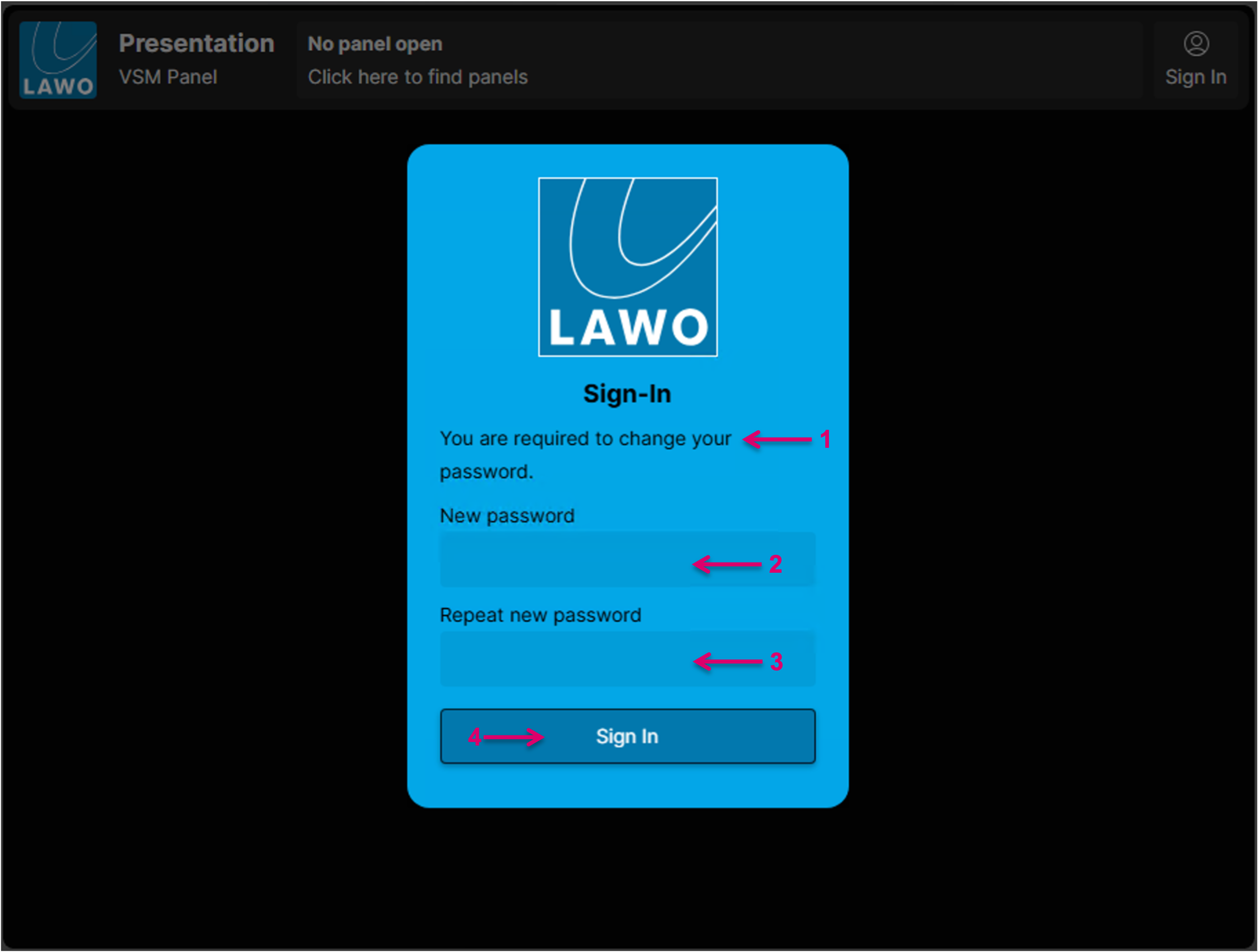
Enter the new credentials (1), if desired check the "Remember me" option and Sign In (3).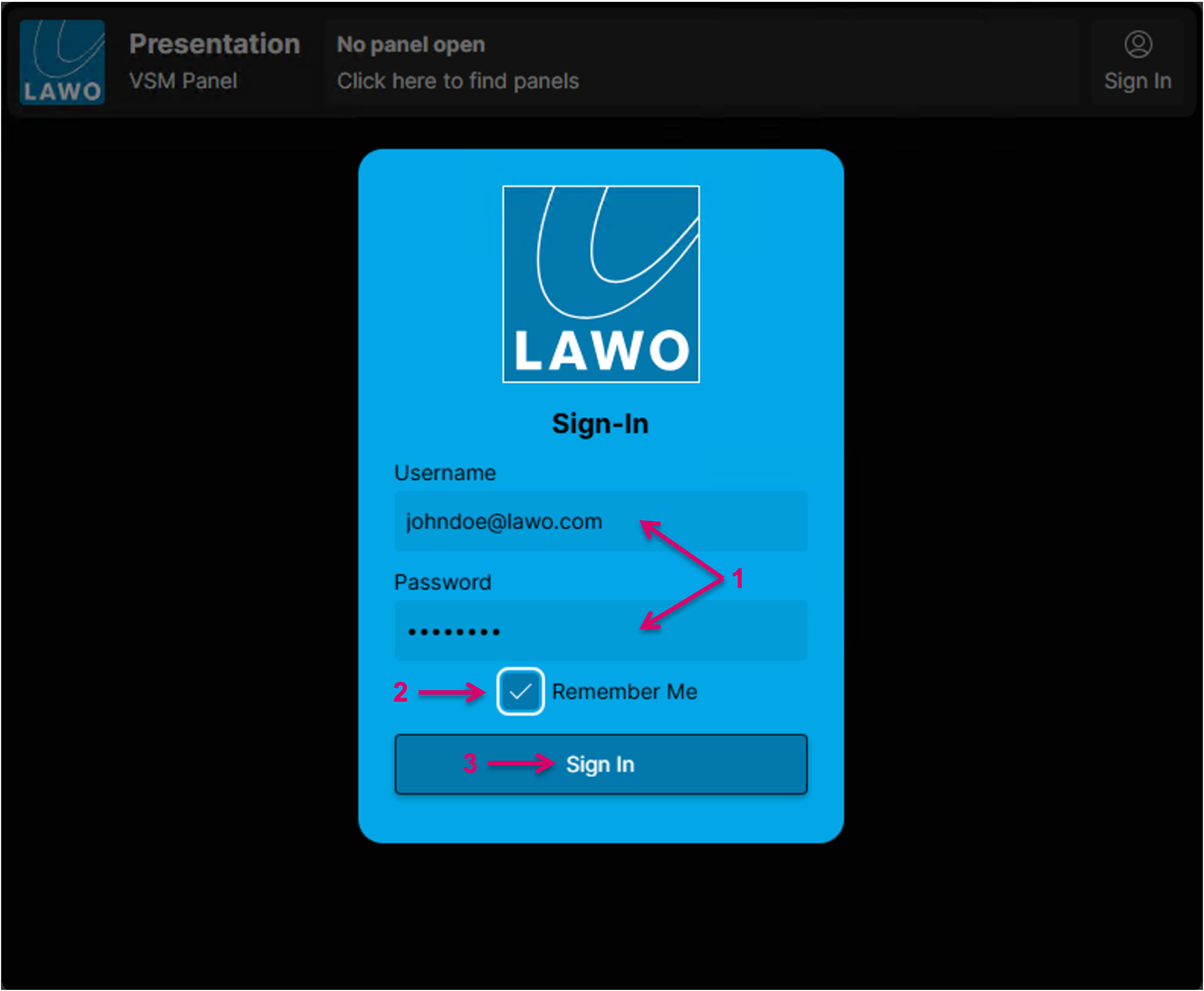
Once the User has successfully signed in, the respective Username is displayed in the top-right corner of the screen (1). The User can now access a list of assigned panels by click on the top bar (2) and select and open any of the listed panels (3).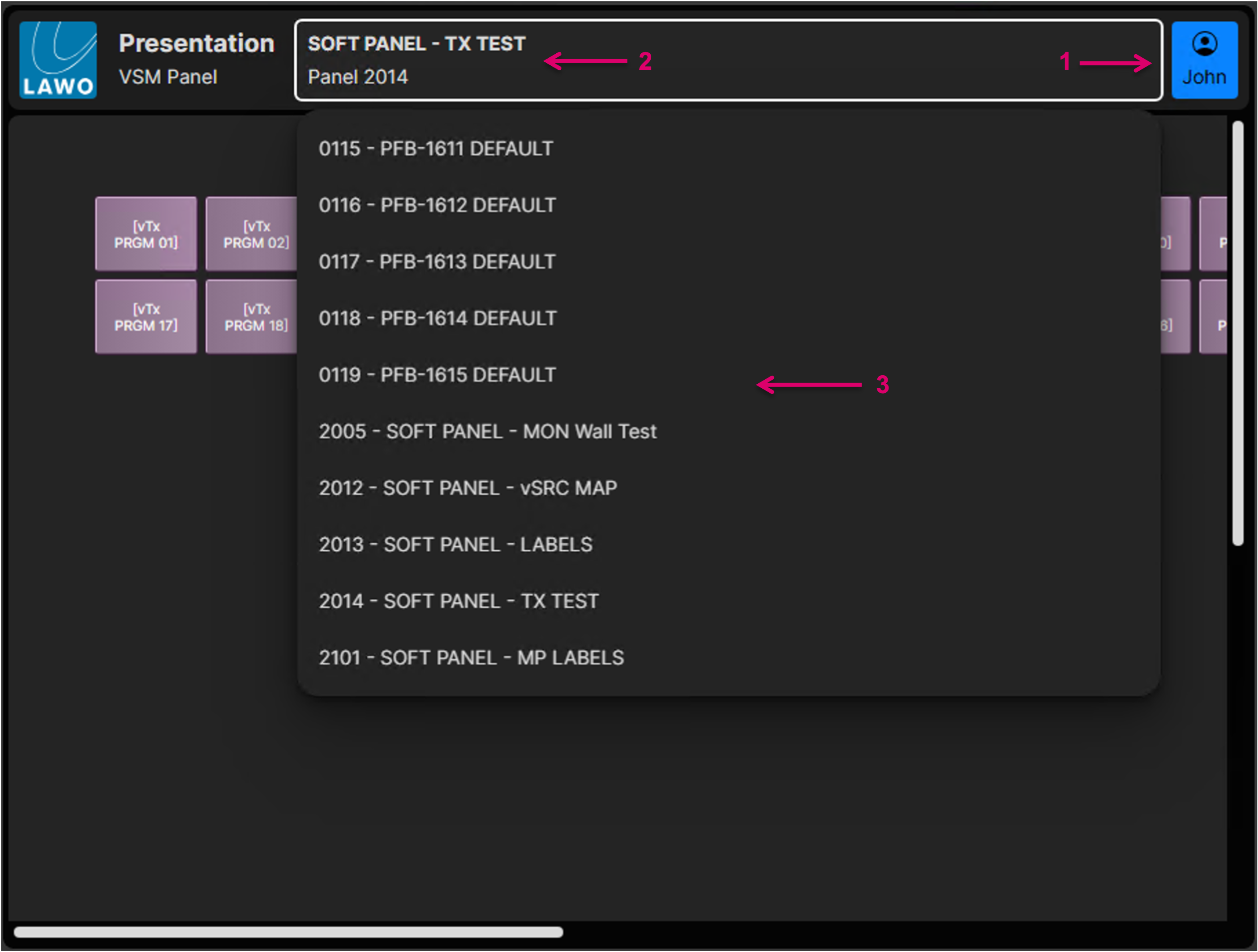
In case that the actual Panel size does not fit to the size of the Browser window, the "Fit To Window" option (1) allows to scale the panel into the available window (2).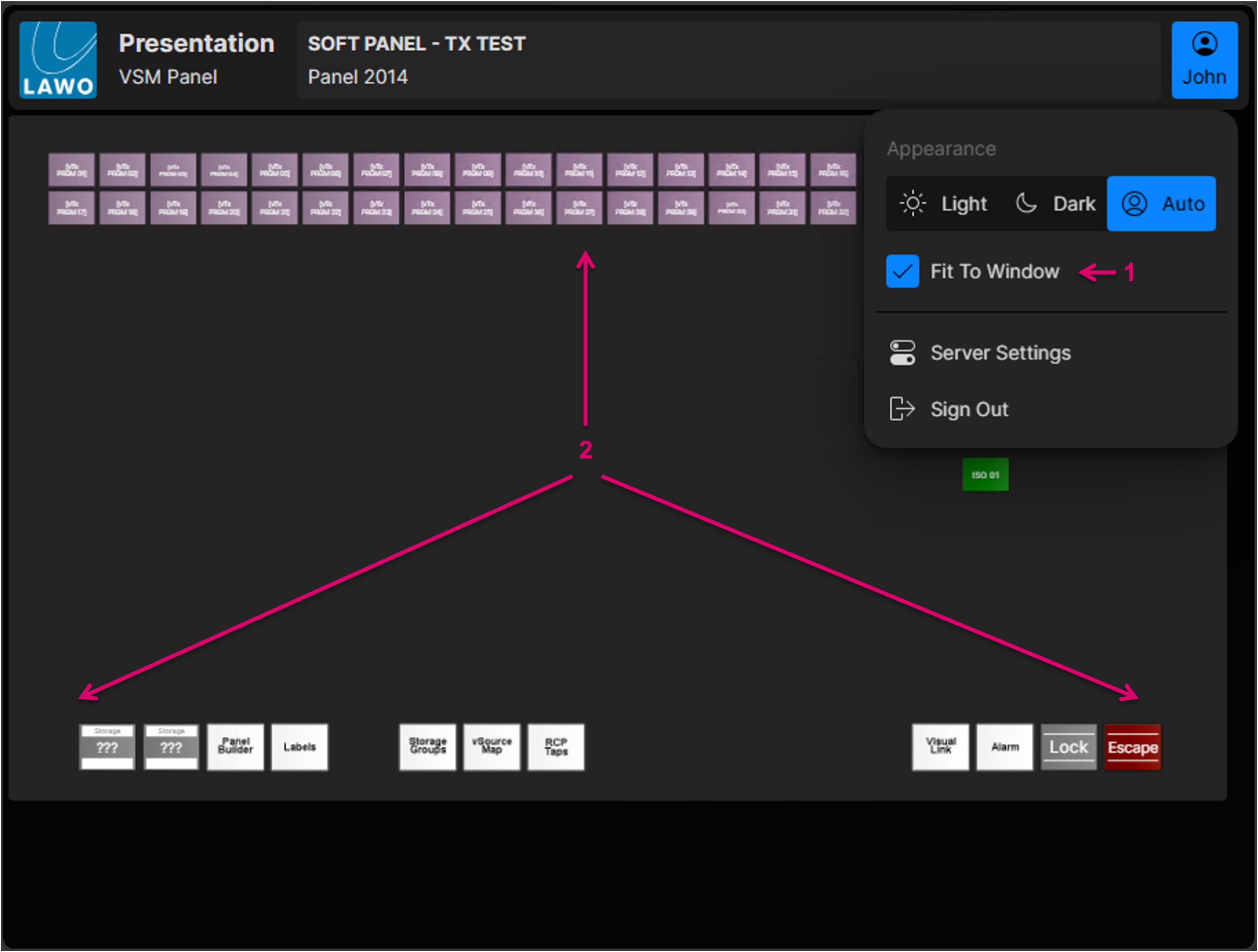
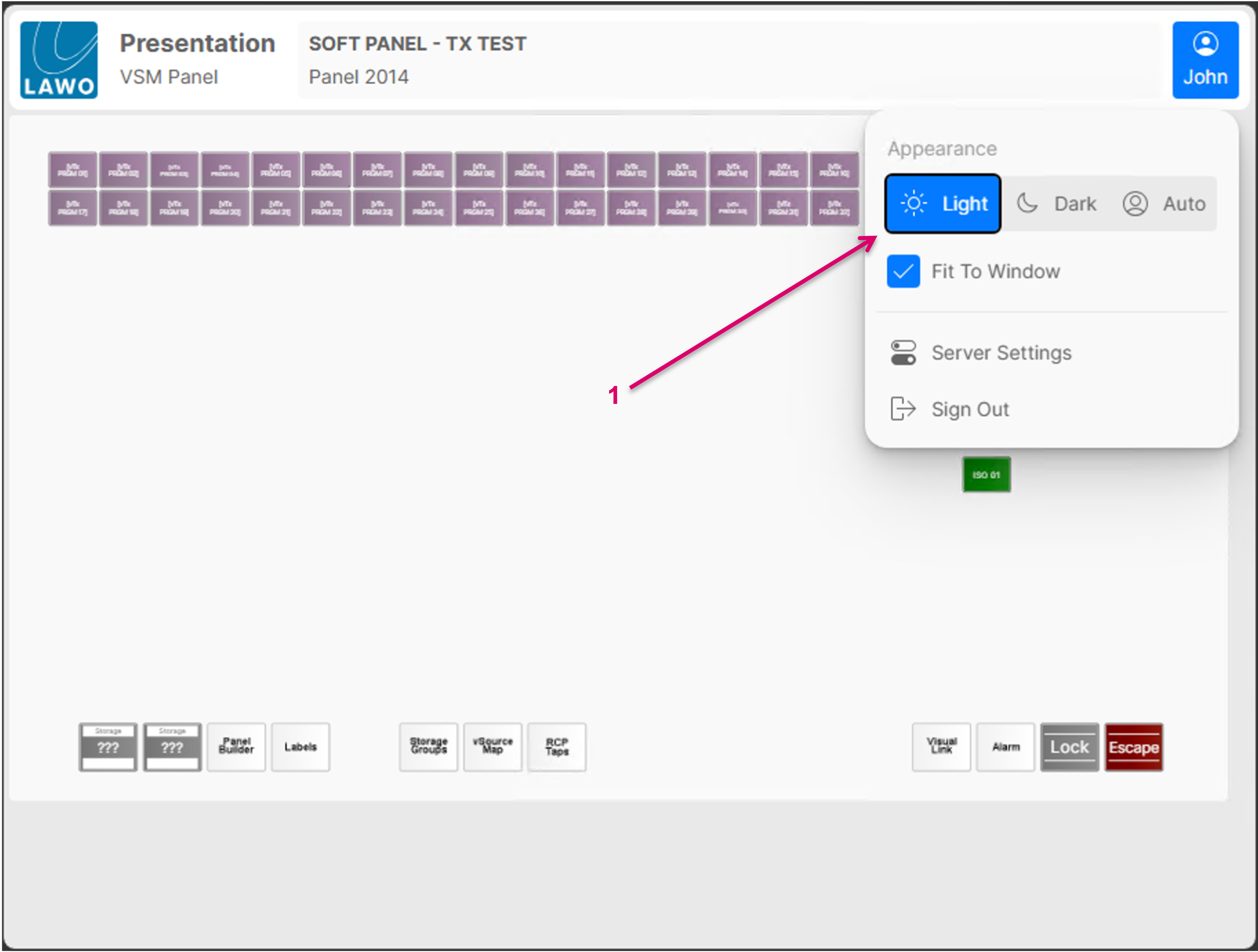
The general Appearance of the Panel can be modified with the option to switch between Light and Dark mode (1). Auto will follow the respective Server settings.
Although vsmWebPanel primarily mimics hardware panels in regards of the useable button functionality, a limited amount of page items for dedicated software panel application are available, e.g. Textboxes or Background pictures. Please note that other (unsupported) page items are possibly just rendered as simple rectangles with no further functionality.