HOME - Interrogate a Source or Destination
This topic describes how to interrogate a source or destination from HOME's 'Stream Routing' page.
Interrogation (for Senders)
Once a source is connected, a number appears in the "source used" column. This indicates the number of times the source is used. i.e. the number of connections made.
If you hover over the Essence icon, then a short description of the stream content appears.
To view more information about a sender, click on the Info button (to open the 'Info' dialog). From here, you can view or edit the parameters of the sending stream, or navigate to the 'Device → General' settings (for the sending device).
Show Destinations
The connections from a sender can be interrogated using Show Destinations as follows:
1. Select a source and click on Show Destinations.
The view updates to show only the destinations of the selected source (or sources).
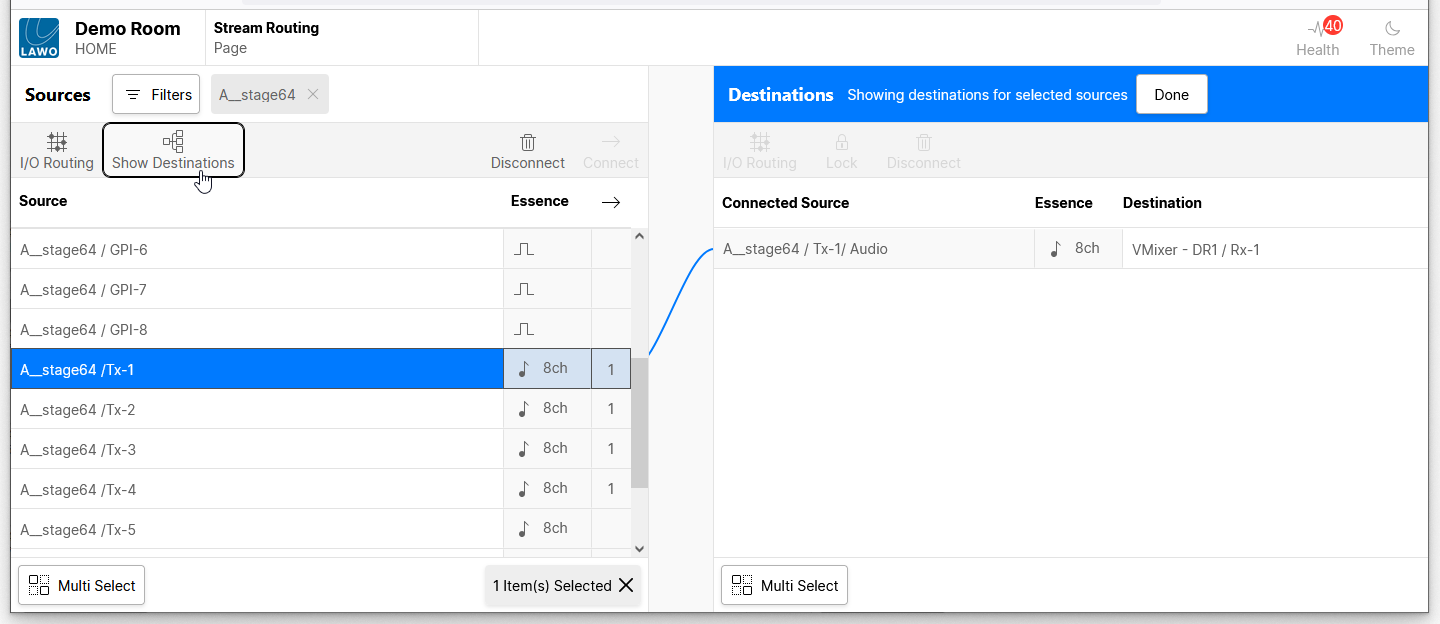

Tip: You can select a different source, or use SHIFT or CTRL to select multiple sources, while Show Destinations is active.
2. Click on Done to exit the "Show Destinations" view and return to the list of all sources and destinations.
Interrogation (for Receivers)
Once a destination is connected, the "Connected Source" field shows the label of the connected stream.
As above, you can hover over the receiver's Essence icon or Connected Source to see a useful tooltip.
To view more information about a receiver, click on the Info button (to open the 'Info' dialog). From here, you can view or edit the parameters of the receiver, or navigate to the 'Device → General' settings (for the receiving device).
"Connected Source" Field Icons
In each case, hover over the icon to reveal more information.
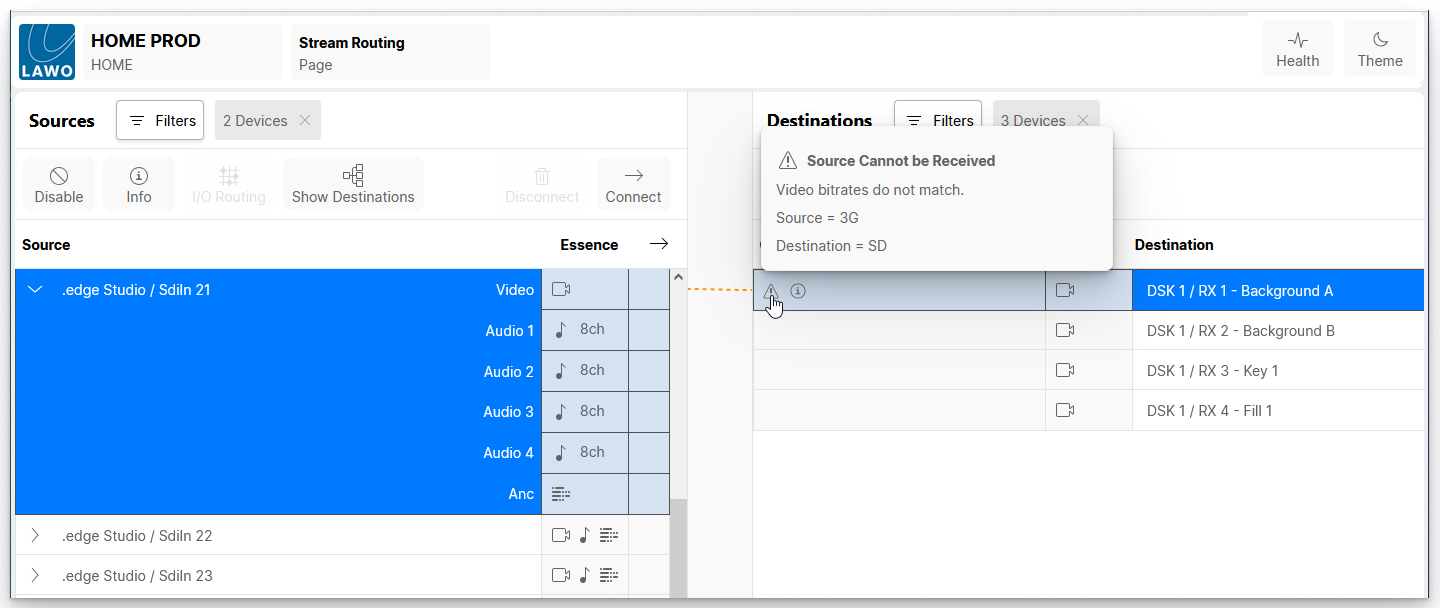
There are three possible icons. All three can be active.
- 'Warning' (triangle icon) = Source cannot be received.
This icon appears if the connected stream cannot be received. For example, if the video bitrates do not match or the receiver is configured for a different stream transport protocol.
A 'Warning' icon requires some action to be taken if the stream is to be successfully received. - 'Info' (circle icon) = Not all channels will be received.
This icons appears if the number of channels carried by the sender exceed those of the receiver. For example, if you connect a 64-channel audio sender to an 8-channel audio receiver.
An 'Info' icon is for information only and can be ignored if, for example, the missing audio channels are not required. - 'Stream Disabled' (no entry icon) = Source disabled.
This icon appears if the sending stream has been disabled using the Disable function (described here).
It serves as a reminder that the sender must be enabled if the stream is to be successfully received.
In each case, the issue can be corrected by modifying the configuration of the sender or receiver.