HOME - Managing Perpetual Licenses
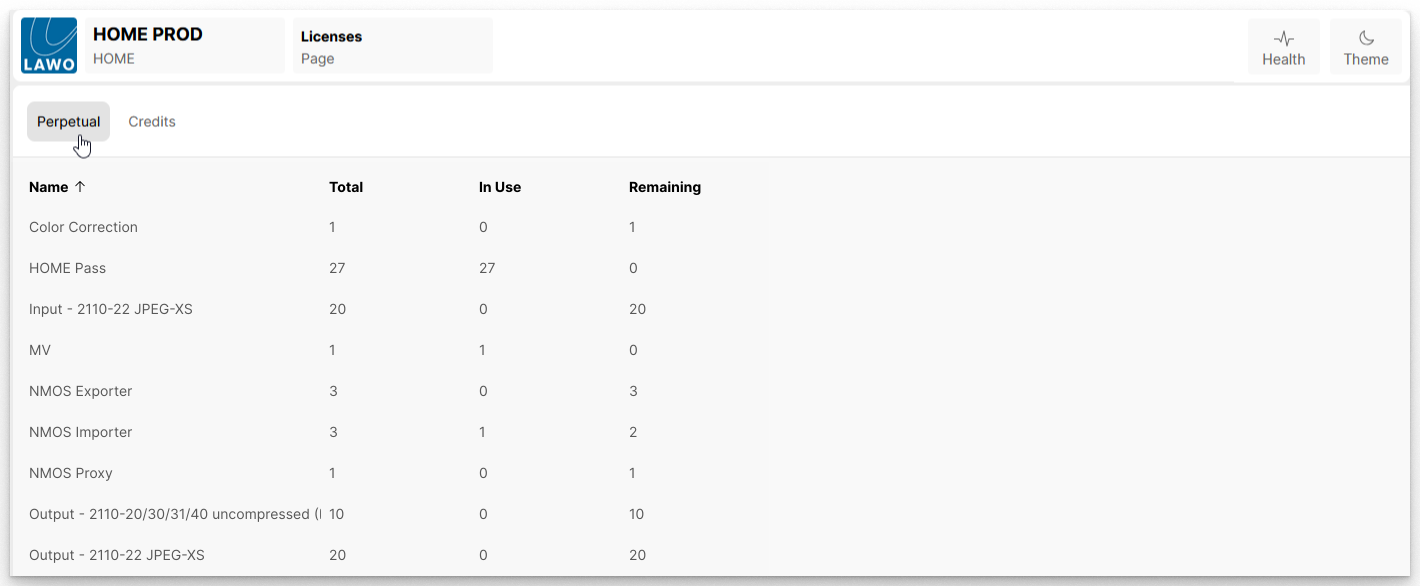
The perpetual licenses listed in HOME's 'Licenses' page (Perpetual tab) provide permanent access to specific functionality within HOME or HOME Apps.
The list shows all perpetual licenses stored on the HOME system (by Name). For each license type, you can check the Total amount of available perpetual licenses, the number In Use and the number Remaining.
Important: Once a perpetual license is installed, it is locked to the HOME system and cannot be transferred. This guarantees permanent availability of the licensed function for the lifetime of the system.
This topic describes how to install and check the perpetual licenses.
Installing New Perpetual Licenses
Individual licenses for HOME and HOME Apps can be ordered in the usual manner from your local Lawo sales representative. For more information about the available licenses, please see:
When a perpetual license order is delivered, the customer receives a number of license files (*.lic) that must be uploaded to HOME using the 'Files' page. Once the file upload is complete, the newly available perpetual licenses appear in the 'Licenses → Perpetual' page.
How the new licenses are handled varies depending on the license type. The instructions below describe how to upload a new licensing file to HOME and then check the available licenses for HOME and HOME Apps.
Upload the License File(s)
To upload a new licensing file:
- From HOME, open the 'Files' page and select the Licenses sub-folder.
Here you will see a list of all existing license files (*.lic) that have been previously uploaded. If this is a new installation, then the list will be empty.
Note that the list will include all license files for all products (e.g. for .edge, HOME and HOME Apps).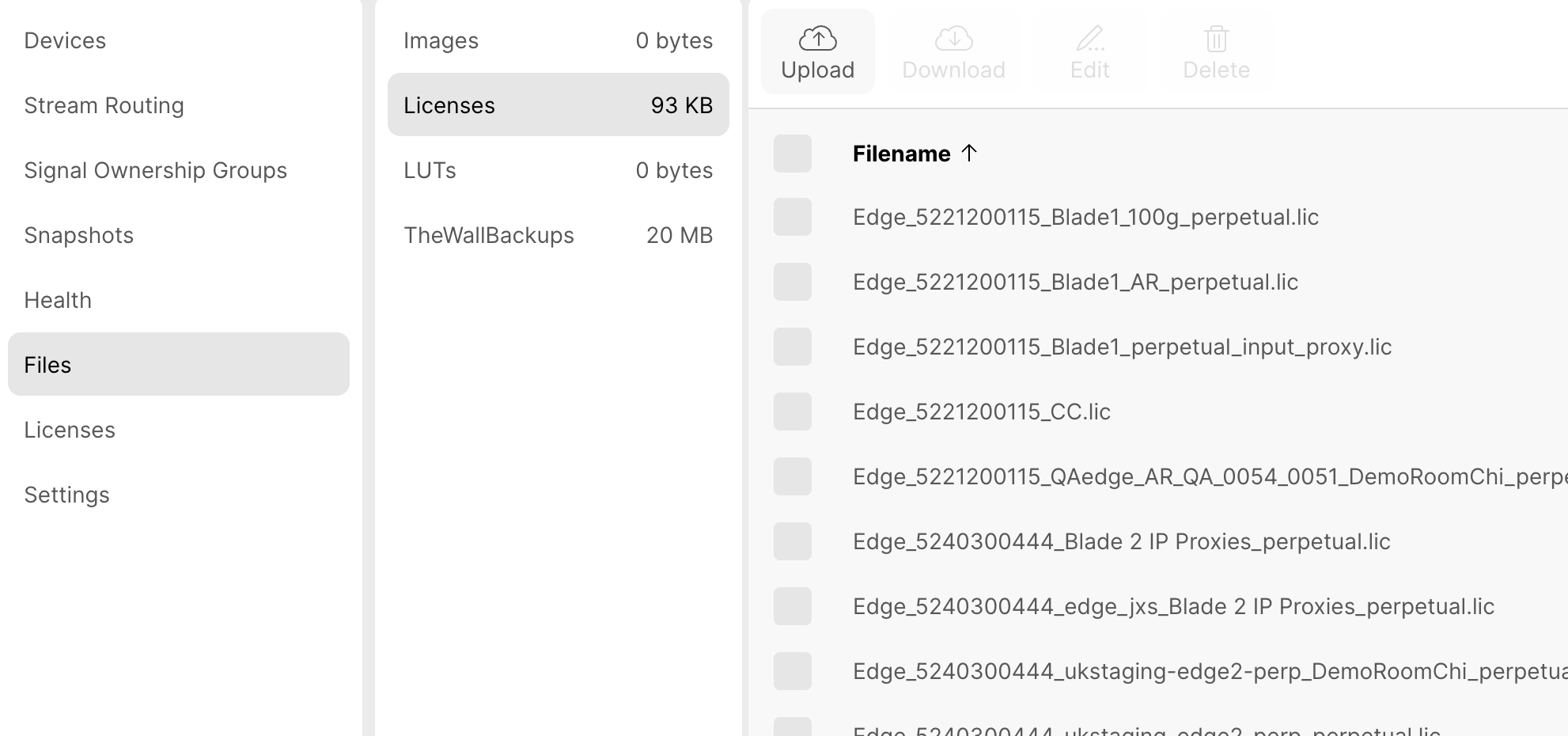
- Click on the Upload button and then follow the on-screen instructions.
You can either choose the files to upload (using File Explorer) or drag and drop the license files into the dotted outline area. - Once the upload is confirmed, the file(s) are transferred to the HOME system server(s).
- At the end of this process, check that the 'Files → Licenses' list includes the new (*.lic) files.
Check the Available Perpetual Licenses
- Once the file upload is complete, open the 'Licenses' page and select the Perpetual tab.
- Check the Total and Remaining columns for the newly installed licenses. The numbers should have increased!
- Once the licenses are listed in the Perpetual tab, the installation is complete.
How are new Perpetual Licenses assigned?
For HOME Apps, the newly available perpetual licenses are allocated automatically, by HOME, when the user starts an app. By default, HOME will use all available perpetual licenses first, and then top up with credits. If you wish to force an app to use only perpetual licenses, or only credits, then this can be done by changing the License Type of the app.
For HOME Passes, at the end of the license file upload, the system initiates an automated process whereby the newly available HOME Passes are assigned to the inventory items (except for NMOS gear which should be introduced later). The automatic assignment of HOME Passes ensures that the setup of any new Lawo gear is simple. Thereafter, the system switches to a manual assignment process (to avoid any accidental reassignments during operation, and allow users to add or remove HOME Passes manually). This is explained further in HOME Passes.