HOME System - HOME Passes
HOME V4.0 (OR HIGHER)
From HOME v4.0, the configuration and control of inventory items requires a management license known as a HOME Pass.
In summary...
- A valid HOME Pass is required for each device, app or service that you wish to configure and control from HOME.
- This can be achieved using either a perpetual "HOME Pass" license or an equivalent amount of credits.
- From HOME v4.0 onwards, all new Lawo gear (including HOME Apps) ships with a perpetual HOME Pass license (included).
- HOME Passes for any NMOS-compatible or third-party devices must be ordered separately. In this instance, 1x HOME Pass is required for each operational device.
- HOME Passes are generic and can be used for any device, app or service.
- The assignment of HOME Passes is controlled from the ...More drop-down menu in HOME's 'Devices' list. This allows users to manually reassign HOME Passes (as described here).
In more detail...
HOME Passes apply to all Lawo physical devices, HOME Apps and app servers; NMOS and 3rd-party Lives@HOME devices; Lawo Services and software functionality (XCS), as well as HOME Proxies.
Note that a HOME Pass is not required for a redundancy group, but is required for the redundancy group members.
The current status can be checked from HOME's 'Devices' page. If a valid HOME Pass is present, then the usual statuses are displayed: Online, Offline, Inactive, etc. If there is No HOME Pass available, then this is indicated in the Status column (as shown below).
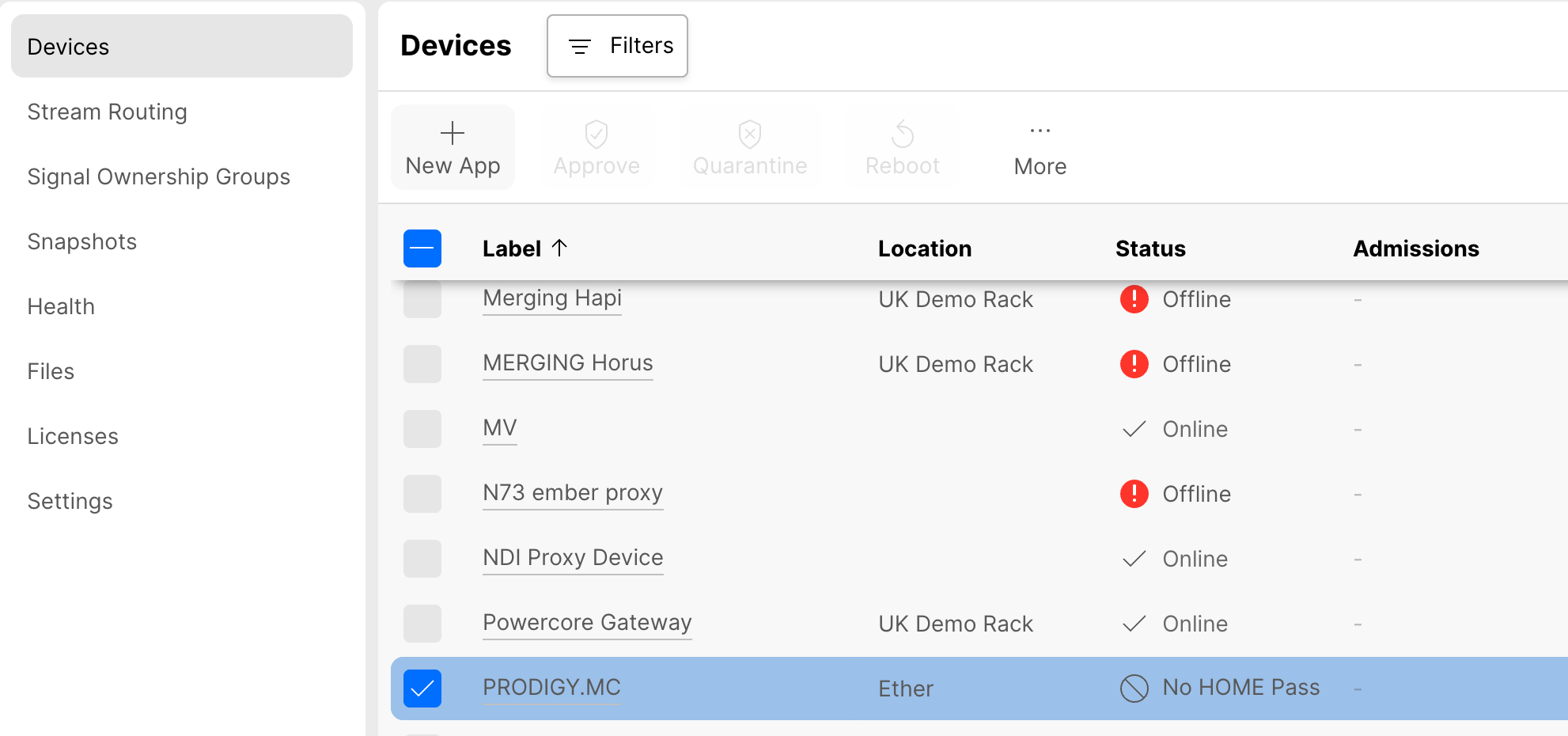
If a device/app/service has a valid HOME Pass, then it can be:
- configured through the HOME UI.
- controlled through the HOME UI.
- controlled through the HOME API.
- exported via the HOME NMOS Exporter (applies to specific inventory items only, as described here).
If a device/app/service has No HOME Pass, then it is included in the 'Devices' list (as part of the inventory) but the operations above are NOT possible.
In addition to the No HOME Pass status, red warning messages appear if the user attempts a restricted operation. For example, if you click on the device label, to open the 'General' settings, then a page with minimal information appears. From here, it is possible to select Add HOME Pass to start the manual assignment process (described below).
ADD IMAGE
Using Perpetual Licenses or Credits
HOME Passes are supported by Lawo's Flex licensing model. This means that a valid HOME Pass can be achieved using either a perpetual "HOME Pass" license or an equivalent amount of credits, where the system uses any available perpetual licenses first and then tops up with credits.
From HOME v4.0 onwards, all new Lawo gear ships with a perpetual HOME Pass license (included) and so customers will receive a new licensing file with their order. If you wish to manage other gear (NMOS-compatible or third-party devices), then this can be achieved by ordering additional HOME Pass licenses (or assigning an equivalent amount of credits). In this instance, 1x HOME Pass is required for each operational device.
Note that, for a HOME Apps system, enough perpetual licenses are included for the individual app instances and configured app server(s). In this instance, a HOME Pass is only required when users start an app, and not for apps that are configured but inactive.
Installing New Perpetual Licenses
Perpetual HOME Pass licenses are received in the form of a new licensing file, which should be uploaded to the system in the usual manner (using HOME's 'Files' page).
At the end of the file upload, the system initiates an automated process whereby the newly available HOME Passes are assigned to the inventory items (except for NMOS gear which should be introduced later). The automatic assignment of HOME Passes ensures that the setup of any new Lawo gear is simple. Thereafter, the system switches to a manual assignment process (to avoid any accidental reassignments during operation, and allow users to add or remove HOME Passes manually).
Please note:
- The HOME Passes for imported NMOS devices must be assigned manually (after the automatic assignment process).
- For physical devices, the HOME Pass assignments persist when a device is offline or disconnected. If you wish to remove a HOME Pass, then this must be done manually (using the Remove HOME Pass option).
Once the new licensing file upload is complete, the amount of available HOME Passes, and their usage, is shown in HOME's 'Licenses → Perpetual' page.
User Assignment of HOME Passes
While it is recommended to preserve a HOME Pass for each inventory item, it is also possible to swap HOME Passes between items within the same HOME system. For HOME Apps, this happens automatically when you stop one app and then start another app instance. For physical devices, the HOME Pass assignments are persistent and so if you wish to swap HOME Passes then this must be done manually as follows:
- From HOME's 'Devices' list, select one or more items.
- Click on the ... More button.
- Choose Remove HOME Pass or Add HOME Pass (from the drop-down menu).
- Alternatively, if a device has no HOME Pass and you open its 'General' settings page, then Add HOME Pass can be selected from the red "No HOME Pass" warning banner.
Remove HOME Pass
When one or more HOME Passes are removed, their perpetual licenses, or credits, are returned to the HOME system. The status updates to show that there is No HOME Pass available, and configuration and control of the device (from HOME) is no longer possible or permitted. The newly available HOME Passes can then be assigned to other inventory items by repeating the steps above and selecting Add HOME Pass.
Add HOME Pass
When Add HOME Pass is selected, the system checks for any available perpetual HOME Passes and presents the following dialog.
ADD IMAGE
- If perpetual HOME Passes have been found, then the number required is shown.
- If there are no perpetual HOME Passes available, then the number of equivalent credits is shown.
In each case, users must confirm by typing in the confirmation text.
Assuming there are enough perpetual licenses or credits, the HOME Passes are assigned, and the items can now be configured and controlled from HOME. If you return to the 'Devices' list, the No HOME Pass status is cleared.
How many HOME Passes do I need for my system?
The example below demonstrates how to calculate the required HOME Pass order for a new system or system expansion.
Lets take an example where you are running some existing legacy Lawo gear, and you want to add some new third-party and new Lawo gear.
- Amount of existing legacy Lawo gear and services: A
- Amount of new third-party gear (NMOS, Lives@HOME, etc.): B
- Amount of new Lawo gear: C
Total HOME Passes = A + B + C
Two scenarios may apply:
- Scenario 1 - HOME exists. New third-party and new Lawo gear is being added.
- Scenario 2 - HOME does not exist. New third-party and new Lawo gear is being added, and HOME is added to the system.
In the example below, A (= 8 HOME Passes) + B (= 17 HOME Passes) + C (= 13 HOME Passes) = 38 Total HOME Passes
The table shows how to calculate what is included, and what must be purchased separately, for each scenario.
| Devices | 1: HOME system exists | 2: HOME system is installed with system upgrade | ||
|---|---|---|---|---|
| A |
| 8 HOME Passes for upgrade covered by SLA | 8 HOME Passes need to be purchased | |
| B |
| 17 HOME Passes need to be purchased | 17 HOME Passes need to be purchased | |
| C |
| 13 HOME Passes are included with Lawo Gear | 13 HOME Passes are included with Lawo Gear | |