Lawo VSC - System Optimisation Guide
Lawo VSC handles real-time audio streaming, which can be very demanding on your Macs processor (CPU). Because of this, performance can vary depending on the computer you are using.
For best performance, we recommend the following optimizations:
macOS Tahoe (26.x.x) and Sequoia (Version 15.x.x)
Network optimization
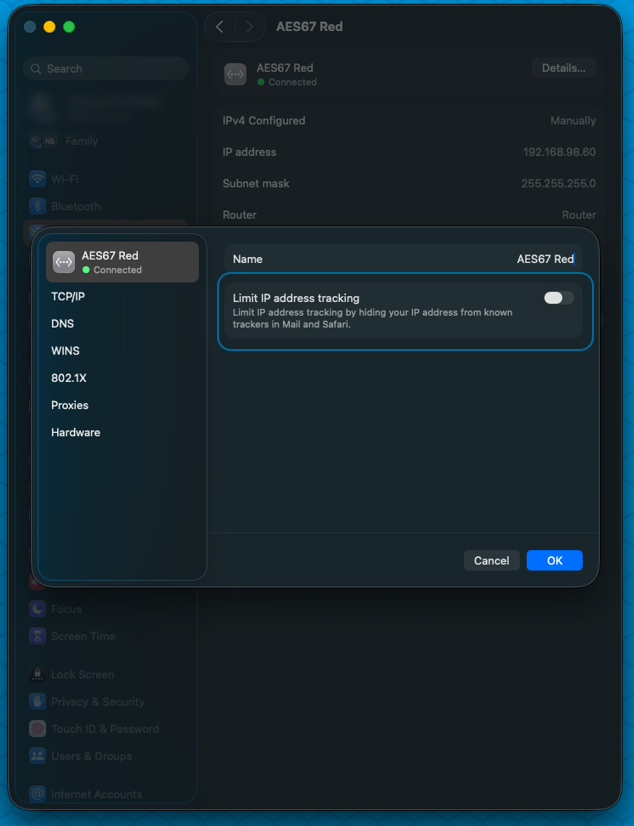
Network settings under Details.. for the streaming interface should be:
- Disable Limit IP address tracking:
- Hardware Settings:
- Speed - 1000baseT
- Duplex - full-duplex
- No energy efficient ethernet
- Disable AVB/EAV Mode
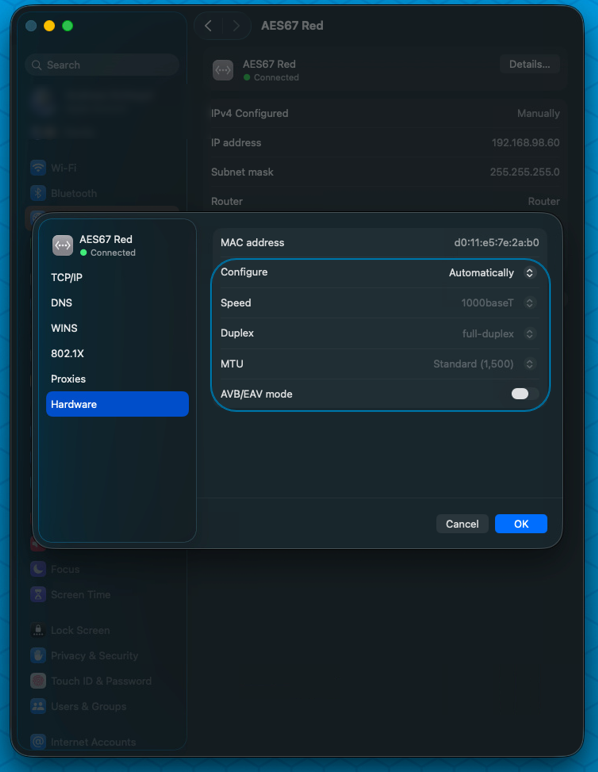

In the shown example "Configure" is set to automatically. If it would bring different settings, they have to be configured "manually". Energy efficient ethernet settings are within "Duplex". Energy efficient settings are not available for every NIC.
- Disable unused Network Adapters
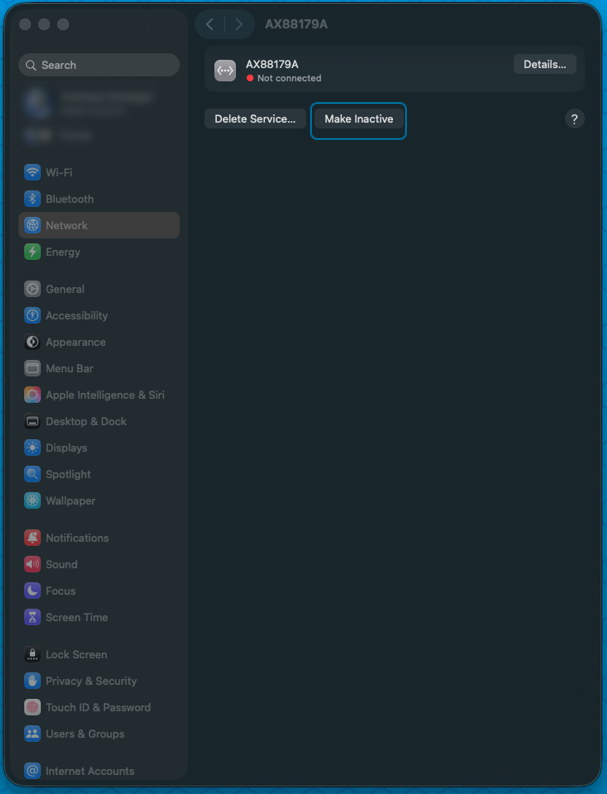
- If possible, also disable WI-FI and Bluetooth
Energy optimization
We recommended to do the following Energy Settings:
- Disable Low Power MOde
- Enable Prevent automatic sleeping when the display is off
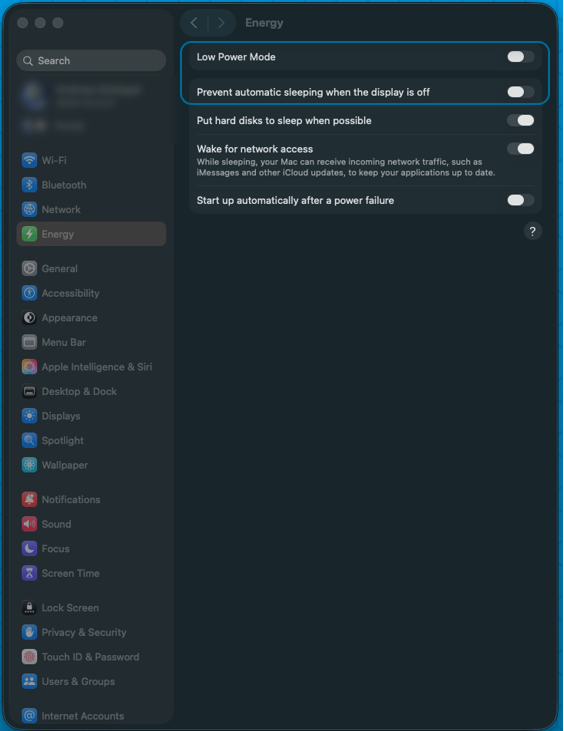
On MacBooks, these values are within "Battery"
- Go to Lock Screen from System Settings
- Set Turn display off when inactive to Never
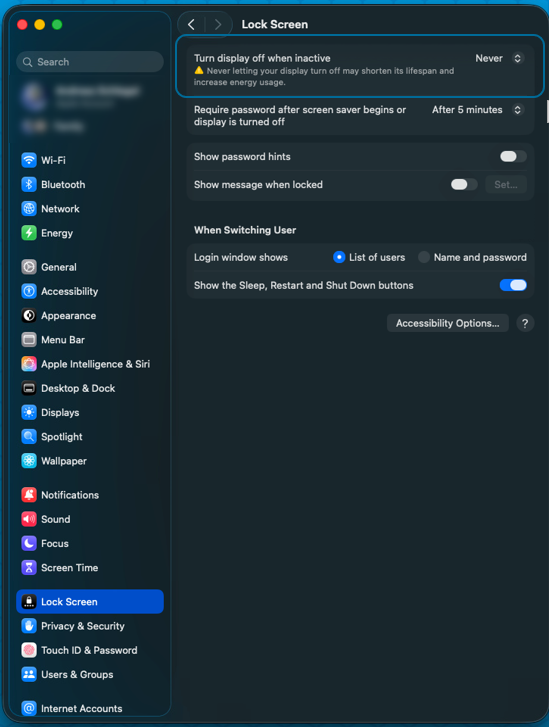
On MacBooks - connect to power
If not connected to power, the system can go into Power Saving Mode, it's always recommended to operate with a power supply.
Restarts
In general it's always recommended to restart the Mac from time to time.
Quit unnecessary Apps
For best system performance we recommend to always quit non required software, every software and service requires CPU from time to time even if they are not active.
Clean Start Up Folders
For best system performance, the start up folder should be checked. Unnecessary software should be removed.
These settings can be found within System Settings → General → Login Items & Extensions → Open at Login
Turn off Cloud Services
As Lawo VSC operates real time audio Streaming, it is recommended to turn off cloud synchronization services like iCloud, Google Drive etc, as they may require bandwidth at unforeseen times.
Turn off automatic Updates
Automatic Updates can require bandwidth or CPU. In general we highly recommend System Updates due to security patches and so on, but as they also can introduce stability issues, it's recommended to visit the Lawo VSC release notes, before updating the Operating System.
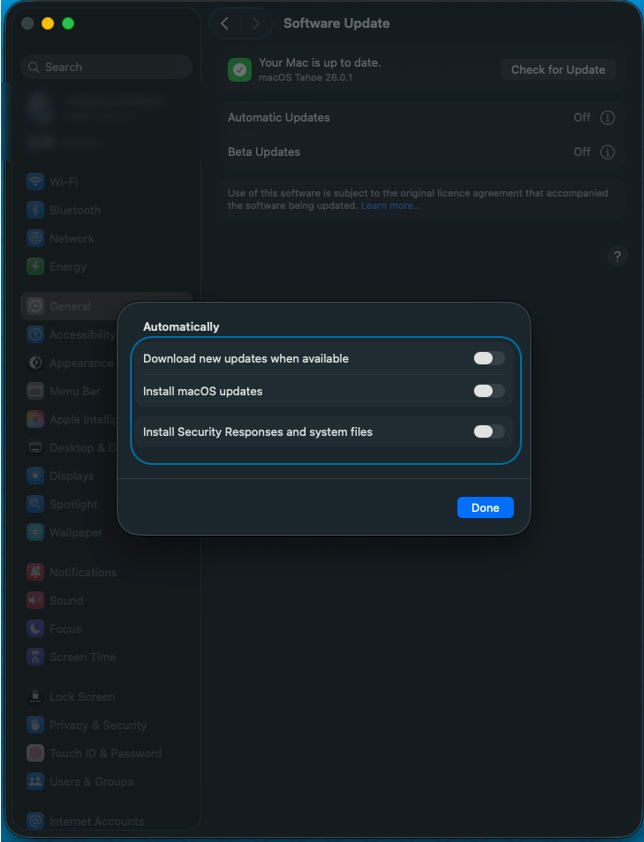
These settings can be found within System Settings → General → Software Update → Automatic Updates
Turn AirPlay off
If possible and not required, it's recommended to turn AirPlay off.
Turn off Analytics & Improvements
Analytics & Improvements should be disabled, as they can require bandwidth or CPU at unforeseen times.
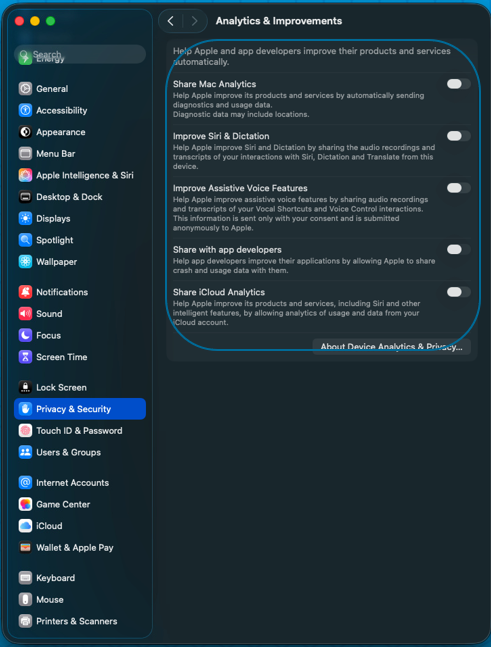
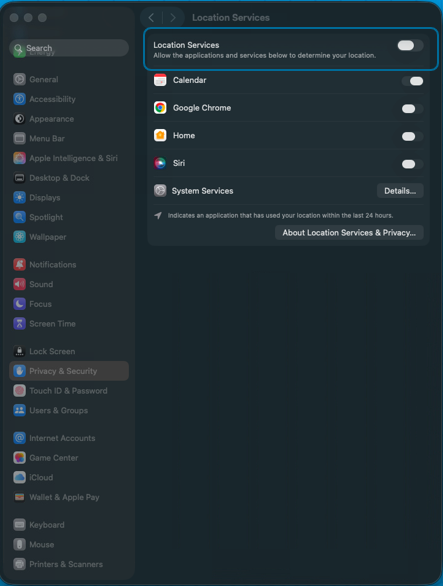
Turn off Location Services
Location Services should be disabled, as they can require bandwidth or CPU at unforeseen times.
Set Time Machine Backup to manually
Backups of the system should be done manually, as it can have an impact on the CPU and network load.
Remove Printers
Printers working via AirPrint, can cause unexpected traffic at unforeseen times. It's recommended to remove them, while recording or operating Lawo VSC.
Firewall/Antivirus
In general we don't recommend to disable the firewall or any antivirus software, but it's obvious that the required ports needs to be allowed by the firewall. Firewalls or antiVirus software can have deep impact on the performance, which we can not predict. It's from blocking PTP or streaming, up to audio drop outs, due to CPU requirements, when doing checks. If the system is affected by such issues, it may be useful to temporarily check whether disabling the firewall improves the situation. If this is the case, the software vendor should be consulted.