HOME - Stream Routing FAQs
This topic answers some of the most frequently asked questions about the 'Stream Routing' in HOME.
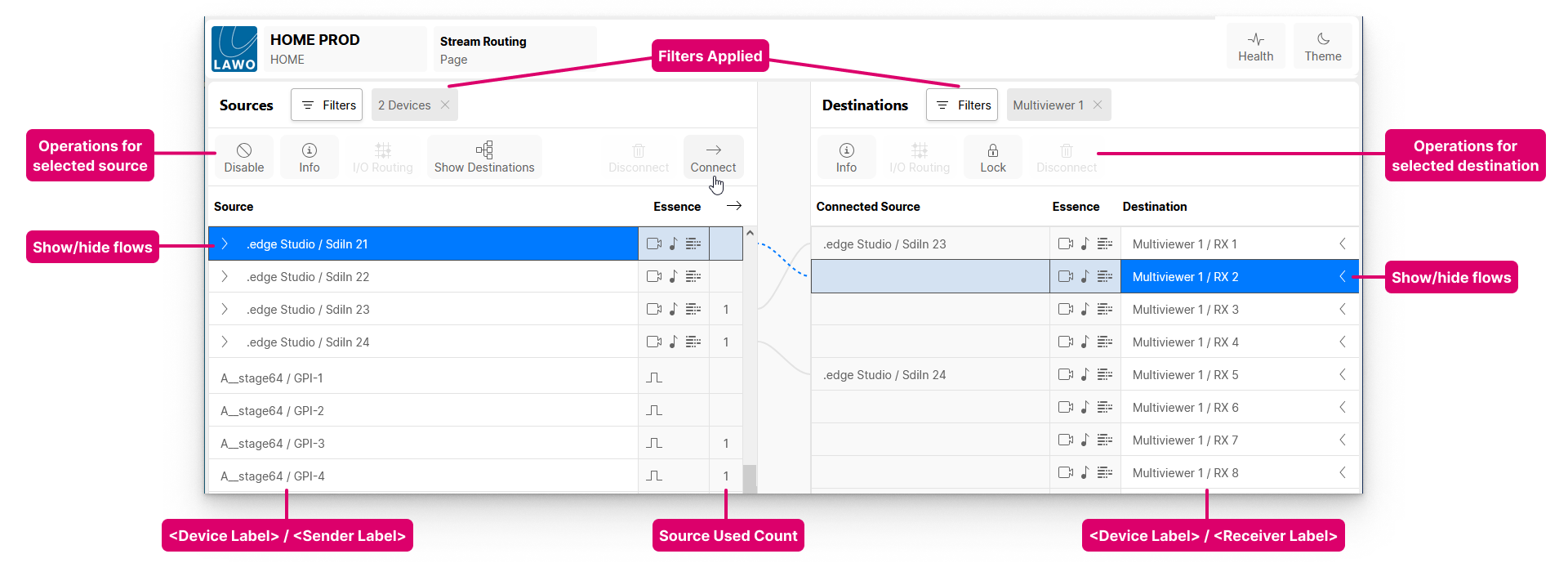
Why is my device or app missing?
- Are any Filters applied (to restrict the view)?
- Is the device online? Go back to the 'Devices' list and check the Status.
- For HOME Apps, is the app running and healthy? Open the 'Device → General' settings page and check the Lifecycle information.
- Are the senders and receivers configured? Open the 'Device → Senders/Receivers' page to check the available flows.
What do the dotted (preview) line colors mean?
Usually, the dotted line is blue to indicate that a full connection is possible. i.e. All related flows can be connected: Video to Video, Audio to Audio, etc.
When preparing a connection from a source group, you may see a dotted orange line. This indicates that only a part of the source group can be connected. For example, if the source group contains Video, Audio and Metadata but the destination contains Audio only. In this instance, the connection can still be made, but only for the related flow(s).
If there is no dotted line, then it is not possible to connect the selected source and destination. For example, if they are of different essence types: Video and Audio, GPIO and Meta, etc.
What do the icons in the "Connected Source" field mean?
In each case, hover over the icon to reveal more information.
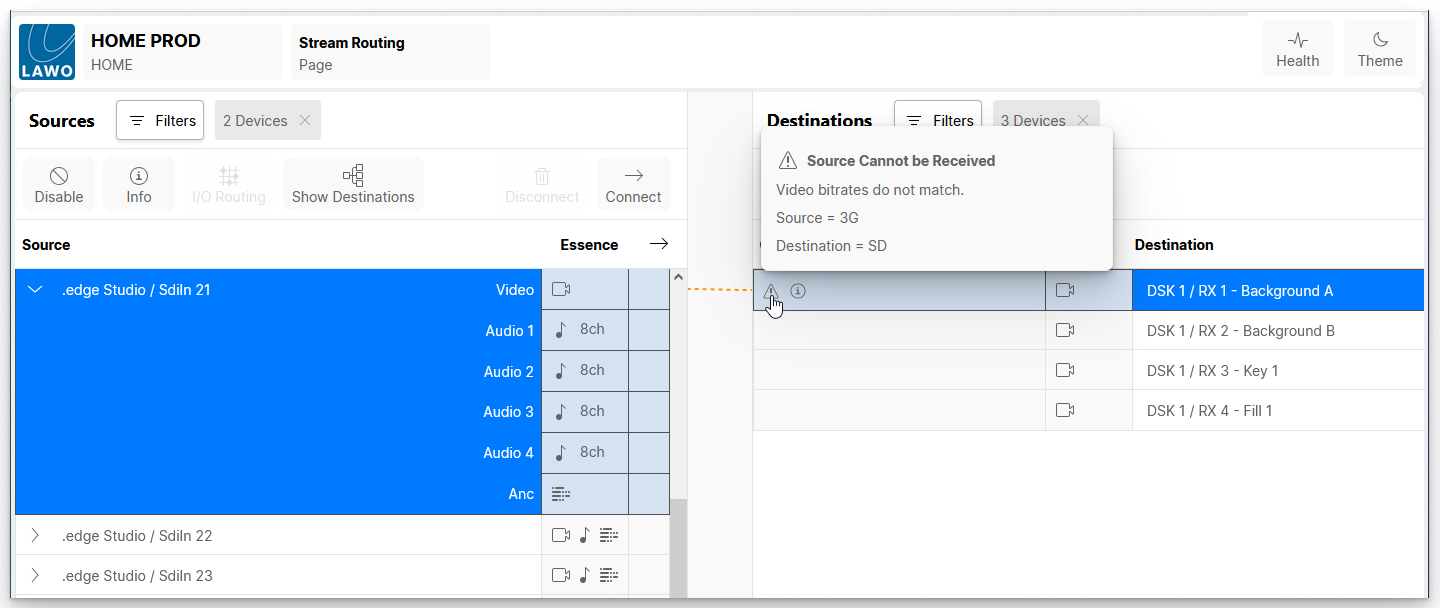
There are three possible icons. All three can be active.
- 'Warning' (triangle icon) = Source cannot be received.
This icon appears if the connected stream cannot be received. For example, if the video bitrates do not match or the receiver is configured for a different stream transport protocol.
A 'Warning' icon requires some action to be taken if the stream is to be successfully received. - 'Info' (circle icon) = Not all channels will be received.
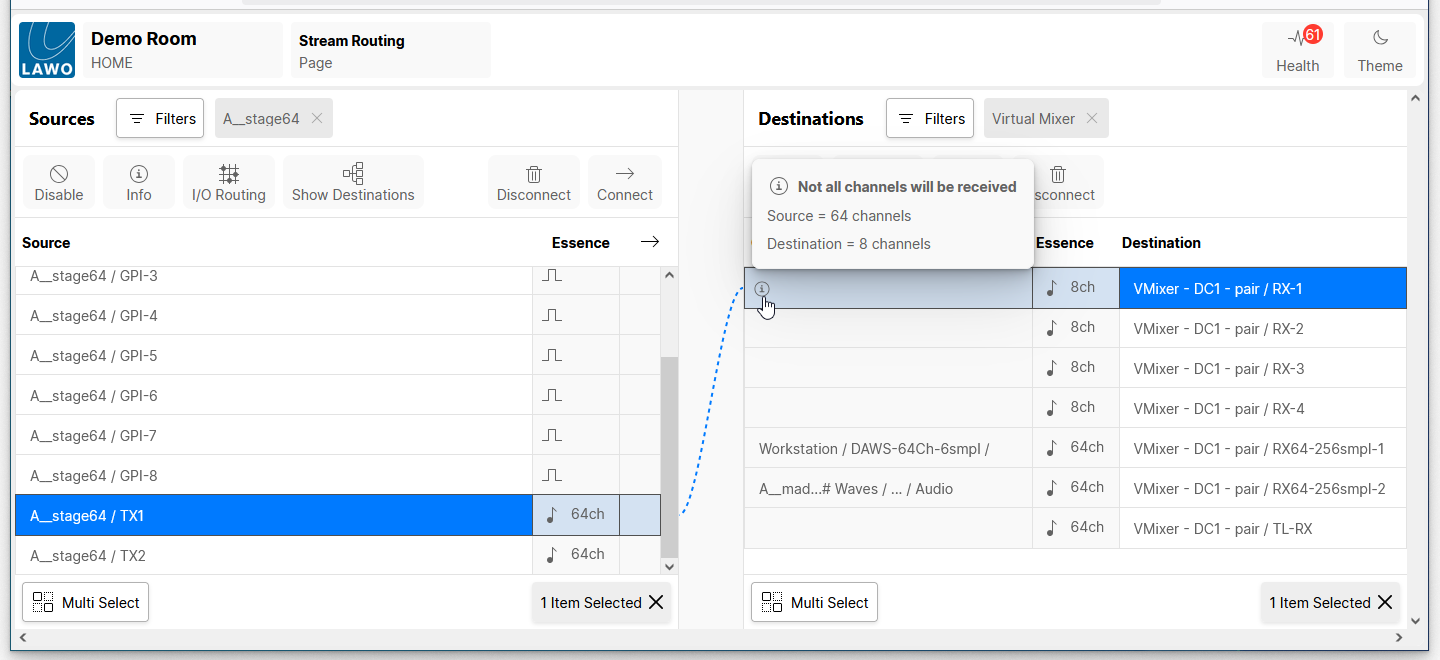
This icons appears if the number of channels carried by the sender exceed those of the receiver. For example, if you connect a 64-channel audio sender to an 8-channel audio receiver.
An 'Info' icon is for information only and can be ignored if, for example, the missing audio channels are not required. - 'Stream Disabled' (no entry icon) = Source disabled.
This icon appears if the sending stream has been disabled using the Disable function (described here).
It serves as a reminder that the sender must be enabled if the stream is to be successfully received.
In each case, the issue can be corrected by modifying the configuration of the sender or receiver.
What is shown in the tooltips?
Whenever you hover over a source or destination, its label appears in a tooltip. This confirms what will be selected (before the selection is made).
If you hover over an essence icon, then the tooltip shows information about the essence, such as the video format.

If you hover over a warning or info icon, then the tooltip shows more information about the issue.
Where is the stream routing saved?
If the HOME system restarts, then the configuration is re-instated once the server(s) reboot.
If an end device restarts, or is disconnected, then any streaming connections to and from the device are lost. However, the connections are still prepared. This means that as soon as the device comes back online, its streaming connections are re-established.
If you wish to backup the current configuration for the system's physical devices, then this can be done by creating a HOME snapshot. Snapshots can be created either globally (for all online devices) or partially (for selected devices). For more information, please see HOME - Snapshots.