Power Core - Create New Project
Instructions
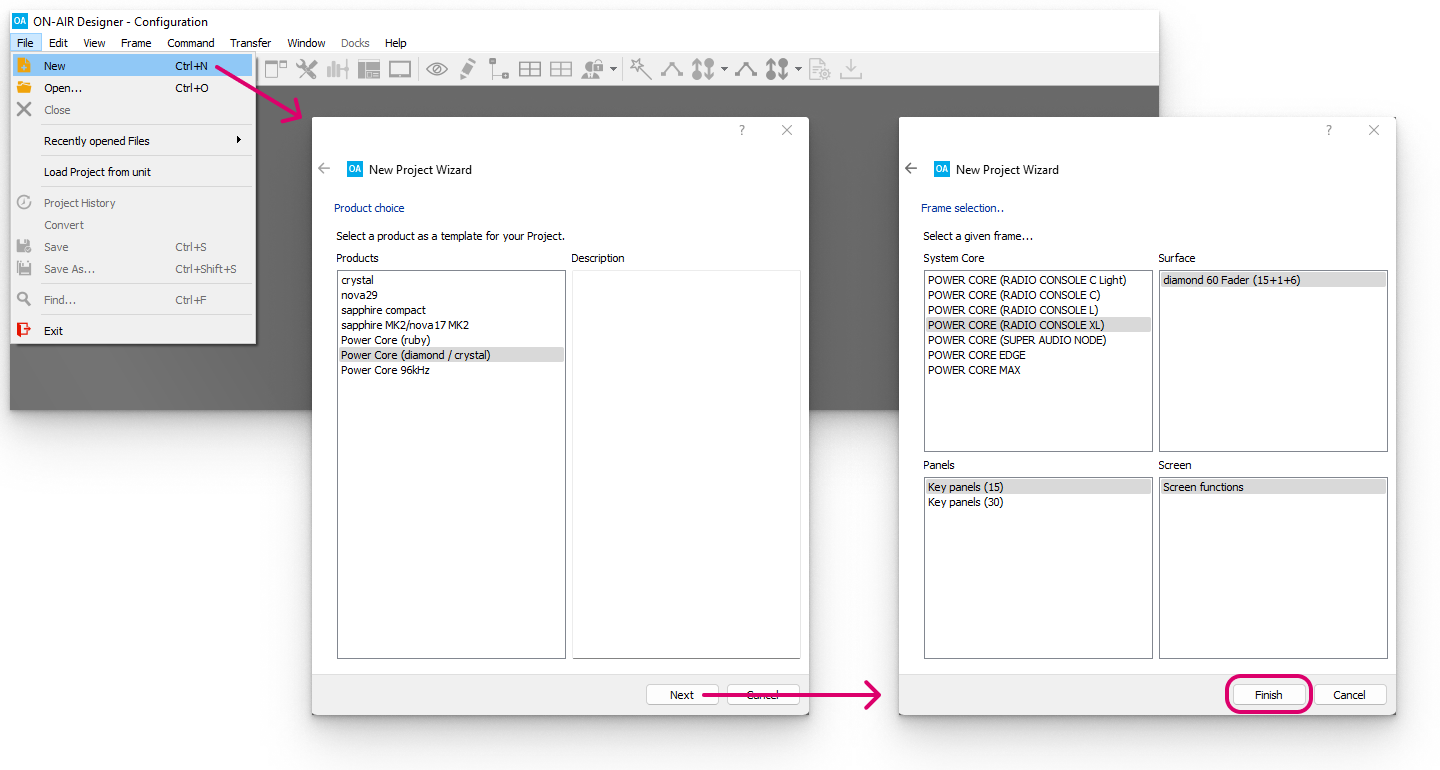
1. Open the 'New Project Wizard' using one of the following methods.
- Select File → New from the main menus.
- Click on the
 Toolbar icon.
 - Press CTRL + N on your computer keyboard.
2. Select your 'Product' from the available options.
For diamond, new crystal or stand-alone Power Core systems, choose Power Core (diamond / crystal). Or, Power Core (96kHz) if 96kHz operation is required.
The other options are for legacy systems: crystal, nova29, sapphire compact, sapphire MK2/nova17 MK2 and ruby.
3. Click on Next - the 'Frame selection' window opens.
For Power Core systems, the four 'Frame' areas define the system components as follows. If you are configuring one of the legacy systems, then please refer to the documentation for your product.
- System Core - defines the system core type (i.e. the main license package).
The selected option must match the license installed to the Power Core's USB-dongle, or the license you intend to purchase. Note that the Surface options are dependent on the main license, and so they update as you change the System Core. - Surface - defines the surface type and maximum size:
- For diamond, the numbers in brackets indicate the number of Fader Modules + Central Modules (full mode) + Central Modules (monitor mode).
- For New crystal, there are two possible options crystal (Single) or crystal (Max).
- In each case, select the maximum configuration required.
- Note that a Surface must be specified even if Power Core is to be controlled virtually (e.g. from VisTool or crystal Clear).
- Panels - defines the maximum number of key panels connected to the system.
Usually the (default) of 15 Key Panels is fine. This can be increased to 30 Key Panels if more than 15 are required. Screen - is always set to Screen functions to support VisTool functions.
The System Core and Panels can be changed later (by selecting Frame → Change Frame). This allows you to change the System Core type if you upgrade the main license.
4. Once you have specified the 'Frame', click on Finish.
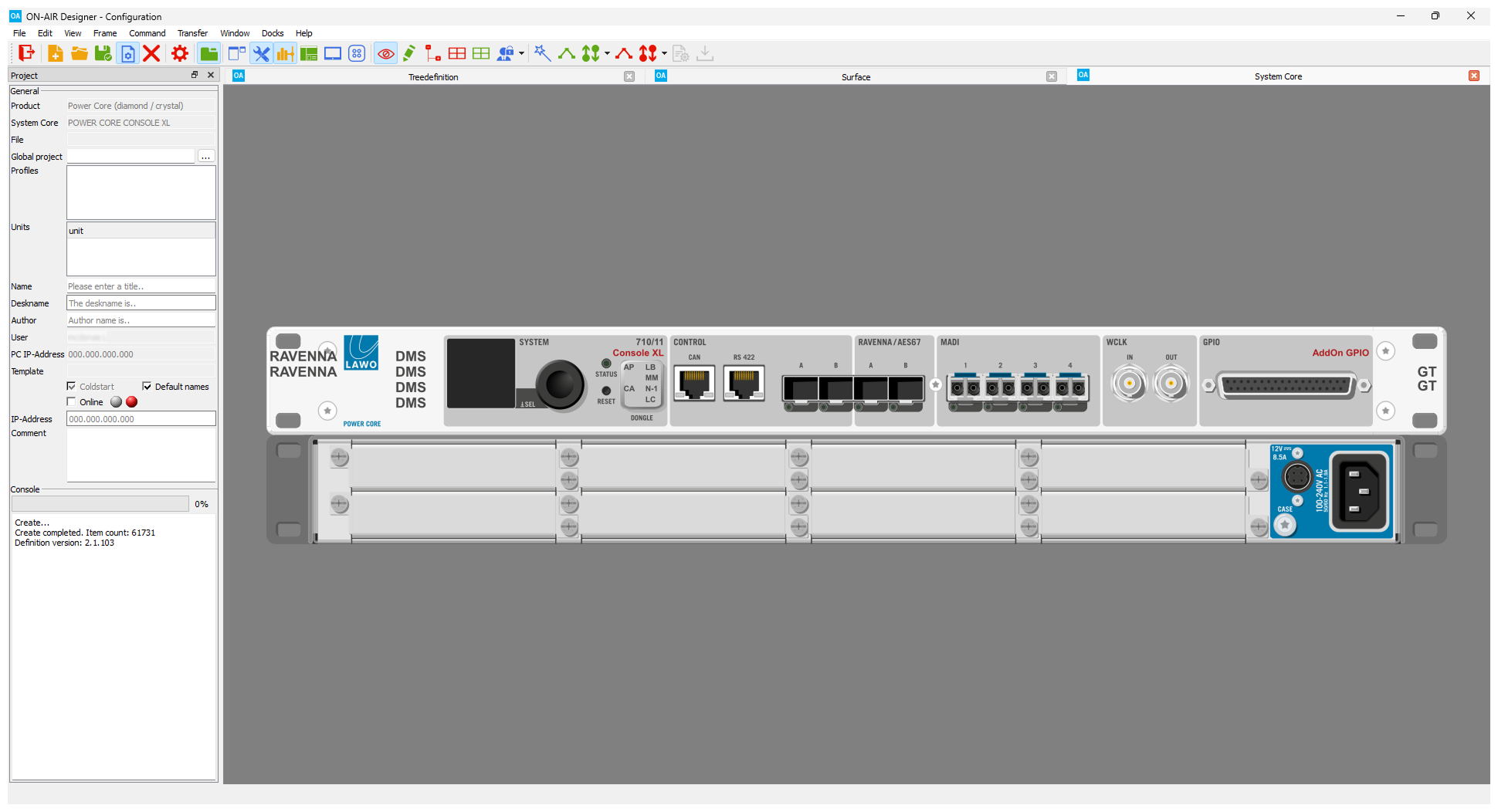
The software creates the new project - this will take a few seconds. During this time the status is shown in the "progress" bar (below Console in the 'Project' window). Once the 'System Core' frame configuration opens, the project is ready to use.
In the example below, we can see the 'Project' window (on the left), plus the 'System Core' (in the main working area).
5. It is recommended to use File → Save to save the project (so that the project file is stored and named).
6. The next steps are to define the 'System Core' and 'Surface' frame configurations, plus the 'Project Properties' as required.

This method creates a very simple configuration that defines the device type and main license package only. You will need to define the HW components and configure all control-logics and DSP-functionality manually.
For this reason, it is recommended to download and open one of the standard configurations as a starting point, to reduce the amount of configuration effort.
The 'New Project Wizard' can be used to produce a quick configuration for testing purposes or to start from a clean (empty) project.