HOME Stream Transcoder - Advanced -> WebRTC
All controls are displayed on a single page; there are no sub-pages.
WebRTC
The Advanced → WebRTC menu provides configuration controls for the WebRTC streams produced by the app.
In a HOME Apps system, WebRTC is used when a video or audio processing app is required to supply media streams to a Lawo Workspace.
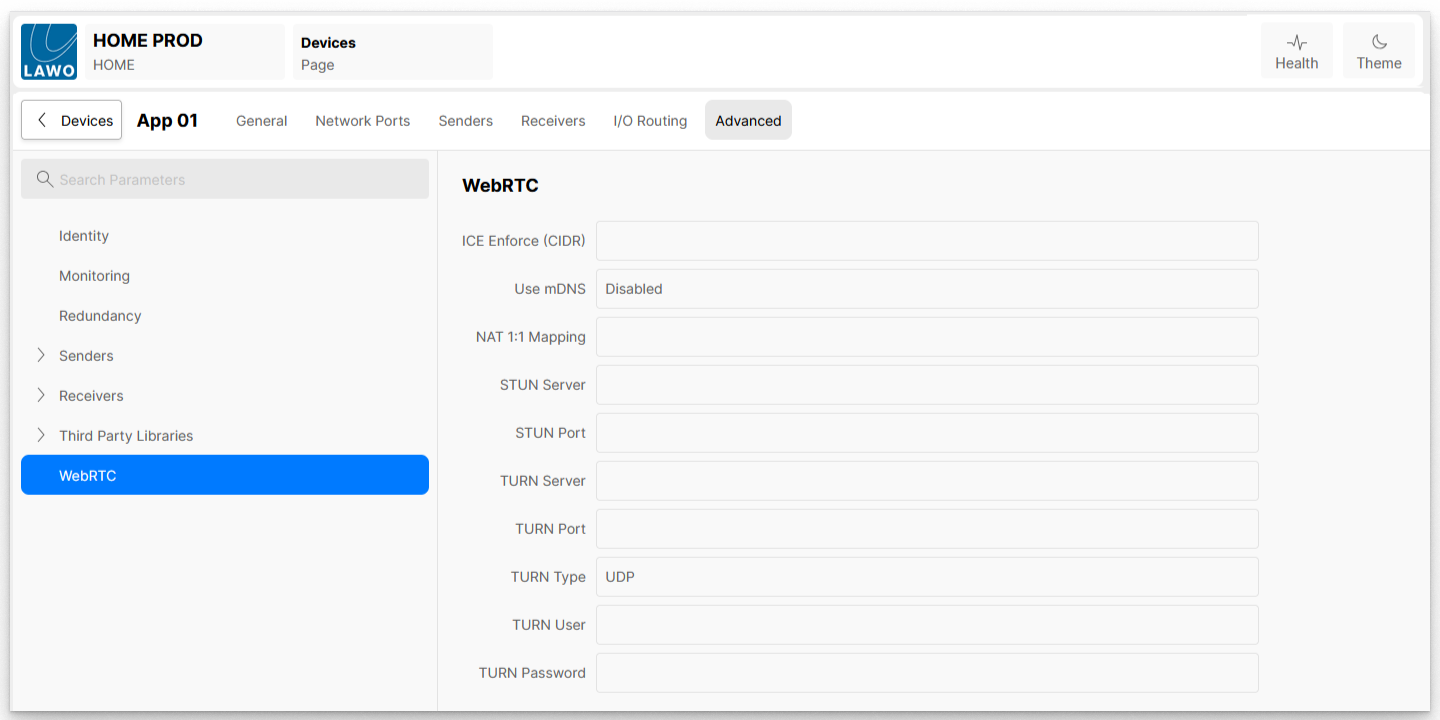
| ICE Enforce (CIDR) | This control allows the user to create a 'white-list' of external devices which are approved to request WebRTC streams from the App Server that is running the app. |
|---|---|
| Use mDNS | When enabled, the HOME Apps WebRTC server tries to resolve mDNS (.local) candidates. When disabled, mDNS is not used. In cases where the mDNS resolution takes a long time to timeout, the user can choose to disable mDNS to drop all (.local) candidates. This can be helpful in scenarios where the clients will never be in the same private network as the HOME Apps WebRTC server. Please note: If mDNS is disabled, then this will cause ICE to fail if mDNS is the only way to connect. |
| NAT 1:1 Mapping | In cases where HOME Apps are deployed on a server which configuring with a 1:1 NAT, you may want to also specify the public address of the machine using this setting. This will result in all host candidates, which normally have a private IP address, to be rewritten with the public address provided in the 'NAT 1:1 Mapping' control. As such, this option should be used with caution, and only if you know what you are doing. Multiple public IP addresses can be specified as a comma separated list if the HOME Apps WebRTC server is deployed in a DMZ between two 1-1 NAT for internal and external users. |
STUN Server | A STUN server is required when WebRTC clients need to access resources (WebRTC servers) behind a firewall or Network Address Translation. If using a STUN server, enter the STUN server's IP Address. |
| STUN Port | If using a STUN server, enter the STUN server's network Port. |
| TURN Server | If using a TURN server, enter the TURN server's IP Address. |
| TURN Port | If using a TURN server, enter the TURN server's network Port. |
| TURN Type | Select the protocol the TURN server is configured to use (UDP/TCP/TLS). |
| TURN User | Enter a user name configured on the TURN server to authenticate. |
| TURN Password | Enter a password configured on the TURN server to authenticate |
External Devices White-list
The ICE Enforce (CIDR) control allows the user to create a 'white-list' of external devices which are approved to request WebRTC streams from the App Server. The control has been implemented to operate regardless of which app server the app producing the WebRTC is running on.
The user should enter an IP Address in CIDR format. e.g. 172.18.100.0/23
In the example below, an App Server has three NICs configured which are connected to the following networks:
NIC | Used for | IP Address |
MGMT0 | Control | 10.1.214.99 |
MGMT1 | Control | 10.1.216.99 |
Media0 | RED media network | 172.18.100.38 |
Media1 | BLUE media network | 172.18.102.38 |
If the following ICE Enforce (CIDR) values are entered, then the results are as follows.
ICE Enforce (CIDR) | Result |
172.18.100.38/22 | WebRTC streams will be available to clients on the network range: 172.18.100.0 - 172.18.103.255 |
172.18.100.38/23 | WebRTC Streams will be available to clients on the network range: 172.18.100.0 - 172.18.101.255 |
172.18.100.38/24 | WebRTC Streams will be available to clients on the network range: 172.18.100.0 - 172.18.100.255 |
172.18.100.38/25 | WebRTC Streams will be available to clients on the network range: 172.18.100.0 - 172.18.100.127 |