HOME Delay - Advanced -> Delay
From the Advanced → Delay menu, the user can set the amount of additional delay to be applied to the app's media streams: video, audio and meta.
Before explaining the available controls, it is useful to understand the inherent delay added by the app itself, and how this affects the minimum and maximum delay values.
Please note: If the Maximum Additional Delay in the app configuration is set to zero (0), then no additional delay is available and the Advanced → Delay menu is hidden.
Inherent Delay (App Latency)
Signals passing through a HOME Delay Inserter are subject to a delay due to the need to process the signals, this is known as latency. Even when there is no delay processing enabled, the signals are subject to a delay, due to the need to receiver and send the signals.
- The inherent delay through the Delay Inserter is 2 fields (interlaced sources) or 2 frames (progressive sources).
Min. and Max. Delay
The inherent delay means that the video stream passing through the app will have a minimum delay of 2 fields (interlaced formats) or 2 frames (progressive formats). An additional delay can then be added of up to 360 fields / frames. Thus, the maximum video delay that can be applied is 362 fields / frames.
By default, when a delay is applied to the video, the audio and meta streams are delayed by the same amount. Audio and/or meta streams can then be offset to the video if required. This offset can be either a positive or negative value.
- If the audio and meta streams have a offset delay of zero (0), they will be delayed by the same duration as the video stream.
- A positive value will add additional delay (stream arrives later) compared to the video stream.
- A negative value will reduce the delay (stream arrives earlier) compared to the video stream.
The table below shows the minimum and maximum delay values. For simplicity, the timings in milliseconds (ms) are rounded to 1 decimal place.
| Minimum Delay | Maximum Delay | |||||||||||
| 50i | 50p | 59.94i | 59.94p | 60i | 60p | 50i | 50p | 59.94i | 59.94p | 60i | 60p | |
| Video | 2 fields 40.0 mS | 2 frames 40.0 mS | 2 fields 33.4 mS | 2 frames 33.4 mS | 2 fields 33.3 mS | 2 frames 33.3 mS | 362 fields 7240.0 mS | 362 frames 7240.0 mS | 362 fields 6039.4 mS | 362 frames 6039.4 mS | 362 fields 6033.3 mS | 362 frames 6033.3 mS |
| Audio | 40.0 mS | 40.0 mS | 33.4 mS | 33.4 mS | 33.3 mS | 33.3 mS | 10922.7 mS | 10922.7 mS | 10922.7 mS | 10922.7 mS | 10922.7 mS | 10922.7 mS |
| Meta | 2 fields | 2 frames | 2 fields | 2 frames | 2 fields | 2 frames | 512 fields | 512 frames | 512 fields | 512 frames | 512 fields | 512 frames |
Configuration
To use the Delay Inserter, there are two steps: first, define the maximum additional delay supported by the app; then, once the app is running, set the amount of additional delay (up to the maximum additional delay value).
Initial Configuration
As part of the app configuration, the user is asked to configure a Maximum Additional Delay value, up to 360 Fields / Frames. This sets the maximum additional delay supported by the app which, in turn, defines the amount of App Server memory used to buffer the app's incoming sources (once the app is running).
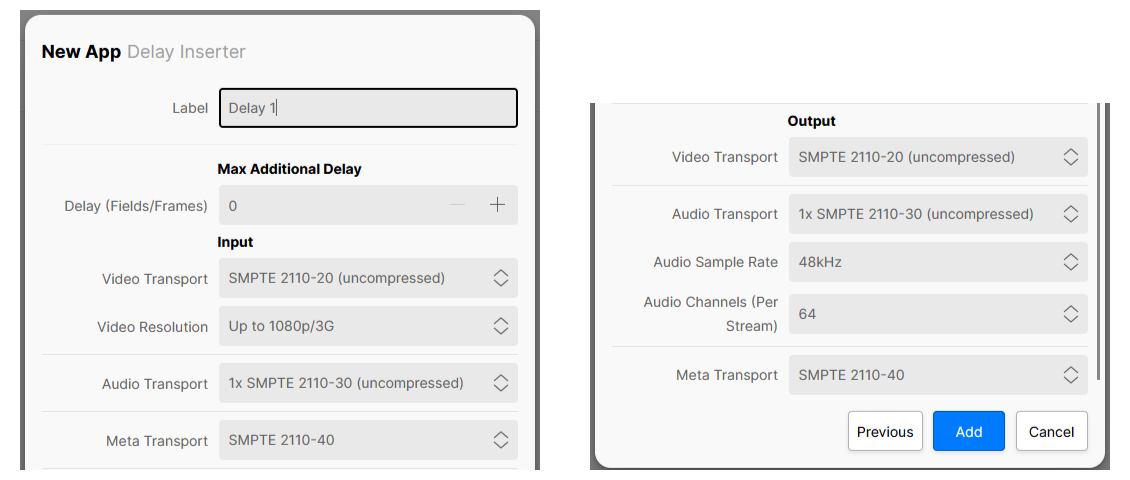
By setting the maximum additional delay to a lower value, the user can limit the amount of App Server memory reserved by the app. This can be advantageous as, when the user attempts to start the app, the system presents only App Servers with enough available resources and, if a maximum additional delay is specified, then this will include an amount of free memory.
Note that the Maximum Additional Delay control cannot be modified whilst the app is running. If you need to change this value later, then you will need to stop the app and edit the app configuration.
Using the Delay Inserter
Once the app is running, the user can set the amount of additional delay to be applied, for each stream type, up to the Maximum Additional Delay value (defined in the app configuration). This is done from the app's Advanced → Delay menu.
Note that streams passing through the app are delayed by 2 fields / frames; this is the minimum delay.
Beneath each control, the amount of delay being applied to that stream is displayed, which includes the inherent 2 frames / fields.
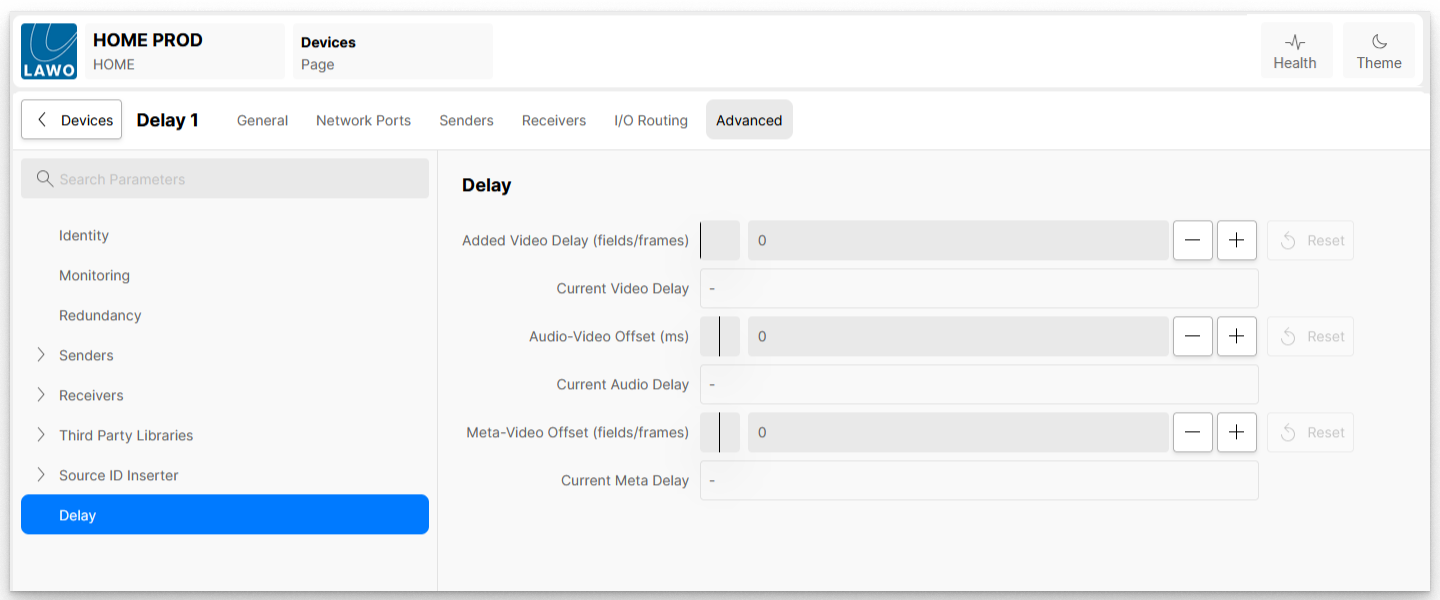
| Added Video Delay | This control sets the amount of additional delay applied to the video stream passing through the app. When set to 0, the video stream is delayed by a total of 2 fields / frames. When set to 1, the video stream is delayed by 3 fields / frames, etc. By default, when a video delay is applied, the Audio and Meta streams are delayed by the same amount, to retain lip-sync. |
| Current Video Delay | Displays the current delay applied to the video stream, including the inherent delay through the app. |
| Audio – Video Offset | This control allows the user to add an offset to the audio stream with-respect-to the video stream. With a value of 0 set, the audio stream will be delayed by the same amount as the video stream. When a positive value is set, the audio is further delayed. This is useful when there is a timing variation between the incoming video and audio streams, where the audio is in advance of the video. When a negative value is set, the audio delay is reduced. This is useful when there is a timing variation between the incoming video and audio streams, where the audio is behind the video. |
| Current Audio Delay | Displays the current delay applied to the audio stream, including the inherent delay through the app. |
| Meta – Video Offset | This control allows the user to add an offset to the meta stream with-respect-to the video stream. With a value of 0 set, the meta stream will be delayed by the same amount as the video stream. When a positive value is set, the meta stream is further delayed. This is useful when there is a timing variation between the incoming video and meta streams, where the meta is in advance of the video. When a negative value is set, the meta stream delay is reduced. This is useful when there is a timing variation between the incoming video and meta streams, where the meta is behind the video. |
| Current Meta Delay | Displays the current delay applied to the metadata stream, including the inherent delay through the app. |