HOME Apps - Network Ports
The 'Device → Network Ports' page shows information about the network interfaces of the app server which is currently running the app. It can be used to check the status of a port and view its network settings.
Please note: The network settings of an app server cannot be edited from the Network Ports page, as this is done (by the Lawo engineering team) during the HOME Apps system configuration.
To open the Network Ports page: click on the app label (e.g. from the main 'Devices' list) and choose the Network Ports menu tab. See HOME Apps - Reconfiguring an App.
This topic explains the informational fields and operations. The examples used are taken from a HOME Multiviewer. The same principles can be applied to other app types.
Informational Fields
The Network Ports page (for an app) is provided for informational purposes only. There are no possible operations.
The page lists all of the network ports of the app server which is currently running the app. If the app is stopped, then either there is no information, or information about the last app server (to run the app) is shown.
In the example (shown below), the app server has two managements port (where the second port is not connected) and two media ports (for the primary and secondary streams).
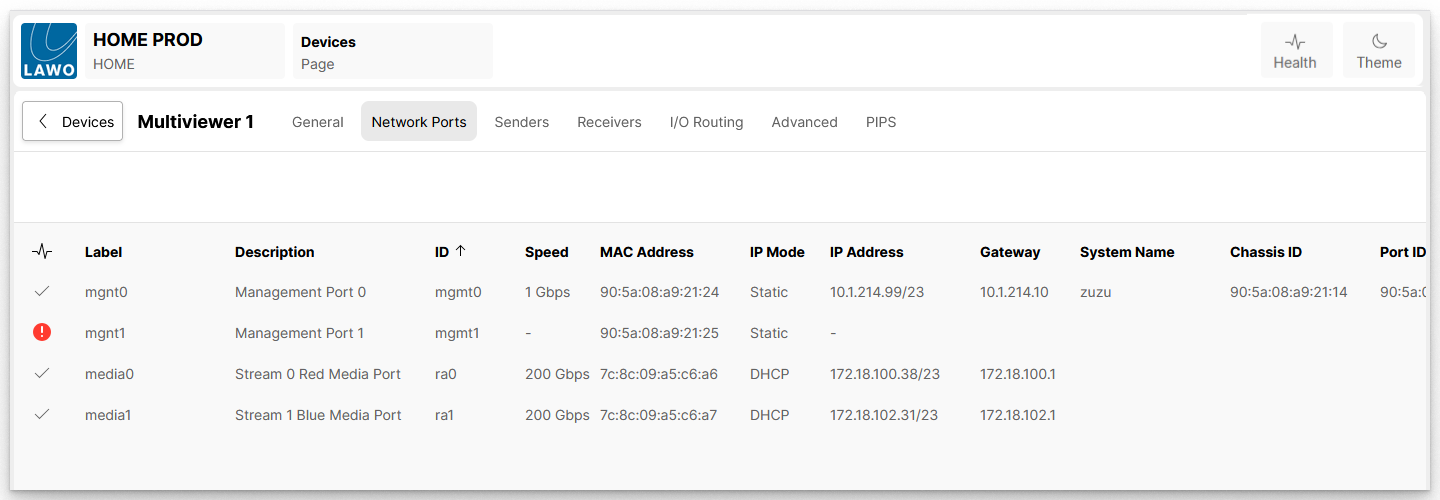
Network Port Information
The table shows information about each network port including the link state, label, description, internal ID, link speed, MAC address, IP mode, IP address, gateway and information about the connected network switch: system name, chassis ID, port ID and port description. You may need to scroll to the right to see all available information.
Click on a column header to sort the list alphabetically. Each click toggles the sort mode between ascending (A -> Z) and descending (Z -> A). An up or down arrow appears beside the header to indicate the current sort mode.
Connection Status
The icons in the link state column can be used to quickly check the status of the Ethernet connection. This is the second column from the left (before the network port Label).
- Link up (ok) = valid connection. No action is required.
- Link down = connection error. Check the physical connection to the network switch.
- Not in use = the port has been set to "Not in use". This can be used to mark ports that are intentionally unconnected.