mc² 12.4.0 What’s New Guide
Audio Production mc² 12.4 introduces the following key features, each covered in detail below:
- Module Pop-Up Redesign
- Real-Time Analyzer (RTA)
- Delay Adjustment in Samples
- Clear Offline Signals
- Updated Custom Functions
- AAA — HOME 5.0 and API Key Integration
- Channel Presets via Ember+
- Terminology Alignment
- Nodesys 4.4.0
Module Pop-Up Redesign
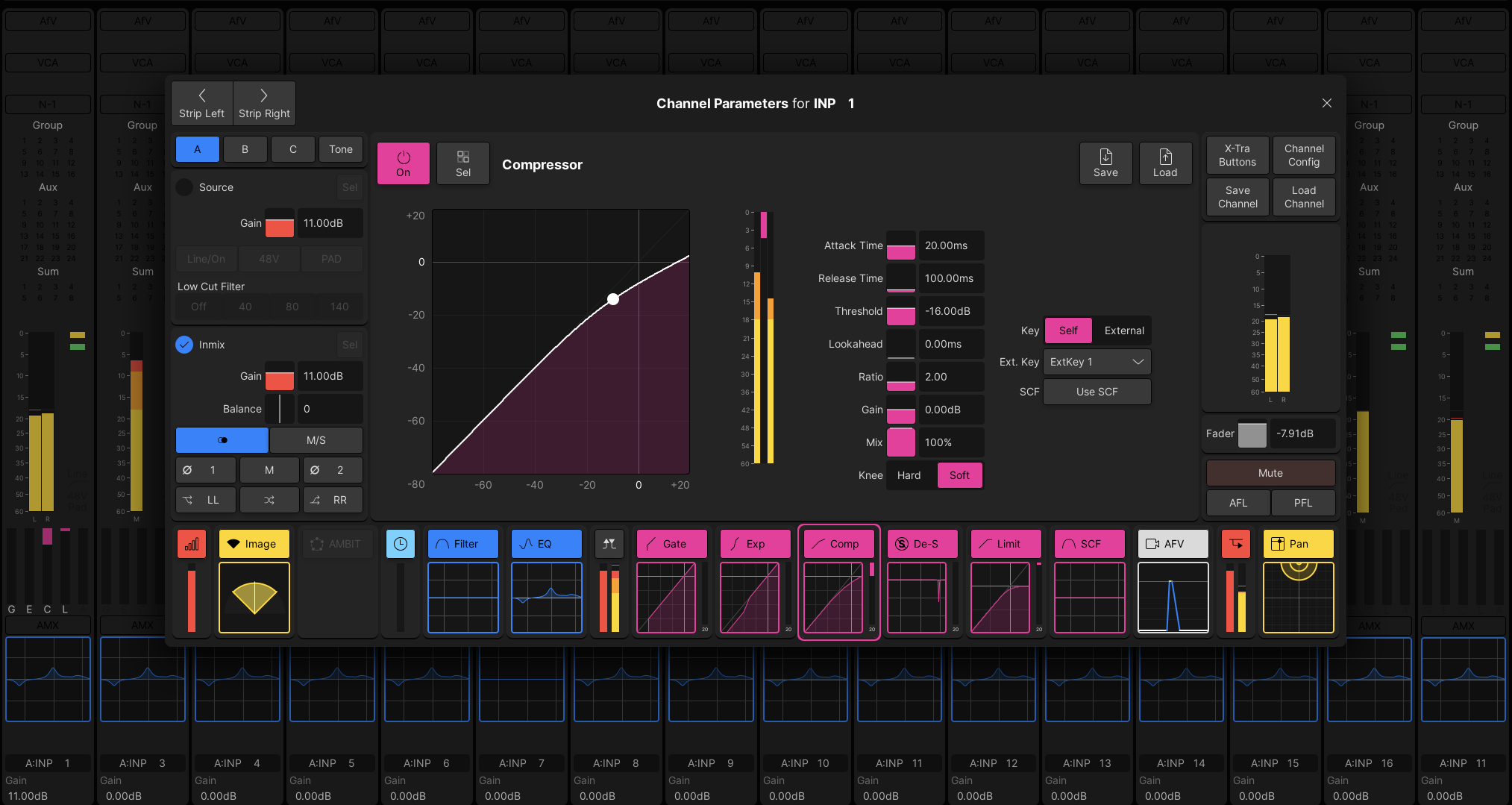
The module popup interaction has been redesigned to provide a more consistent and efficient workflow. Instead of isolated module popups, the full main display layout is reused, offering a complete and familiar view for parameter control without leaving the current page.
This feature has now been extended for the Channel Bays. Improving usability in multi-operator environments, allowing parallel work on different bays while maintaining clear separation of control. It enables more flexible and simultaneous interaction, whether working alone or in shared console setups.
Main Bay Behavior
In the Main Bay, the popup extends the established workflow:
- Triggered by touching any DSP module (EQ, dynamics, Pan, etc...) on the surface
- Can also be opened via the mini display for a persistent view
Channel Bay Behavior
On Channel Bays, the Pop-Up is available independently and operates in ISO mode. Here, activation is only possible from the mini displays. Free Controls alone do not open the Pop-Up. Once a Pop-Up is active, Free Controls synchronize with surface interaction.
The Pop-Up dynamically follows channel and module selection, and extended parameter access becomes available across the assigned controls.
Real-Time Analyzer (RTA)
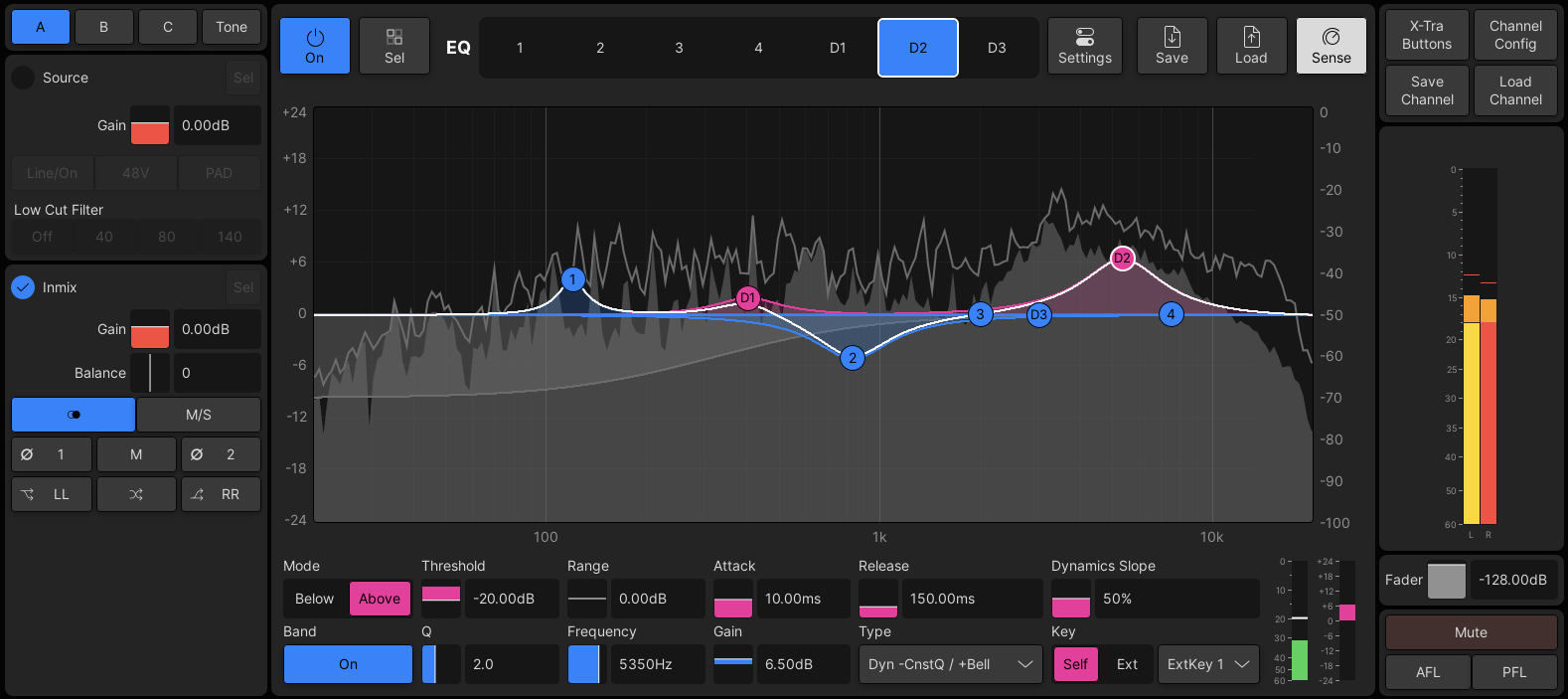
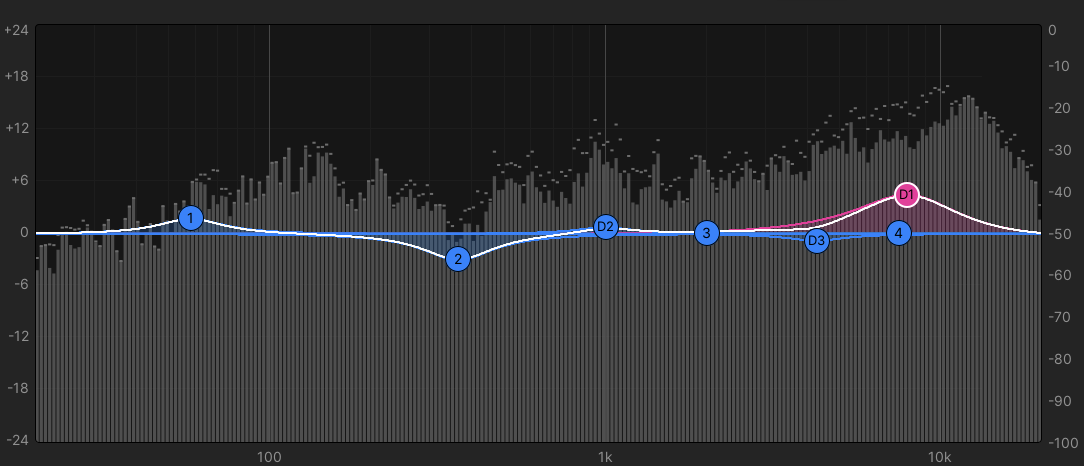
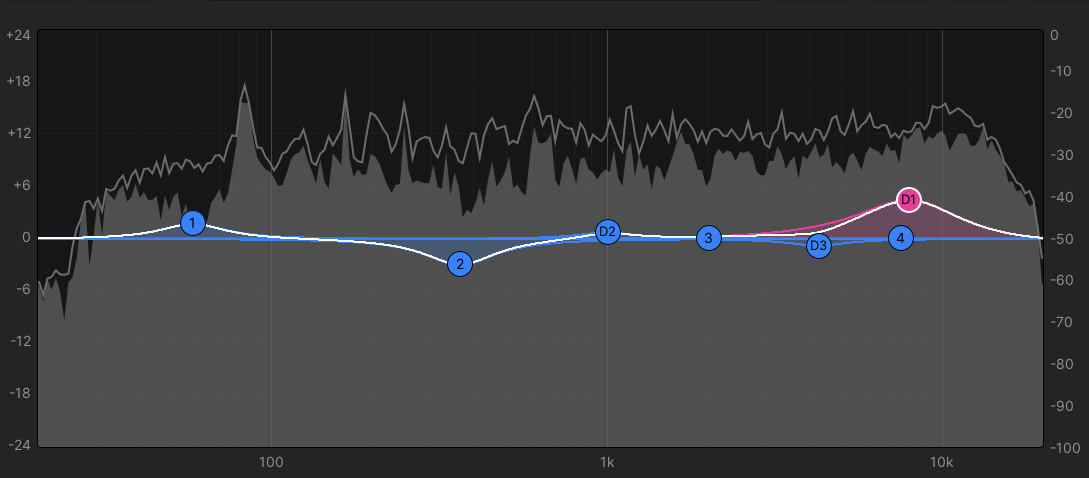
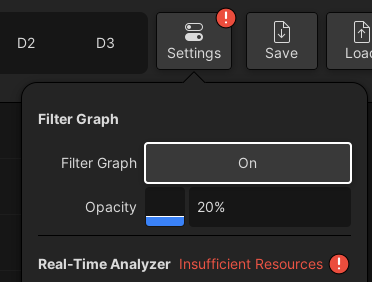
The Real-Time Analyzer (RTA) introduces live frequency visualization, allowing operators to see the signal spectrum while shaping sound. As incoming audio changes - or as EQ parameters such as gain, frequency, Q, or filter type are adjusted - the analyzer updates continuously and provides immediate visual feedback.
The visualization follows a 3-layer approach:
- top layer: re-introduction of the filter curve
- middle layer: interactive EQ/filter controls
- background layer: real-time spectrum visualization
Available Settings
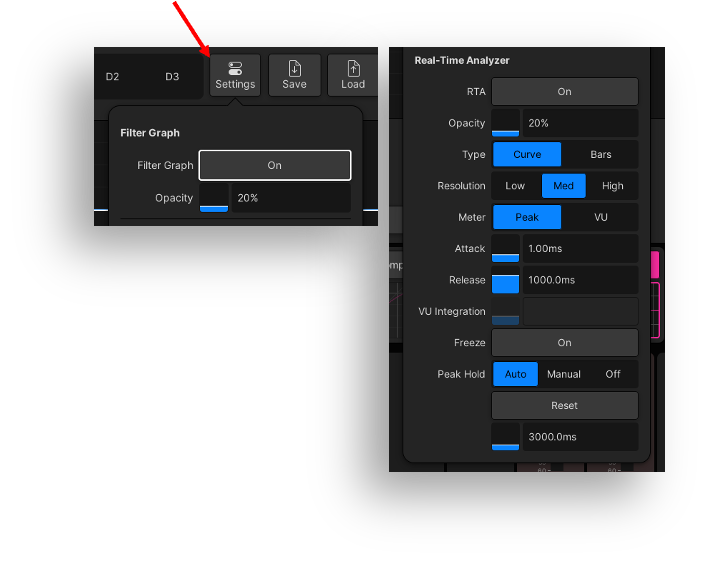
Visualization controls include:
- Re-introduction of the Filter Graph
- Opacity adjustment
- RTA
- Resolution and meter types
- Attack/Release timing,
- Peak/VU behavior
- Freeze
- Peak Hold functionalities
Freeze holds the current spectrum state for detailed inspection, while Peak Hold highlights transient peaks over time with configurable hold and reset behavior.
The measurement point follows the active listening source. In normal operation, the analyzer measures the output of the respective EQ processing module.
When pre-listening is active, the Spectral Meter follows the selected listen point instead, allowing operators to inspect effect or intermediate signals even if the module itself is bypassed. Dynamic EQ is handled as a special case and provides dedicated measurement tap points for both the measurement filter and the dynamic band output.
Display Modes
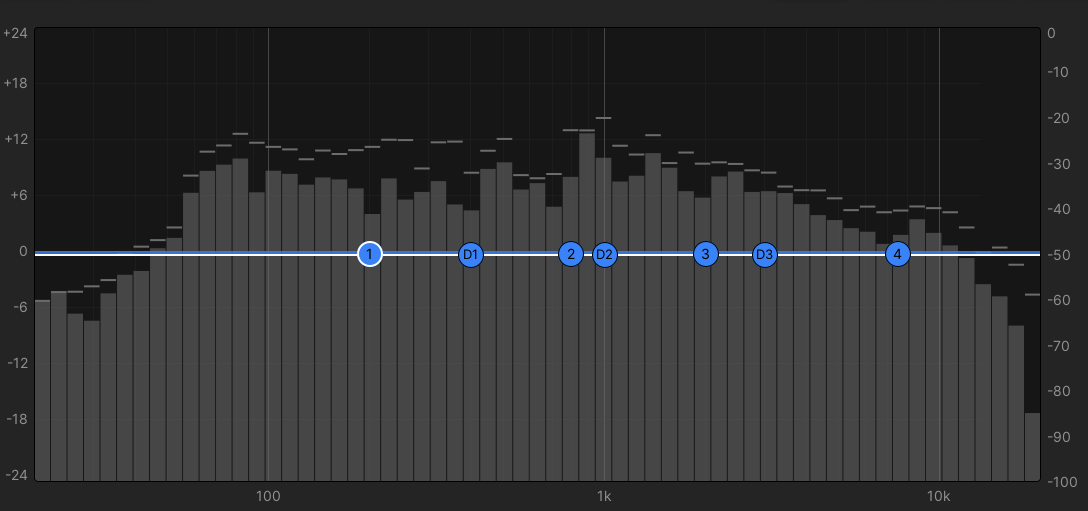
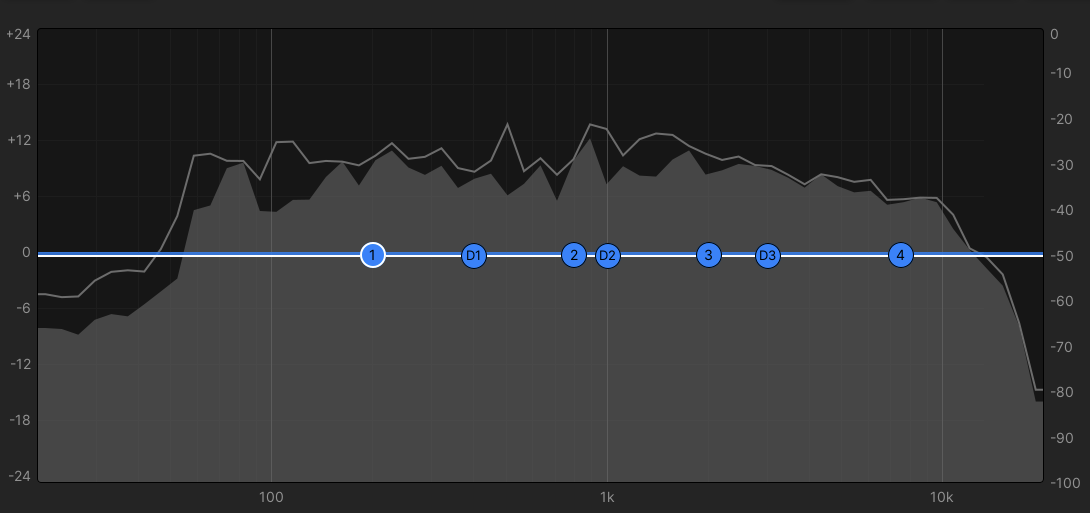
The analyzer supports both Curve and Bars display modes with Low, Medium, and High resolution settings. Curve mode renders a continuous interpolated line, while Bars mode uses fixed band counts of 61, 121, or 240 bands.
Operators can switch between both modes without interrupting audio processing or EQ interaction.
The RTA supports mono, stereo, and multichannel formats using a single visualization approach:
- Mono displays a direct single-channel spectrum
- Stereo displays one combined representation derived from the max/mean value between the L/R channels
- Surround and immersive formats display one combined representation derived from the max/mean value across all channel legs
All RTA settings are stored together with the production file, similarly to Loudness Meter settings, ensuring consistent recall behavior across productions.
RTA & Resource Pooling
The Real-Time Analyzer (RTA) is powered by the DSP backend. On the A__UHD Core RTA resources are globally pooled, giving users flexibility in how analyzer resources are distributed across Virtual Mixers with pooling license setups.
At:
- 48kHz - up to 24 audio channels can be analyzed simultaneously
- 96kHz - analyzer capacity is reduced to 12 audio channels
Because stereo, surround, and immersive formats consume multiple analyzer channels, the available resource pool can be exhausted depending on the number of active RTA's and channel formats in use.
For example:
- In a Pooling 4 setup, all four console slices could simultaneously analyze 5.1 surround channels at 48kHz
- At 96kHz, the reduced analyzer capacity allows analysis of up to 12 channel legs in total, meaning it would for example be possible to analyze up to 3 stereo channels per Virtual Mixer in a Pooling 4 setup
- Alternatively, users may decide to allocate all available Spectral Meter resources to a single Virtual Mixer and disable them on the others, depending on operational requirements
Resources can be distributed freely between Virtual Mixers depending on operational requirements and the configured DSP layout.
When no additional Spectral Meter resources are available, the EQ view provides clear visual feedback indicating that no further analyzers can be allocated.
(HOME mc² DSP App resources tbd)
Delay Adjustment in Samples
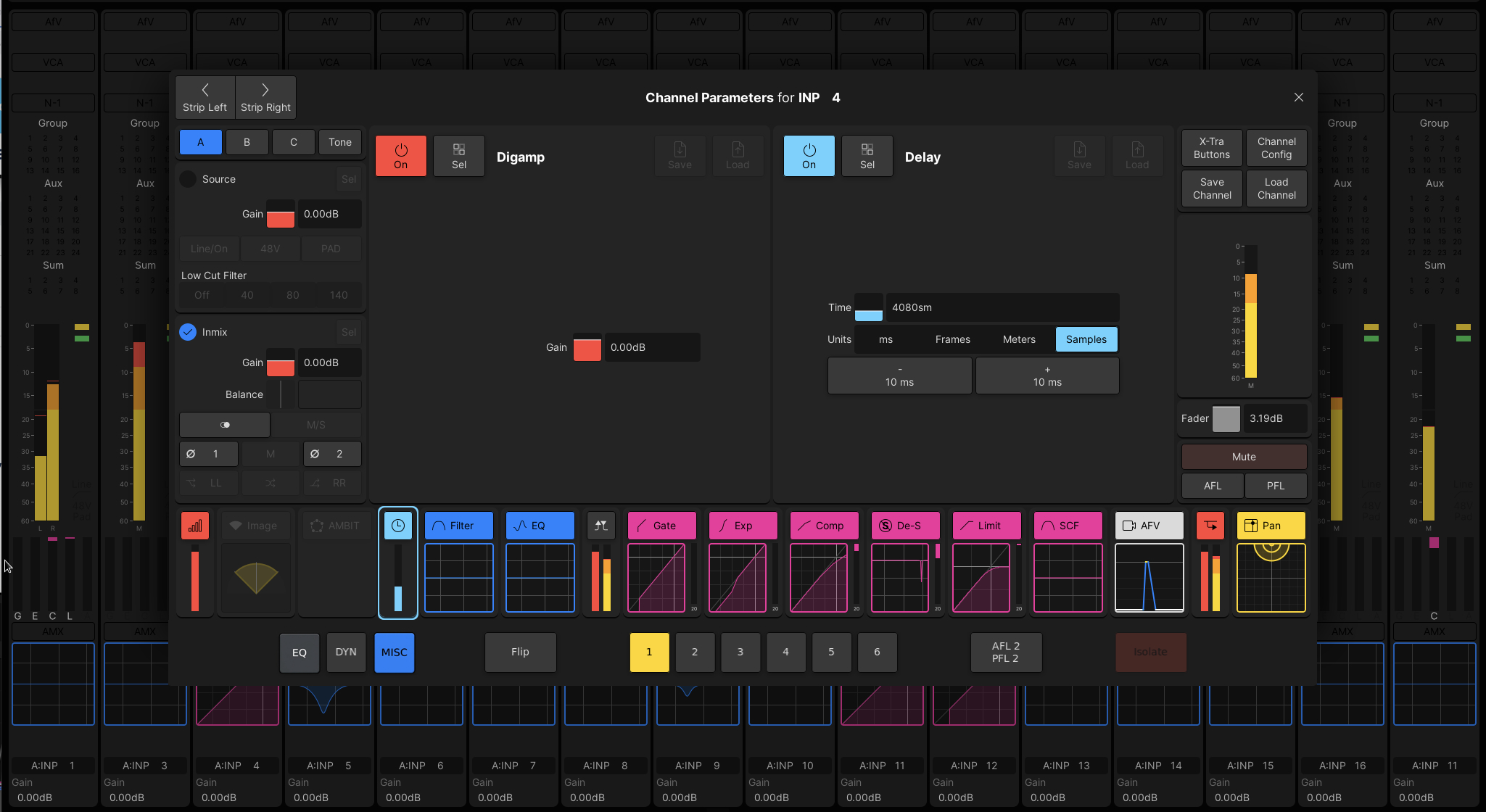
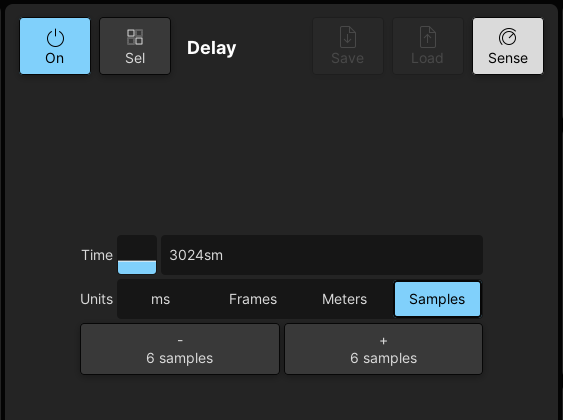
The new unit is fully integrated into the existing delay workflow, with consistent behavior across all representations.
The adjustment controls adapt to the selected unit, providing clear and predictable step sizes during operation.
- New delay unit: samples
- Seamless switching between ms, meters, frames, and samples
- Unit-aware +/- controls with corresponding step sizes
- Display always reflects the active unit and value
This provides finer control over delay without changing the overall workflow.
Clear Offline Signals
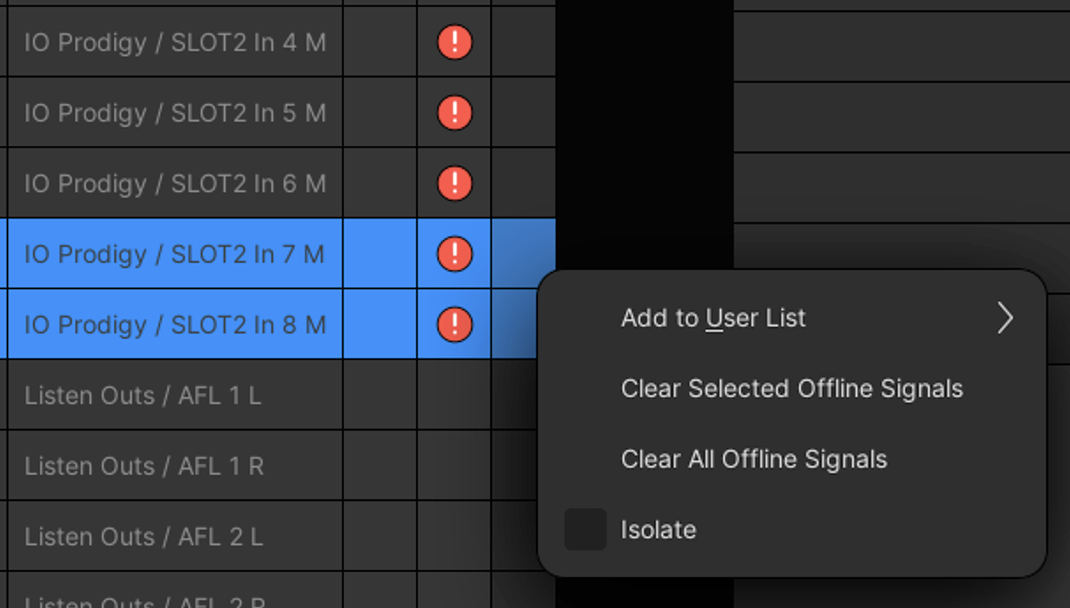
A targeted way to remove offline signals directly from the Signal list is now available.
The feature is available from the context menu and applies only to signals that are clearly no longer in use. This avoids the need for global cleanup while ensuring that active or relevant signals remain untouched.
The removal follows strict eligibility rules to prevent unintended impact:
- Signal must be offline
- Signal must be external
- All associated legs of the signal must be offline
- Signal must not be system or user isolated
- Signal must not be connected to Aliases
The operation always removes the entire parent signal, as individual legs cannot be deleted separately.
Two actions are available:
- Clear Selected Offline Signals – removes only eligible signals from the current selection
- Clear All Offline Signals – removes all eligible signals in the list
Signals that do not meet the criteria are automatically ignored, even if selected. Active signals are never affected.
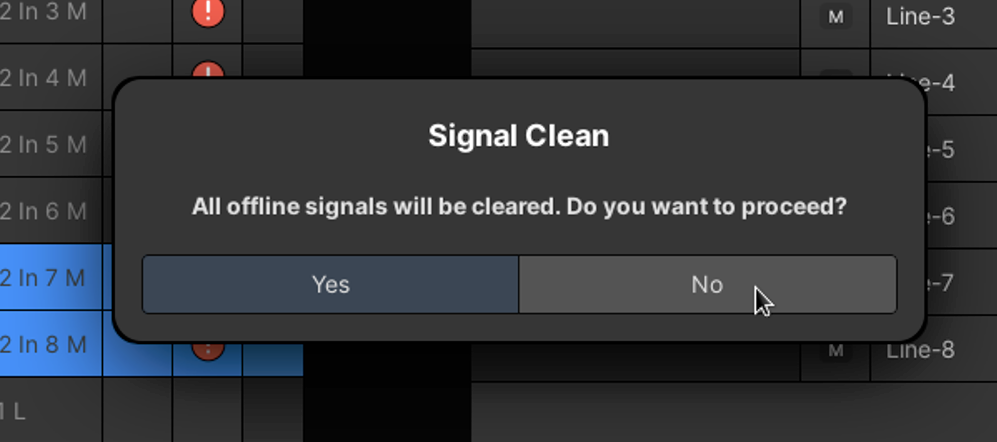
The user is always prompted before proceeding with the action. This provides a controlled and predictable way to clean up obsolete entries while preserving system integrity.
Updated Custom Functions
This release also updates several third-party control integrations:
- Crystal Controller v1.2 (updated)
- Sequoia Control
- d&b Soundscape Control
- Meyer Spacemap Go Control
- Central User Button / Access Channel Functions (updated)
- Reaper Control (updated)
Crystal Control v1.2
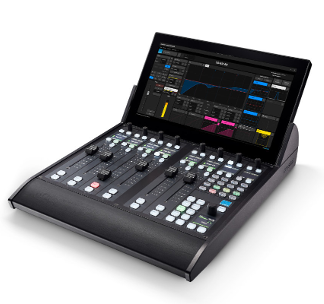
Improvements in usability (faders, encoders, interaction speed), enhanced visual feedback (metering, colors, brightness sync), and broad stability and behavior fixes.
Sequoia Control
DAW integration for Magix Sequoia 2026, offering bi-directional control of up to 256 channels, essential strip parameters, and transport functions.
d&b Soundscape OSC Control
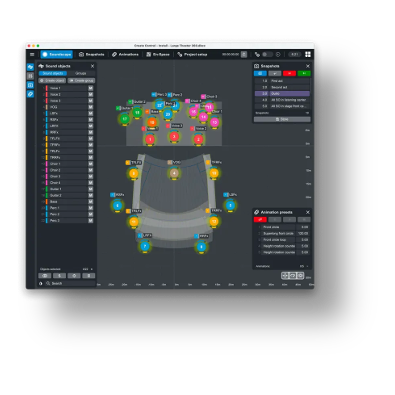
Spatial control integration for objects, routing, and room parameters, allowing bi-directional control of up to 128 objects between mc² consoles and the d&b DS100 engine.
Meyer Sound Spacemap Go OSC Control
Spatial control integration for objects and their trajectory, allowing bi-directional control of up to 32 objects between mc² consoles and the Meyer Sound Galaxy Controller.
Central User Button, Access Channel Functions
Extended controls for RTA Settings.
AAA — HOME 5.0 and API Key Integration
This release enables HOME AAA/RBAC support for NodeSys and mc² systems. When AAA is enabled in HOME, authentication and authorization are managed centrally through HOME, allowing these devices to participate in the HOME security model.
For the AP devices backend configuration is required, and existing installations remain unaffected unless the feature is activated.
Channel Presets via Ember+
External control systems can now trigger preset loading on DSP channels through two functions: getPresetList, which returns the available preset paths, and loadPreset, which loads a preset onto the selected DSP channel. Both Channel presets and Module presets are supported, though preset creation and storage are not — this feature is about loading existing presets, not authoring new ones.
Terminology Alignment
UI terminology has been updated for consistency across mc² workflows. Naming is now aligned between related functions and user interactions, and simplified wording reduces operational ambiguity. No backend or compatibility changes are introduced by this alignment.
No backend terminology has changed — these are UI-only renames, with no breaking changes.
Terminology Changes:
Format: Current → New
Structure follows the UI hierarchy. Entries without change are omitted.
Buses
Buses Reverse → Bus Reverse
Access type → Access Aux/Group/Sum
Show all → Show All
Automix
Add Access → Add Accessed Channel
Remove Sel. → Remove Selected
Channel
Channel Config
Dir-Out mute by fader → Direct Out Mute when Fader Open
Dir-Out balance → Direct Out Follow Channel Pan
Link Metering → Show Meters for Linked Channels
Master → VCA Leader
Select → Sel
Metering
Metering
Assign → Assign Accessed Channel
System
System Settings
Global
External Signal Preferences
Share Group Override Timeout → Signal Ownership Override Timeout
Status
Delta Panpot to Aux Sends → Aux Send Panning Relative to Channel Panning
Crossfade Curve Type → Fade Curve
Default Switch Mode → Default Fade Switch Mode
Surround
Surround Format → Surround Format for Panning Visualization
Channel X → Surround Channel X Contributes to Conference
Console
Access
Reveal Panel Assign Mode → Clear Reveal Panel When Non-Surround Channel Is Accessed
Bank / Strip
Enable Label Rotation for Fader Control Modes → Fader Control Mode Label Rotation
Fader Control Mode Blink Speed → Fader Control Mode Label Rotation Speed
Potentiometer
Invert Pot Fine/Coarse Tuning → Invert Fine/Coarse Behavior
Brightness
Display Brightness → Large Display Brightness
Surface brightness → Small Display, Button, Rotary, and Label Brightness
Userpanel Brightness → User Panel Brightness
Illumination → Surface Illumination
Desk Illumination → Surface Illumination
Surface TFT → Small Displays
Surface TFT Reset → Reset Small Displays
Label View → Show Sub-Label instead of Fader Level
Bay
Select Isolate → Independent Channel Access on Iso Bays
ISO AFL2/PFL2 → ISO Bays Use AFL2/PFL2
Listening
Solo → General
PFL
PFL Fader Mode → Cancel PFL When Fader Open
Off / On / Return → Off / On / On (Return)
SIP
SIP Mode → Solo In Place (SIP)
Off / In Place → Off / On
Channel Display
Strip Layout
AfV → AfV Status
VCA → VCA Assignment
Link → Link Assignment
Automix → Automix Assignment
Dynamics → Dynamics Meters
Layer 1 Label → Layer Label (Front)
Layer 2 Label → Layer Label (Back)
Fader / Joystick
Fader
Show Fader Sense → Fader Sense Highlights Channel Strip
Relative Slave Faders → Moving VCA Follower Faders (behavior of the setting has been inverted)
Externals
Waves Integration
Disable Console Rack Navigation Link → Waves Follows Accessed Channel (behavior of the setting has been inverted)
DSP Configuration
Reset → Revert
Command Triggers
Triggers
Channel
Master → VCA Leader
Snapshots
Snapshot List → Snapshots
Snapshots
Isoset → Iso Set
Global Snapshot ISO → Global Snapshot Isolates
Desk → Strips
Connection → Signal Connections
ABC Switch → Signal A/B/C Input
Label → User Labels
DSP → Channel DSP & Bus
I/O → Signal Parameters
Bay → Strips (ISO Bays)
Cues
Cuelist → Cues
cuepoint0000 → Cue0000
Add to Cuepoint → Add Snapshot to New Cue
Selected Cuepoint → Selected Cue
Load Snapshot Dialog
Switch Mode → Fade Switch Mode
Choose Trigger Dialog
Channel Cut Set → Channel Mute Set
Choose Command Dialog
Set Channel Cut → Set Channel Mute
Load Events
Channel Presets
Load Equalizer Preset → Load EQ Preset
Load Panning Preset → Load Pan Preset
Load Snapshot → Load Snapshot with Fade
Global Operations
Goto Cue List Item → Go To Cue
Goto Next Cue List Item → Go To Next Cue
Goto Previous Cue List Item → Go To Previous Cue
Trim Sets
Snapshot Trim Sets → Trim Sets
Oversnaps → Trim Sets
Live Oversnap Parameters → Active Trim Set Parameters
Clear Abs → Clear Absolute
Abs → Absolute
Merge Live Oversnap Parameters into Snapshots → Merge Live Trim Set Parameters Into Snapshots
Save Live Oversnap Parameters as Snapshots → Save Live Trim Set Parameters as Snapshot
Update Oversnap → Update Trim Set
Iso Sets / Fade Sets
Parameters
Input Mixer → InMix
Equalizer → EQ
Digital Amplifier → DigAmp
Noise Gate → Gate
Audio Follows Video → AfV
VCA Master → VCA Leader
Operations
Load → Load (Overwrite)
Merge → Load (Append)
Discard → Revert
Strips
Strip Assign
Channels
Channel Type
Surr Masters → Surround Leaders
Nodesys 4.4.0
384-Channel DSP License for UHD Core
Added a new 384-channel DSP license option for UHD Core, providing additional capacity and licensing flexibility.
Auto logoff for Web UI
Introduces configurable automatic logout for inactive Web UI sessions. User sessions are automatically terminated after a defined period of inactivity to improve system security. The timeout value is configurable, with a default setting of 10 minutes.